Host timing workflow
Planned Starts and Live Estimates
Know when each segment should start, when it actually started, and whether the meeting is likely to finish early or late.
The short version
Set the first Timer's Plan time and the following starts are calculated for you. Once the session starts, Plan stays your reference while Expected follows the live clock. Hover an upcoming card to reveal its expected start, then hover the time for its early or late difference.
Four times, four different jobs
The countdown tells you how much time remains in one segment. The small times on its Host card place that segment within the whole meeting.
- Plan
- When you intend the segment to begin. It does not record what actually happened.
- Scheduled
- The clock time that controls automatic starting. It is displayed separately from Plan.
- Actual
- When the Timer first started. Pause and resume do not replace this timestamp.
- Expected
- An upcoming start estimated from the current live timing. It can change as the session runs.
Times use the Room timezone, not each viewer's device timezone. Check the timezone at the top of Host before preparing the plan.
Set the first planned start
- Arrange the Timers in meeting order and set their durations.
- Click Set plan on the left of the first card.
- Keep Manual if you want to press Start yourself. Enter hours, minutes, and seconds, or use the dropdown arrows.
- Click Save and review the following cards.
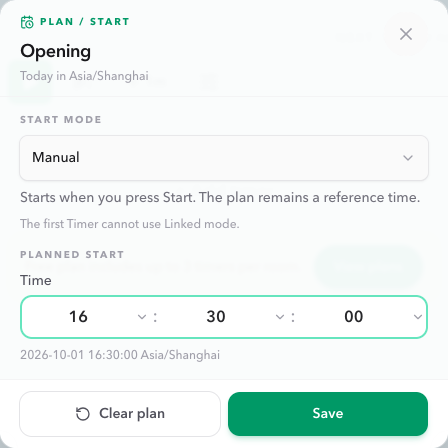
This quick window uses today in the Room timezone; it does not ask you to choose a date. Click the duration on the card to open Quick Design for Duration, Target time, or Time Warp. Start modes belong in Plan / Start.
Let the following starts calculate themselves
For a Duration Timer, the next planned start is the previous planned start plus its planned duration. Here is a simple twenty-minute meeting:
| Timer | Duration | Plan start |
|---|---|---|
| Opening | 05:00 | 16:30:00 |
| Presentation | 10:00 | 16:35:00 |
| Q&A | 05:00 | 16:45:00 |
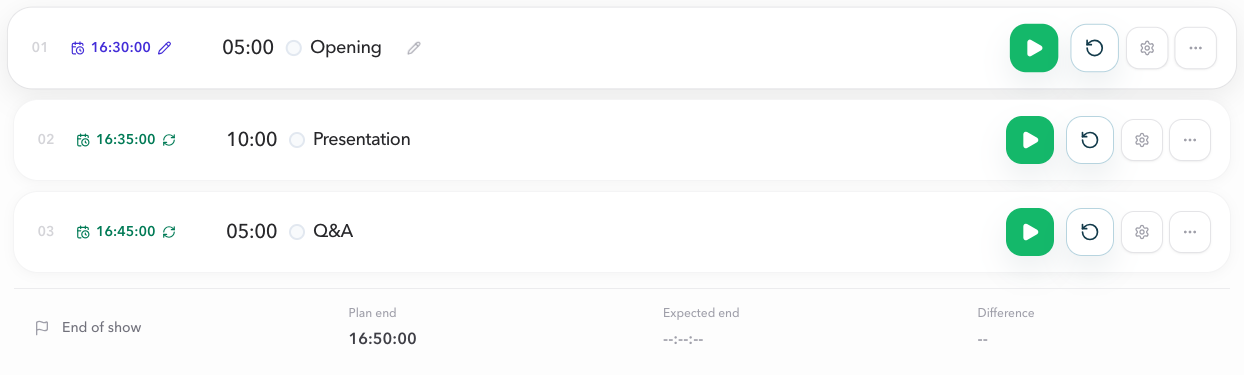
A pencil marks a time you entered yourself.
Circular arrows mark a calculated time.
You can edit a later start directly. Its following Timers then recalculate from that new time. Changing an earlier start or planned duration also recalculates later starts, including manually entered ones. A pencil marks the source of a time, not a lock.
Time Warp uses the real agenda duration, not the presenter-facing countdown. Target time uses its fixed end deadline to determine the next planned start. Review Plan endafter editing: the meeting's end is calculated, not a locked deadline.
Choose how the Timer actually starts
In the same Plan / Start window, choose the start behavior that fits the handoff.
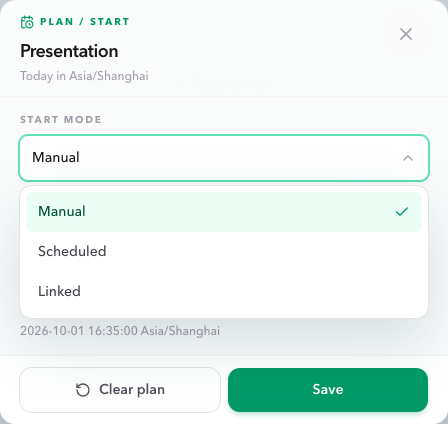
- Manual: wait until the operator presses Start.
- Scheduled: start automatically at the saved clock time. Saving this shortcut uses the entered time for both Plan and the automatic start; the card shows Scheduled separately. The automatic start must be in the future.
- Linked: start after the previous Timer finishes. This is unavailable on the first Timer because it has no previous segment.
Live estimates never change the Scheduled trigger. Explicitly editing the plan can also move a Scheduled time that follows that plan, so check its separate clock row after making a planning change. For more handoff options, see Linked Start.
Keep or resolve a gap or overlap
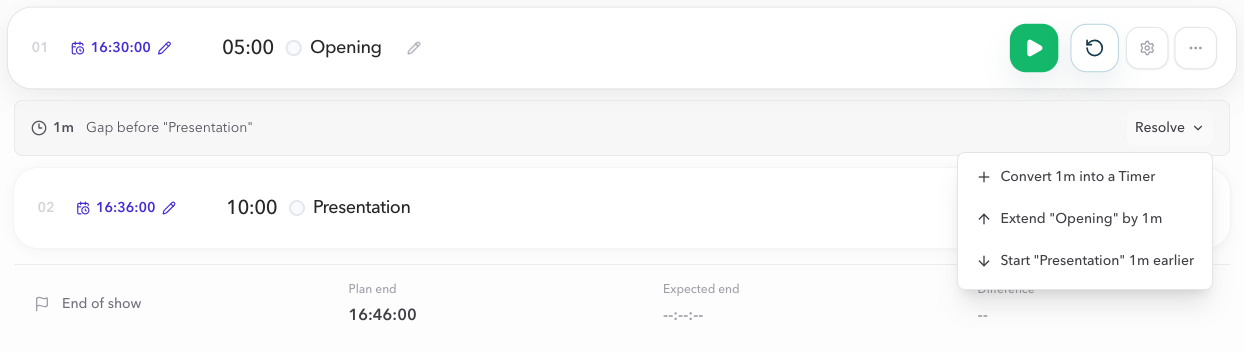
Editing a later start can leave space after the previous Timer, or make the two planned segments overlap. A slim strip between their cards shows the amount. Click Resolve for a small menu of concrete changes.
A one-minute gap
Opening ends at 16:35, but Presentation is set to 16:36. Choose one of these:
- Convert 1m into a Timer: insert a one-minute Interval.
- Extend Opening by 1m: make Opening six minutes long.
- Start Presentation 1m earlier: move its Plan start to 16:35.
A one-minute overlap
Presentation is set to 16:34, while Opening ends at 16:35. Either shorten Opening by one minute or delay Presentation by one minute.
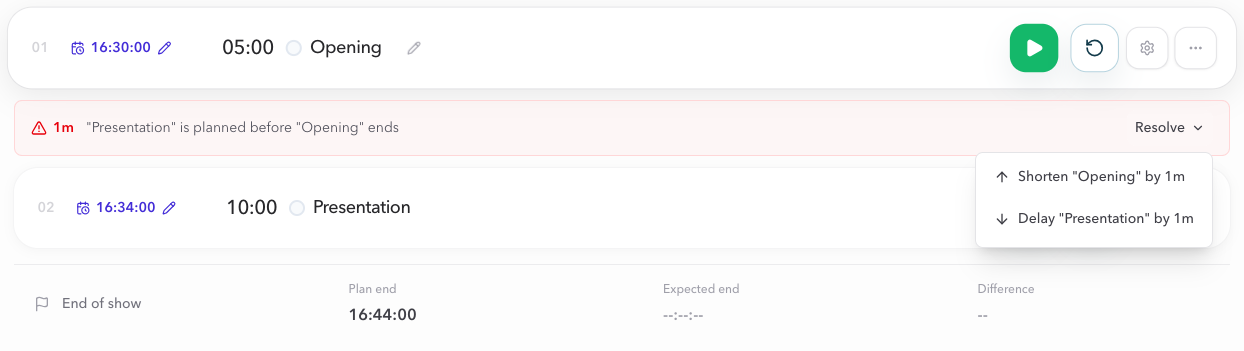
You can also leave it as it is: close the menu without choosing an action. No adjustment happens automatically. When you do resolve it, the later planned starts recalculate; recheck the meeting end. Actions that would change an already started Timer's plan are unavailable until it is reset.
Follow the session without rewriting the plan
Once a Timer starts, Host records its Actual start and estimates upcoming starts from live remaining time. The saved Plan remains a reference unless you deliberately edit it.
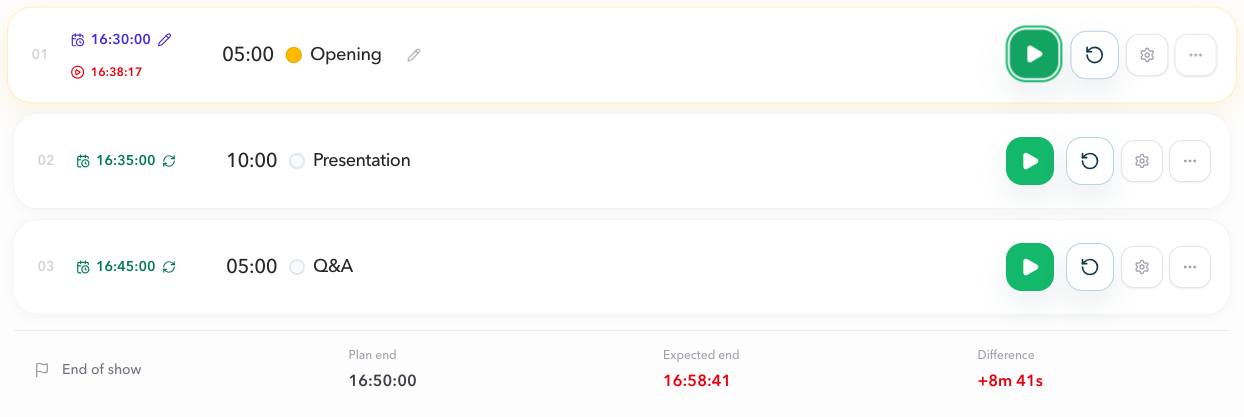
Upcoming cards normally show only their Plan time, or Set plan if none is saved. Hover the card to reveal Expected inside it, then hover that time for a small tooltip. Keyboard focus also reveals it; on touch screens, tap the card and the time to inspect it.

- Pause and resume
- For Duration and Time Warp, a pause retains the remaining time while the event clock advances. Upcoming estimates move later. Resuming keeps the original Actual start.
- Add or remove live time
- Changing remaining time, including scrubbing or an exact correction, updates later estimates. It does not by itself rewrite the saved planned duration.
- Waiting after zero
- If the countdown ends but the next segment has not started, waiting continues to count. An upcoming expected start does not stay stuck in the past.
- Start the next Timer
- Its real start and live remaining time become the new basis for the following estimates. Selecting another segment can also change the projection.
- Time Warp
- Estimates use real remaining time, not the speed-adjusted countdown the presenter sees.
- Target time
- The fixed target end remains the deadline, including across pauses. If an estimated start falls after its target end, review the conflict rather than treating the forecast as a usable slot.
Unresolved planned gaps and overlaps remain part of the projection. Expected does not press Start, move a Scheduled trigger, or resolve a timing conflict for you.
Check the whole meeting's end
Look below the last Timer for End of show. It brings the three useful end-of-meeting values together:
- Plan end: when the final Timer is planned to end.
- Expected end: the finish projected from live timing.
- Difference: Expected end minus Plan end. A positive value is late, a negative value is early, and On plan means they match.

Before any Timer has started, Expected end is empty. Without a planned end, there is no Difference to compare. Expected end is not a recorded actual finish; it is a forecast based on the current session state.
Clear planned starts in one go
- Click Select above the Timer list.
- Choose individual Timers or tick Select all.
- Open the three-dot menu and choose Clear planned starts.
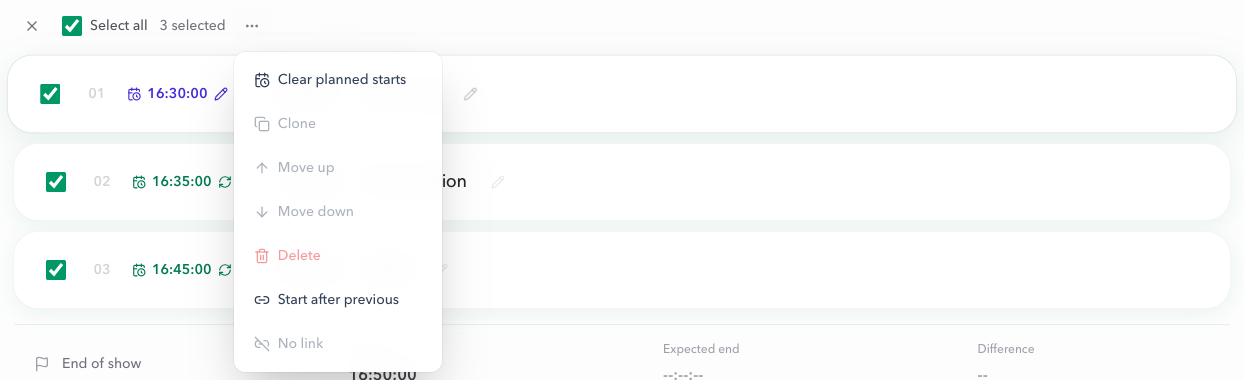
This removes the selected Plan times without changing their durations, Scheduled settings, or handoff modes. All selected Timers must be unstarted; a running or paused Timer needs to be reset first. To clear just one, open its Plan / Start window and choose Clear plan.
Common questions
Does setting a Plan time start the Timer automatically?
Not in Manual mode. Plan is a reference time; you still press Start. Scheduled starts at its configured clock time. Linked starts after the previous Timer finishes.
Will a manually entered time stay fixed if I edit an earlier Timer?
No. Changing an earlier planned start or planned duration recalculates the following planned starts, including ones you entered manually. A manual time is not a locked deadline. Review the later Timers and Plan end after editing.
Do I have to resolve every gap or overlap?
No. You can leave it as it is. The strip remains visible, and live estimates retain that planned spacing. Resolve only when you want to change the plan.
Why do expected times keep moving while the Timer is paused?
A paused Duration Timer keeps its remaining time while the event clock continues. The forecast assumes you resume now, so later estimated starts and the expected finish move later. Target time is different: its fixed end deadline does not move with the pause.
Is Expected end the actual time the meeting finished?
No. Expected end is a live forecast, not a recorded completion timestamp. It is available once timing has started. Difference requires both a planned end and an expected end.
Can I use live estimates without setting a Plan?
Yes. Once a Timer starts, Host can estimate upcoming starts and the meeting end from live timing. Without planned times, there is no early or late comparison.