PresentationTimer

Meeting timer

Free meeting timer for team agendas and online meetings.

Create a host-controlled meeting timer with a shared display, agenda timers, warning colors, and overtime tracking for standups, Zoom calls, Microsoft Teams sessions, and weekly team meetings.

Agenda timers
Share display
Standup flow
See how it works
Live meeting workflowHost + display
Meeting host controls connected to a shared agenda workflow display

Real meeting situations

Meetings drift when only one person can see the clock.

In a real meeting, the timer is not just for the facilitator. It helps the whole room notice pacing, understand what segment is active, and recover when updates run long.

A private laptop timer can be missed, and a notes document can plan the agenda without keeping the room synchronized once the discussion starts.

A shared meeting countdown gives the room one visible source of time instead of one hidden device.

a weekly team sync where each update needs a clear time box
a standup meeting that drifts unless everyone can see the countdown
a remote project review where the facilitator needs a shared display for the whole call
a Zoom meeting that moves from updates to decisions to wrap-up
a Microsoft Teams session where the host wants private controls and a clean public timer
a workshop check-in where one room needs intro, discussion, and next-steps timing

A practical meeting flow

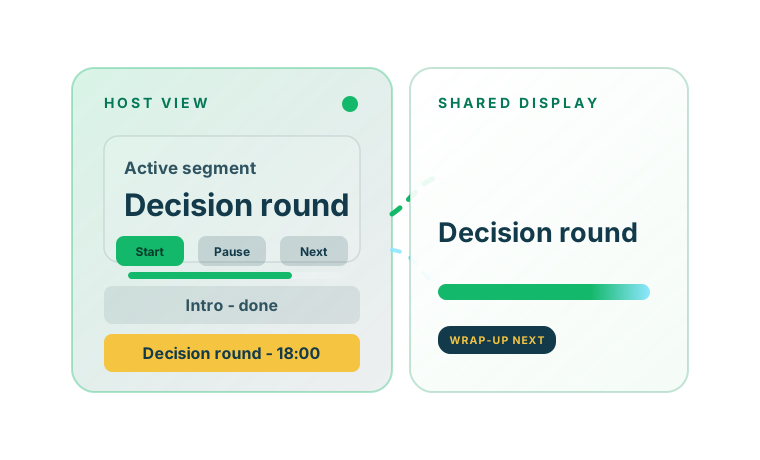
The facilitator controls timing while the room follows one shared display.

Private host controls beside a shared meeting countdown display

In many meetings, the timing problem starts before the first topic ends. The host has an agenda, the team has discussion points, and nobody wants to interrupt every update just to say the remaining time out loud.

PresentationTimer keeps those roles clear. The facilitator opens the host view. The conference room screen, second display, or online meeting share opens a clean read-only countdown.

That display can live in Zoom, Teams, Webex, a browser window on a shared monitor, or a laptop on the meeting table.

The host can adjust the timing live without exposing controls, settings, or editing UI to the rest of the room.

When the meeting has more than one segment, the room can hold a small agenda for introductions, updates, blockers, decisions, and wrap-up.

The result is a calmer session: everyone sees the same clock, the host keeps control, and overtime remains visible when the agenda starts slipping.

Why PresentationTimer

Give the meeting a shared display and keep the controls with the host.

The facilitator should not have to choose between guiding the discussion and manually narrating the clock.

The team should not need to guess whether the current update has two minutes left or has already gone over time.

PresentationTimer separates the host controls from the public display so meeting pacing stays visible without turning the room into a settings panel.

A meeting display everyone can follow

A timer on one laptop helps only the person sitting near it. A shared meeting timer can stay visible on a second screen, conference room display, Zoom share, Teams window, or remote producer machine so the whole room follows the same countdown.

Host controls stay private

The facilitator can start, pause, reset, rename, reorder, and switch agenda timers from the host view while attendees see only the clean shared display. The meeting clock stays visible without exposing the editing controls.

Agenda pacing and overtime stay visible

Green, yellow, red, and overtime states help the room notice when updates are running long. The host does not need to keep interrupting the meeting just to say how much time is left.

How it works

Set up a meeting timer room in four practical steps.

The flow follows the way meetings actually run: create the room, prepare the agenda, show the shared display, and adjust live when the conversation needs more or less time.

You can use one countdown for a short sync or build a small agenda for introductions, updates, decisions, and next steps.

1

Create a meeting timer room

Open PresentationTimer and create a free room. The meeting host gets the control page, and the shared display link is ready for a second screen, meeting room display, or online meeting window.

2

Build the meeting agenda

Add timers for intro, updates, blockers, discussion, decisions, and wrap-up. One room can hold the whole meeting agenda instead of forcing you to restart a single timer again and again.

3

Show the display where people can see it

Open the display link on the conference room screen, a shared browser window, Zoom, Teams, Webex, or a facilitator laptop. The display follows the active timer and stays read-only.

4

Adjust the room live

Start, pause, reset, switch agenda timers, or use Linked Start when one meeting segment should flow into the next automatically. The host can still override the flow manually when the conversation changes.

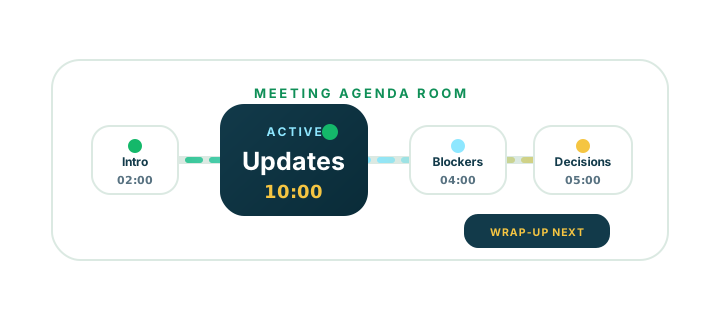
Meeting agenda timers flow from intro to updates, decisions, and wrap-up inside one room

Agenda and Linked Start

Run introductions, updates, decisions, and wrap-up in one meeting room.

A meeting is rarely one countdown. A facilitator may need an intro timer, an updates timer, a blockers timer, a decision timer, and a short wrap-up before the call ends.

Instead of resetting one generic timer over and over, PresentationTimer keeps those segments inside one agenda room.

Linked Start helps when the flow is predictable. The next timer can be selected after the previous one ends, or it can start automatically.

If the meeting changes direction, the host can still switch segments manually without confusing the shared display.

Comparison

Use a meeting timer built for live agendas, not just any countdown.

Phone timer

Fast to open, but hard for the rest of the meeting to see and too isolated for shared pacing.

Notes agenda

Useful for planning, but it does not give the room a live shared countdown.

Generic online timer

Useful for one countdown, but usually lacks host/display separation and multi-step meeting agenda flow.

PresentationTimer

Host-controlled meeting timing with a shared display, warning colors, overtime tracking, and simple agenda timers in one room.

Ready to time a meeting?

Create a free room, share the meeting display, and keep the agenda moving.

Use PresentationTimer for a short standup or a simple multi-segment meeting agenda.

The host controls timing, the shared display stays readable, and overtime remains visible when the discussion runs long.

FAQ

Meeting timer questions

What is a meeting timer?+

A meeting timer is a visible timer used to keep a team meeting, standup, remote sync, workshop, or agenda-based discussion on schedule. PresentationTimer adds host controls, a shared display, warning colors, overtime tracking, and simple agenda timing.

How do I use a timer for meetings?+

Create a PresentationTimer room, add the meeting segments you want to time, and open the shared display where the room can see it. The host keeps the control page private while the meeting follows one visible countdown.

Can I use this as a Zoom meeting timer?+

Yes. Open the display link in a browser window and share it in Zoom, or keep it on a second screen while the facilitator controls the timer from the host view. This works well for remote team meetings, demos, and recurring syncs.

Can I use this as a Microsoft Teams meeting timer?+

Yes. The shared display can stay visible in a Teams meeting while the host keeps the timer controls private. It is useful for standups, project updates, reviews, and decision meetings that need visible pacing.

What is a meeting agenda timer?+

A meeting agenda timer is a timer setup where each meeting segment has its own time box. Instead of running one countdown for the entire session, you can create separate timers for intro, updates, discussion, decisions, and wrap-up inside one room.

Can one room handle a standup and follow-up discussion?+

Yes. A meeting timer room can hold a small agenda, so you can run a standup timer first, then move into blockers, discussion, decisions, or next steps without rebuilding the room.

How do I show a countdown timer during an online meeting?+

Create a PresentationTimer room, open the display link in a browser window, and share that window in Zoom, Teams, Webex, or another browser-based platform. The host keeps the controls private while attendees see the countdown only.

Is this meeting timer free?+

Yes. The current version lets you create a free timer room in the browser for lightweight meetings, standups, workshops, presentations, webinars, and other live timed sessions.