Workflows
My Rooms
Save a reusable Room configuration to your account, then reopen it when the next meeting, webinar, class, or event is ready to run. My Rooms preserves the setup—not the previous live session.
Save the setup. Start the next session fresh.
My Rooms is for recurring configurations. It does not resume an old countdown, reconnect old devices, or turn a previous live event into a replay.
Core model
My Rooms saves configuration, not live state.
A saved Room is an account-owned setup you can use again. It keeps the decisions that define a recurring session, while excluding the temporary state that only belongs to a particular live run.
Saved for reuse
- Room name and timezone
- Room-wide and Timer messages
- Timer names, durations, modes, and display settings
- Warning stages, sound, alert actions, and Linked Start
- Scheduled starts and End at settings
Not restored
- Running or paused state
- Remaining time and past progress
- Actual start times from the previous session
- Connected devices and their live status
- Old Host tokens and private live-session access
Save
Save from the original Host workspace.
First prepare the Room you want to reuse: name it, check the timezone, create the agenda, and set the timing and cue rules. Then use the original Host workspace to save it to your Google account. A read-only output link cannot save a Room.
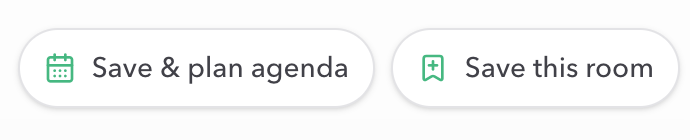
- 01
Open the original Host link for the Room you control.
- 02
Sign in with the Google account that should own the saved setup.
- 03
Choose Save this room after the reusable configuration is ready.
If you only have an Operator, Display, Speaker, Moderator, or Agenda link, ask the Host operator to save the Room. Output links cannot save the Room, and only Host owns the saved configuration.
Open
Find the saved setup and open Host.
Go to My Rooms from the account menu. The list shows each saved Room by name, Timer count, and last-used date, as well as your current saved-room usage. Choose the green Open Host action for the setup you want to prepare next.
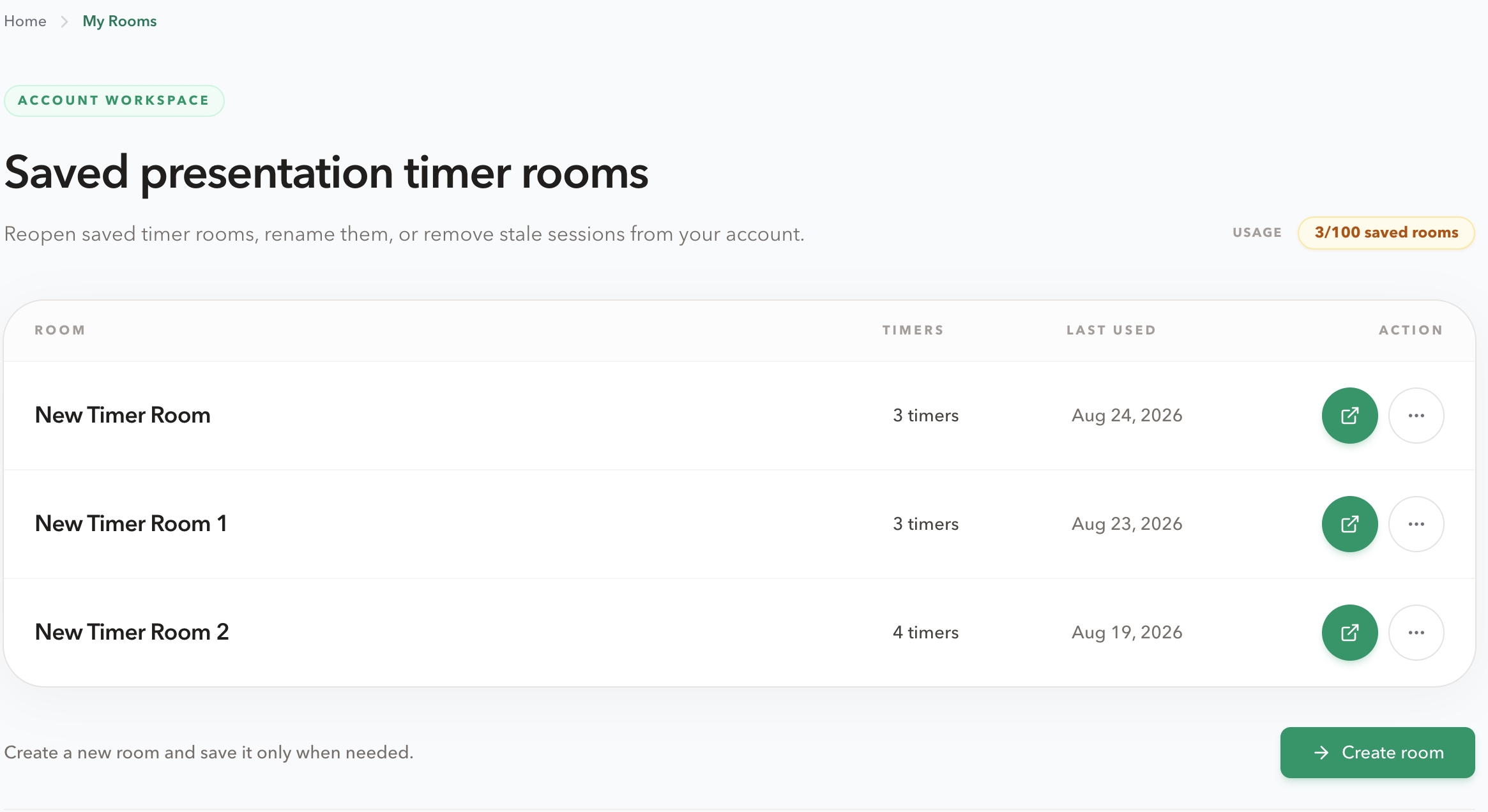
Opening a saved Room returns its owner to Host so the configuration can be reviewed and the correct read-only outputs can be shared for the new session. It does not give other people public access to the saved Room's Host controls.
Eligibility
Check limits and schedules before reopening.
The saved-room allowance and Timer allowance depend on the active plan. My Rooms shows usage at the top of the list. If the limit is reached, remove an outdated saved setup or change plans before saving another.
A saved Room can be marked Needs review when it no longer fits the current Timer allowance. If scheduled starts or End at times are already in the past, Host asks the owner to review and choose new timing before reopening; it does not silently move a schedule to another day.
View plan allowancesFresh session
Copy a saved setup into a new Room.
Eligible paid accounts can use the more-actions menu to copy a saved setup. Copy creates a distinct new Room with a new name, so you can preserve the original template while preparing a separate instance for the next session.
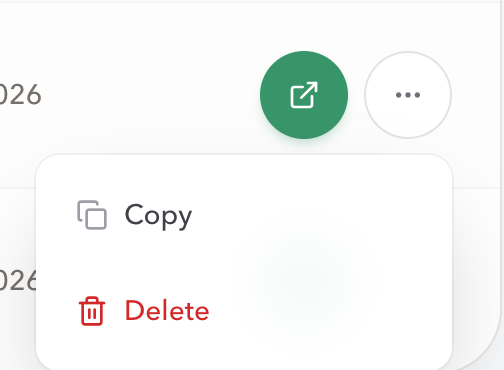
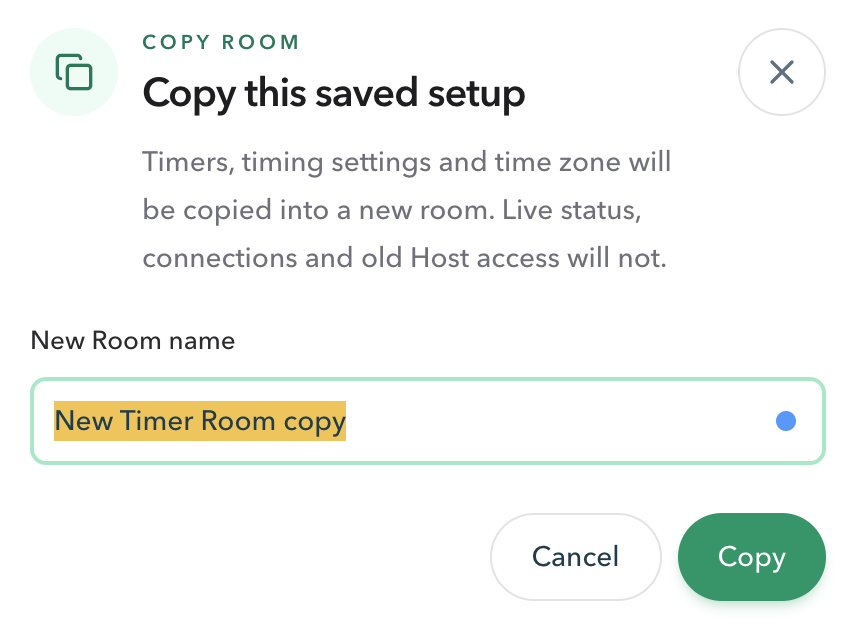
Copy availability depends on the saved Room's plan status and the active account plan. If it is not available, open the saved Room as Host and review the setup for the next session instead.
Manage
Rename recognizable setups and remove stale ones.
Give recurring Rooms names that explain their purpose, such as Weekly all-hands, Classroom debate, or Webinar Q&A. My Rooms also shows the Timer count and last-used date to help identify outdated configurations.
Delete removes a saved configuration from the account and has no restore action. Use it to make room for a new saved setup—not as a way to stop or revoke a separate live Room already in use.
Checklist
Before the next session starts
- The saved Room is owned by the Google account currently signed in.
- The reusable agenda, timezone, Timer settings, messages, and handoff rules have been reviewed.
- Past scheduled starts or End at times have been explicitly reviewed before opening the Room.
- The new session starts with fresh live state, not a resumed old countdown.
- The correct Operator, Display, Speaker, Moderator, and Agenda outputs will be shared from Host for the new session.
- Stale saved Rooms have been deleted only when they are no longer needed.
FAQ
Common My Rooms questions
Do I need an account to save a Room?
Yes. Sign in with Google and use the original Host workspace to save a Room to My Rooms. You can still create and run an unsaved Room without an account.
What does a saved Room keep?
It keeps reusable configuration such as the Room name, timezone, messages, Timer names and settings, warning stages, sound and alert actions, scheduled timing, and Linked Start choices.
Will Open Host resume the old live session?
No. My Rooms stores configuration, not a recording of the previous event. Running state, remaining time, actual starts, connected devices, and old Host access are not restored.
Who can open a saved Room as Host?
Only the signed-in account that owns the saved Room can use My Rooms to open it as Host. The list is not a public directory of Room control links.
How many Rooms can I save?
The limit depends on the active plan. My Rooms shows your current usage and saved-room allowance; when the limit is reached, delete a saved setup or upgrade before saving another.
What does Copy do?
Copy creates a new Room from the saved configuration. It copies timers, timing settings, and timezone, but not live status, connections, or old Host access. Copy is available only when the saved Room and account plan are eligible.
What happens when I delete a saved Room?
Delete removes that saved setup from My Rooms with no restore action. It does not erase a separate live Room already open elsewhere or revoke every previously shared output link.