Start here
Create a Room
Create the shared workspace for one live session, understand the values that are created with it, and prepare the first timer before opening any read-only output.
Create one Room for the complete session.
A Room holds the live timer state, its timer segments, Room timezone, and connected views. Create another Room only for a separate session with different participants, screens, or timing.
Step 1
Choose Create room.
Select Create room from the homepage or another documentation call to action. PresentationTimer creates the Room immediately and opens its Host workspace in the same browser. There is no separate setup form before the first Room is available.
Initial state
Understand what is created.
A new Room starts with a usable first timer rather than an empty workspace:
- Room name
- New Timer Room
- The shared workspace name.
- First timer
- Presentation
- The first timed segment.
- Duration
- 10:00
- A ten-minute duration ready to adjust.
- Start mode
- Manual
- The timer starts when Host presses Start.

The Room timezone is captured from the browser that creates the Room. Check it before using scheduled agenda items.
Room identity
Give the Room a recognizable name.
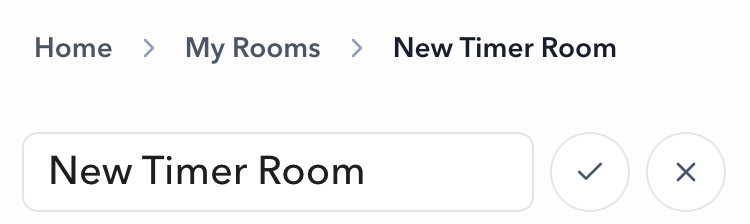
Replace New Timer Room with a name that identifies the session, such as Spring faculty meeting, Product demo, or Opening keynote. A clear name helps distinguish saved Rooms and reduces the chance of opening the wrong session.
- 01Select the pencil beside the Room name.
- 02Enter the new name.
- 03Select the check button to save, or the close button to cancel.
Timer setup
Configure the first timer.
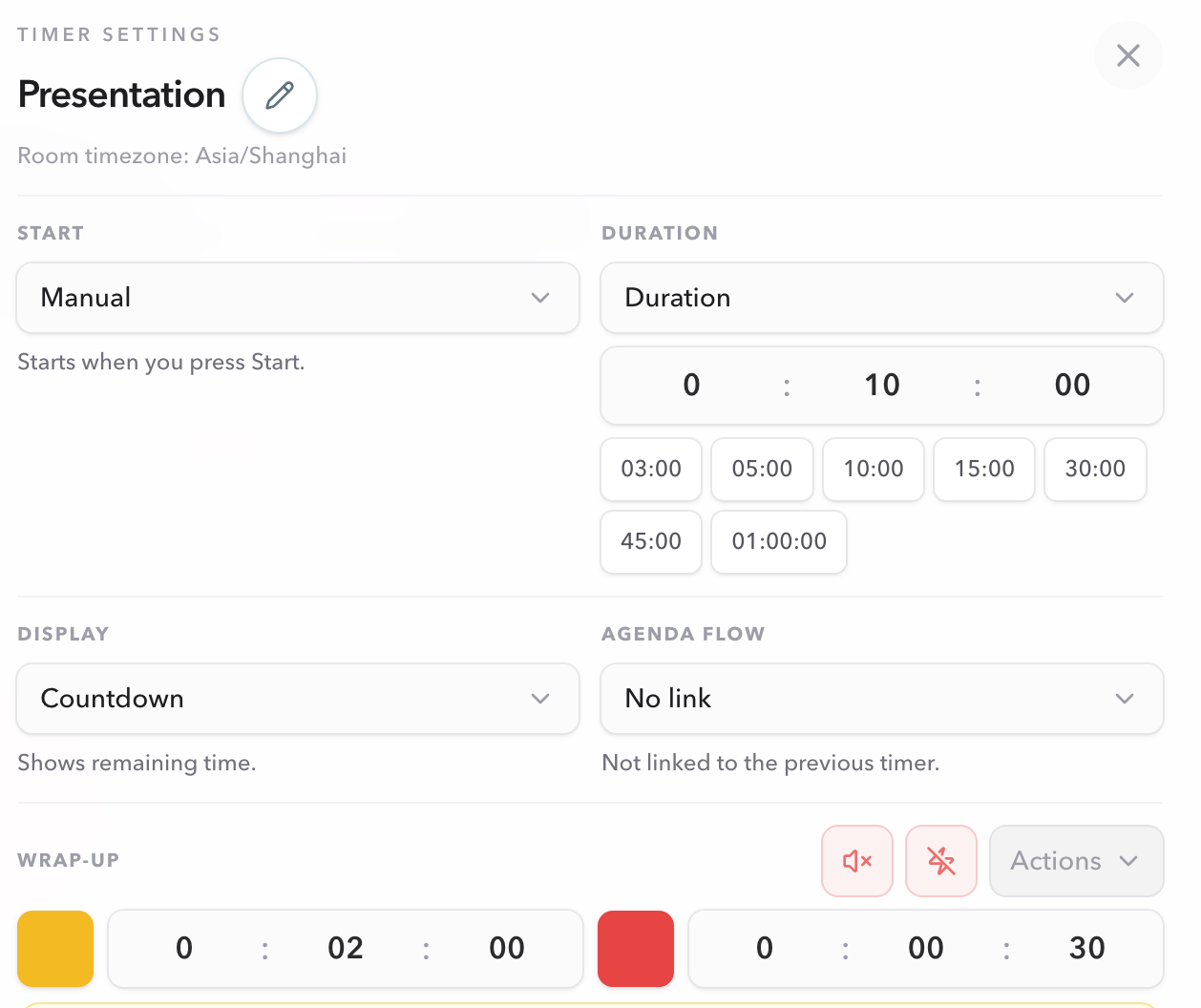
The first timer is named Presentation and starts at ten minutes. Open its settings when the first segment needs a different name, duration, display mode, or agenda handoff.
What to check here
Use Manual when the operator should decide when the timer starts. Use Duration for a countdown, then review Display and Agenda flow before saving the settings.
For a session with several ordered segments, add the remaining timers in Host. The first timer has no previous segment, so it stays on No link. After a second timer exists, hover the gap between the two cards and click the connector to set Start after previous on the lower timer. For a full Run of Show with draft editing, CSV import, or scheduled items, continue to Agenda Timers.
Control boundary
Creation opens Host, not the shared screen.
Creating a Room does not automatically open Display or share a control link. Host is the private workspace for starting, pausing, switching, and correcting timers. When the Room is ready, open the appropriate read-only output for the projector, presenter, moderator, or agenda reader.
- Keep Host with the operator.
- Use Display for the audience-facing screen.
- Use Operator for live timing control, or Speaker, Moderator, or Agenda for the context each person needs.
- Keep every output connected to this same Room.
Before sharing
Check the Room before opening outputs.
- The Room has a recognizable name.
- The first timer name and duration match the session.
- The Room timezone is correct for any scheduled timing.
- The first timer's start mode, display mode, and agenda flow are intentional. After a second timer exists, the Host list connector can set Start after previous on that upcoming timer.
- Host remains on the private control device.
FAQ
Common Room creation questions
Do I need to complete a setup form first?
No. Choose Create room and PresentationTimer creates the Room immediately, then opens its Host workspace. You can rename the Room and adjust the first timer from there.
What does a new Room contain?
A new Room starts with the name New Timer Room and one timer named Presentation with a ten-minute duration. The Room timezone is supplied from the browser that creates it.
Is a Room the same thing as a timer?
No. A Room is the shared workspace for a complete session. It can contain several timer segments, such as Welcome, Presentation, Break, Questions, and Closing.
Does creating a Room open a Display automatically?
No. Creation opens Host first. Open Operator for live timing control, or Display, Speaker, Moderator, or Agenda later from the Room's output controls when you are ready to share a focused view.