Workflows
Audience Questions
Collect questions without interrupting the speaker, review them in one focused queue, and show only what is ready for the room.
Audience submits; Host decides what reaches the room.
Questions often get lost in chat or interrupt the person speaking. Audience Questions gives people a simple way to participate while the Host keeps the live session moving.
Why use it
Turn scattered questions into a clear live conversation.
Audience Questions is useful when people need to participate but the session still needs a clear pace. It separates collecting questions from deciding what the room should see.
Keep the conversation open
Audience members can ask from their phones without interrupting the speaker or waiting for a microphone.
Keep every question in view
Host and Moderator review one focused queue instead of searching through chat messages.
Keep the room on track
Only the question that is ready gets shown beside the timer. The audience never receives Host controls.
How it works
One public link, one private queue.
The audience gets a public question page. Host and Moderator get the review workflow. Display receives only the question that a Host or Moderator chooses to show.
Audience
Open the link, write a question, and submit.
Host / Moderator
Review the queue and decide what to show.
Display
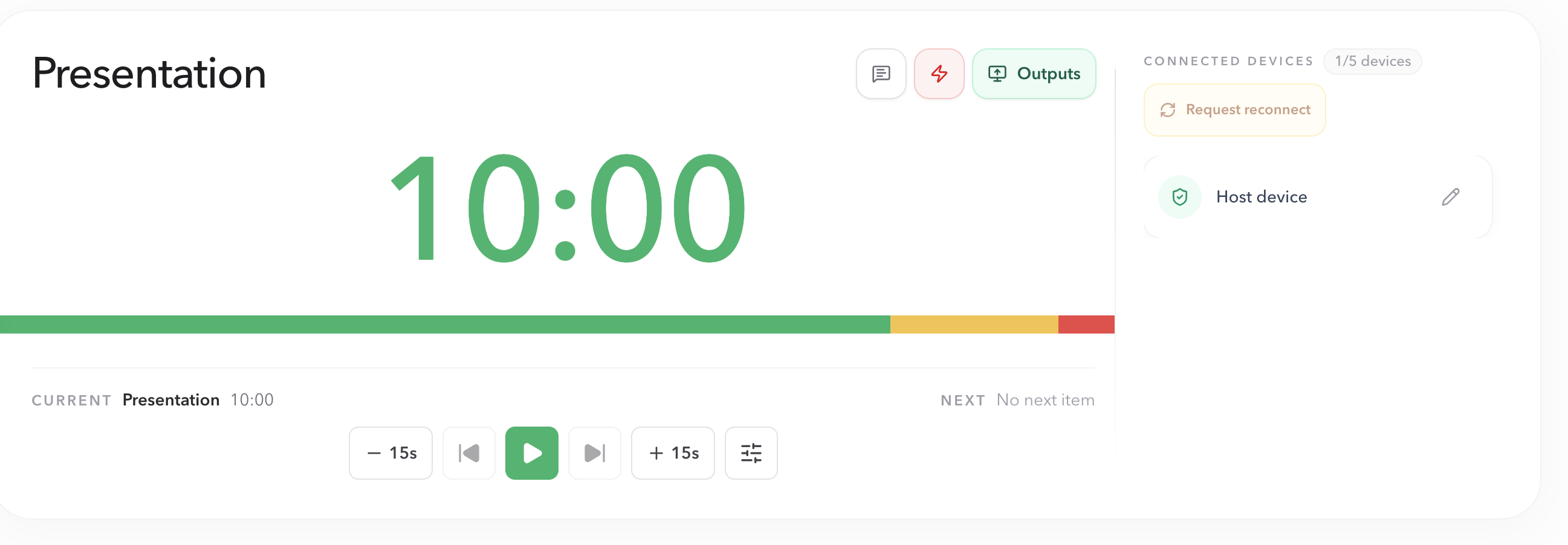
Show one selected question beside the live timer.
Step 1 · Host
Share the QR code or audience link.
- 01
Open the private Host workspace and choose Messages.
- 02
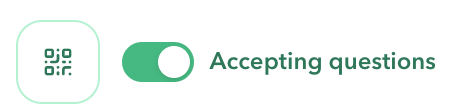
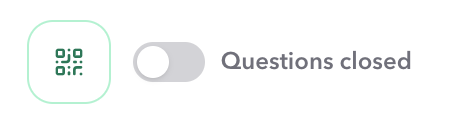
Use the QR/share icon in the Audience questions section.
- 03
Show the QR code on a nearby screen, or copy the link into chat, slides, or the event check-in message.
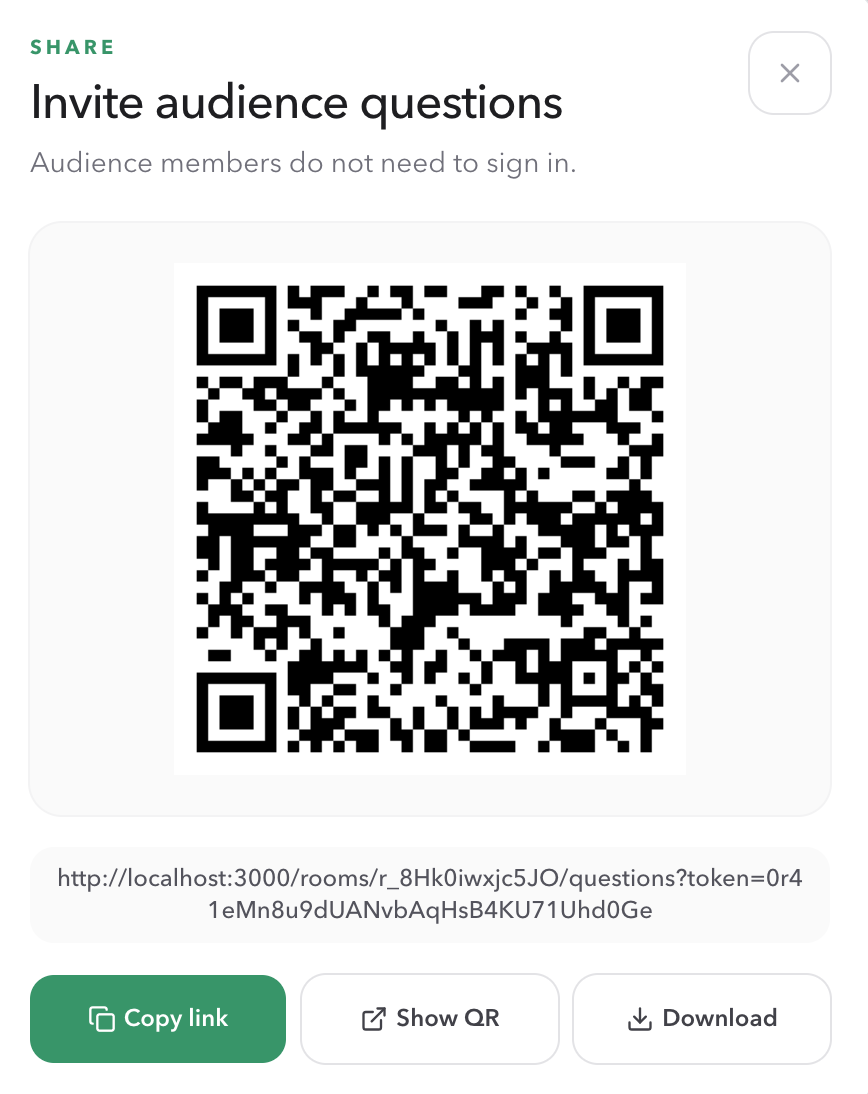
Share the audience link, never the Host URL. Host controls remain private.
Step 2 · Audience
Let people submit from their phones.
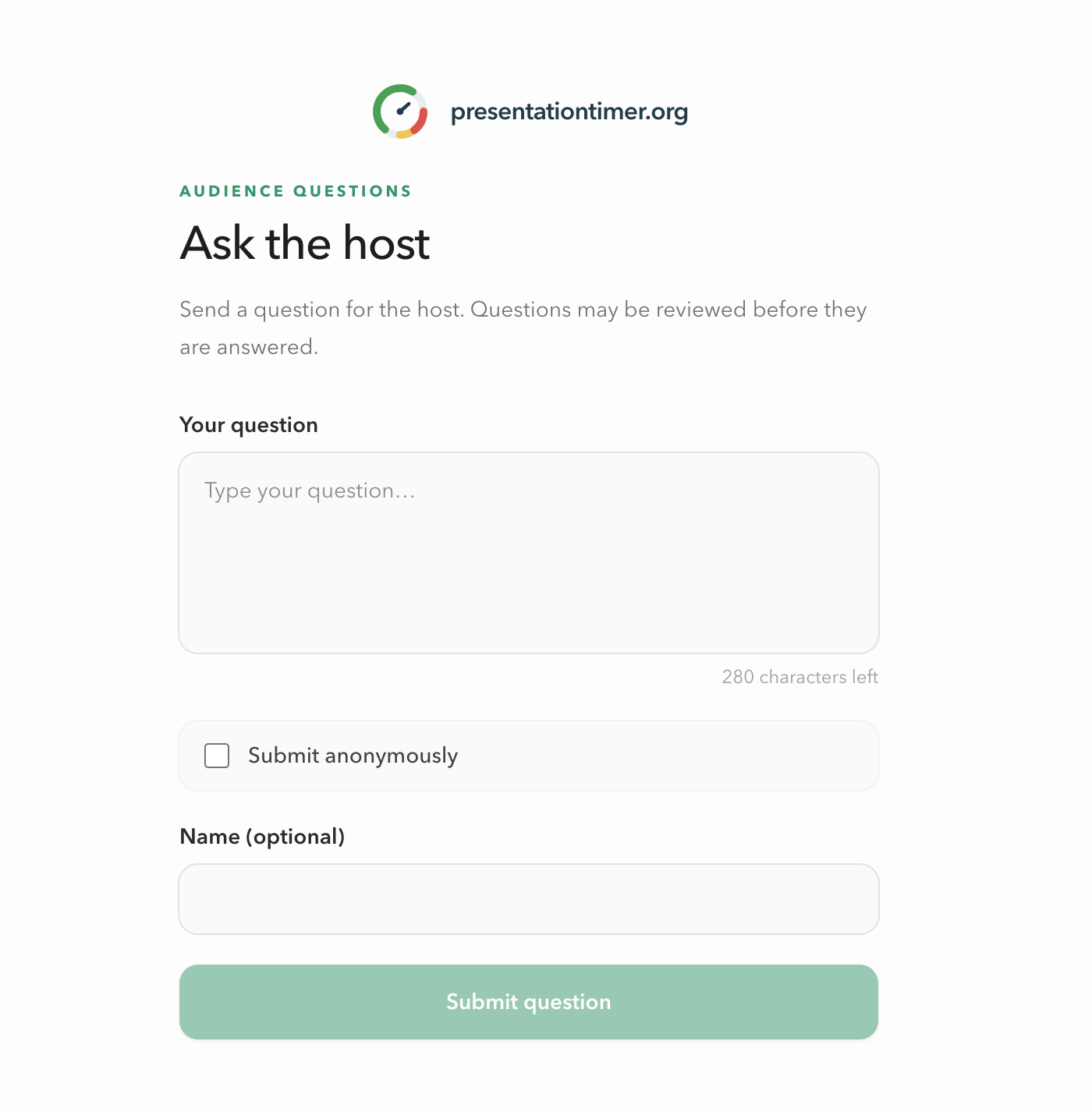
Audience members can write up to 280 characters, optionally include a name, and submit anonymously. They see a confirmation and can send another question, but they never see anyone else's questions.
Step 3 · Host / Moderator
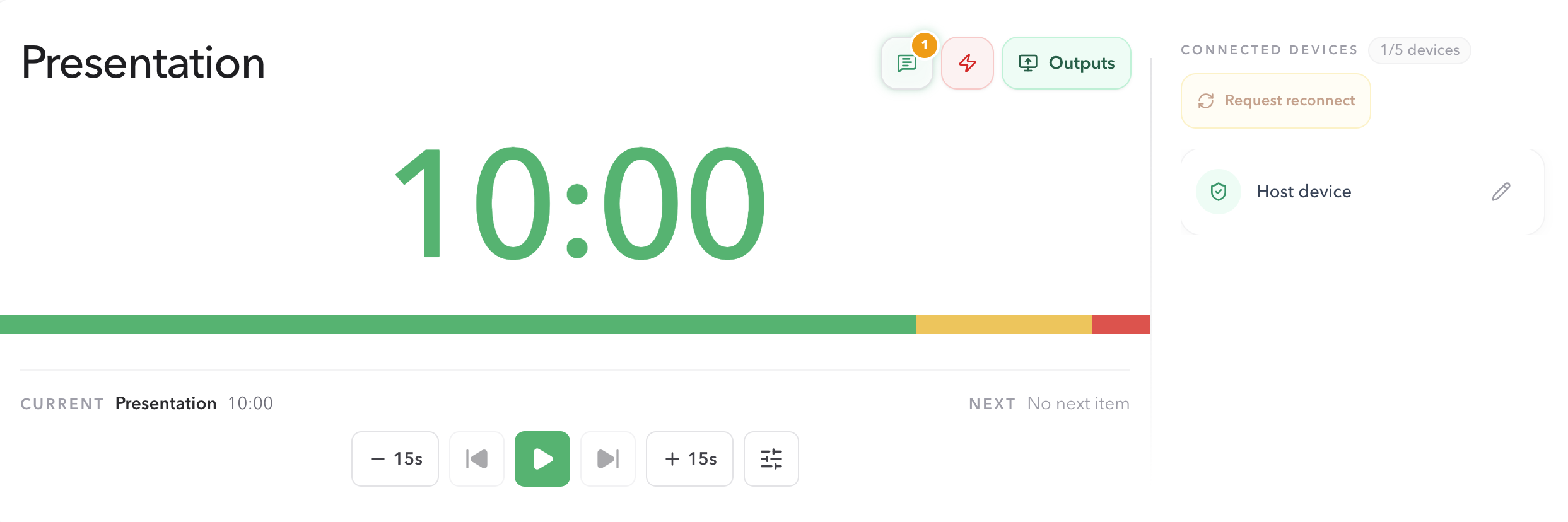
Review incoming questions in Messages.
New submissions appear in the Audience questions queue. The badge counts questions that have never been opened with Show, so it reflects unread work rather than every question still in the queue.
Step 4 · Live workflow
Show, hide, and switch without losing questions.
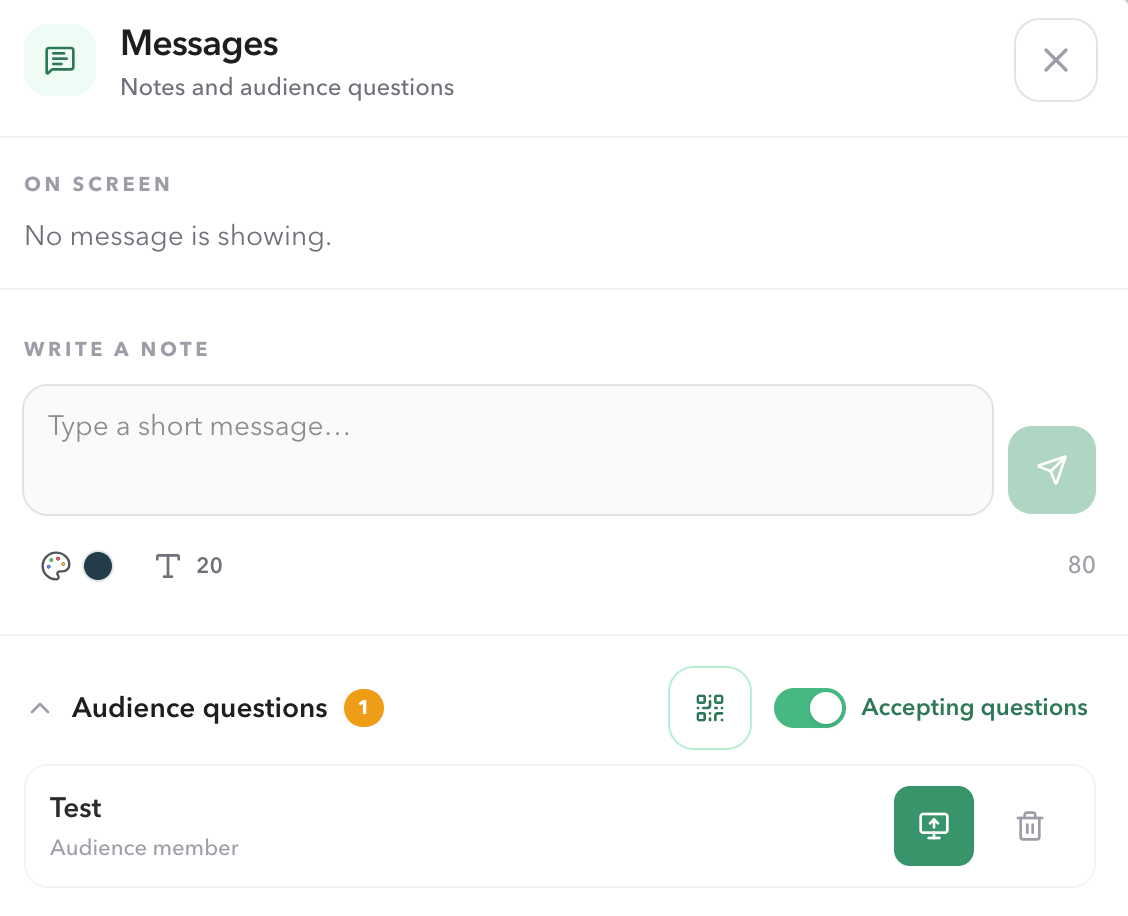
Choose Show to put a question into the existing Display message. Only one question can be current at a time.
- Show another question: the previous one returns to New and stays in the queue.
- Show the current question again: it hides from Display and remains available to show later.
- Hide or switch does not mark a question answered. Delete only when the question should be removed.
- Showing a question marks it as read. If it later returns to New, it does not reappear in the unread count.
Step 5 · Cleanup
Delete only when a question should leave the queue.
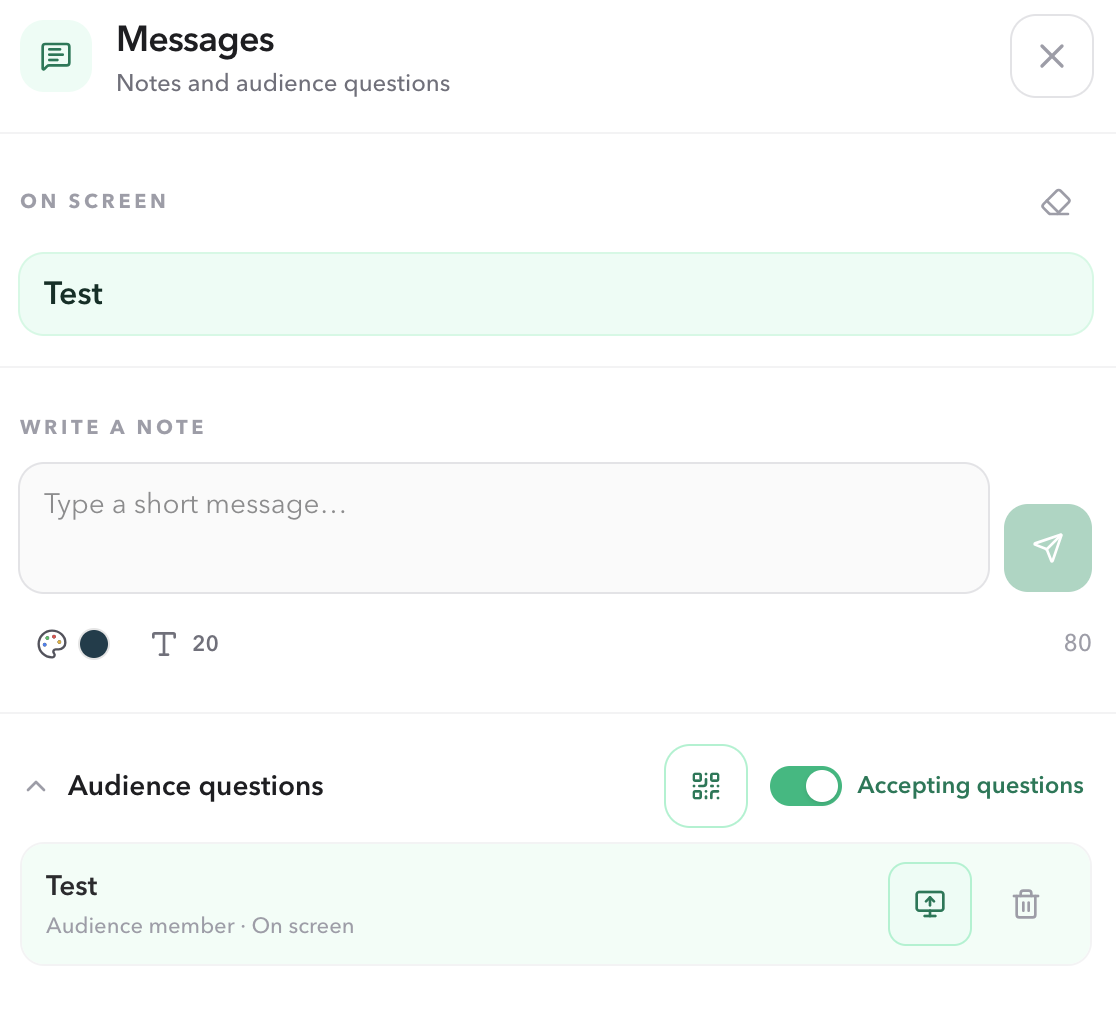
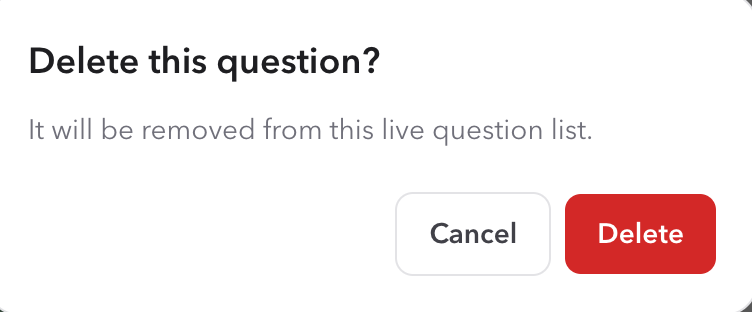
Use the trash icon beside a question when it should no longer be kept. PresentationTimer asks for confirmation before removing it. Deleting the current question also clears it from Display.
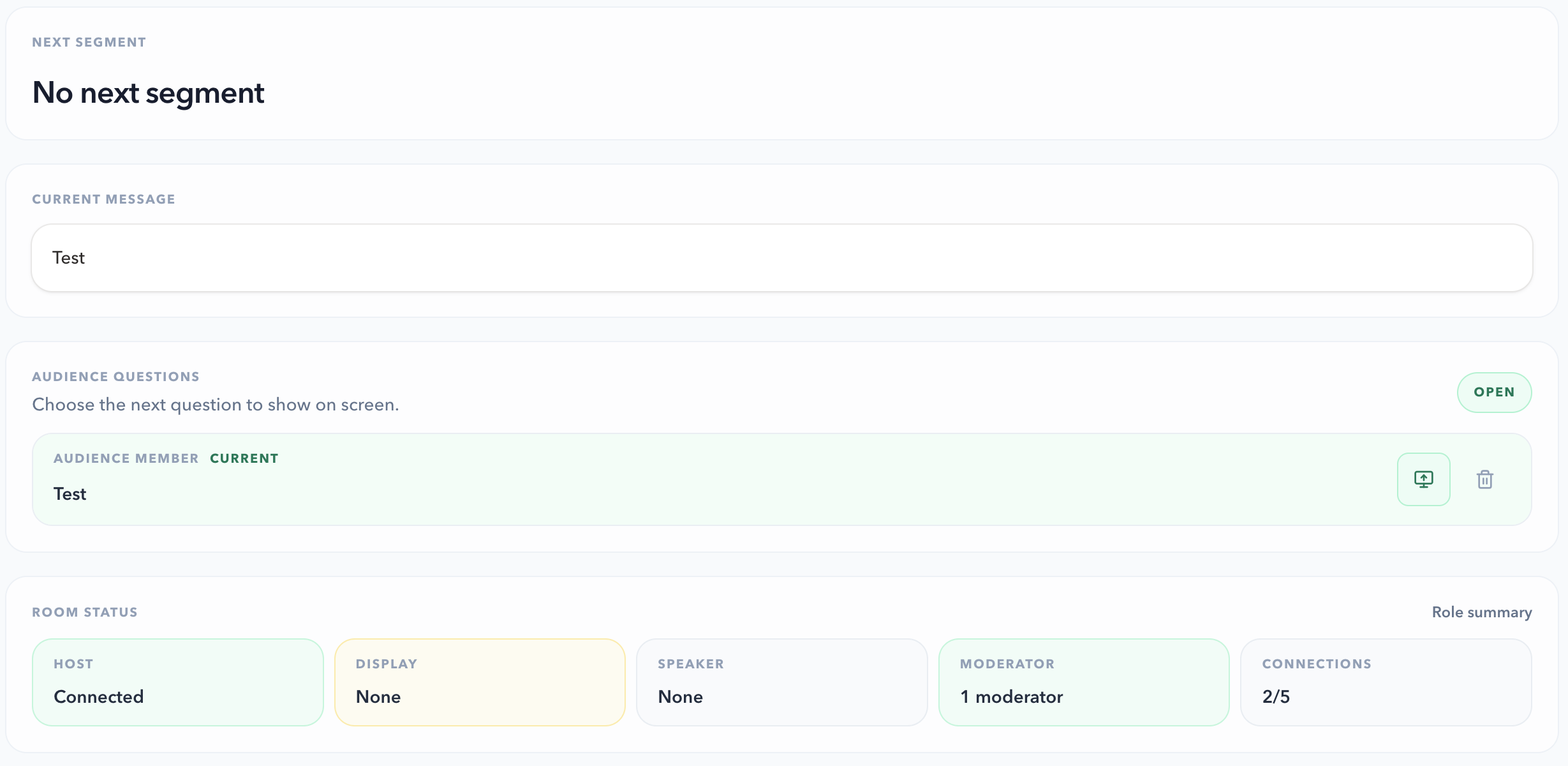
Backstage workflow
Moderator can run the same queue.
A Moderator can review incoming questions and use the same Show / Hide behavior from the Moderator view. Host remains the Room owner and keeps control of Room settings, sharing, and timer operations.
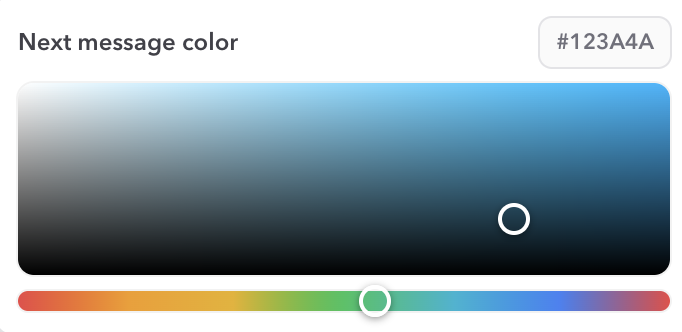
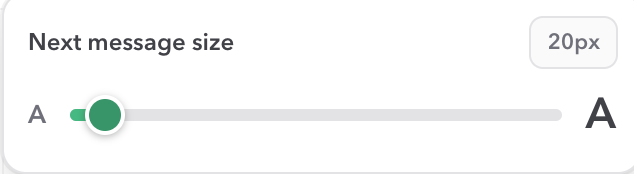
Optional styling
Make a shown question readable at a distance.
Audience questions use the same Messages surface as Host notes. Adjust color or size only when the question needs stronger contrast on the actual shared screen.
For the complete note workflow, see Messages.
Plans
Know the question limit before the event starts.
The limit applies to questions retained in the live queue. It does not limit QR scans or failed submission attempts.
| Plan | Audience questions |
|---|---|
| Free | Up to 3 received questions per event |
| Pro | Unlimited audience questions |
| Premium | Unlimited audience questions |
When a Free event reaches 3 retained questions, the audience sees a clear limit message. Existing questions remain available to Host and Moderator.
Checklist
Before the audience arrives.
- Open Messages in Host and confirm the audience QR code or link is ready.
- Test one submission from a separate phone or browser.
- Open the intended Display output and verify that a shown question is readable beside the timer.
- Tell the audience that questions may be reviewed before they appear on screen.
- Keep the Host URL private and use the audience link for attendees.
FAQ
Common questions about Audience Q&A
Do audience members need an account?
No. They open the audience link or scan the QR code and submit from the public question page. Keep the Host link private.
What happens when I show another question?
The new question replaces the current Display message. The previous question returns to the queue and can be shown again later. It is not deleted or automatically marked answered.
Why did the unread number disappear?
Showing a question marks it as read. If you hide it later, it remains in the queue as New but does not appear again in the unread count.
How many questions can a Free event receive?
Free rooms can retain up to 3 received questions per event. Pro and Premium rooms include unlimited audience questions.
Can the audience see other people's questions?
No. The audience page only confirms the person's own submission. Other questions stay in the private Host or Moderator workflow.