Troubleshooting
Sync and connections
When a shared timer looks stale or Host cannot control the Room, find the affected role first. This guide separates wrong links, missing Host access, reconnecting views, device capacity, and network issues without turning a live incident into more duplicate tabs.
Keep Host as the operational source of truth.
The authorized Host device runs the Room. Display, Speaker, Moderator, and Agenda are read-only receivers. Keep Host open while reconnecting or replacing an affected shared view.
First check
Identify the exact screen with the problem.
Start with the device and URL that show the symptom. A Host control problem is different from a stale projector, a speaker's phone, a moderator monitor, or a backstage agenda. Do not refresh every device at once; establish which role is wrong first.
- Host
- Private control workspace. It edits the Room and can run the live session.
- Operator
- Focused timing console. It starts, pauses, switches, and adjusts live timers.
- Display
- Large audience-facing timer for a projector, confidence monitor, or screen share.
- Speaker
- Personal read-only timing cue for the presenter.
- Moderator
- Backstage read-only timing and Room-health monitor.
- Agenda
- Read-only run of show with current, next, and full agenda context.
Links and roles
Confirm that each device uses the correct output link.
Host creates separate outputs for Display, Speaker, Moderator, and Agenda. Open the matching output on each device instead of sharing the private Host link broadly. A role-specific output can follow the Room but cannot control it.
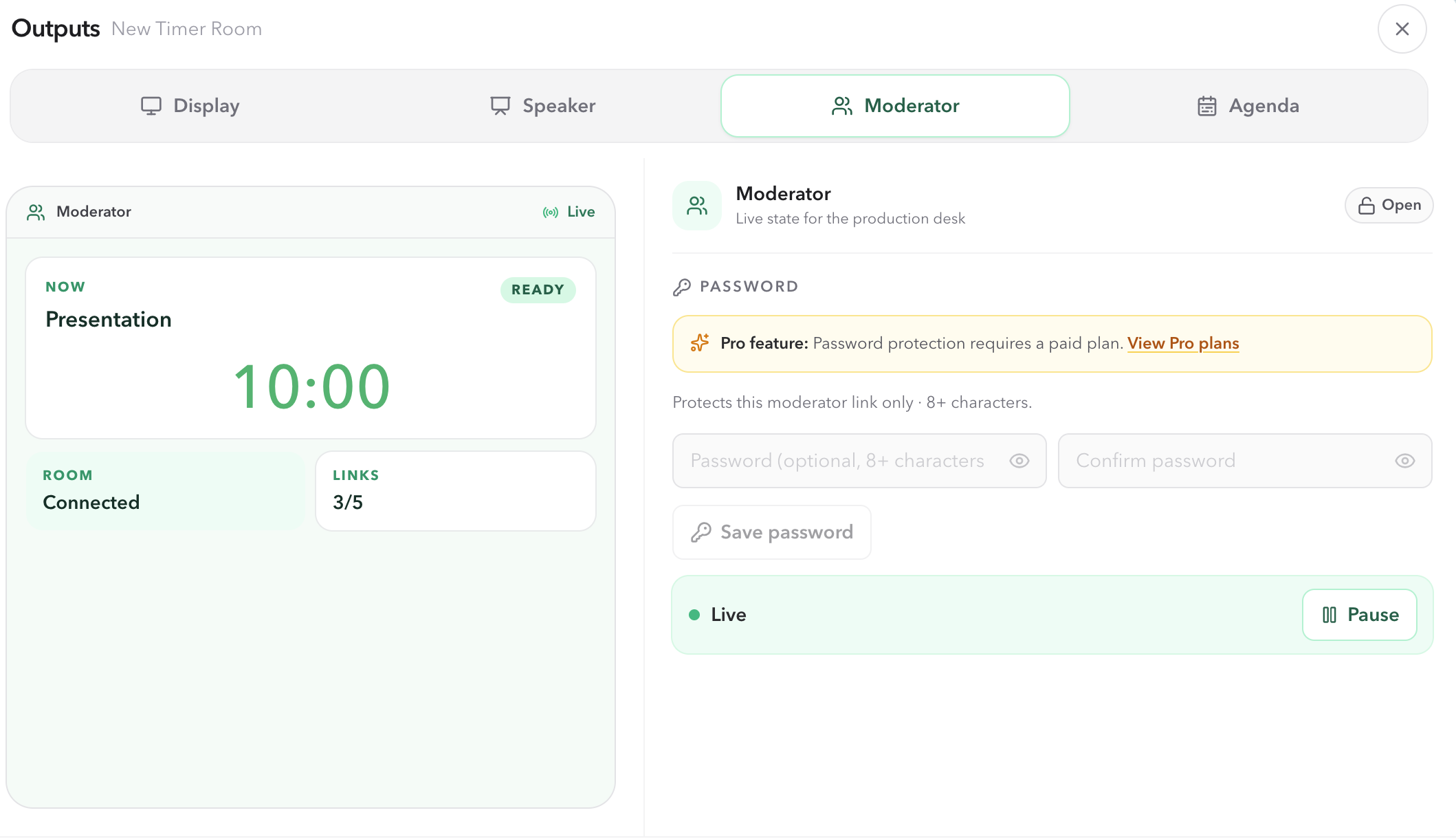
Keep the original Host URL private. Its token is part of the Host access credential; do not post it in a public chat, use it on a projector, or try to reconstruct it by editing a shared output URL.
Host access
Resolve Host control problems before troubleshooting the timer.
The private Host URL includes a token fragment. When the original token is missing or invalid, the Host page can connect read-only and its controls cannot change the Room. Reopen the original Host URL created for that Room; a shared Output URL cannot be promoted to Host access.
- Local preview
- The app is running without remote sync. It is useful for a local preview, not for verifying multi-device production sync.
- Connecting / Authorizing
- The Host page is opening its Room connection and checking whether the private Host access is valid.
- Connected
- The device is authorized as Host and can control the Room.
- Read-only
- The page is connected without Host authority. Reopen the original private Host URL.
- Host access invalid
- The Host token was rejected. Return to the original Host link rather than sharing or guessing another URL.
- Reconnecting
- The socket connection closed or failed and is attempting recovery. Check the network before opening another copy.
Reconnect
Reconnect only the affected read-only view.
In Host, open Connected devices to see which views are present. If a Operator, Display, Speaker, Moderator, or Agenda screen is stale, use Request reconnect to ask all shared views to reconnect. Then check the affected device on its original output link.
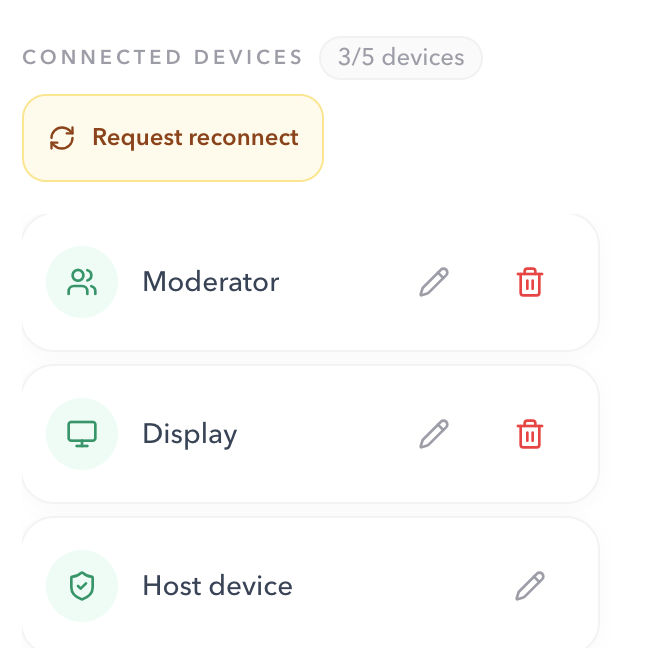
- 01Keep the authorized Host device open.
- 02Check that the affected device has network access and is on its intended output link.
- 03Request reconnect from Host, then wait for the shared view to recover.
- 04Reload only the affected output if it remains stale.
- 05If several devices are stale together, investigate their network instead of opening more copies of the Room.
Health check
Read the Room status before replacing devices.
Moderator View summarizes the roles currently connected to the Room. It is especially useful for a producer or assistant who needs to identify a missing Display or a capacity issue while Host remains with the operator.

- Watching
- Moderator is connected, Host and Display are present, and the Room has capacity.
- Reconnecting
- Moderator's own live connection is trying to recover.
- No host
- No Host device is connected, so there is no private operator currently controlling the Room.
- No display
- No Display output is connected. Reopen the Display link on the intended shared screen if one is required.
- Room full
- The Room has reached its device allowance. Close or remove a duplicate device before opening another output.
Capacity
Make room before adding another device.
The connected-device count includes Host and every Display, Speaker, Moderator, and Agenda output. The allowance depends on the active plan: Free supports up to 5 devices, Pro up to 10, and Premium up to 50. Close duplicate tabs or remove an unneeded read-only device before connecting another one.
View plan allowancesNetwork and browser
Check the connection path, not only the page.
A page that remains Reconnecting may have lost network access or be blocked by a VPN, captive portal, firewall, browser privacy rule, or another network policy affecting WebSocket traffic. Confirm the device can reach the internet, then retry the original role-specific link after network access is restored.
If the Host is Connected but several shared screens are stale at the same time, treat it as a network or output-side problem first. If only one screen is stale, keep the incident focused on that one device and output role.
Live incident
Use the smallest safe recovery during a session.
- Keep the authorized Host device as the timing source of truth.
- Tell the team which single view is affected: Operator, Display, Speaker, Moderator, or Agenda.
- Verify its role-specific link and network before opening a replacement tab.
- Request reconnect or reload only the affected output.
- Check capacity before adding another device to the Room.
- If the shared Display cannot be trusted temporarily, communicate a fallback to the room while Host continues to run the timing decision.
FAQ
Common sync and connection questions
Why can I see Host controls but the buttons do nothing?
The page may be connected read-only because the original Host token is missing or invalid. Reopen the original private Host URL. Do not turn an output URL into a Host URL by editing its path.
What should I do when Operator, Display, Speaker, Moderator, or Agenda is stale?
Keep Host open, confirm the affected device uses the correct role-specific output link, then use Request reconnect from Host or reload only that affected output. If multiple screens are stale, check their network before opening more tabs.
What do the Moderator Room status labels mean?
Watching means Moderator can observe a Room with Host and Display present. Reconnecting means its connection is recovering. No host, No display, and Room full identify the missing role or capacity condition that needs attention.
How many devices can connect to a Room?
The allowance depends on the active plan: Free supports 5 devices, Pro supports 10, and Premium supports 50. The connected-device count includes Host and all shared output views.
Can I use the Host link on a projector?
No. Keep Host private on the control device. Open the Display output on the projector or shared screen so the timer is visible without exposing Host controls or the private access token.
Does every screen receive a new time value from the server each second?
No. The Room synchronizes shared state and timing anchors. Each connected view calculates the displayed time locally with the synchronized state and server-time offset.