Room views
Agenda View
Give the session team a shared run of show without giving away timer controls. Agenda View keeps the current segment, upcoming handoff, actual starts, and the full sequence visible while Host remains private with the operator.
Agenda follows the Room; Host runs it.
Give co-hosts, stage runners, and speaker coordinators the Agenda link—not the Host link. They can follow the plan and report issues, while one Host operator remains responsible for the live Room.
Control boundary
Agenda is deliberately read-only.
Agenda View does not create, edit, start, pause, reset, select, or reorder Timers. It is a shared information screen for people who need the whole sequence of the session but should not be operating the live timing.
If a speaker is delayed, a segment needs extra time, or the handoff needs changing, tell the Host operator. The Agenda screen updates from the same Room state after Host makes the decision.
Setup
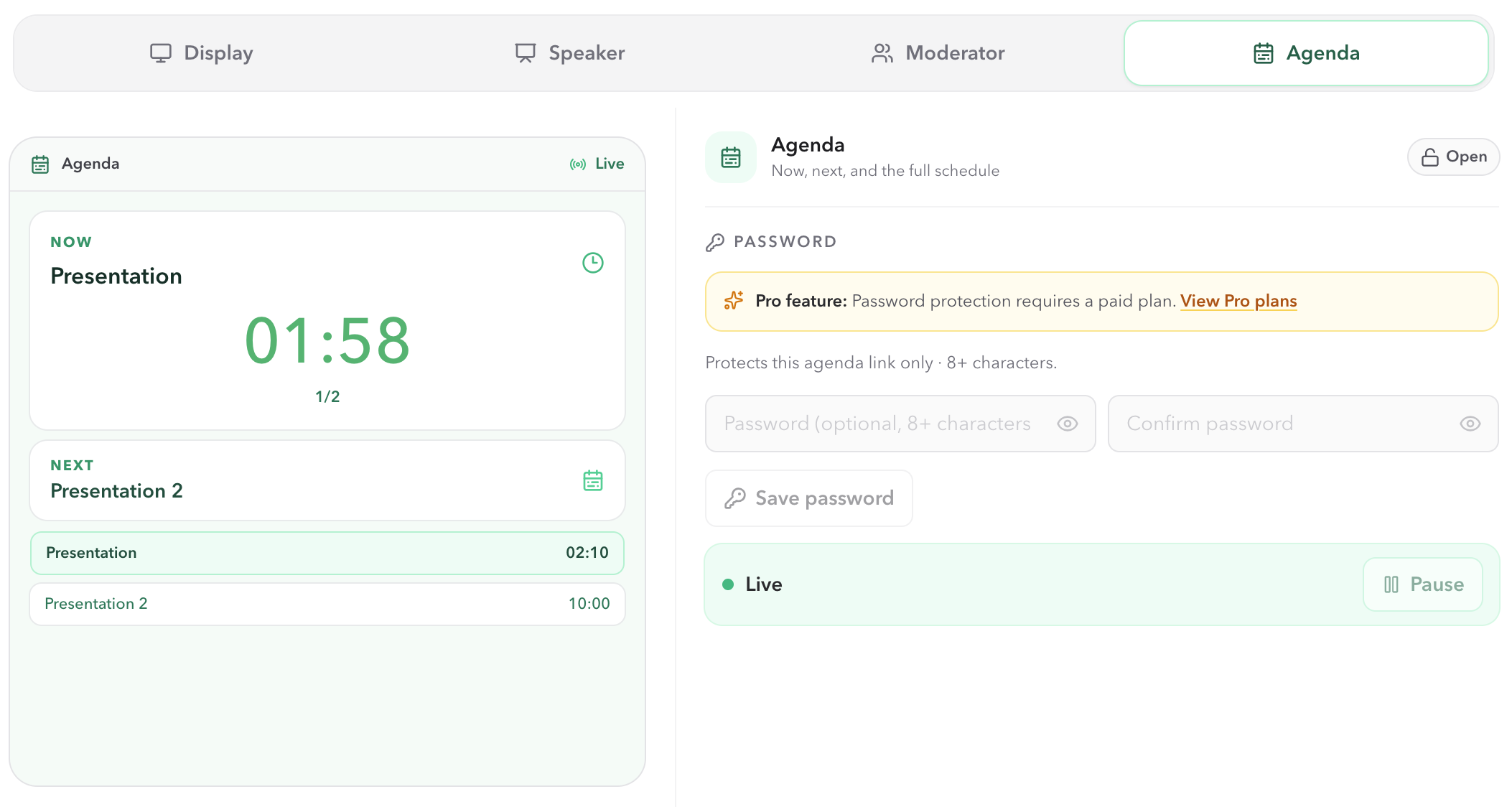
Open Agenda View from Host Outputs.
- 01
Keep the original Host link with the operator and choose Outputs in Host.
- 02
Select Agenda, then open the output or copy its link for the session team's laptop, tablet, or backstage display.
- 03
Leave the Agenda output open during the session. It follows the same Room as Host and does not require a separate run of show to be maintained.
Live timing
Read the current segment and its place in the run.
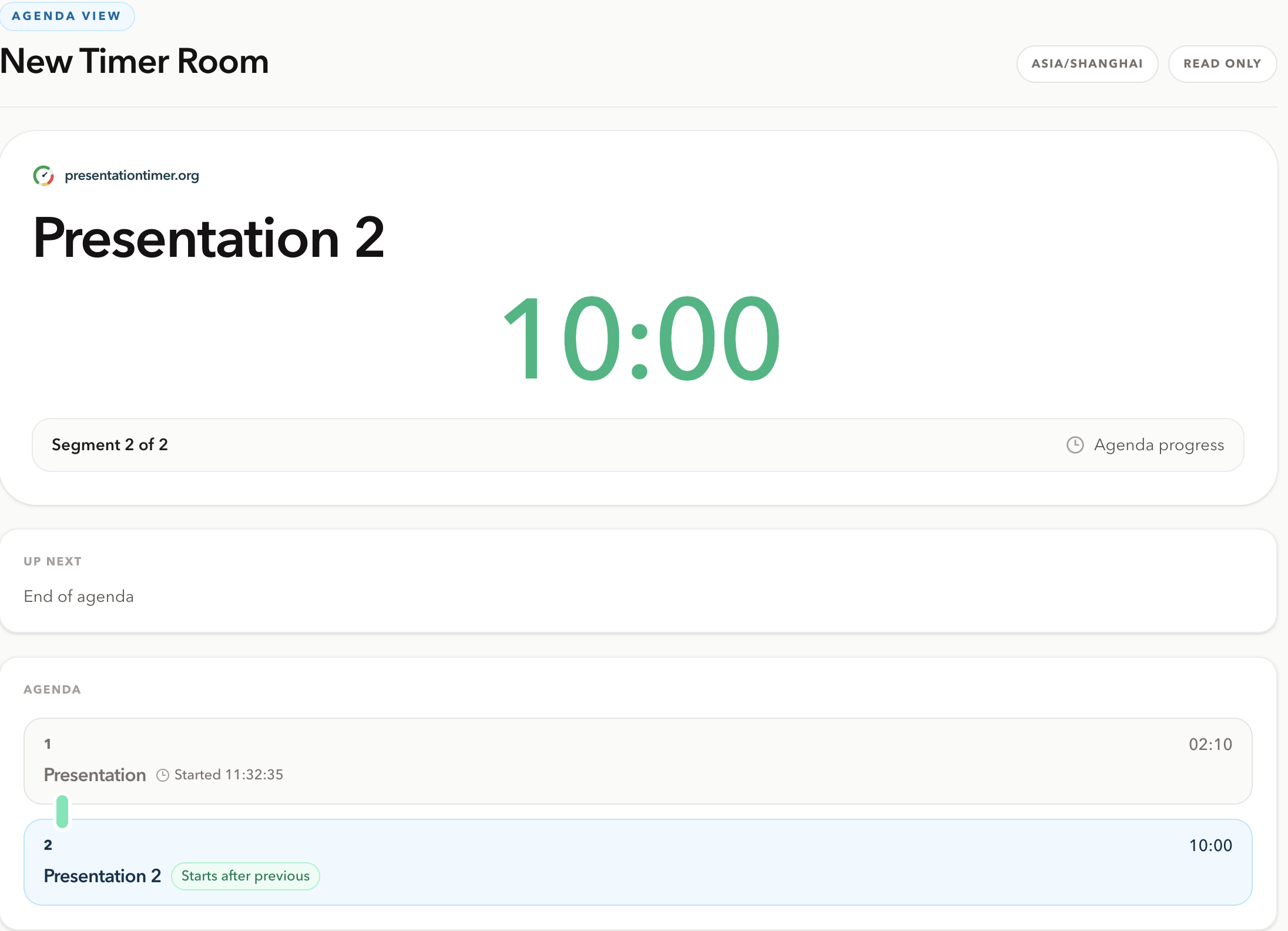
The main panel shows the active Timer and a large time value. It follows the time display configured in Host: a countdown, count up, timer with Room time, or a Room clock. For timer displays, the number changes from green when time is safe, to amber at the warning stage, then red at danger or overtime.
The panel also shows Segment X of Y, so the team can immediately see where the active item sits in the complete agenda. If there is no following Timer, the Up next panel reports End of agenda.
Linked Start
Follow the upcoming handoff without configuring it here.
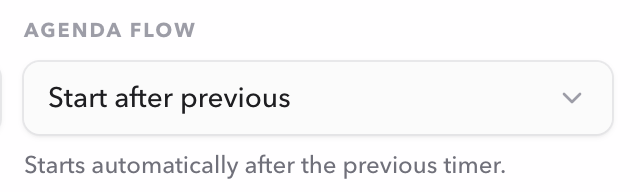
When another Timer follows, the Up next panel shows its name and duration. It can also show the handoff context chosen in Host from the timer-list connector or Agenda flow. The setting belongs to the upcoming Timer, not to the Timer that is ending.
- Selected after previous
- The next Timer becomes active when the previous one ends, but Host still decides when to press Start.
- Starts after previous
- The next Timer becomes active and starts automatically when the previous Timer ends.
- Starts at … after previous
- When the following Timer is Scheduled, Agenda includes its configured clock time. The scheduled clock rule takes priority over an immediate automatic start.
Agenda View has no handoff selector. Use Host to change the rule, then use Agenda to confirm that everyone sees the intended result.
Learn about Linked StartRun of show
Read the full agenda, not just the current timer.
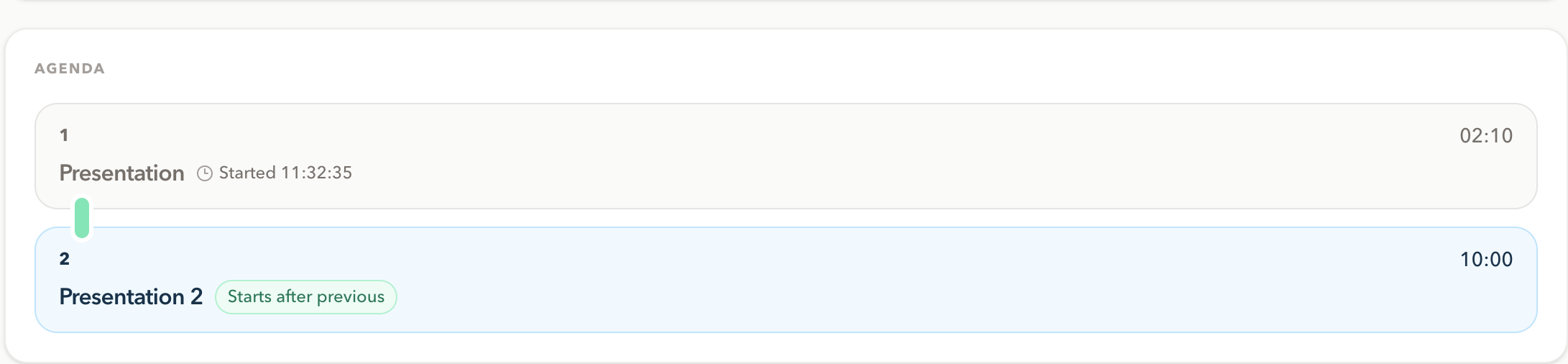
Every agenda item remains visible below the current and next panels. The active item is highlighted, earlier items are completed, and later items remain upcoming. Each item shows its planned duration.
After a Timer starts, Agenda shows its actual Started time. This is useful for checking whether the Room is following the plan without turning the run of show into a second control surface.
Timezone and schedule
Check the Room timezone before sharing the plan.
The timezone badge in Agenda View is the Room timezone. It gives shared context to actual Started times and to Scheduled Timer start times. Confirm it before rehearsing or sharing the Agenda link with people in another location.
A Started time reflects when a Timer actually began. A scheduled start is a planned clock rule. Keeping those two values distinct helps the team see both the intended schedule and what happened live.
Operational boundary
Coordinate with Host instead of changing the Room.
Use Agenda View to spot a late speaker, an upcoming changeover, a missing break, or an agenda item that needs attention. Then contact the Host operator. Host can pause, start, choose the next Timer, or correct remaining time while the shared Agenda remains a clear source of information for everyone else.
Checklist
Before the session starts
- The session team has the Agenda link, not the private Host link.
- The current Timer, total segment count, and complete agenda match Host.
- The Room timezone is correct for the people reading scheduled and Started times.
- The next Timer has the intended Selected after previous, Starts after previous, or Scheduled behavior.
- Agenda is open where the support team can glance at it without replacing the audience Display.
- The Host operator remains available for every live timing change.
FAQ
Common Agenda View questions
Can an Agenda viewer start, pause, or edit a Timer?
No. Agenda View is read-only. Only the private Host workspace can start, pause, reset, select a Timer, edit its settings, or correct live time.
What does Agenda View show?
It shows the active Timer, its position in the agenda, the next Timer or End of agenda, and every agenda item. Items can show their duration, Linked Start context, and actual started time.
What do Selected after previous and Starts after previous mean?
Selected after previous makes the following Timer active when the previous Timer finishes, but Host still chooses when to start it. Starts after previous starts the following Timer automatically. Agenda only reports the rule. Host configures it from the timer-list connector or Agenda flow in Timer settings.
Why does Agenda View show a timezone?
The timezone applies to Scheduled Timer start times and actual Started times shown in the agenda. Check it before sharing the run of show across locations.
How is Agenda View different from Moderator View?
Agenda View is about the sequence of the session: current, next, completed, and upcoming items. Moderator View adds backstage room-health context such as Host, Display, and connection summaries.