Build the run of show
Add, rename, reorder, clone, and select timer segments in one room instead of rebuilding a new countdown for every part of the session.
Multi-segment timing
Build the sequence, keep the active segment visible, and decide how the next timer should follow. One room keeps the Host, shared displays, and read-only views aligned from opening to Q&A.
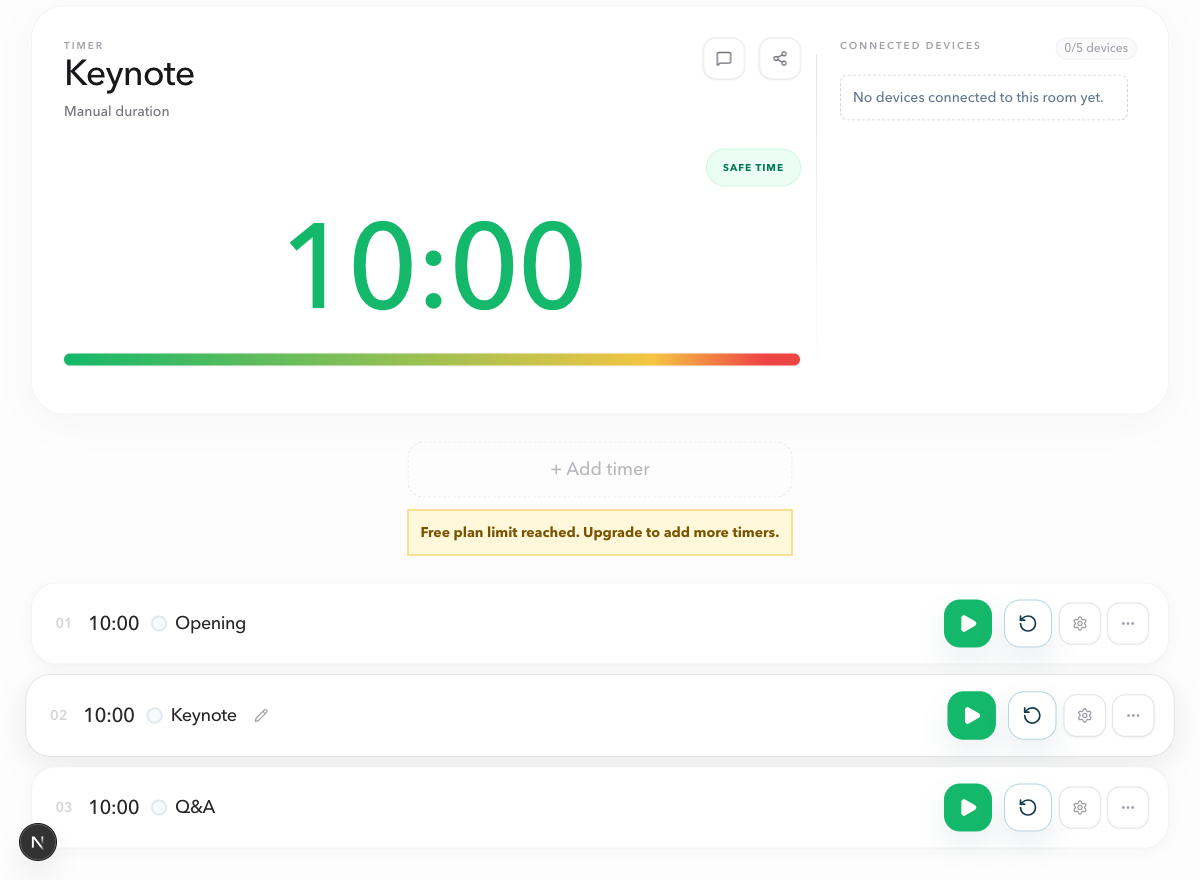
Live session
Opening - Keynote - Q&A
One room
Keep the full run of show, active timer, and shared timing state together.
Deliberate handoffs
Decide whether the next segment waits for the Host, becomes ready, or starts.
Shared progress
Let the room follow the current segment and what comes next without controls.
One room, complete flow
Add, rename, reorder, clone, and select timer segments in one room instead of rebuilding a new countdown for every part of the session.
Keep the next segment manual, select it after the previous timer, or start it after the previous timer when the live flow needs a tighter transition.
Give the team, waiting speakers, or attendees a read-only Agenda View that shows the current segment, what comes next, and the full session order.
Four-step setup
01
Start one room for the full session. Every segment, shared view, and timing rule stays connected to that room.
02
Create the opening, keynote, Q&A, break, or other session blocks, then put them in the order the room will follow.
03
Choose when the Host should select the next timer, when a timer should follow automatically, and when a segment needs a scheduled start.
04
Keep the Host link private. Share Display, Speaker, Moderator, or Agenda View links according to what each person needs to follow.
Linked Start
A live session is not always a rigid automation. The Host can keep a transition manual when people need a pause, or use a linked handoff when the room needs to move cleanly from one segment to the next.
Mode 01
Use a manual transition when the room needs a pause, an unscripted conversation, or a producer decision before moving on.
Mode 02
When the current timer ends, the next agenda item becomes active so the Host can review the room and start it at the right moment.
Mode 03
Use an automatic handoff when one segment should begin as the previous timer ends, without asking every shared screen to change links.
Clear role boundaries
Host
Edits the run of show, chooses the active timer, starts and resets segments, and sets the handoff rules.
Agenda View
Shows the live segment, what comes next, the overall order, and timing context without any controls or backstage details.
Other room views
Display, Speaker, and Moderator views continue to serve their own audiences while following the same active agenda segment.
Related use cases
Run opening remarks, keynotes, panels, and Q&A from a single session plan.
Webinar timerKeep a host, presenter, producer, and audience aligned through a live webinar agenda.
Panel discussion timerMove from introductions to speaker rounds and audience questions without losing the session flow.
Meeting timerGive a facilitator one shared agenda for updates, decisions, and the next discussion.
Agenda timer FAQ
An agenda timer is a timer room with multiple ordered segments. The Host can manage the current segment and the next transition while every shared PresentationTimer view follows the same active timer.
Yes. Add timer segments to one room for the parts of a conference session, webinar, meeting, panel, class, or other live run of show.
No. Agenda View is read-only. It shares the current progress, the next segment, and the full order without exposing Host controls, editing, or connected-device details.
For each next segment, the Host can keep it manual, select it after the previous timer, or start it after the previous timer. Scheduled starts can also show timing context for a planned segment.
No. Display View is a large, simple clock for a projector, stage screen, or screen share. Agenda View is for people who need to understand the current segment, what comes next, and the overall session flow.
Start with a room