The back row can see the finish
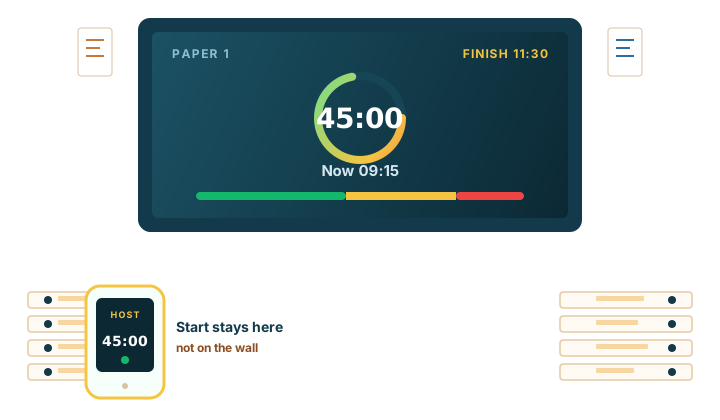
A phone on the desk answers the invigilator, not the candidate in the last seat. The projector shows one countdown for the whole hall, large enough to read without standing up.
Exam timer
Put the countdown on the projector. Keep start, pause, and the next segment on the invigilator's phone. Nothing to install.

In the exam hall
Candidates need one clock they can see from their desk. The invigilator needs to start it, pause it, and move from reading time to the paper without announcing every minute.
A phone on the desk only helps the person holding it. A wall clock shows the time of day, not how long the paper has left. A countdown website usually puts the buttons on the same screen as the numbers.
The hall display
Open Display on the computer connected to the projector, interactive whiteboard, or hall TV. Connect the cable before you go full screen. If the projector is on the wrong input, only the laptop can see the exam timer.
Display is read-only. Candidates see the active countdown. They do not see Host. Set the timer to Countdown + Time of Day when the room also needs the current time under the remaining time.
Font size and a fixed canvas live in custom display. On a free room, Default Display is already the large clock.
What the hall actually needs
Candidates need the remaining time from their seat. Reading time has to stop before writing starts. The invigilator has to change the clock without walking to the front.
PresentationTimer covers those three with one room. The projector gets the countdown. The phone gets Host or Operator. Reading time and the paper are two timers, so one does not overwrite the other.
A phone on the desk answers the invigilator, not the candidate in the last seat. The projector shows one countdown for the whole hall, large enough to read without standing up.
Papers are on desks, and candidates may only read. That window needs its own clock. When it ends, the writing paper is the next clock in the same room, not a new tab you build while the hall waits.
A late start or a short pause should not send the invigilator back to the projector computer. Start, pause, and add time stay on the phone. The wall keeps showing the clock.
How it works
Create the room, add the segments, open Display on the hall screen, and start each one from the phone.
A student presentation is a different job. That workflow is on the classroom timer page.
Open PresentationTimer and create a free room. Keep Host with the invigilator. The hall never gets that link.
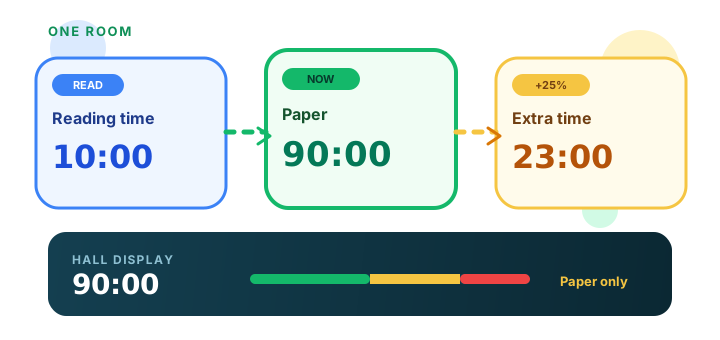
A free room holds three timers. Use them for reading time, the paper, and extra time. Name each one after the segment candidates should recognise.
Connect the video cable first, then open the Display link full screen. Candidates see the active countdown. They do not see host controls.
Start reading time from a phone. When it ends, start the paper, or let Linked Start select it and press Start once the room is ready.
Reading time, then the paper
Reading time is its own segment: papers are out, candidates may read, they may not write. When it ends, the writing clock has to be the next timer in the same room.
A free room holds three timers. Use them for reading time, the paper, and extra time. Linked Start can select the next timer when the previous one ends, or start it. For an exam, Select after previous is the safer handoff: the invigilator still presses Start.
Extra time for one candidate is not a change to the hall clock. Every Display in the room follows the same timer. Give that candidate a separate timer or a separate room.
Scheduled start, which begins a paper at a clock time, is part of Pro. On a free room, press Start.
If a screen drops
The countdown lives in the room, not in one browser tab. If the projector computer closes the page, reopen the Display link. The screen shows the time the room is already on.
There is no offline mode. A hall screen with no network cannot follow the room until it reconnects. Keep Host on the connection you trust, and use reconnect if one screen goes stale.
Two halls can open the same Display link and follow one countdown. Count the devices first. Free allows 5, including Host.
Send chimes to the invigilator's phone, not to the projector. The hall should see the countdown, not hear it.
Comparison
Phone on the desk
Fine for the invigilator. Invisible to candidates at the back of the hall.
Wall clock
Shows the time of day. It does not count down the paper or start the writing period after reading time.
Generic countdown site
One number on one tab. The controls are usually on the same page you project.
PresentationTimer
One room for the paper. Display on the hall screen. Host or Operator with the invigilator.
Before the paper
Reading time and the paper fit in one free room. No signup and no install.
Connect the projector before you go full screen.
FAQ
Yes. Connect the projector or panel first, open the Display link on that computer, then use full screen. Keep Host off that screen.
Yes. Any screen with a browser can open the same Display link. Each open screen counts as a connected device.
No. PresentationTimer runs in the browser. The invigilator opens Host or Operator. The hall opens Display.
Set the timer to Countdown + Time of Day. Display then shows remaining time with the room clock under it. A scheduled start and a target finish time are set on the timer. Speaker and Moderator show the start once the paper is running.
Yes. Make reading time its own timer, then the paper as the next timer. Linked Start can select or start the paper when reading time ends. You can still press Start yourself.
Not on the same clock. Every Display in a room follows one timer. Extra time for that candidate needs its own timer, or its own room, so the hall finish time stays put.
On a paid plan, Scheduled start begins the timer at a clock time in the room time zone. On a free room, the invigilator presses Start.
Yes. The timer name is the label for the segment. A display message can add one short line, such as a module code, up to 80 characters.
Yes. Send chimes to Host or Operator. Leave Display as the visual clock. The countdown itself shows seconds. There is no switch to hide them.
The room keeps running on the server. Reopen the Display link and the screen shows the current remaining time. There is no offline mode. A projector with no network cannot follow the room until it reconnects.
Yes. Open the same Display link in each hall. Free rooms allow 5 connected devices, including Host. Pro allows 10 and Premium allows 50.
A free room needs no signup. It includes 3 timers, 5 connected devices, and 1 saved room. That is enough for reading time, the paper, and one extra-time segment, with the projector and the invigilator's phone.
Related