Workflows / Agenda
Linked Start
Decide what happens when one agenda segment ends and the next one is ready. Linked Start keeps the handoff inside the same Room so Host, Display, Speaker, Moderator, and Agenda View follow one live state.
Use Linked Start when:
the next segment is known, the handoff needs a repeatable rule, and one Host operator should remain responsible for moving the Room forward.
Concept
Linked Start belongs to the upcoming timer.
Suppose the agenda is Opening, Keynote, and Q&A. The handoff rule for Keynote describes what happens after Opening ends. The rule is stored on Keynote, not on Opening. This distinction matters when you reorder the agenda or replace one segment with another.
A handoff changes the Room's active timer state. It does not create a new Room, change any shared link, or give read-only views permission to control the session.
Host
Configure it from the upcoming timer in Host.
The fastest Host path is the timer list. Hover the gap between two cards until the connector appears, then click the line. That sets Start after previous on the lower timer, so it becomes active and starts when the timer above it reaches 0:00. Hover the line to read the same rule. Click it again to remove the automatic start.
The connector writes the live Room setting. Host Quick Design and Timer settings show the same Agenda flow value, so those panels update when the connector changes. Use the settings panel when the next timer should only become selected, or when you need to review the other timing fields first.
- 01
Open the private Host workspace with at least two timers in the list.
- 02
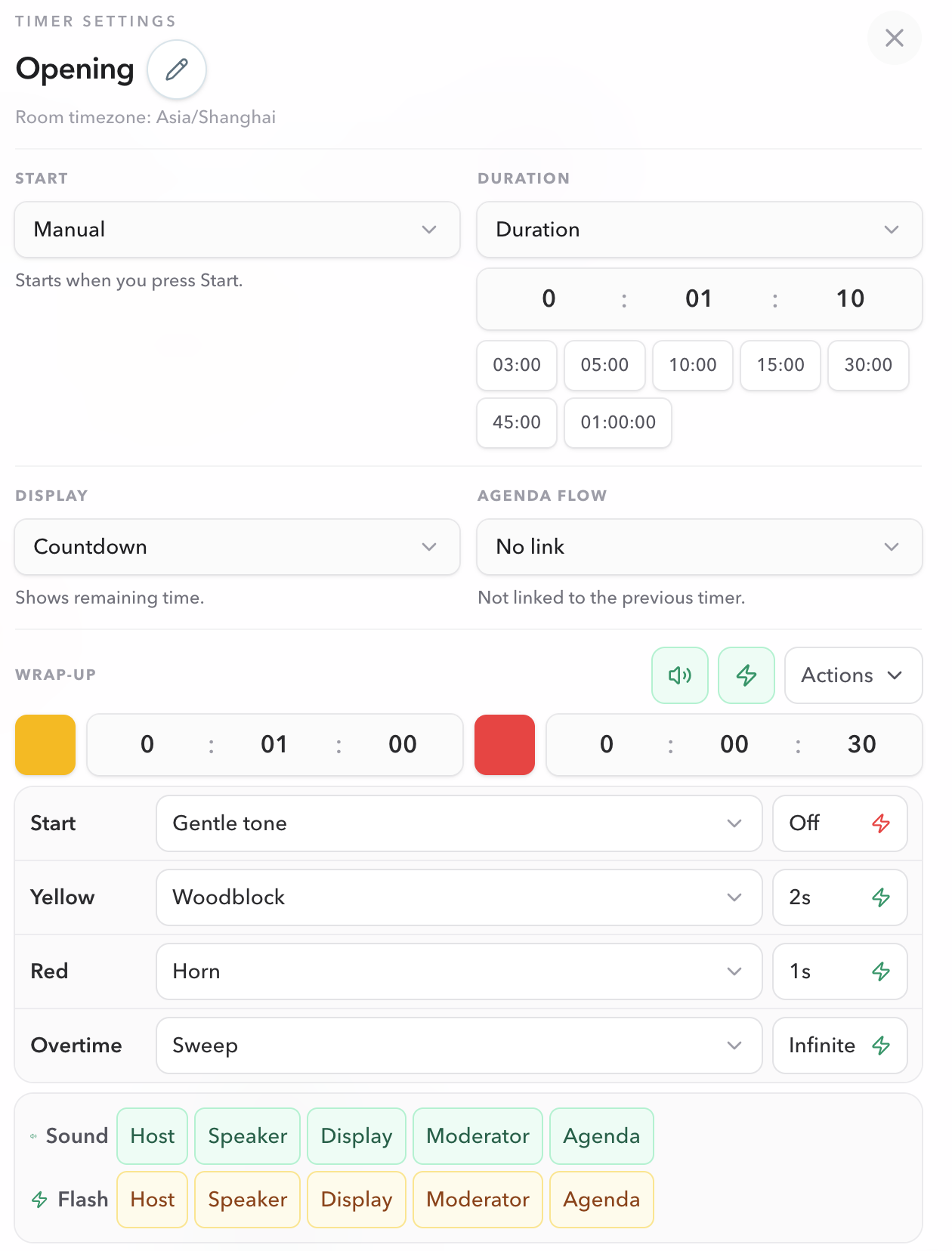
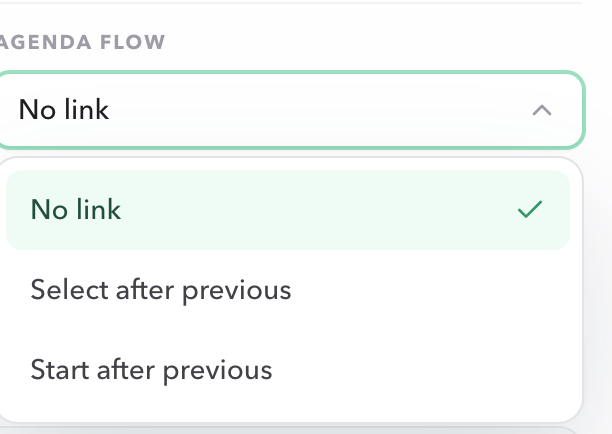
Hover the gap between the ending timer and the upcoming timer, then click the connector. Or open the upcoming timer's settings panel and choose No link, Select after previous, or Start after previous in Agenda flow.
- 03
Confirm the Agenda flow field matches the connector, then test the result by letting the current timer finish or by using a short rehearsal duration.
Do not configure the timer that is ending. Configure the timer that should become active after it.
Agenda Studio
In Agenda Studio, use the item settings.
Open the settings for the item that follows the current segment. Agenda Studio uses the same Agenda flow field as Host, so the option names and behavior stay aligned. A Host connector change updates the live Room; it does not rewrite an unpublished Agenda Studio draft.
- No link
- Host chooses what to select and start next.
- Select after previous
- The item becomes active, but Host still presses Start.
- Start after previous
- The item starts automatically after the previous item ends, or waits for its scheduled time.
Agenda Studio changes stay in the browser draft until you choose Save changes. The live Room does not receive the new handoff before publishing.
Behavior
Choose the smallest amount of automation that works.
| Mode | When the current timer ends | Good fit |
|---|---|---|
| No link / Manual | The current item remains selected. Host chooses and starts the next item. | Discussion, Q&A, applause, technical checks, or pauses. |
| Select after previous | The next item becomes active, but it does not start. | A known sequence that still needs a Host confirmation. |
| Start after previous | The next item becomes active and starts automatically. | Rehearsed, continuous segments with no expected pause. |
Scheduled timing
Scheduled timing takes priority.
A Scheduled timer is anchored to a date and time in the Room timezone. It should not be treated like a normal immediate handoff.
- In Host, Start after previous selects the scheduled timer when the previous timer ends, then waits for the configured clock time.
- In Agenda Studio, Start after previous also selects the scheduled item, then waits for its configured clock time.
- Check the Room timezone and use a future scheduled time before saving the plan.
A scheduled start is a clock rule, not permission for the next timer to start immediately.
Live Room
Host controls the transition; shared views report it.
When the current timer reaches zero, the Room applies the next timer's handoff mode. Host remains responsible for live corrections. Display, Speaker, Moderator, and Agenda View follow the same active timer and can show labels such as Selected after previous or Starts after previous, but they cannot change the rule.
Operational boundary
Keep the Host link private. A handoff is a Room state change, not a new link that must be redistributed to the team.
Before going live
Rehearse the exact transition.
- 01The upcoming timer, not the ending timer, has the intended setting. On Host, that is the lower card in the connector pair.
- 02The agenda order is final, including breaks and optional segments.
- 03No link leaves the current item selected; Select after previous activates without starting; Start after previous runs automatically.
- 04Scheduled items use the intended Room timezone and a future time.
- 05Host, Operator, Display, Speaker, Moderator, and Agenda View show the expected result.
FAQ
Common Linked Start questions
Which timer owns the Linked Start setting?
The upcoming timer owns the setting. In Host, hover the gap between two timer cards and click the connector, or open that timer's settings and use Agenda flow. In Agenda Studio, open the upcoming item's settings.
Why did the next timer become active but not start?
That is the expected behavior for Select after previous. The next item becomes active when the previous timer ends, but Host still needs to press Start. Use Start after previous only when the next segment should begin automatically.
Can a scheduled timer use Start after previous?
Yes. In Host and Agenda Studio, the next timer is selected when the previous timer ends and then waits for its configured scheduled time.
Can I set Start after previous from the Host timer list?
Yes. Hover the gap between two Host timer cards until the connector appears, then click the line. That sets Start after previous on the lower timer. Click the same line again to remove the automatic start. The Host Quick Design and Timer settings Agenda flow fields follow the same live setting.
Does a Host connector change an Agenda Studio draft?
It changes the live Room. An unpublished Agenda Studio draft stays local until you load the latest Room into that draft or publish the draft back to the Room.
Do Display, Speaker, Moderator, and Agenda View configure Linked Start?
No. Host is the control source. The shared views show the resulting current and next state, but they cannot change the handoff or the Room.
Should every timer use an automatic handoff?
No. Use Manual or Select after previous when a producer may need to pause, wait for a speaker, handle questions, or confirm that the room is ready. Reserve Start after previous for rehearsed, continuous sequences.