Room views
Operator View
Give a show caller or timekeeper a touch console for the live Timer. Operator View is built for phones and tablets: large controls, one current Timer, and the adjustments needed when a session is already running.
Operator runs timing. Host still owns the Room.
Share Operator only with people who should start, pause, or correct timers. Keep Host for editing the agenda, sending messages, and managing outputs. Do not open Operator on a projector or give it to a presenter who only needs Speaker View.
Control boundary
Operator is a timing console, not a second Host.
Host is the full workspace. It can create and edit timers, change settings, send Display Messages, manage outputs, and still run the session. Operator View keeps only the live timing controls that a show caller needs under pressure: start and pause, reset, previous and next, remaining-time adjustments, appearance, and flash.
That smaller surface is the point. A tablet in the booth should not expose agenda editing, password settings, or message tools. If the person holding the device should not be able to change the clock, give them Display, Speaker, Moderator, or Agenda instead.
Operator can
Start, pause, and reset the current Timer; switch to another item; add or subtract remaining time; change how the time is shown; flash connected displays.
Operator cannot
Create, rename, reorder, or delete timers; edit settings; send or clear messages; moderate audience questions; manage output links.
Setup
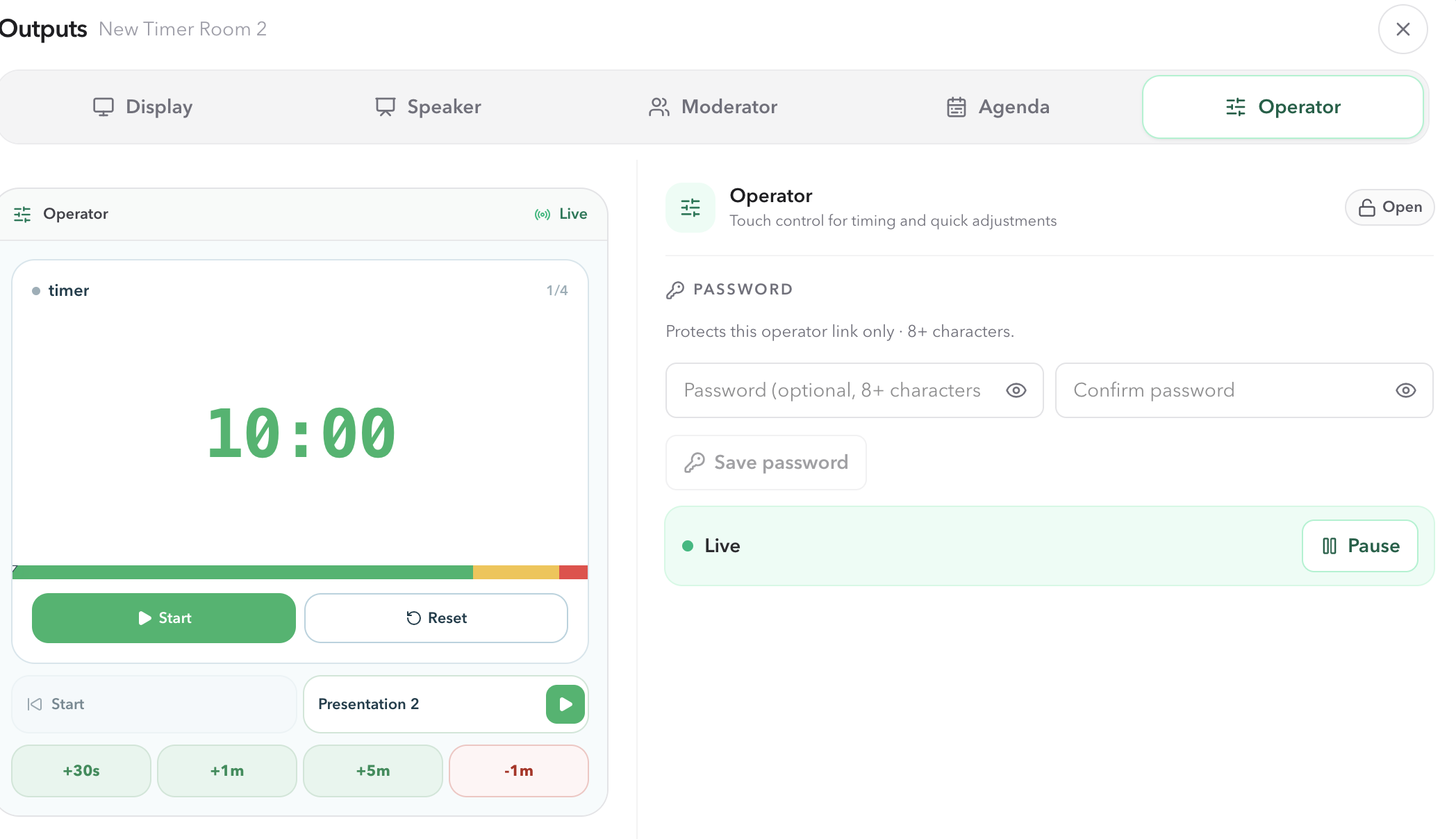
Open Operator View from Host Outputs.
- 01
Keep the original Host link on the device that will edit the Room. In Host, choose Outputs.
- 02
Select Operator, then open the output or copy its link for the show caller or timekeeper.
- 03
Open that Operator link on a phone, tablet, or laptop. It follows the same Room as Host, so the live Timer, remaining time, and agenda position stay in sync.
Header
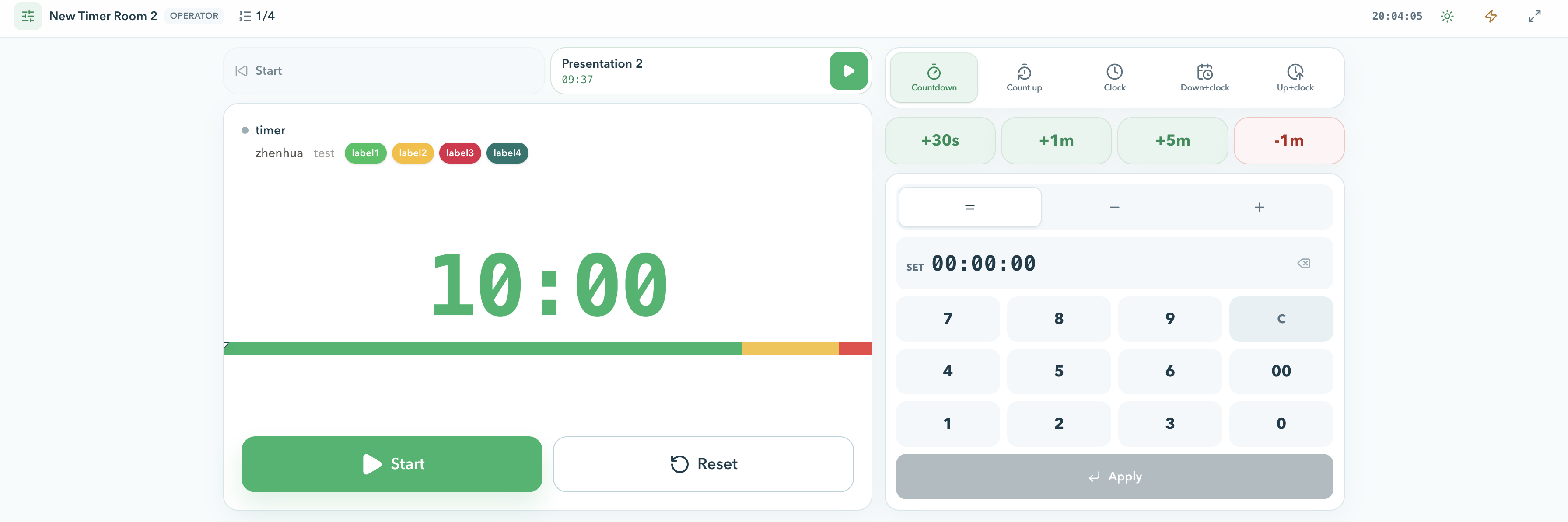
Keep Room context and global cues in reach.
The header stays on screen so the show caller does not leave the current Timer to check where they are. It shows the Room name, an Operator label, and the current agenda position, such as 1/4. The clock in the header is local time on that device, not remaining time.
Tap the agenda position to open the full list of timers. Use Flash when a presenter needs an immediate visual cue on connected displays. Use Fullscreen when the tablet should hide browser chrome. If the device supports it, Operator View also keeps the screen awake so the console does not dim mid-session.
Current Timer
Run the active segment from one large card.
The current Timer is the main surface. It shows the Timer name, then speaker, notes, and labels when those fields have been set in Host. The large number follows the display mode chosen for that Timer: countdown, count up, Room clock, or a combined view.
For countdown and count-up displays, the number color is the pacing cue: green while time is safe, amber at the warning stage, and red at danger or overtime. The progress bar uses the same thresholds and spans the width of the card.
Start and Pause sit under the bar. Reset returns the current Timer to its planned duration. If the Timer is running, hold Reset to confirm; a tap while running is ignored so an accidental touch does not clear a live segment.
Program flow
Move between the previous and next items.
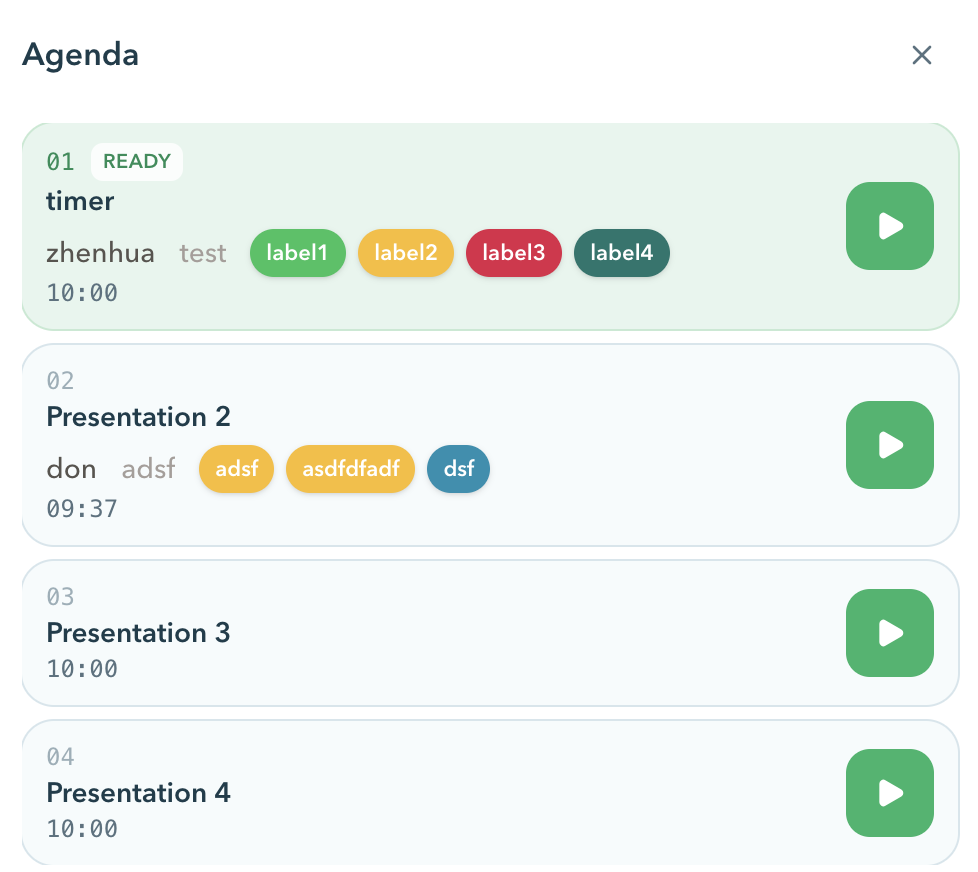
Directly beside the current Timer, Operator View keeps the previous and next items visible. Tap a name to make that Timer active. The next item also has a play control that starts it immediately, which is the usual one-tap handoff when the current speaker is done.
When the session has more than a previous and next item, open the agenda list from the header. Each row shows the Timer name, speaker, notes, labels, and duration. Tap the row to select it, or use the play control on that row to start it.
Appearance
Change how viewers see the time, not the remaining duration.
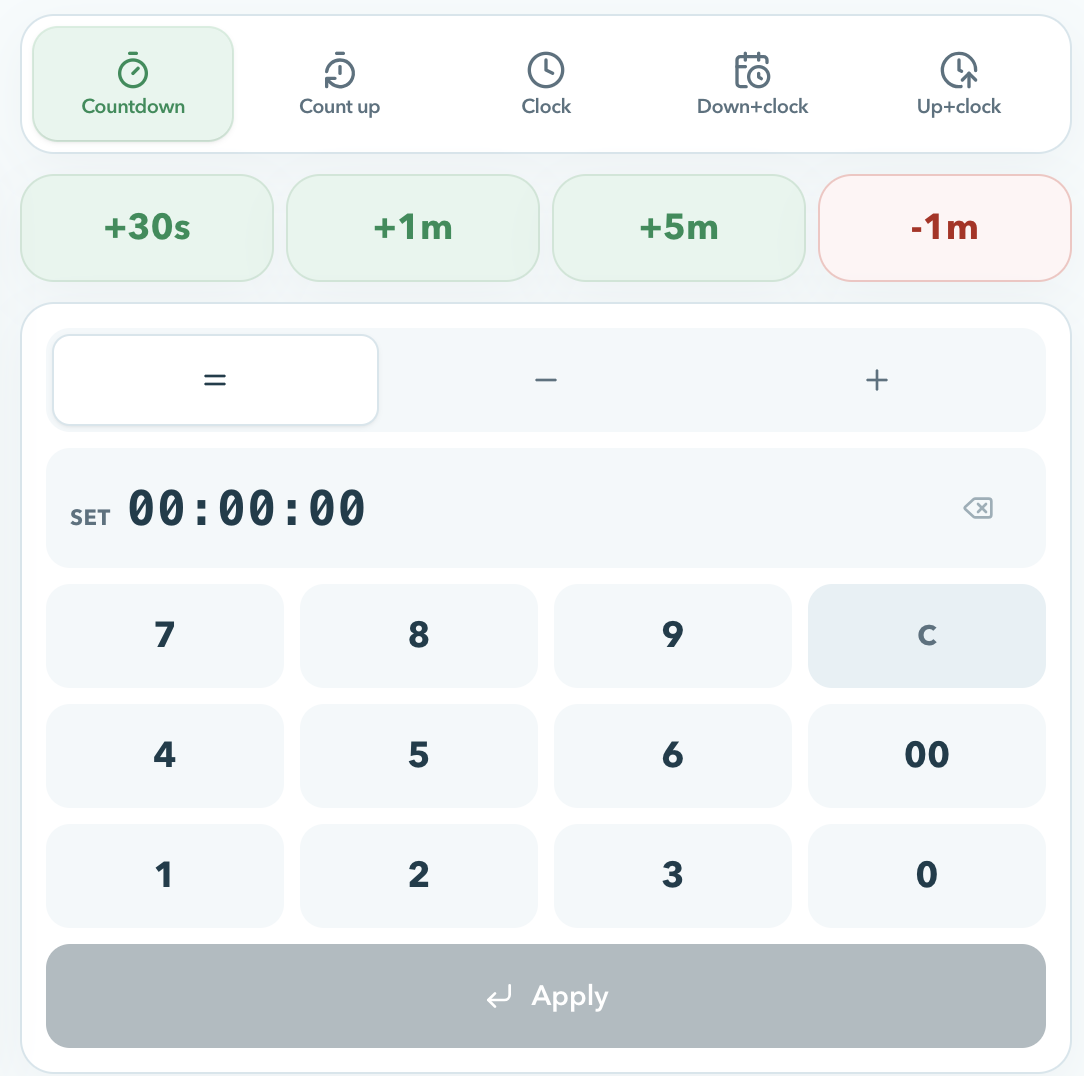
Appearance updates connected displays without rewriting the Timer's planned length. Choose the mode that the room needs right now:
- CountdownRemaining time, such as 05:00 down to 00:00.
- Count upElapsed time from zero, useful when a segment should be tracked as it runs.
- ClockCurrent Room time of day.
- Down+clockRemaining time with Room time still visible.
- Up+clockElapsed time with Room time still visible.
Adjustments
Correct remaining time with quick keys or the numpad.
Use the four quick keys when the change is obvious: +30s, +1m, +5m, or -1m. These change remaining time on the current Timer and take effect at once.
Use the numpad when the value must be exact. First choose the operation:
- SetReplace the Timer duration with the value you enter.
- SubtractMove remaining time backward by that amount.
- AddMove remaining time forward by that amount.
Enter time as hours, minutes, and seconds. For example, 130 is 1 minute 30 seconds. C clears the entry. Nothing changes until you tap Apply.
Checklist
Before the session starts
- Host remains open on the device that will edit timers, send messages, and manage outputs.
- The Operator link is open only on the phone or tablet that should control live timing.
- The Operator device appears under Host connected devices.
- The current Timer name, speaker, labels, and duration match the Host workspace.
- Start, Pause, Reset, previous, next, and a remaining-time adjustment have been rehearsed.
- Flash has been tested on the actual Display or Speaker screen.
- Presenters have Speaker or Display links, not the Operator link.
FAQ
Common Operator View questions
How is Operator View different from Host?
Host is the full Room workspace: it creates and edits timers, manages messages and outputs, and can still run the session. Operator View is a smaller production console for live timing on a phone or tablet. It can start, pause, reset, switch, and adjust timers, but it cannot edit the agenda, send messages, or manage outputs.
Can Operator View change messages or audience questions?
No. Operator View does not show or edit Display Messages or audience questions. Keep those controls in Host, or use Moderator View for the question queue.
Who should receive the Operator link?
Only production teammates who should start, pause, or correct timers during the session. Treat it as a control link, not a display link. Do not open it on a projector or give it to a presenter who only needs Speaker View.
Can I use Operator View on a phone?
Yes. Operator View is built for phones and tablets. The current Timer stays at the top, with quick adjustments, previous and next items, appearance, and the numpad stacked for one-handed use. On a wider tablet or laptop, the Timer and numpad sit side by side.
Does Operator View count toward Room connections?
Yes. Each open Operator device is a connected device in the Room, the same as Display, Speaker, Moderator, or Agenda. Confirm it appears under Host connected devices before going live.
Can I password-protect the Operator link?
Yes, on a paid plan. A password protects that Operator output only. It does not protect Host or the other output links.