PresentationTimer

Conference timing workflow

Conference Timer for Speakers, Sessions, and Stage Displays

Run keynote talks, breakout sessions, panel rounds, and audience Q&A with one host-controlled timer room. Share a clean speaker display, keep moderator controls private, and manage session timing without interrupting the stage flow.

Speaker display
Session countdown
Moderator timing
Stage-ready
See conference workflow
Live conference workflowHost + stage display
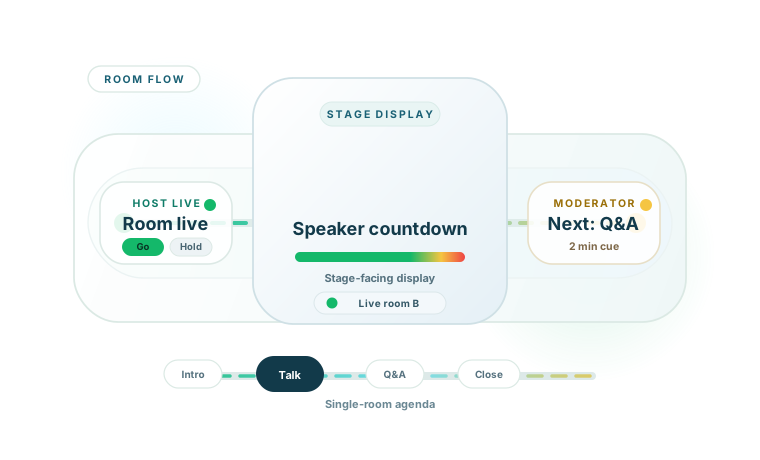
Conference host controls, speaker display, and session agenda connected in one stage timing workflow

Real conference situations

Conference sessions run long when stage timing is invisible.

A conference session is harder to pace than a simple countdown. Speakers need a visible time signal, moderators need a calm way to guide the room, and producers need the session to stay on schedule without awkward interruptions.

In a multi-session event, one late segment can push pressure onto the next room, the next speaker, or the next break. A generic single-device timer does not give a conference team enough control to recover cleanly.

A shared conference timer gives the stage one visible source of time instead of one hidden device.

a keynote session with a fixed speaking slot and a visible stage countdown
a breakout talk with a short Q&A that still needs a controlled close
a panel session with timed speaker rounds and a moderator who needs flow visibility
a sponsor presentation that must end on time before the next track starts
a multi-speaker conference room with fast transitions between sessions
a moderator-led session where the audience can see the clock but not the controls

A practical conference flow

The host controls timing while the stage follows one countdown.

Private host controls beside moderator timing and a stage-ready conference countdown display

Most conference overruns start the same way. A speaker loses track of time, the moderator waits too long to intervene, audience questions expand, and the final minutes disappear.

PresentationTimer keeps those roles clear. The host or producer opens the control page. The moderator follows the room flow. The stage or room display shows a clean session countdown.

That display can sit on a confidence monitor, projector, stage screen, or browser window near the moderator desk.

The host can adjust timing live without exposing settings, edit UI, or controls to the audience.

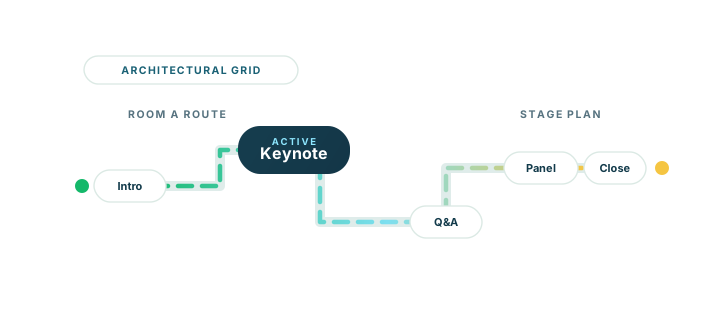
When the session has multiple parts, the room can hold a lightweight agenda for intro, keynote, panel round, Q&A, and closing.

The result is a calmer room: speakers stay aware of pacing, moderators stay aware of flow, and the session has a better chance of landing on time.

Why PresentationTimer

Built for live conference timing, not just one visible clock.

A conference room needs more than one countdown on one screen. It needs visible pacing, private control, and a simple way to move through talk, Q&A, and closing without losing the room.

PresentationTimer separates those jobs cleanly so the stage can stay calm while the host keeps timing precise.

A stage display speakers can actually read

A private laptop timer does not help a speaker across the room. PresentationTimer gives you a clean display that can sit on a confidence monitor, projector, stage screen, or browser window so the stage follows one visible countdown.

Host controls stay private while the room stays aligned

The producer or host can start, pause, reset, switch agenda segments, and adjust the room flow without exposing controls to the audience or the speaker display.

Agenda timing works across talk, Q&A, and closing

Conference sessions are rarely one fixed countdown. Build a room for intro, keynote, panel round, Q&A, and closing so the whole session flow lives in one place.

Visible cues help sessions wrap without awkward interruptions

Warning states, overtime, and display messages make it easier to push a room toward wrap-up without breaking the tone of the stage or interrupting a live discussion.

How it works

Set up a conference timer room in four practical steps.

The flow follows the way conference sessions actually run: prepare the timing plan, share the right display, and keep live control with the host or producer.

You can use one countdown for a short talk or build a small agenda for intro, keynote, panel round, Q&A, and closing.

1

Create a conference timer room

Open PresentationTimer and create a room for the session. The host gets the control page, and the display link is ready for a confidence monitor, projector, stage screen, or second laptop.

2

Build the session agenda

Add timers for intro, keynote, Q&A, panel round, closing, or the next speaker. One room can hold the full session instead of forcing you to rebuild timing between segments.

3

Share the stage display

Open the display where the speaker or room can actually see it. The display stays clean and follows the active timer without showing settings, controls, or edit UI.

4

Control the session live

Start, pause, reset, switch segments, or use Linked Start when one session block should flow into the next. If the room changes direction, the host can still override manually.

Conference agenda timing from intro to keynote, Q&A, panel session, and closing

Agenda flow

Run keynote, breakout, Q&A, and closing inside one conference room.

A conference session is rarely one fixed countdown. Most rooms need an intro, a main talk, a question block, and a closing segment before the next speaker or next room takes over.

Instead of resetting one timer over and over, PresentationTimer keeps those segments inside one agenda room so the live flow stays easier to manage.

10 min keynote + 3 min Q&A
20 min breakout talk + 5 min Q&A
45 min panel + 10 min audience questions
5 min intro + 25 min talk + 5 min close

Role views

One session, four timing views.

Conference timing works better when each role sees the right information. The host needs controls, the moderator needs flow visibility, the speaker needs pacing cues, and the room needs a readable timer.

Host / producer

Controls the timer room, session pace, segment changes, and live cues without exposing the control surface to the audience.

Moderator

Follows the current segment, next segment, and room timing without taking control away from the host.

Speaker

Sees a readable countdown and warning states on a stage display, confidence monitor, or browser window without touching room settings.

Stage display

Shows the active countdown in a way that is easy to read from the room, helping the whole session stay aligned.

Display cues

Use visible cues to keep the room moving toward the close.

Live sessions often need short cues that should be visible without becoming another spoken interruption. A host or producer can use warning states and display messages to guide the room toward wrap-up.

This is useful when the room needs to tighten the final minutes of a keynote, panel, or audience Q&A while keeping the stage tone professional.

2 minutes left
Q&A closing
Final question
Next speaker ready

Comparison

Use a conference timer built for live session pacing.

Phone timer

Private, easy to miss, and weak for stage use when speakers, moderators, and producers all need the same timing signal.

Slide countdown

Visible for one moment, but not built for live control, agenda changes, or multi-part session timing.

Generic countdown timer

Useful for one clock, but usually lacks host/display separation and multi-segment conference workflow.

PresentationTimer

Conference timing with host controls, stage display, warning states, overtime tracking, and simple agenda flow in one room.

Ready to time a conference session?

Keep speakers, moderators, and stage timing aligned from intro to closing.

Create one room, share the right display, and keep the session moving without losing the room to hidden timers or improvised pacing.

The host controls the timing, the moderator follows the flow, and the stage sees a clean countdown that keeps the whole room more disciplined.

FAQ

Conference timer questions

What is a conference timer?+

A conference timer is a visible timer used to keep keynote talks, breakout sessions, panels, and audience Q&A on schedule. PresentationTimer adds host controls, a speaker display, warning states, overtime tracking, and simple agenda timing for live sessions.

Can I use this as a conference speaker timer?+

Yes. You can open the display on a stage screen, confidence monitor, projector, or browser window so the speaker sees the countdown clearly while the host keeps control of the session timing.

Can one room handle a talk and Q&A?+

Yes. A single room can hold a lightweight agenda, so you can run intro, talk, Q&A, panel rounds, transitions, and closing inside the same conference timer room.

Can moderators and speakers see different views?+

Yes. The host can keep the control page private, the moderator can follow a read-only room view, and the speaker can watch the clean display. This makes live conference timing easier to manage without exposing unnecessary controls.

Is this useful for keynote and breakout sessions?+

Yes. PresentationTimer works well for keynote talks, breakout sessions, sponsor presentations, moderated panels, and short conference Q&A blocks where the room needs a clear visible countdown.

Can I use it on a stage screen or confidence monitor?+

Yes. The display link can run on a projector, stage screen, confidence monitor, second laptop, or browser window wherever the speaker or room needs to see the time.

Is this conference timer free?+

Yes. The current version lets you create a free timer room in the browser for live sessions, talks, classes, webinars, meetings, and conference-style speaking blocks.