Workflows
Messages
Put one short public cue beside the live timer. Host or Moderator can write the Room-wide Display Message; Display, Speaker, Moderator, Agenda, and Host preview views show it while the timer continues to run.
Write in Host or Moderator; show it across the Room.
Messages are room-wide, not private notes. Keep the Host link private and write only information that is safe for people with the shared output links to see.
Scope
Messages are live cues for the whole Room.
A Room-wide Display Message is a short public cue shared by the live Room. It is not a private backstage conversation. Use it for one clear instruction, such as a speaker prompt, schedule change, or cue to return to seats.
The active Room-wide message remains visible when Host switches Timers. It stays on screen until Host or Moderator changes it or clears it, so remove instructions as soon as they are no longer true.
Start here
Open Messages from Host or Moderator.
- 01
Open the private Host link on the operator's device, or open an active Moderator link for backstage message support. Shared Display, Speaker, and Agenda links cannot create or edit a message.
- 02
In Host, use the message icon beside the active Timer. In Moderator, use the embedded Messages panel.
- 03
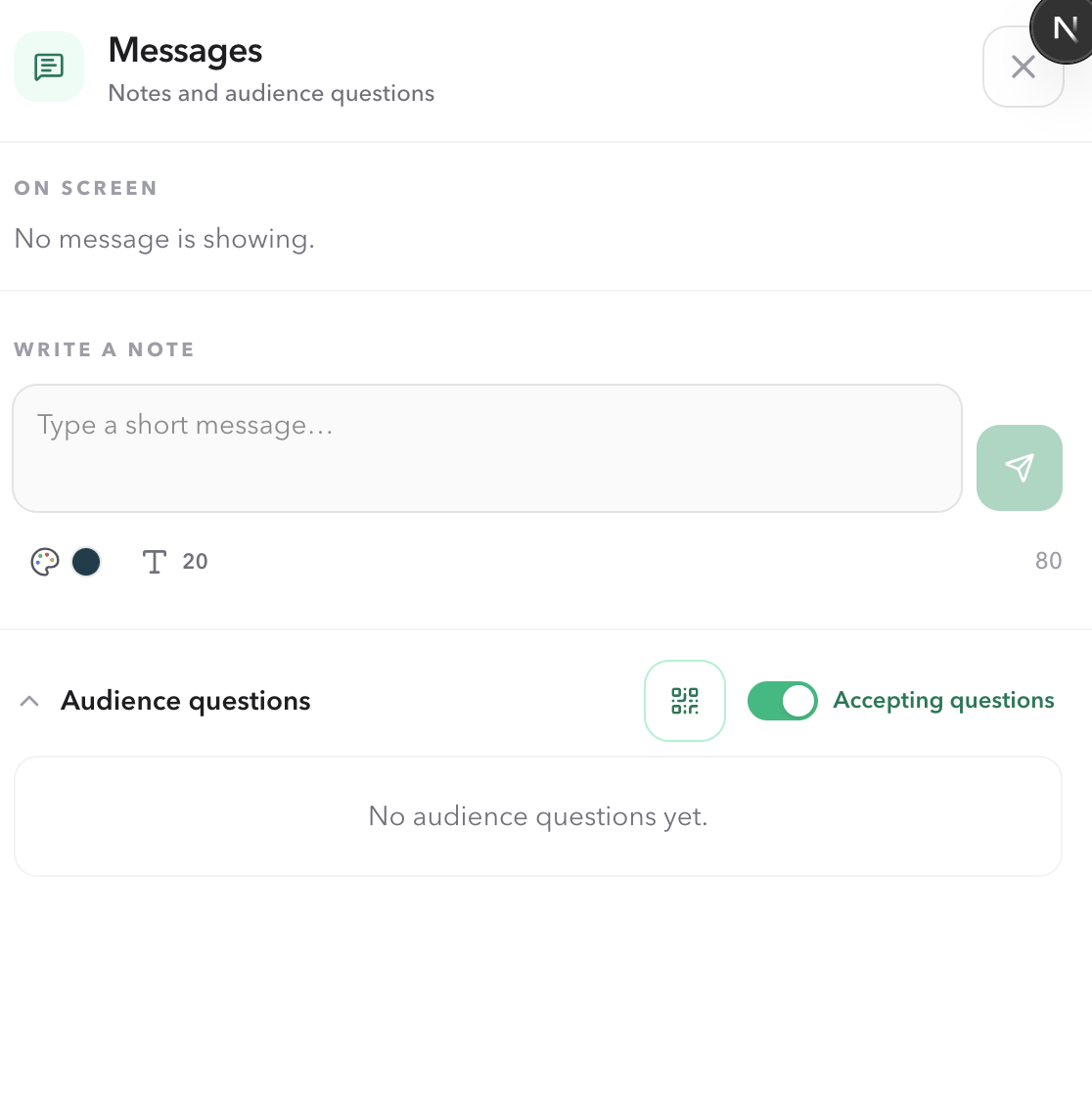
Write the cue, choose its color and size, then send or update it without changing the active Timer.
Compose
Write a short cue and make it readable.
Messages are limited to 80 characters. Write one immediate action in plain language that can be understood in seconds. Use the color control for emphasis and the size control for viewing distance, but make sure the words still carry the meaning on their own.
- Good
- Next speaker: please be ready
- Good
- Q&A begins in 2 minutes
- Avoid
- Private passwords, personal contact details, or multiple role-specific instructions
Live workflow
Send, update, clear, and flash the cue.
Type your cue and select the send button to publish the first Room-wide message. To change an active message, edit its text, color, or size; the change is updated across the Room. Select Clear when the cue is no longer useful.
Select the lightning icon beside On screen to start a persistent Flash. Select it again to stop. Flash changes the live message presentation only; it does not pause, reset, select, or adjust the Timer, and it is not carried into a new Saved Room session.
Receiving views
Check the screen that will actually receive the cue.
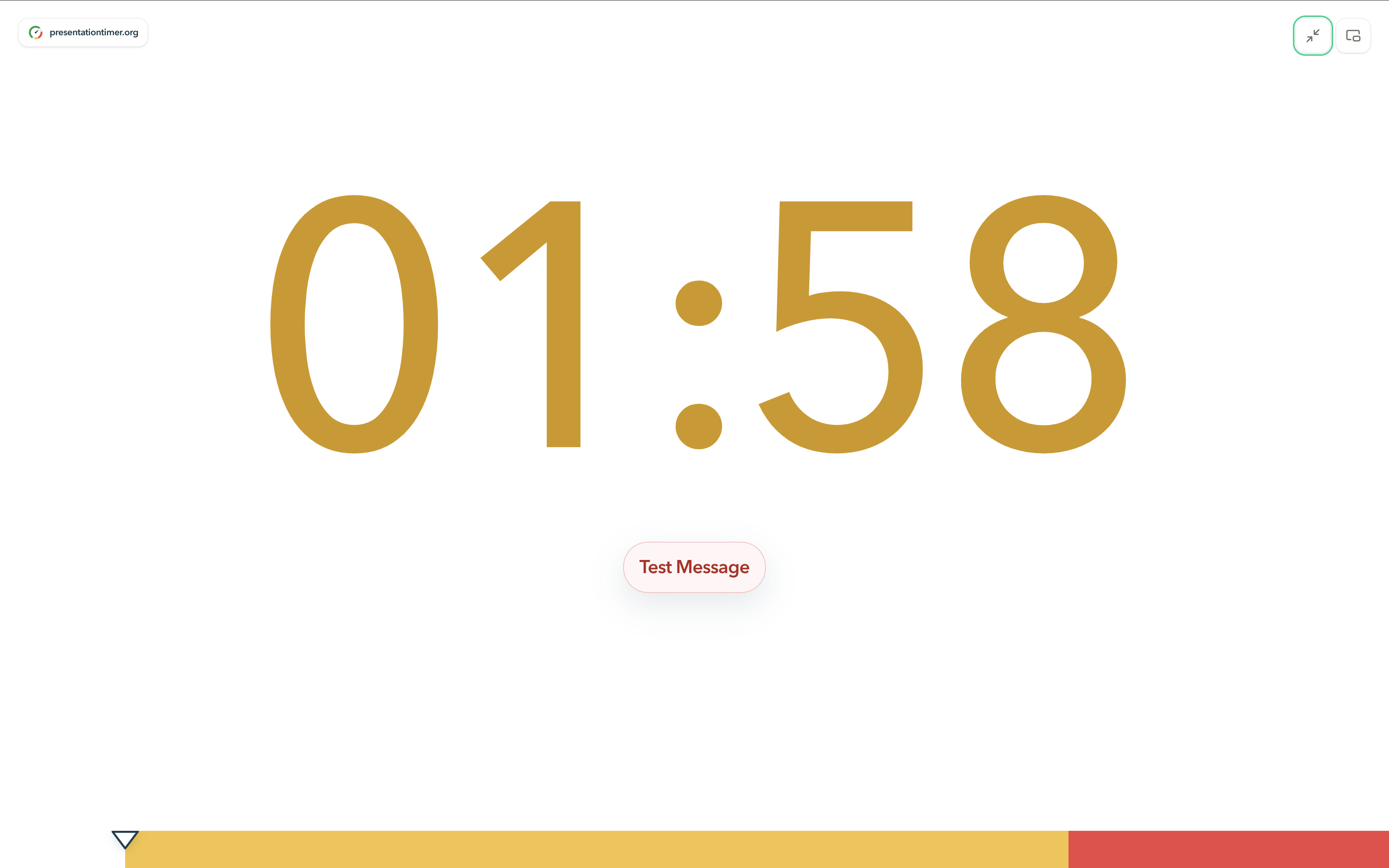
Display View puts the message beside the large shared timing value. Speaker View shows the same cue to the presenter. Moderator View shows it in the timer and Messages panel, and Agenda View keeps it beside the run of show. Host also sees the message in its preview.
Writing guidance
Make it useful from a distance.
- Use one action, one deadline, or one immediate change—not a paragraph.
- Use wording that makes sense to every person who can open the shared output.
- Choose a readable size, then use color as secondary emphasis.
- Avoid sensitive information and private instructions; use a separate communication channel for those.
- Use Flash only when the cue needs immediate attention, then Clear the message as soon as the instruction has passed.
Checklist
Before the live cue goes out
- The Host operator or moderator opened Messages from the correct Room link.
- The wording is short, public, and accurate for the current moment.
- The selected size is readable from the actual audience or presenter distance.
- The intended Display, Speaker, Moderator, or Agenda screen has been checked after sending the message.
- The Host operator or moderator will update or clear the message when the cue no longer applies.
FAQ
Common Messages questions
How long can a Message be?
A Message can contain up to 80 characters. Keep it short enough to understand at a glance from the intended screen or device.
Which views show a Room-wide Message?
Display, Speaker, Moderator, Agenda, and the Host preview show the active Room-wide message alongside their timing information.
Does showing a Message pause or reset the Timer?
No. A Message only adds a cue to the shared views. It does not start, pause, reset, select, or adjust the active Timer.
Does the Message disappear when Host switches Timers?
No. It belongs to the Room, so it remains active across Timer changes until Host or Moderator updates it or chooses Clear.
What is the difference between sending and updating a Message?
The send button publishes the first Room-wide message. Once a message is active, changing its text, color, or size updates that message. Clear removes it from the shared views.
Can I use a Message for a private producer note?
No. Treat it as public information for people who can open the shared output links. Do not include credentials, personal contact details, or private backstage instructions.
What does Flash do?
Flash makes the current on-screen Message pulse until you turn it off, replace the message, or clear it. It changes the live presentation only and does not alter the Timer.
Can a Moderator send Messages?
Yes, when the moderator has an active Moderator link. Moderator View uses the same compact Messages panel as Host, so a moderator can write, style, flash, update, and clear public cues while Host keeps timing control.