Workflows / Agenda
Agenda Timers
Build the complete running order before the session starts, then run each segment from one Host-controlled Room. An agenda keeps the active timer, the next handoff, and every read-only view on the same session.
Use an agenda when:
the session has more than one timed segment, several speakers, planned transitions, or a producer who needs to see what is next.
Concept
The Room is the session. Each timer is one segment.
An agenda is an ordered list of timers inside one Room. The Room holds the shared live state; the agenda describes the sequence that state moves through. Host selects and edits the plan, Operator runs live timing, and Display, Speaker, Moderator, and Agenda View read that same Room.
For a webinar, the list might be Welcome, Keynote, Q&A, and Closing. For a class, it might be Warm-up, Exercise, Group work, and Review. You do not need a separate Room for each person or device.
Setup
Create the agenda before you share the Room.
From the private Host workspace, paid Room owners enter Agenda Studio with Plan agenda. The planning page is separate from the live timer controls.

- 01
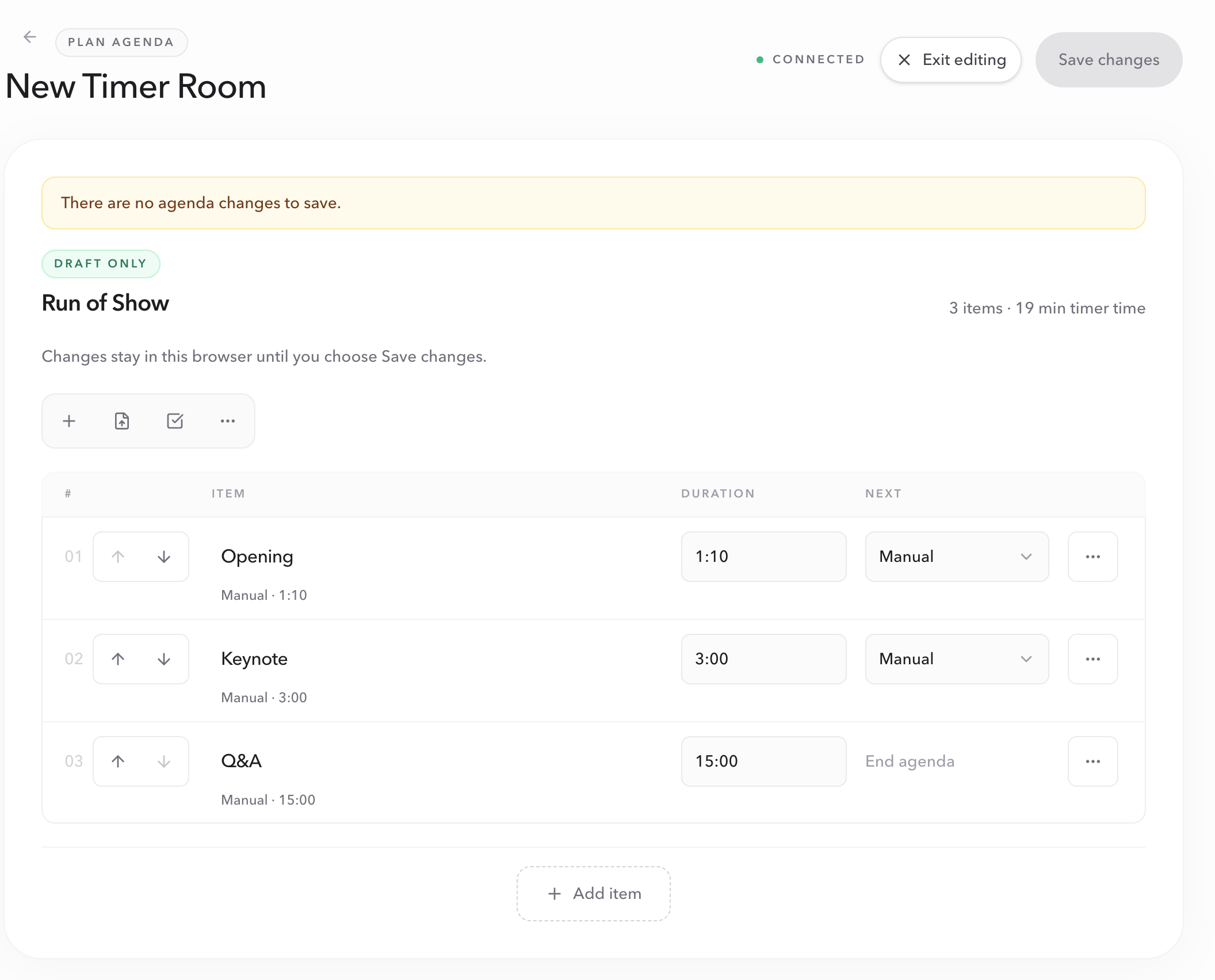
Open the private Host workspace and choose Plan agenda. Agenda planning is for preparing the session, so finish or reset live timers before changing the plan.
- 02
Add one item for every timed segment. Use names that a Host or producer can recognize immediately, such as “Opening remarks” instead of “Timer 1”.
- 03
Use the up and down arrow controls on each row until the list matches the order people will experience. For larger edits, select multiple items and use the bulk move action. Reuse a similar item when several segments share the same timing pattern, then adjust its name and duration.
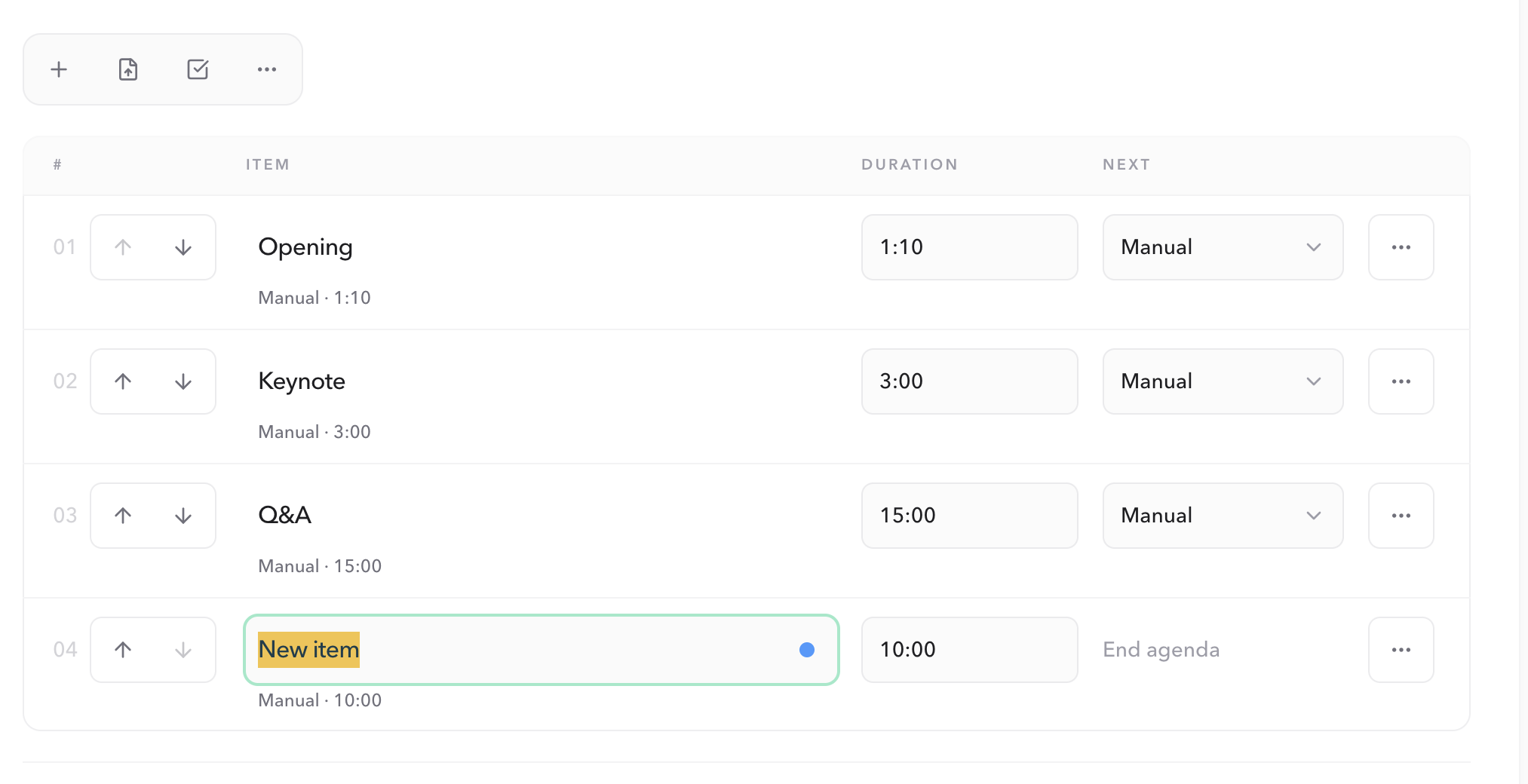
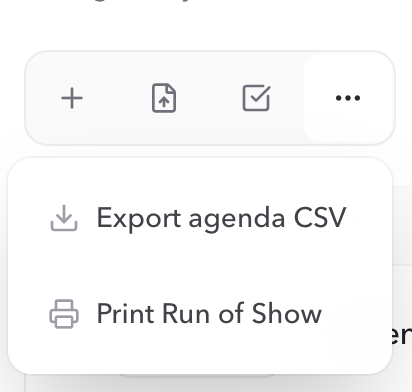
Use the + control to add an item. The new row is editable immediately: give it a name, set its duration, and check the handoff shown in the Next column.
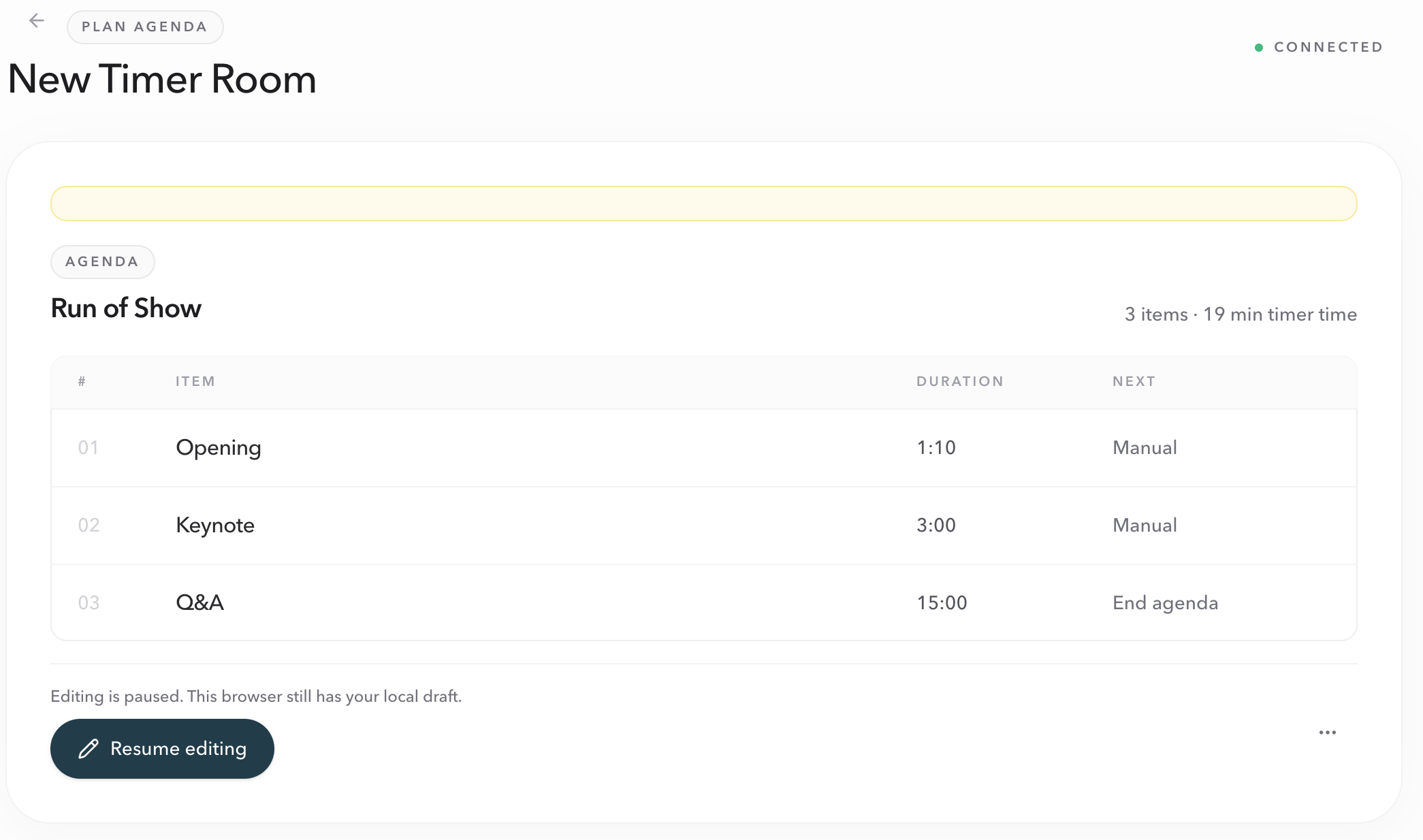
When you leave editing, the saved agenda can be reviewed as a read-only Run of Show. Choose Resume editing to continue working on the local draft.
Configuration
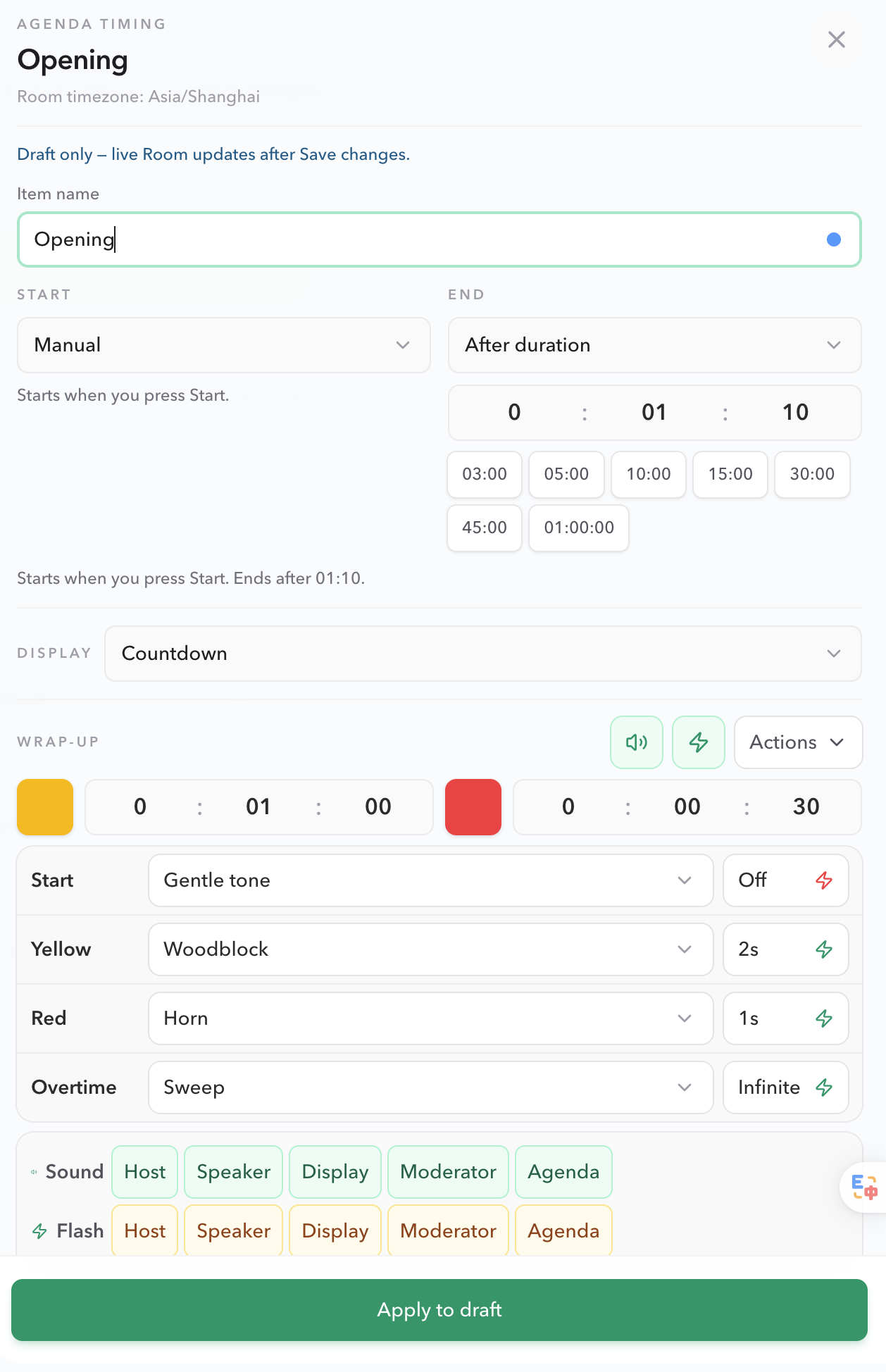
Configure timing from an item's more menu.
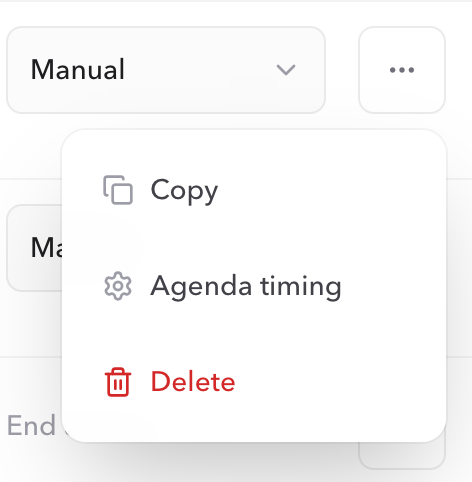
Open an item's ... menu and choose Agenda timing to define how it starts, how it ends, and what the shared views show. The important choices are:
- Item name
- The label shown to Host, Speaker, Moderator, and Agenda viewers.
- Start
- Manual starts when Host presses Start. Scheduled starts at a configured date and time in the Room time zone.
- End
- Use a duration for a relative countdown, or End at a time when the segment must meet a fixed clock deadline.
- Display
- Choose countdown, count up, or a time-of-day display for the relevant output views.
- Wrap-up
- Set yellow and red stages, sound, flash, and delivery roles when the plan supports advanced cue actions.
Keep the normal manual-duration timer as the default unless the segment really depends on a wall-clock start or end. A scheduled item must have a valid future time, and scheduled items must remain in chronological order without overlapping the preceding scheduled segment.
Handoffs
Choose how the next item follows the previous one.
Open the settings for the upcoming item and set its Agenda flow. This uses the same field as Host. Choose the least automated behavior that matches the room. A Host timer-list connector can set Start after previous on the live Room; an unpublished Agenda Studio draft stays local until you load the latest Room or publish the draft.
| Setting | What happens | Use it when |
|---|---|---|
| No link | The current item stays in place until Host selects another one. | The next step depends on a producer decision or discussion. |
| Select after previous | The next item becomes active, but Host still starts it. | The next segment is known, but the handoff may pause. |
| Start after previous | The next item starts automatically when the current one ends. | The sequence is continuous and has been rehearsed. |
A scheduled item can use Start after previous. It becomes active after the previous item ends and waits for its configured clock time to begin.
Run sheets
Import or export an agenda as CSV.
CSV is useful when the running order already exists in a spreadsheet or when a producer needs to review the plan outside PresentationTimer. Export includes the saved agenda configuration. Import validates the rows before applying them to the draft.
name,duration,next
Opening,05:00,select_next
Keynote,25:00,manual
Q&A,15:00,manual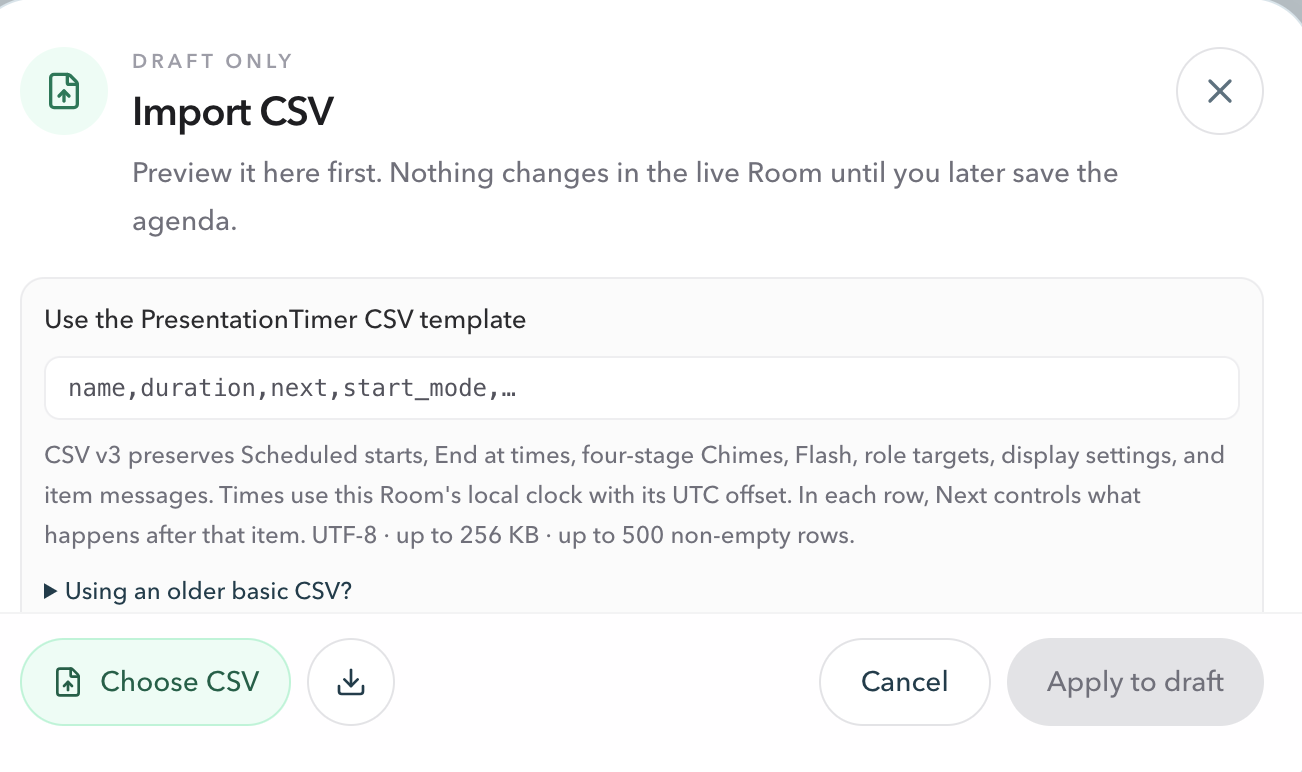
- Older three-column files using
name,duration,nextremain supported for basic agendas. - Newer CSV formats can carry speakers, notes, colored labels, scheduled starts, fixed end times, display settings, alerts, sound, messages, and delivery roles.
- Scheduled timestamps include an offset so the same moment can be previewed in the destination Room time zone.
Publishing
Review the draft, then publish one complete plan.
Agenda planning separates preparation from the live Room. Reorder items, edit names, import a CSV, and configure handoffs in the draft. Review the entire sequence before choosing Save changes.
Publishing replaces the Room agenda as one configuration update. If the draft has a validation problem, the page keeps the draft in the browser and shows the item that needs attention. Do not share links with the production team until the active item, next item, durations, and time zone have been checked.
Important boundary
Saved Rooms preserve reusable configuration. They do not restore a running timer, live connection state, history, or another session's Host token.
Live session
Run the published agenda from Host.
Host is the operational control source. Start or pause the current item, select another item when the plan changes, and correct live remaining time when the room needs it. The shared views follow the same active Room without separate starts.
- Keep Host on the operator's private device.
- Use Display for the projector or shared screen.
- Give Speaker View to the presenter.
- Give Moderator or Agenda View to the production team.
Before going live
A short agenda rehearsal.
- 01The item order matches the run of show.
- 02Names and durations are readable at a glance.
- 03The Next handoff is set and has been tested. A Host list connector writes Start after previous on the live Room; an unpublished Agenda Studio draft stays local until you load or publish it.
- 04Scheduled items use the intended Room time zone.
- 05Host, Operator, Display, and the required read-only views are open on the correct devices.
FAQ
Common agenda questions
Should each speaker have a separate Room?
Usually no. Put the segments of one session in one Room. Give the presenter Speaker View, put Display on the shared screen, and use Agenda View for people who need the complete running order. Keep Host private with the operator.
What is the difference between an agenda draft and the live Room?
The planning workspace is a browser-side draft until you choose Save changes. This lets you prepare, reorder, and review the full agenda before changing the live Room. The published configuration is what Host, Operator, and the read-only views use.
Why did the next timer become selected but not start?
That is the expected behavior for Select after previous. The next item becomes active when the previous timer ends, but Host still needs to start it. Use Start after previous when the next segment should begin automatically.
Can I change the active timer during the session?
Host can select another item, start or pause the active timer, and correct its live remaining time. Changes to live remaining time do not rewrite the planned duration stored in the agenda settings.
Does a Host timer-list connector change this Agenda Studio draft?
No. The Host connector writes Start after previous on the live Room. An unpublished Agenda Studio draft stays local until you load the latest Room into that draft or publish the draft back to the Room.