Run the active timer
Start, pause, and reset the timer from the host workspace while the shared views follow the same room state.
Private host workspace
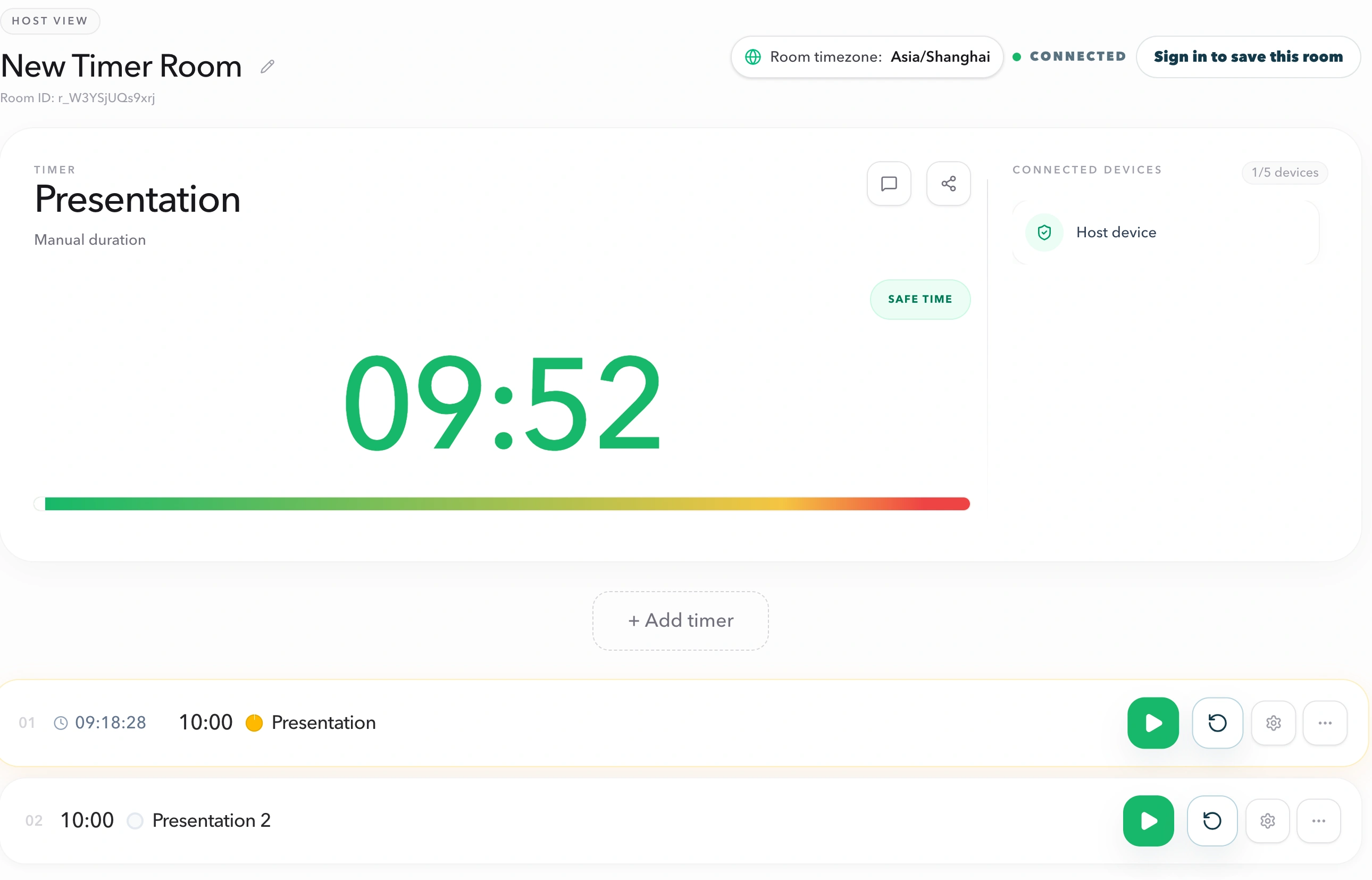
Create a room, then use the private Host link to run the timer and agenda. Share an Operator timing console or read-only Display, Speaker, Moderator, and Agenda views with the people who need to run or follow the session.
Host link
Private access for controlling the room.
Shared clock
Every open view follows the active timer.
Read-only roles
Share timing context without giving control.
What the host controls
Start, pause, and reset the timer from the host workspace while the shared views follow the same room state.
Configure the timer, choose the active agenda item, and keep the next session segment ready before it begins.
Copy the Display, Speaker, Moderator, or Agenda link without giving those devices timer controls. From Outputs, Pro can also attach a custom Display with logo, background, and canvas size.
Four-step setup
01
Start a room for the session. The room becomes the shared source of truth for every device.
02
Open the original host link on the device that will control timing. It carries the access needed to make changes.
03
Start, pause, reset, or adjust the active timer as the session moves from one segment to the next.
04
Send the display, speaker, moderator, or agenda link to the people and screens that need to follow along.
Clear access boundaries
The host workspace is intentionally separate from the views used by the rest of the session. That prevents an accidental pause or reset on a projector, speaker device, or producer monitor.
Only the Host can control the timer. Please use the original host link.
Send the Display, Speaker, Moderator, or Agenda link to the people and screens that need timing context.
A typical room setup
Host laptop: control the timer, agenda, display message, and shared links.
Room display: show the countdown on a projector, confidence monitor, or screen share.
Related use cases
Start with the setup that matches your session, then keep timing control in one private workspace.
Host controls FAQ
Use the host workspace on the device operated by the facilitator, producer, teacher, event lead, or other person responsible for the live schedule.
No. Speaker, moderator, display, and agenda views are read-only. The host workspace is the only place for timer control.
Share the display, speaker, moderator, or agenda link according to the recipient's role. Keep the original host link private because it grants timing control.
Start with a room