PresentationTimer

Webinar countdown timer

Free webinar countdown timer for hosts, speakers, and online sessions.

Create a host-controlled webinar timer room with a shareable countdown display, warning colors, overtime tracking, and simple agenda timing for Zoom webinars, demos, trainings, and live online events.

Host controls
Share display
Q&A agenda
See how it works
Live webinar display12:00
Host controls connected to a webinar countdown timer display

Real webinar situations

Webinars drift when the timer is hidden from the people running the show.

In a live webinar, the countdown is not just for the presenter. It is a coordination signal for the host, speaker, producer, screen-share operator, and anyone responsible for moving the session into Q&A or closing.

A private timer can be missed, and a slide countdown only helps while that slide is on screen.

A shared webinar countdown timer gives the whole production flow one visible source of time.

a Zoom webinar where the producer needs to keep the speaker on schedule
a product demo with a fixed presentation block and live Q&A
a training webinar that moves from welcome to lesson, break, and questions
a panel webinar where each speaker needs a visible time cue
a sales webinar where the host wants a quiet wrap-up signal before the offer
a remote event where the screen-share operator and host need the same countdown

A practical webinar flow

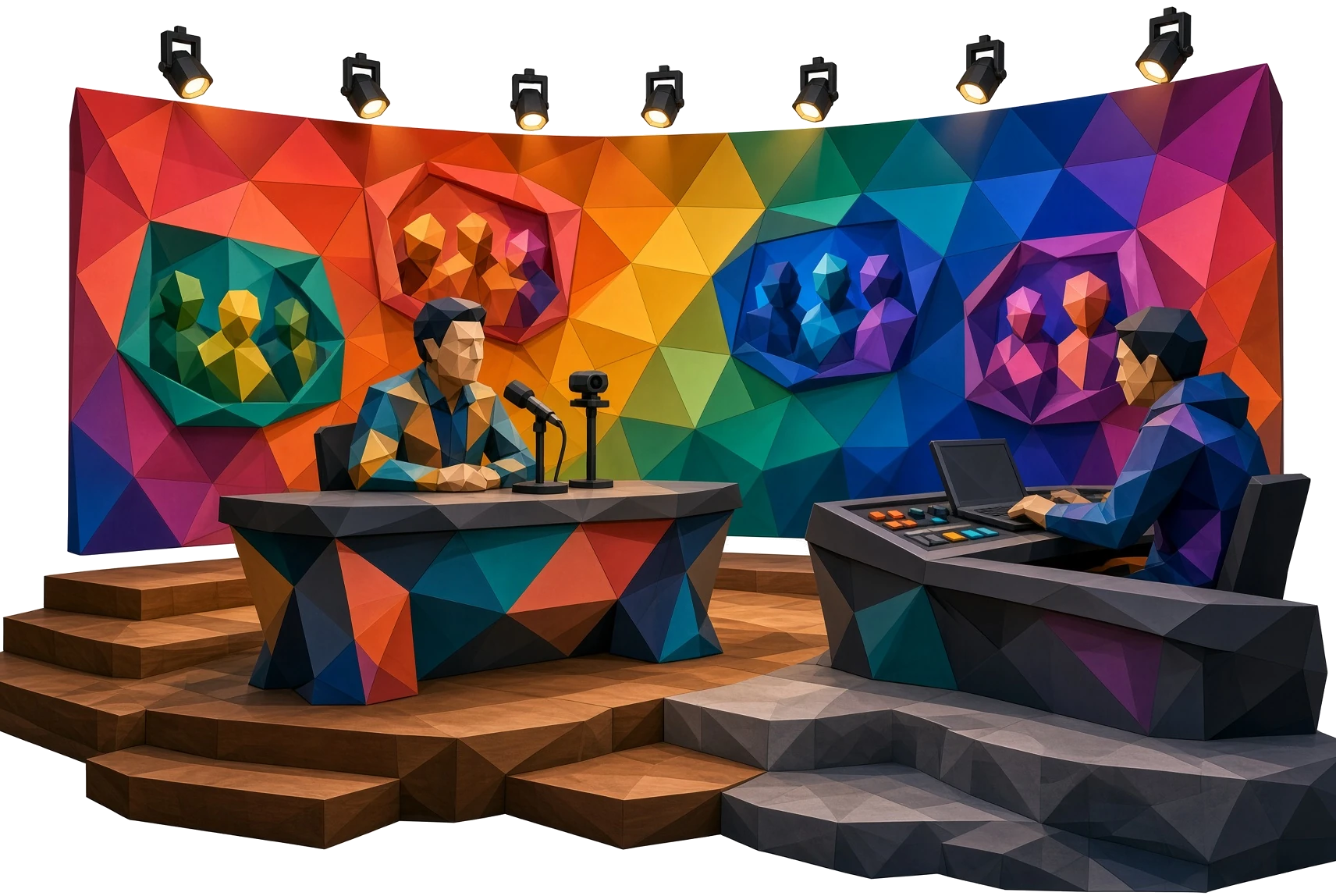
The producer can control timing while the speaker follows a clean display.

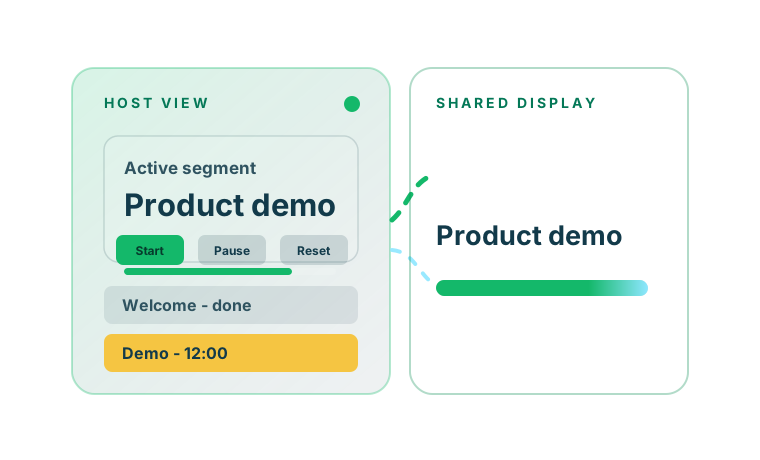
Host controls beside a shared webinar countdown display

In many online sessions, the host has one plan, the speaker has another sense of time, and the producer is trying to move the webinar into Q&A without interrupting the talk.

PresentationTimer keeps those roles clear. The host or producer opens the control page. The speaker or shared webinar screen opens a clean display link.

That display can be shown in a Zoom screen share, placed on a second laptop, kept on a confidence monitor, or watched by a remote producer.

The host can adjust timing live without exposing controls to attendees or forcing the speaker to manage the clock.

When the webinar has multiple parts, the room can hold a small agenda for welcome, presentation, demo, Q&A, and closing.

The result is a calmer online session: speakers see a clear countdown, producers know what is next, and overtime remains visible when the agenda runs long.
Why PresentationTimer

Give speakers a visible webinar countdown and keep controls with the host.

The presenter should not have to run the clock while speaking.

The producer should not need to interrupt the session every time the webinar approaches the next segment.

PresentationTimer separates the control page from the public display so the timer supports the live session instead of distracting from it.

A webinar timer the speaker can actually see

A private phone timer or hidden producer note is easy to miss. A shared webinar countdown timer can run on a second screen, screen share, confidence monitor, or producer laptop so the speaker follows the same time as the host.

Host controls stay off the public display

The host or producer can start, pause, reset, edit durations, switch agenda timers, and update the display message from the host view while attendees see only the clean countdown.

Warning colors and overtime stay visible

Green, yellow, red, and overtime states give speakers a simple cue during a live webinar. The host does not need to interrupt the talk just to explain how much time is left.

How it works

Set up a webinar countdown timer in four practical steps.

The flow follows the way webinars actually run: create a room, prepare the timed segments, share the display where the speaker or producer can see it, and adjust live from the host view. If you need a Zoom webinar countdown timer, share the display window in Zoom while keeping the host controls private.

You can use one countdown timer for webinar presentations or build a small agenda for presentation, demo, Q&A, break, and closing.

1

Create a webinar timer room

Open PresentationTimer and create a free room. The webinar host gets the control page, and the display link is ready to share with a speaker screen, producer laptop, or webinar screen share.

2

Build the webinar agenda

Add timers for welcome, presentation, demo, Q&A, break, or closing. A small agenda keeps the webinar flow in one room instead of spreading timing across separate tabs.

3

Share the countdown display

Open the display link in the place your team needs it: a second browser window, Zoom screen share, confidence monitor, or production machine. The display follows the active timer and stays read-only.

4

Control the room live

Start, pause, reset, switch segments, or use Linked Start when one webinar segment should flow into the next. The host can still override manually when the live session changes.

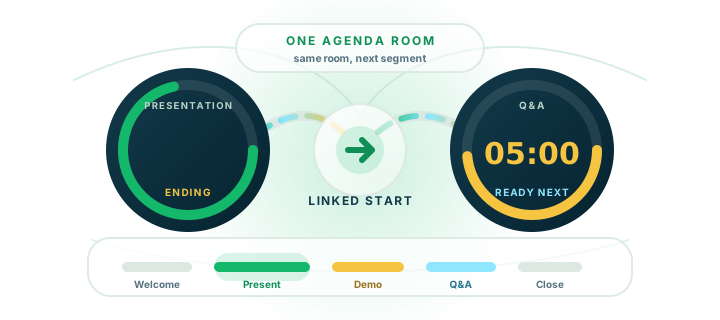
Linked Start routes a webinar presentation timer into Q&A inside one agenda room

Agenda and Linked Start

Move from presentation to Q&A without rebuilding the webinar timer.

A webinar is rarely one countdown. A host may need a welcome timer, a presentation timer, a product demo timer, a Q&A timer, and a short closing timer.

Instead of opening separate timer tabs, PresentationTimer keeps those segments inside one agenda room.

Linked Start helps when the flow is predictable. The next timer can be selected after the previous one ends, or it can start automatically.

If the webinar changes direction, the host can still switch manually without confusing the display.

Comparison

Use a webinar timer built for live sessions, not just any countdown.

Phone timer

Fast to start, but private and hard for the speaker, host, and producer to follow together.

Slide countdown

Visible during one slide, but not connected to host controls or the rest of the webinar agenda.

Generic online timer

Useful for one countdown, but usually lacks host/display separation and multi-segment webinar timing.

PresentationTimer

Host-controlled webinar countdown timing with a shareable display, warning colors, overtime, and simple agenda timers.

Ready to time a webinar?

Create a free room, share the countdown display, and keep the webinar on schedule.

Use PresentationTimer for one webinar segment or a simple multi-part online session.

The host controls timing, the display stays readable, and overtime remains visible when the session runs long.

FAQ

Webinar countdown timer questions

What is a webinar countdown timer?+

A webinar countdown timer is a visible timer used to keep a live webinar, online presentation, demo, training session, or Q&A block on schedule. PresentationTimer adds host controls, a shareable display, warning colors, overtime tracking, and simple agenda timing.

Can I use this as a Zoom webinar timer?+

Yes. You can open the display link in a browser window and share it in Zoom, place it on a second monitor, or keep it on a producer machine while the host controls the timer from the host view.

How do I add a timer in a Zoom webinar?+

Create a PresentationTimer room, open the display link in a browser window, and share that window or place it where the speaker can see it. The host keeps the control page separate, so attendees do not see the editing controls.

How do I show a countdown timer for a Zoom webinar?+

Create a PresentationTimer room, open the countdown display link in a browser window, and share that window in Zoom or place it on a second screen. This gives your webinar team a Zoom webinar countdown timer while the host keeps private control of the room.

Can I use it as a webinar speaker timer?+

Yes. Use the shared display as a webinar speaker timer by opening it on a confidence monitor, second laptop, producer screen, or browser window near the presenter. The speaker sees the countdown and warning colors without needing access to the host controls.

Does PresentationTimer change my Zoom webinar time limit?+

No. PresentationTimer does not change Zoom's webinar time limit or account rules. It helps you manage your planned webinar time limit with a visible countdown timer for webinar sessions, host controls, warning colors, and overtime tracking.

Can one room handle a webinar presentation plus Q&A?+

Yes. A free room can hold a small agenda, so you can create separate timers for welcome, presentation, product demo, Q&A, break, or closing remarks.

What does Linked Start do for webinars?+

Linked Start lets one webinar segment connect to the next. When a presentation timer ends, the Q&A timer can be selected automatically or started automatically, while the host can still override the flow manually.

Is the webinar countdown timer free?+

Yes. The current version lets you create a free timer room in the browser for lightweight webinars, online presentations, demos, trainings, and remote meetings.