A classroom screen students can actually follow
A timer on the teacher's laptop is easy for students to miss. A shared classroom timer can run on a projector, smart board, or large display so everyone sees the same countdown.
Classroom timer
Create a classroom timer room with teacher controls and a large shared display for students.
One room can manage the whole lesson flow without forcing the teacher to interrupt, reset, and re-share a timer every few minutes.

Real classroom situations
In a classroom, the timer is not just for the teacher. It also helps students pace a presentation, notice a wrap-up cue, and understand when the class needs to move to the next part of the lesson.
If the only timer is on the teacher's laptop or phone, the students presenting may never see it clearly.
A shared classroom timer gives the whole room one visible countdown instead of one private device.
A practical classroom flow
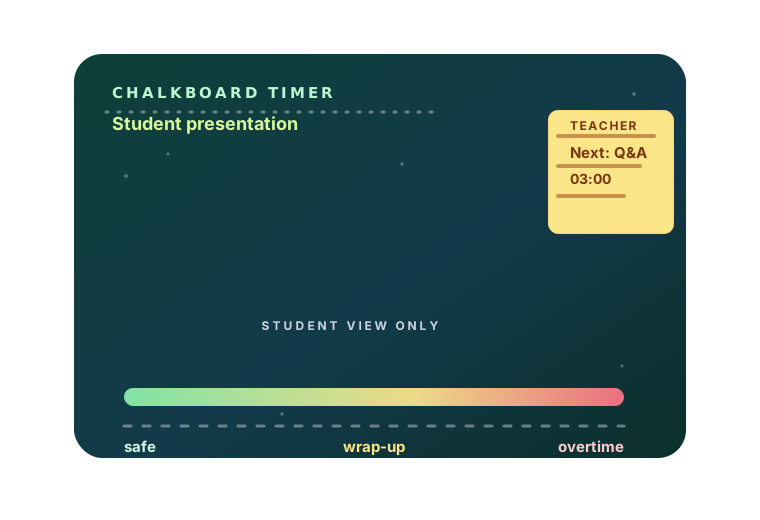
In many lessons, timing problems start before the first student even begins. The teacher has a schedule, the student presenter has a time limit, and the rest of the class needs a visible signal for what is happening now.
If the only countdown is near the teacher's desk, students at the front of the room may miss the warning until their time is nearly gone.
PresentationTimer keeps the roles separate. The teacher opens the host view and controls the room privately. The classroom screen opens the public display and shows only the active timer in a large, readable format.
That display can live on a projector, smart board, classroom monitor, or second laptop. Students see the time. Teachers keep the controls.
When the lesson has more than one segment, the room can hold a small agenda. A teacher can set up a presentation timer, a Q&A timer, a feedback timer, and a short transition timer before class begins.
The result is a calmer classroom flow. Students pace themselves better, the teacher interrupts less, and the room moves from one segment to the next with less friction.
Why PresentationTimer
The presenting student should not need to control the timer manually.
The teacher should not have to stop the flow every minute to announce the remaining time.
PresentationTimer separates the host controls from the classroom display so the lesson stays clear for everyone in the room.
A timer on the teacher's laptop is easy for students to miss. A shared classroom timer can run on a projector, smart board, or large display so everyone sees the same countdown.
The teacher can start, pause, reset, rename, reorder, and switch timers from the host view while students see only the clean classroom display.
Green, yellow, red, and overtime states give students a clear pacing signal. Teachers do not need to keep cutting in with verbal reminders while someone is presenting.
How it works
The flow follows the way timed lessons actually run: create the room, add the class segments, show the display to students, and adjust quietly from the teacher host view.
You can use one timer for a single presentation or build a simple room for presentation, Q&A, feedback, and the next student. A step-by-step walkthrough is in How to create a classroom timer.
Open PresentationTimer and create a free room. The teacher gets the host view, and the classroom display link is ready to open on a projector or second screen.
Set up timers for presentation, Q&A, feedback, group work, or the next speaker. One room can hold the whole lesson flow instead of forcing you to reset a single timer over and over.
Open the display link on the classroom screen. Students see the active countdown only, without host buttons, editing UI, or room settings.
When the lesson structure is predictable, link the next segment so the room moves from presentation to Q&A or from one student to the next with less friction.
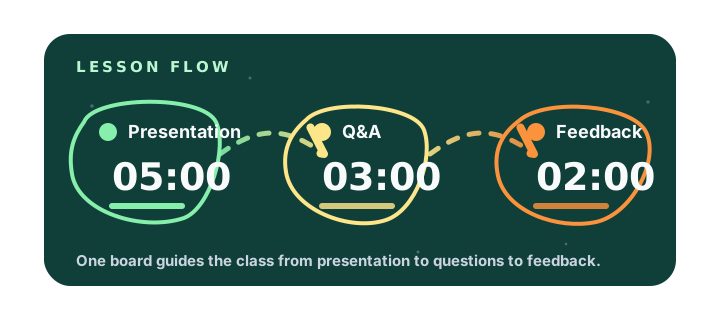
Agenda and Linked Start
Many lessons have more than one timed segment. A teacher may need a presentation timer, a Q&A timer, a feedback timer, and a short transition before the next speaker or activity.
Instead of opening separate timer tabs, PresentationTimer keeps those segments in one classroom room.
Linked Start helps when the lesson flow repeats. The next timer can be selected after the previous one ends, or it can start automatically.
If the class changes direction, the teacher can still override manually and switch to a different segment without confusing the student display.
Comparison
Teacher phone timer
Fast to open, but students cannot follow it from across the room and it does not help with multi-step lesson flow.
Whiteboard schedule
Useful for planning, but it does not give the class a visible live countdown.
Generic timer site
Good for one countdown, but usually lacks teacher/display separation and agenda timing for classroom flow.
PresentationTimer
Teacher-controlled classroom timing with a shared screen display, warning colors, overtime, and simple agenda timers in one room.
Ready to time a class?
Use PresentationTimer for one student presentation or a simple lesson agenda with multiple timed segments.
The teacher controls the room, the classroom screen stays readable, and overtime remains visible when a segment runs long.
FAQ
A classroom timer is a timer used to keep lessons, student presentations, class activities, debates, and speaking practice on schedule. PresentationTimer adds teacher host controls, a large classroom display, warning colors, overtime tracking, and simple agenda timing.
Yes. A teacher can control the timer from the host view while students follow the classroom display on a projector, smart board, or browser window.
Yes. A classroom timer room can hold a small agenda, so you can create one timer for the presentation, one for Q&A, and another for feedback, transition, or the next student.
Yes. The display link is public read-only, so it can stay open on a classroom screen, projector, smart display, or second laptop while the teacher keeps the controls privately.
Linked Start connects one segment to the next. When one timer ends, the next classroom segment can be selected or started automatically, which helps with repeatable lesson flow.
Yes. The current version lets you create a free timer room in the browser for lightweight classroom presentations, activities, workshops, and lesson timing.
Related