Write a short live cue
Add a room-wide message from Host View when the next instruction matters as much as the time: a handoff, a ready cue, or an upcoming change.
Room-wide live cues
Write a short message from the Host workspace and place it beside the live timer on Display View. It gives speakers, attendees, and the stage team a clear instruction without interrupting the countdown.
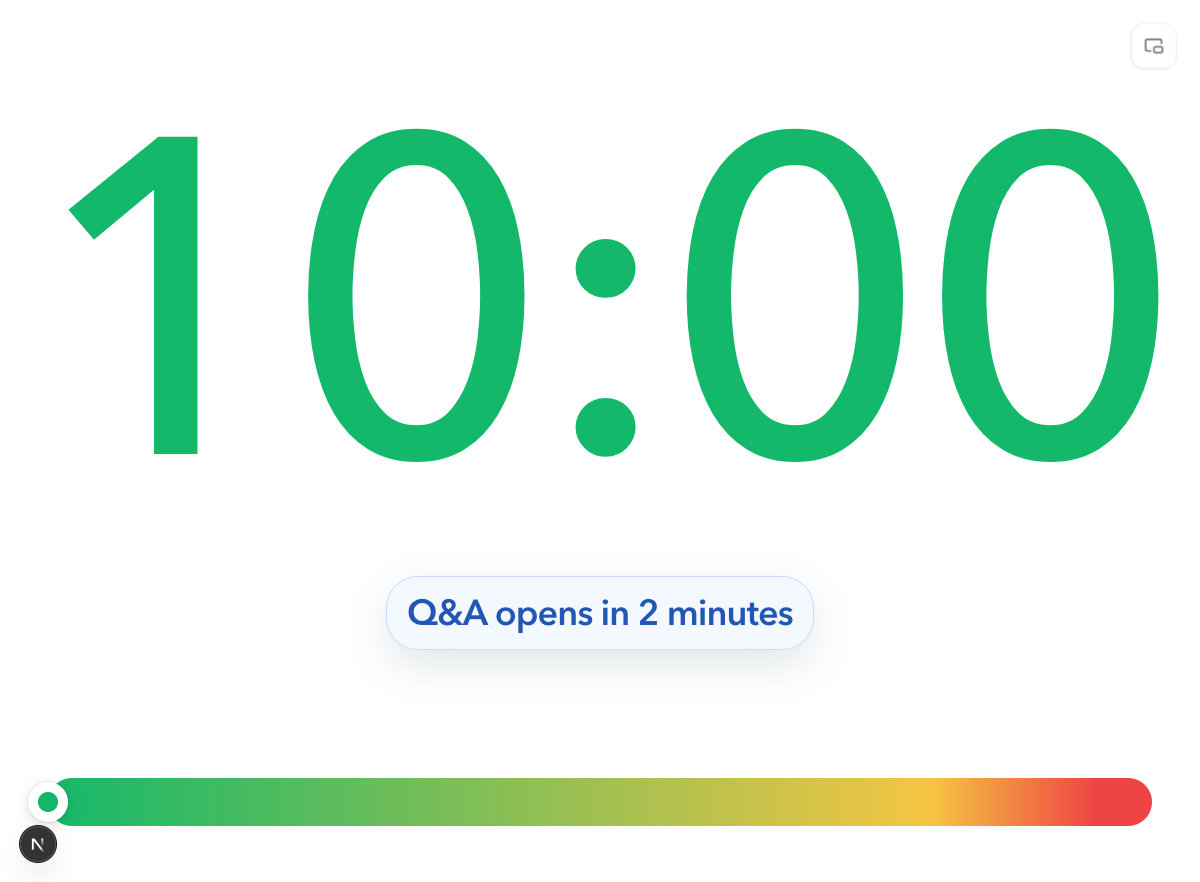
Live cue
Q&A opens in 2 minutes
Short by design
Write up to 80 characters, so the instruction stays readable at a glance.
Visual emphasis
Choose from four type sizes and six tones to match the distance and urgency.
One room signal
Keep the cue in Host control and show it on the shared Display View.
A message that belongs with the time
Add a room-wide message from Host View when the next instruction matters as much as the time: a handoff, a ready cue, or an upcoming change.
Use one of four message sizes and six color tones so the cue stays readable on a projector, stage screen, or shared display.
Clear the message from Host View as soon as the instruction has passed, leaving the room with the timer it needs next.
Four-step workflow
01
Use the message button in the active timer area. It is part of the private Host workspace, not the shared display.
02
Keep the instruction concise. Display messages support up to 80 characters, enough for a clear stage or speaker prompt.
03
Set a small, medium, large, or extra-large size, then choose default, green, amber, red, blue, or white to fit the moment.
04
Publish the cue to the room-wide display. When the action is complete, remove it from Host View so the display stays focused.
Useful live prompts
A display message is most useful when a presenter, audience, or stage team needs one concise instruction that complements the timer. Use it for the next action, not for a script or a full agenda.
Keep the next presenter informed without asking the audience to look away from the shared screen.
Prepare the room for the next segment while the current timer is still visible.
Use a short public instruction when an event needs the room to reset before the next timed section.
Clear role boundaries
Host writes
The person running the room chooses the text, size, color, and when it should be removed. Do not share the Host link with the wider room.
Display shows
The shared screen remains a clean timing surface. It shows the room message without becoming an editing or control interface.
Timer continues
Use it for a prompt or status cue while the room continues to follow the active timer and its timing state.
Related use cases
Give speakers and attendees a simple cue during live program handoffs.
Webinar timerKeep presenters and a producer aligned before a Q&A, break, or next demo.
Classroom timerAdd a clear instruction to a projected timer without changing the lesson flow.
Panel discussion timerPrompt panelists for the next round, audience questions, or a final wrap-up.
Display message FAQ
A display message is a short room-wide cue written from Host View. PresentationTimer shows it alongside the active timer on Display View, so the room can see the time and the next instruction together.
Display messages support up to 80 characters. Keep the text short enough to be read quickly from the distance of the shared screen.
Yes. Host View offers small, medium, large, and extra-large sizes, plus default, green, amber, red, blue, and white color options.
The message is edited from Host View. Display View is for showing the timer and message, not for changing room controls or text.
Yes. Use Clear in the Host message control when the cue is no longer needed. The display returns to showing the active timer without the message.
Start with a room