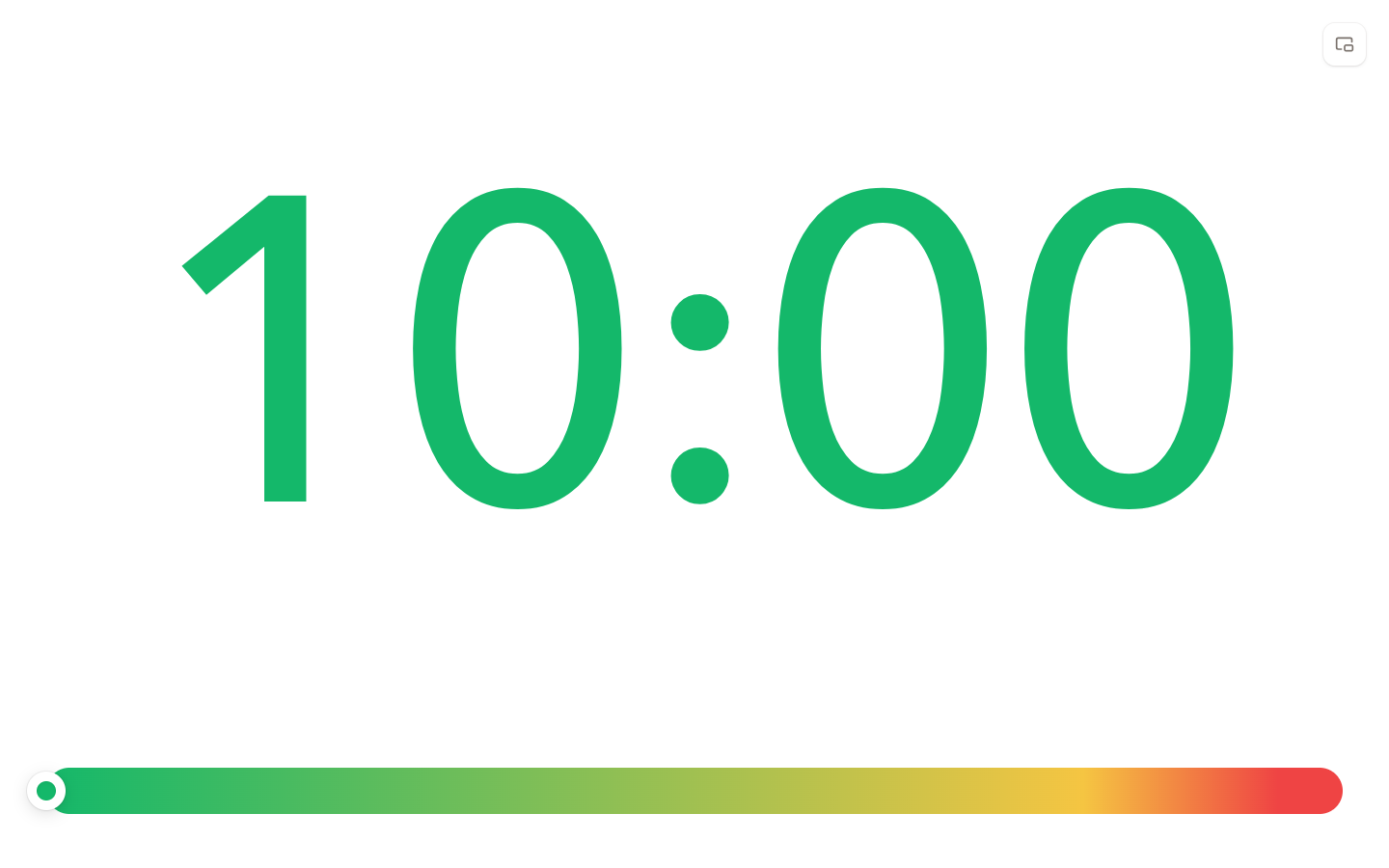
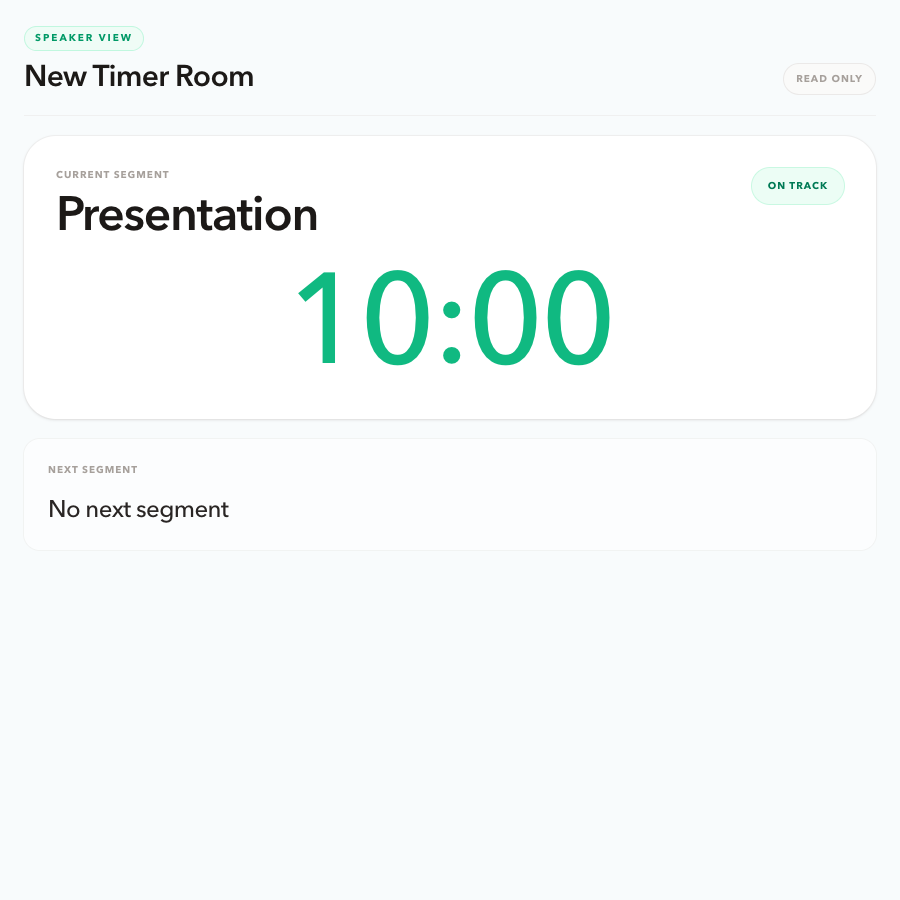
Keep your controls private while speakers and shared screens follow the same room. Display View gives the room a clean, full-screen timer. Speaker View shows the current segment, warning state, and what comes next.
Every open view follows the active timer and agenda.
Different devices
Put the room timer on a shared screen and the speaker cue on a personal one.
No extra controls
Both views are read-only, so the Host remains the only control point.
Two views, two jobs
Show the right timing context to the right person.
For the shared screen
Display View
A clean clock for the room.
Open it on a projector, confidence monitor, screen share, or second display. The default Display stays available. Pro can attach a custom layout with logo, background, and a canvas size that matches the screen.
Large current timer for the room
Warning colors, progress, and optional Host message
Custom logo, background, and canvas size on Pro
For the presenter
Speaker View
A quiet cue for the speaker.
Open it on a speaker's phone, tablet, or laptop to see the current segment, time remaining, warning state, and the next segment without extra production detail.
Current segment and time remaining
Clear wrap-up and overtime cues
Next segment and scheduled start time when set
Four-step setup
Set up focused timing views before the session starts.
01
Create a timer room
Start one room for the live session. It becomes the shared source of timing for every open view.
02
Keep the Host link private
Use the original Host link on the device that will run the timer and agenda.
03
Open Display View on the shared screen
Send the Display link to the projector, screen share, confidence monitor, or second display.
04
Send Speaker View to the presenter
Share the Speaker link with the person who needs a focused personal timing cue.
Clear role boundaries
Share the clock without sharing control.
Each room link has a job. Keep the Host workspace private, then give the room and speakers timing information that is useful to them without adding a second control surface.
Private control
Host
Starts, pauses, resets, manages the agenda, changes display messages, and shares the right links.
Shared timing
Display
Shows the large active timer, progress, warning colors, and any display message. Pro can replace the default screen with a custom Display.
Personal timing
Speaker
Shows the current segment, remaining time, warning state, and what comes next for the presenter.
Useful display modes
Keep the timer visible wherever the session runs.
Projector or confidence monitor
Put Display View where the presenter or room can see the large shared countdown.
Speaker phone, tablet, or laptop
Give the presenter Speaker View for a calm, close-range cue about their segment.
Floating display timer
When the browser supports it, open Display View in picture-in-picture to keep time visible over another task.
Related use cases
Use focused timing views in the sessions you run.
Start with the setup that matches your session, then share the right timing view with each person and screen.
Speaker View is a read-only personal timing view for a presenter. It shows the current segment, time remaining, warning state, display message, and next segment without exposing Host controls.
What is Display View?
Display View is a clean, read-only timer view for a projector, confidence monitor, screen share, or second display. It keeps the active timer visible to the room without showing editing controls. Pro can attach a custom Display from Host Outputs; if that layout cannot be used, the room falls back to the default Display.
Can a speaker pause or reset the timer?
No. Speaker View and Display View are read-only. Only the private Host workspace can start, pause, reset, or change the room.
Does Speaker View show the next segment?
Yes. When another agenda item follows the active timer, Speaker View shows its name and duration. It also shows a scheduled start time when one is set.
Can I use Display View in picture-in-picture?
Display View includes a picture-in-picture control in browsers that support the Document Picture-in-Picture API. It can keep the timer visible while you work in another window.
Start with a room
Create the room, then share the timing view each person needs.