Save a room worth reusing
Sign in from the Host workspace to attach the room to your Google account instead of rebuilding the same timing setup for every session.
Saved room workspace
Save a proven timer room to your account, return to its latest setup, and keep recurring sessions ready without rebuilding the same agenda, time zone, and display choices from scratch.
Saved setup
Ready for the next session
Account-backed
Sign in with Google when a room should stay available beyond the current visit.
Latest setup
Reopen a room with its latest saved timing configuration ready to use again.
Owner-only control
Return to the Host workspace, then share role-specific views from the room.
Reuse the setup, not the busywork
Sign in from the Host workspace to attach the room to your Google account instead of rebuilding the same timing setup for every session.
Open a saved room from My Rooms. PresentationTimer uses the room's latest saved configuration when it needs to restore the Host workspace.
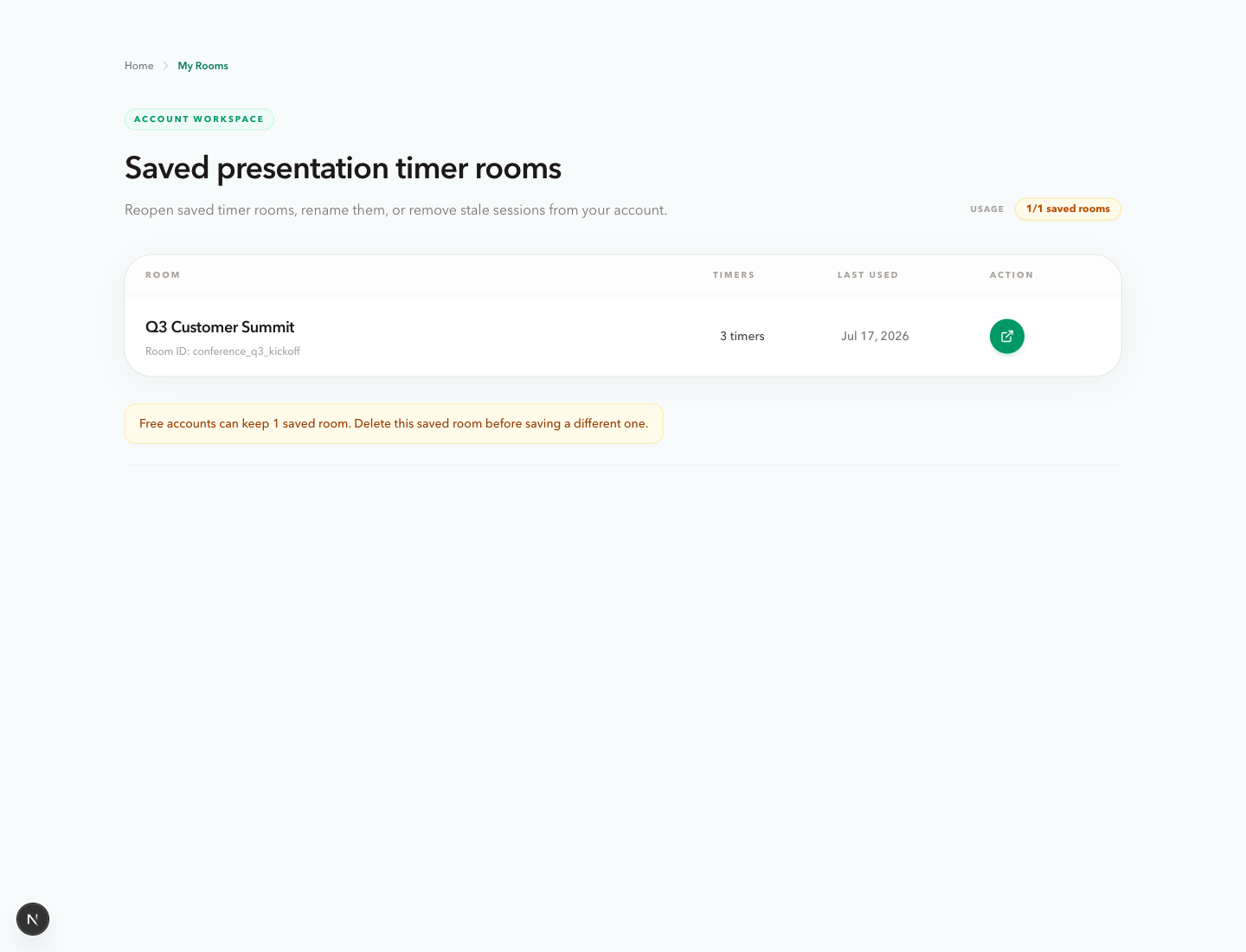
Rename rooms so they remain recognizable, check their timer count and last-used date, and remove stale sessions when they are no longer needed.
Four-step setup
01
Use your Google account when you want a timer room to remain available beyond the current browser session.
02
Keep the original Host link open, then save the room after its name, agenda, timing rules, and display setup are ready to reuse.
03
As the saved room changes, its latest configuration is kept with the account so the next session starts from the setup you last used.
04
Open the Host workspace from your account, then share the right Display, Speaker, Moderator, or Agenda links for the new session.
What comes back
My Rooms is built for reusable setup. It keeps the room information that matters before the session starts, so a returning Host can prepare the same agenda and sharing workflow without reconstructing it item by item.
The saved configuration is designed to give the next Host session a useful starting point, including the timers and their timing settings.
It preserves a reusable setup. Start the timer again from the Host workspace when the new live session is ready to begin.
Clear access boundaries
Account ownership
Saved rooms are attached to the Google account that saved them. The account page is not a public directory of rooms.
Host access
My Rooms returns the owner to the Host workspace. Keep the Host link private, then share only the role-specific views the session needs.
Room cleanup
Delete a saved room when it is stale or when you need the saved-room capacity for a different recurring session.
Related use cases
Reuse a session plan for recurring keynotes, panels, and stage Q&A.
Webinar timerKeep a producer-ready agenda and timing setup for the next webinar.
Classroom timerBring back a familiar classroom agenda without setting every segment again.
Meeting timerSave a recurring meeting flow and reopen it when the next team session begins.
My Rooms FAQ
Yes. Sign in with Google from the Host workspace to save a room to My Rooms. You can still create and run an unsaved room without signing in.
A saved room keeps its reusable timing configuration, including the room name, time zone, display message, agenda timers, and their timing settings. It is designed for setup reuse rather than a historical recording of a live session.
Yes. My Rooms has an owner-only open action that returns you to the Host workspace. From there, you can run the timer and share the appropriate read-only views.
The current free account limit is one saved room. Remove a saved room before saving a different one when you have reached that limit.
Deleting removes the saved room from your account and cannot be undone. Use it to clear an outdated setup or make room for a different recurring session.
Start with a room