Live timing workflow
Plan each segment before it goes live.
A Timer is one planned segment inside a Room. Set how it starts and ends, what every shared view should show, and how it connects to the next segment before Host runs the session.
The short version
Create one Timer for each meaningful segment. Choose its start, end, display, and Linked Start behavior; add wrap-up cues if the room needs them; then rehearse the result from the private Host workspace.
Core model
A Timer is a planned segment, not just a clock.
Opening, Keynote, Break, Workshop exercise, Q&A, and Closing are all good Timer boundaries. A Room can hold one Timer for a simple meeting or an ordered Agenda of many Timers for a complete live program. Every role follows the same active Timer, so one change in Host reaches the intended screens and people.
| Before the session | While the session is live |
|---|---|
| Name, speaker, notes, and labels | Which Timer is active and what every shared view follows |
| Manual or Scheduled start | Running, paused, or idle state |
| Duration, Time Warp, or Target time | Live remaining time and a Host correction when needed |
| Display, Linked Start, and Wrap-up settings | Start, Pause, Reset, select, and recovery actions in Host |
Think of the saved configuration as the operating plan. Live controls handle what actually happens in the room. A quick time correction does not automatically rewrite the Timer's planned Duration.
Setup
Choose the right place to configure a Timer.
PresentationTimer offers two planning surfaces. Both create the same kind of Timer; choose the one that matches the size of the planning job.
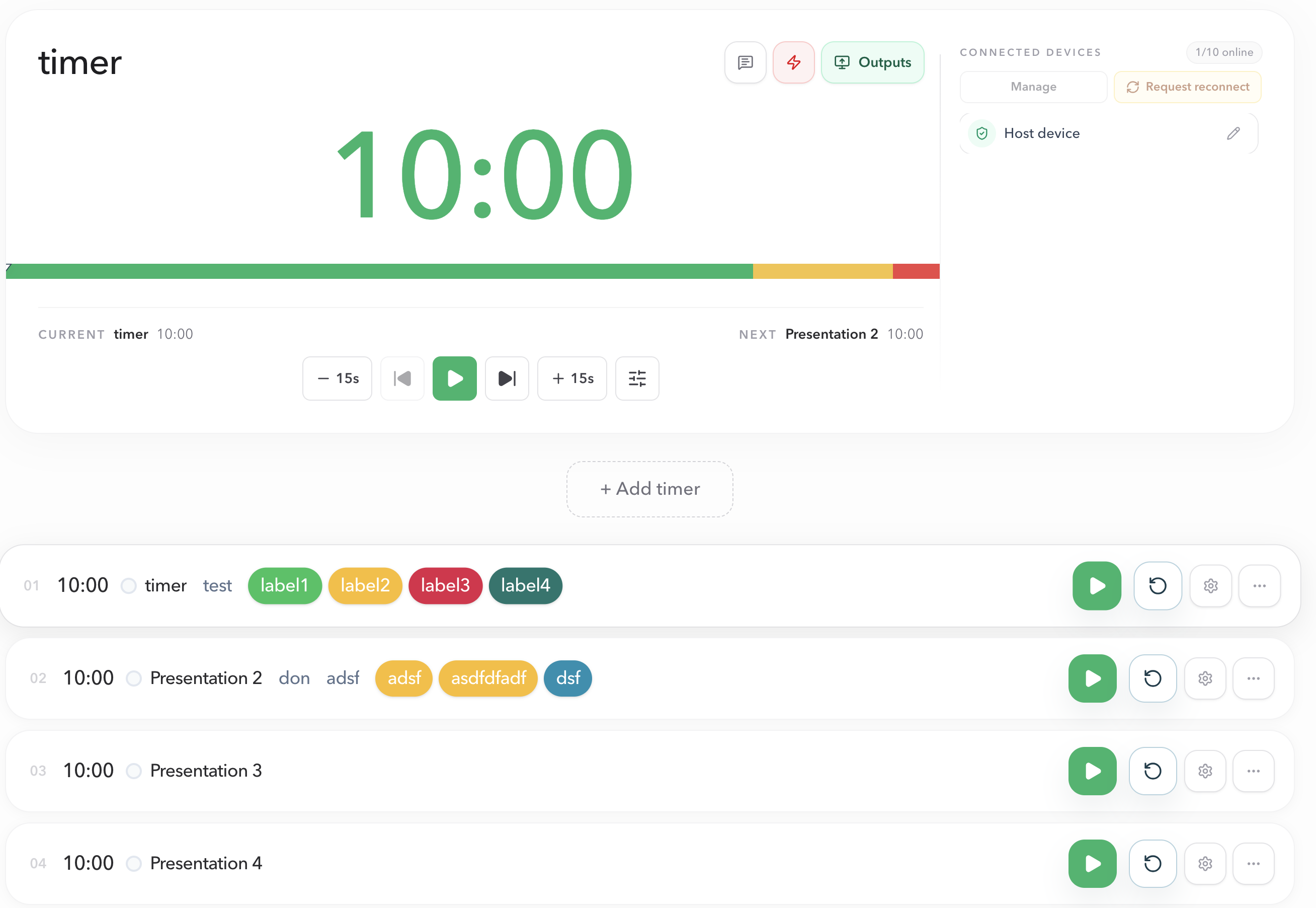
Host
Use Host to add, clone, reorder, and configure one Timer while preparing a smaller session or making a focused change. Hover the gap between two timer cards to set Start after previous on the lower Timer.
Manage Timers in HostAgenda Studio
Use Agenda Studio to build a Run of Show with several ordered segments, then review and publish the complete plan together.
Plan an AgendaTimer details
Name the segment so the room can recognize it.
Timer details give the segment useful context before anyone starts the clock. Use a clear name for every visible agenda item, then add the speaker, notes, or labels that help the operator and production team prepare the right handoff.
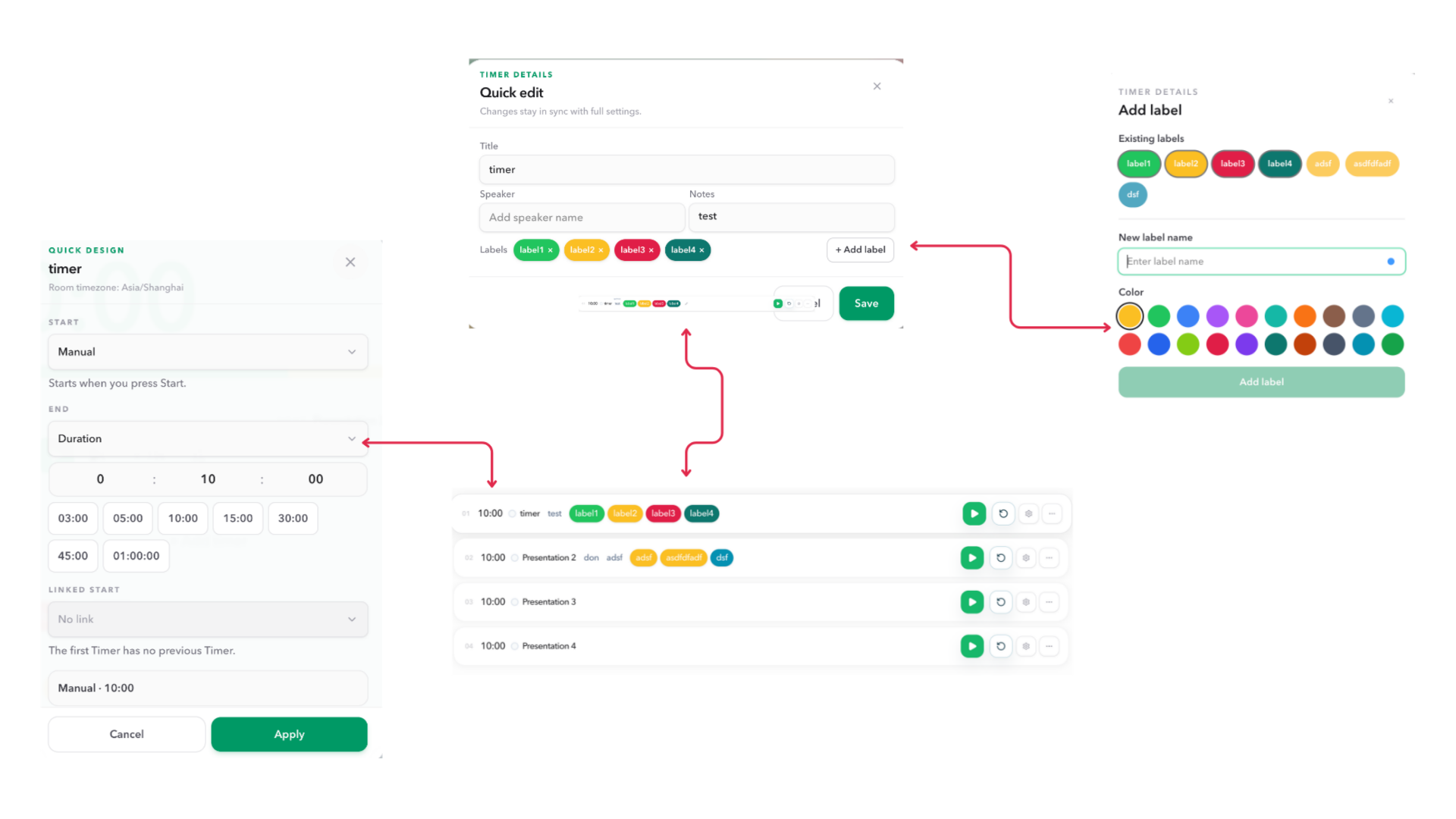
Name
The label that identifies the current segment across Host and the shared views.
Speaker
Useful context for a presenter-facing or backstage workflow without changing the timing rule.
Notes
Preparation detail for the team, such as a transition instruction or technical reminder.
Labels
Reusable categorization that helps distinguish related types of segments in a larger program.
Timing
Decide when the segment starts and how it must end.
Start and End answer different questions. Start decides when the Timer may begin. End decides whether the segment has a relative length or a fixed clock deadline. Scheduled and Target time use the Room timezone, so every device works from the same event clock.
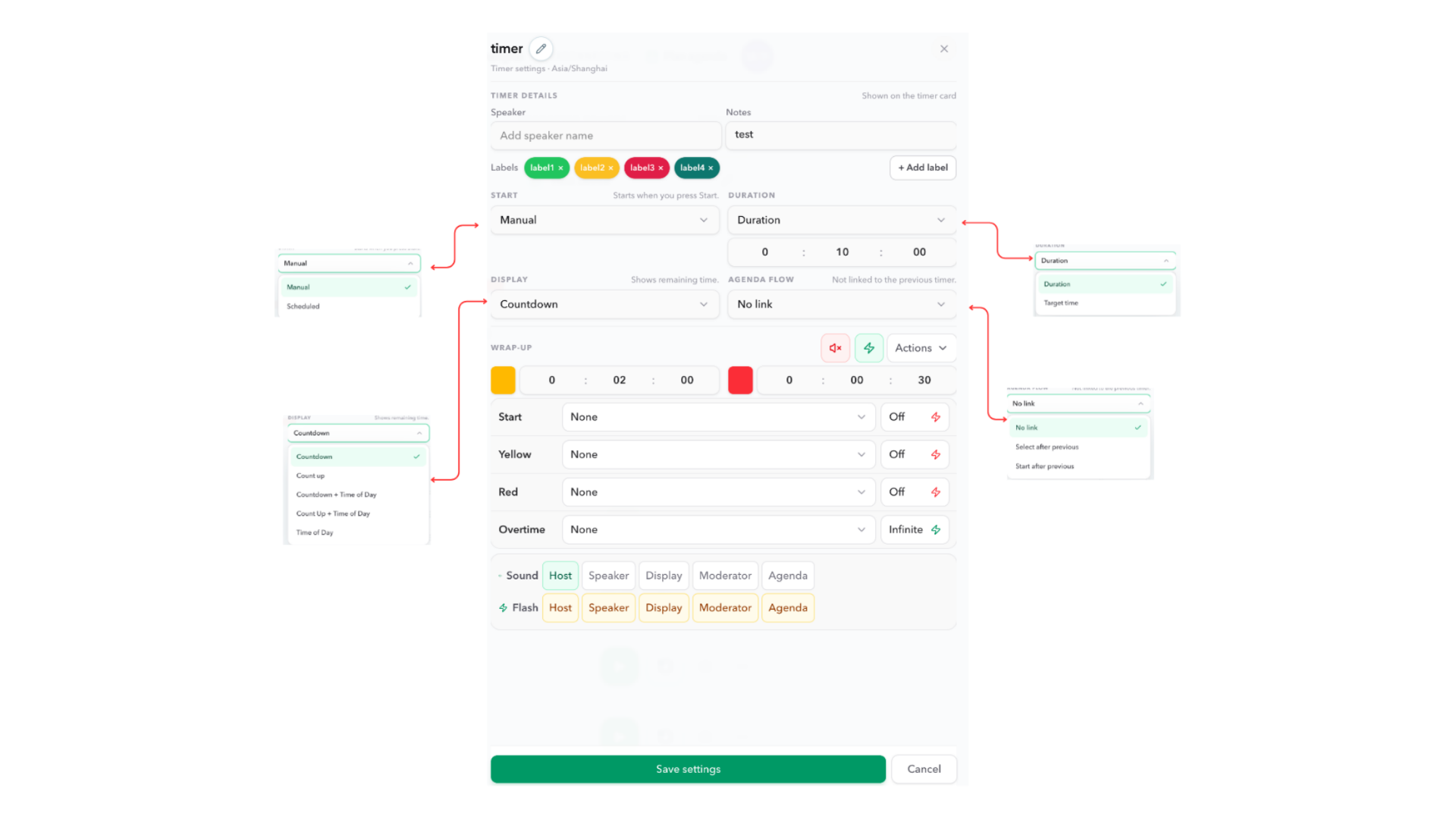
| Setting | What it means | Good fit |
|---|---|---|
| Manual start | The Timer waits until Host presses Start. | A discussion, a speaker waiting in the wings, or any segment that needs an operator confirmation. |
| Scheduled start | The Timer is anchored to a chosen date and time in the Room timezone. | A program that must follow a published timetable. |
| Duration | The segment runs for a relative amount of time, such as 05:00 or 25:00. | Exercises, talks, breaks, and most normal timed segments. |
| Time Warp | Experimental. Every live screen shows only the presenter clock. It can run faster or slower than real time, while the agenda still occupies the real Duration. Speed is derived from those two times. | A talk that must occupy a shorter or longer slot than the presenter-facing countdown. |
| Target time | The segment is planned to end at a fixed date and time. | A keynote, broadcast block, or room booking that must finish at a particular clock time. |
Before saving scheduled timing, confirm the Room timezone and make sure that scheduled segments remain in a valid chronological order. To set reference starts, resolve gaps or overlaps, and follow live estimates in Host, see Planned Starts and Live Estimates.
Shared views
Choose what the room should see.
Display mode is a Timer decision, not a separate display device setting. Choose the representation that helps the intended people make the next decision at a glance.
Countdown
Shows time remaining. Use it when a speaker or operator needs to pace toward an ending.
Count up
Shows elapsed time. Use it for open discussion, rehearsal, or any segment measured from its actual start.
Countdown + Time of Day
Shows remaining time with the Room clock underneath. Use it when the segment and the published schedule both matter.
Count Up + Time of Day
Shows elapsed time with the Room clock. Use it when the team must track both duration and the wider event clock.
Time of Day
Shows only the Room clock. Use it when the shared screen should act as an event clock rather than a running segment timer.
Linked Start
Connect the next Timer to the one before it.
Linked Start controls the handoff between adjacent Timers. It is stored on the upcoming Timer: the setting on Keynote describes what happens after Opening ends. The first Timer has no previous segment, so it always begins with No link. In Host, hover the gap between two timer cards and click the connector to set Start after previous on the lower Timer. Quick Design and Timer settings keep the same Agenda flow value.
| Mode | After the previous Timer ends | Use it when |
|---|---|---|
| No link | The current Timer stays selected until Host chooses the next step. | The room may wait for questions, applause, a speaker, or a technical check. |
| Select after previous | The upcoming Timer becomes active, but Host still presses Start. | The next segment is known but needs an operator confirmation. |
| Start after previous | The upcoming Timer becomes active and starts automatically. | The sequence is continuous, intentional, and has been rehearsed. |
A Scheduled upcoming Timer still follows its configured Room-timezone start. Linked Start can select it after the previous segment, but it does not give the room permission to start it early.
Wrap-up
Add clear signals before time runs out.
A Timer can use Yellow and Red remaining-time thresholds to create a measured escalation before the segment ends. When the Room needs more than a color change, configure Chimes, Flash durations, and the roles that should receive each kind of cue.
Yellow
The earlier prompt to begin closing, take the final question, or prepare the handoff.
Red
The urgent final warning before the segment reaches zero.
Overtime
A signal that the live Timer has crossed zero and needs an operator decision.
Live operation
Host runs the Timer. Shared views follow it.
The plan tells the room what should happen. Host remains the full workspace for editing timers, agenda, messages, and Room settings. Operator can start, pause, reset, switch, and adjust a live Timer from a focused timing console, while Display, Speaker, Moderator, and Agenda View report the same current state without competing for control.
Plan before the session
Set the configuration that should normally govern the segment: timing, display, handoff, and cues.
Recover during the session
Use Host controls for an unexpected delay, overrun, or timing correction. Do not distribute the private Host link to solve a visibility problem.
Rehearsal
Test the planned behavior, not only the first clock.
A Timer plan is ready when the team has tested its full transition: how it starts, what each screen shows, when the warnings arrive, and what happens at the next handoff.
- Every Timer has a clear name and sits in the intended order.
- Manual, Scheduled, Duration, and Target time are chosen for the actual segment—not merely copied from another item.
- The Room timezone is correct before relying on Scheduled start or Target time.
- The selected display mode is readable and useful on its intended shared screen.
- Linked Start is configured on the upcoming Timer, and automatic transitions have been rehearsed.
- Yellow, Red, Chime, and Flash behavior have been tested on the devices that should receive them.
- Host remains private; use Operator for live timing control while Display, Speaker, Moderator, and Agenda View follow the same Room.
FAQ
Common Timer planning questions
What is the difference between a Timer and an Agenda?
A Timer is one timed segment, such as Opening, Keynote, Break, or Q&A. An Agenda is the ordered set of Timers in a Room, including their timing rules and handoffs.
Should every Timer use Linked Start?
No. Use No link or Select after previous when a producer may need to wait for a speaker, a discussion, applause, or a technical check. Use Start after previous only for a continuous sequence that has been rehearsed.
Can a Scheduled Timer also use Start after previous?
Yes. When the previous Timer ends, the Scheduled Timer can become active, but its configured Room-timezone schedule still determines when it starts. A handoff does not override its clock rule.
When should I use Target time instead of Duration?
Use Duration when a segment has a relative length, such as a five-minute exercise. Use Time Warp when the on-stage clock should run faster or slower than the real agenda slot. Use Target time when it must end at a fixed wall-clock deadline, such as a keynote that must finish at 10:30.
Can a shared view edit a Timer?
Host is the full workspace, while Operator can run live timing from a phone or tablet. Display, Speaker, Moderator, and Agenda View follow the same active Timer without changing its configuration or live state.
Can I change a Timer while it is running?
Yes. Changing Duration or Time Warp while a Timer is running updates the live clock without resetting it. Changing Target time or a scheduled start still resets the Timer. For a small live correction, use Host's quick remaining adjustments or Exact remaining time.