Room views
Display View
Put one large, focused timing signal where the room can see it. Display View follows the live Room on a projector, confidence monitor, second screen, or screen share while Host stays private with the operator.
Display shows the Room; Host runs it.
Give the projector or shared-screen computer the Display link, not the Host link. The audience sees the timing cue while one operator remains responsible for every live change.
Control boundary
Display is deliberately read-only.
Display View is designed for visibility at a distance. It has no start, pause, reset, Timer selection, editing, or output-management controls. This prevents the audience-facing screen from becoming an accidental control surface during a live event.
Keep Host on the operator's own device. When the operator starts a Timer, changes the active item, adjusts time, or sends a Room-wide message, the Display screen follows the resulting Room state.
Setup
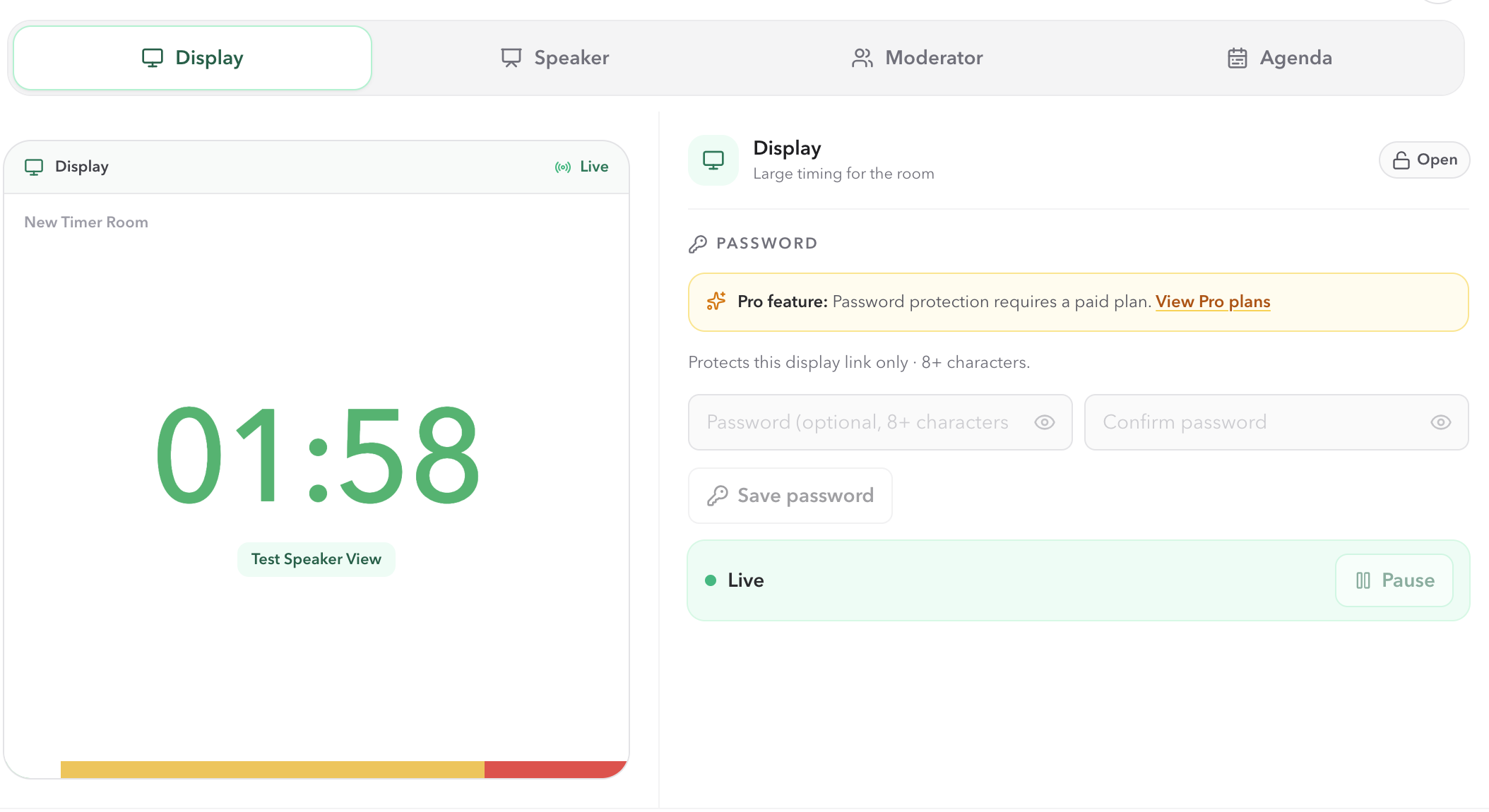
Open Display View from Host Outputs.
- 01
Keep the original Host link on the operator's laptop or tablet, then choose Outputs in Host.
- 02
Select Display, then open the output or copy its link to the computer connected to the projector, monitor, or screen share.
- 03
Leave that browser on the Display output. It follows the same Room as Host, so it does not require a separate timer setup. If Host attached a custom layout on that Display tab, this screen draws that layout. If no layout is attached, it stays on the default clock.
During the session
Read the shared timing signal.
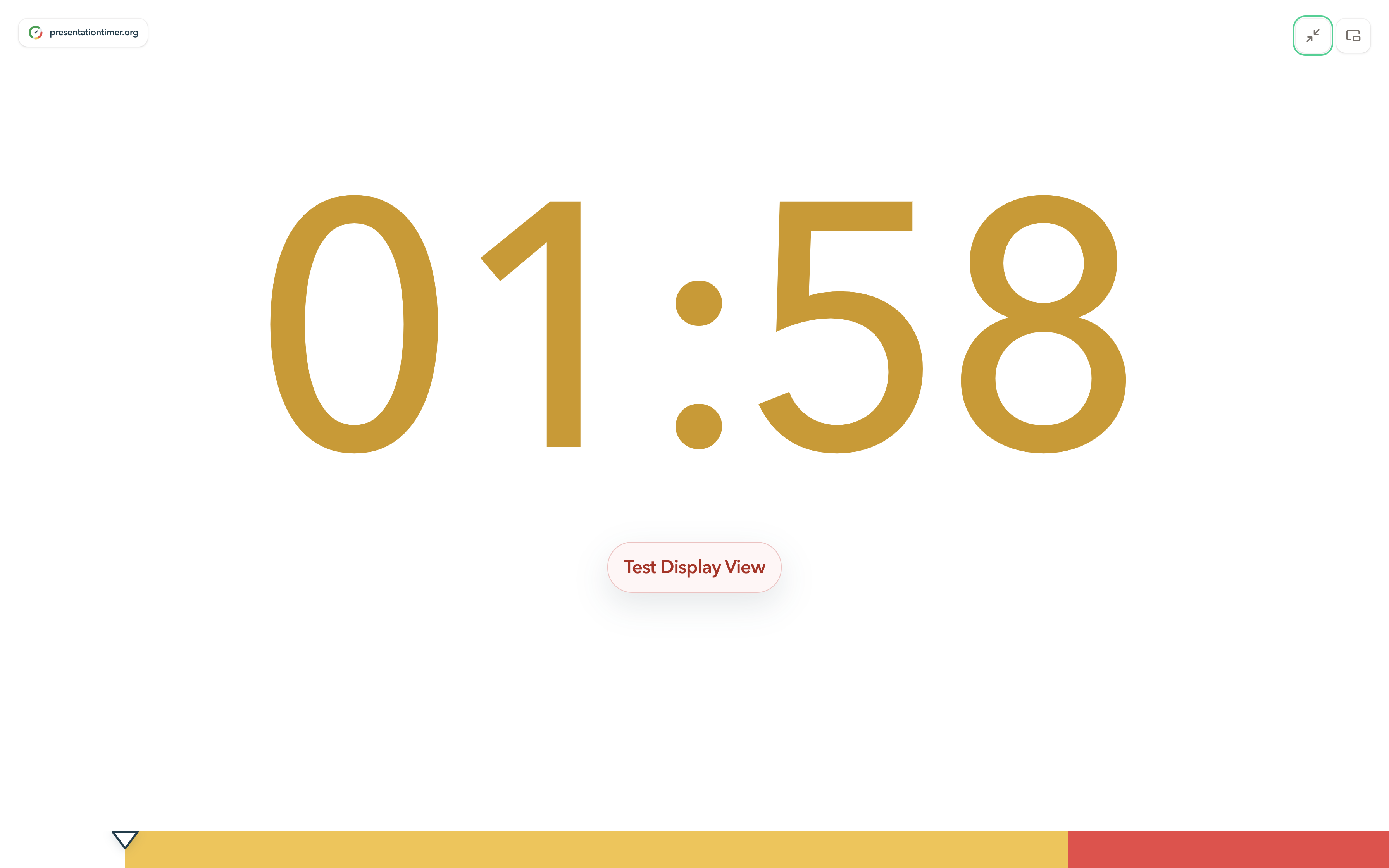
Display makes the active Timer's primary time value the focus. It follows the time display configured in Host: a countdown, count up, timer with Room time, or a Room clock. A custom Display can move that clock, add a logo, or lock the canvas, but it still follows the same Room. It intentionally does not add the agenda editor or Host's backstage information to the audience screen.
For timer displays, the large number changes from green when time is safe, to amber at the warning stage, then red at danger or overtime. The progress bar along the bottom shows elapsed timing and the configured warning markers. These are visual cues for the room—not controls for the shared device.
Shared screen
Use fullscreen when the screen is dedicated to timing.
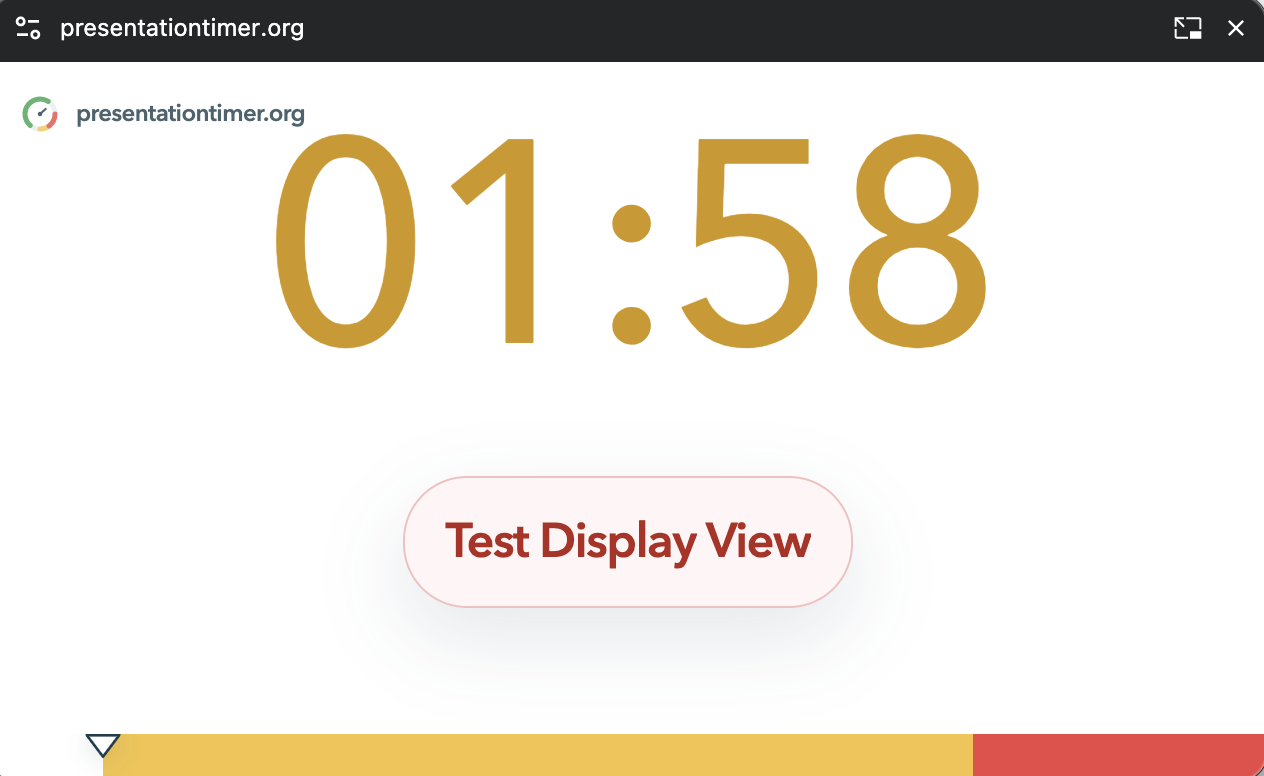
Display has a full-screen control in the top-right corner. Use it after opening the output on the projector or confidence-monitor computer, then confirm the number remains readable from the intended viewing distance.
The adjacent picture-in-picture control opens a small floating timer only in browsers that support Document Picture-in-Picture. It is useful for an operator's secondary timing cue, but should be tested on the actual browser before the event.
Host cues
Show a short Room-wide message.
Host can send a Room-wide Display Message to the shared screen—for example, a short schedule change or a wrap-up instruction. The message can use a chosen size and color and is limited to 80 characters. A Room-wide message takes precedence over a message on the active Timer.
On paid plans, Host's Wrap-up settings can also deliver chimes and screen flashes at configured alert stages when they target the Display role. Rehearse those cues on the actual display computer before relying on them live.
Learn about Display MessageConnection
Confirm that the shared screen is connected.
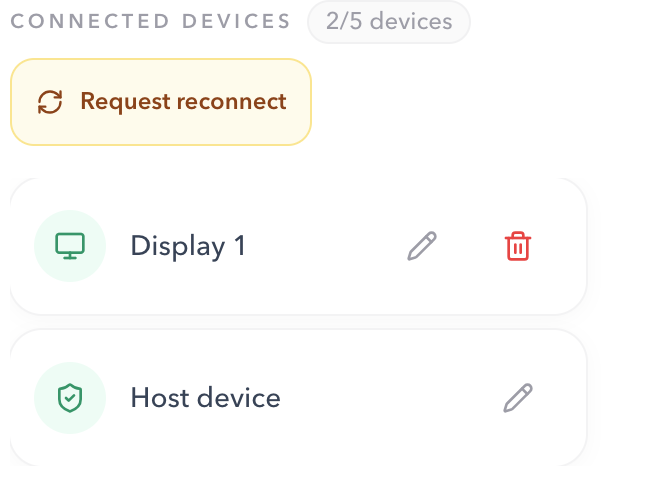
Host lists the connected shared views separately from the Host device. Before the audience arrives, confirm that the intended Display screen appears there. If a screen is stale, Host can request reconnect for shared views; the operator can also remove an unwanted device from the Room.
Checklist
Before the audience sees the screen
- The projector, monitor, or screen-share computer has the Display link—not the private Host link.
- The active timing value is readable from the intended viewing distance.
- The Display device is visible under Host connected devices.
- Fullscreen and, if needed, picture-in-picture have been tested in the actual browser.
- The intended warning colors, message, and any role-targeted cues have been rehearsed.
- The Host operator keeps their private control device available throughout the session.
FAQ
Common Display View questions
Can Display View start, pause, or edit the Room?
No. Display View is read-only. Keep Host and Operator links with the production team. Host is where editing, messages, and output management happen; Operator View can also run live timing.
Which link should a projector or screen-share computer use?
Use the Display output link copied from Host. Do not share the Host link with the projector, audience screen, or screen-share device.
What does Display View show?
It shows a large timing value, the color and progress cues for the active Timer, and a Room-wide message when Host has one active. If Host attached a custom Display, that layout is what the shared screen draws. If the layout cannot load or the plan expires, Display falls back to the default clock.
Can I put the timer in full screen or picture-in-picture?
Yes. Display has a full-screen control. Its picture-in-picture control is available only in browsers that support Document Picture-in-Picture; use it after testing on the actual display computer.
Why has the shared screen stopped updating?
First confirm that the Display device appears in Host's connected devices. The Host operator can request reconnect for shared views, then reopen the Display output if needed.