Workflows / Speaker
Custom Speaker: Speaker Studio
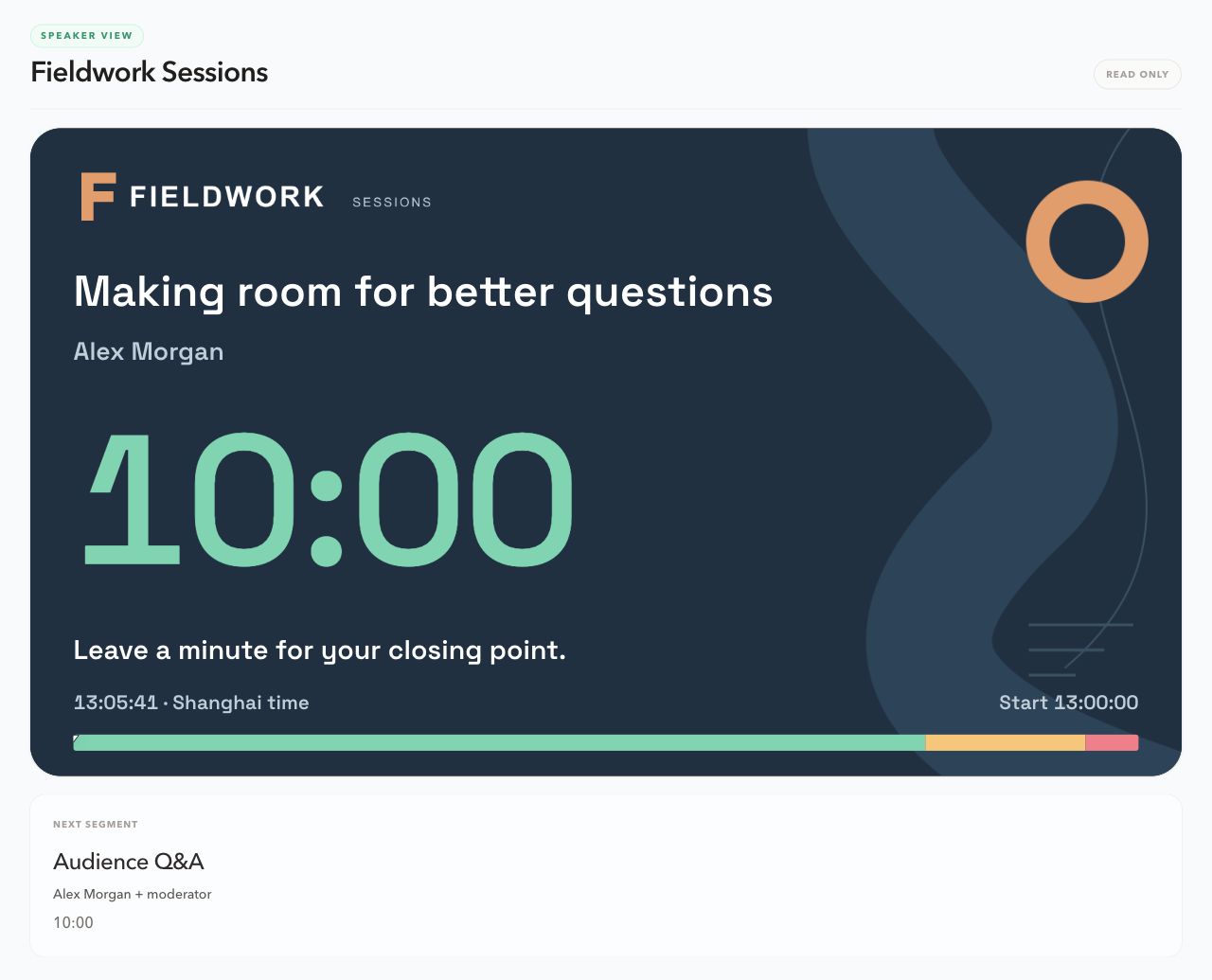
Edit the presenter's current timer panel from Host. Choose its ratio, arrange live information, add your logo and background, and save a template for each Speaker output that needs it. The presenter's screen stays read-only.
Updated October 13, 2026
What the template changes
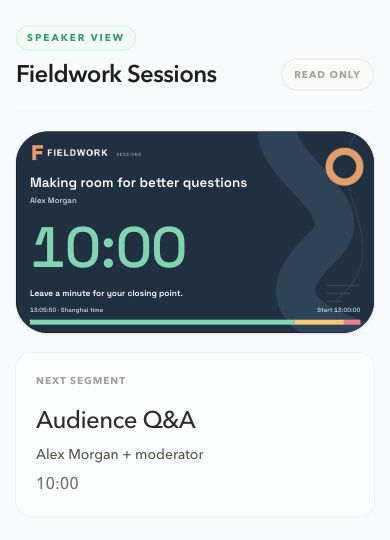
The canvas contains the current timer panel only. The room heading, page navigation, connection notices, and next-segment card remain part of the Speaker page. The panel's corner treatment and page position are managed by the page.
A taller canvas moves the next-segment card further down. It does not turn the rest of the page into an editable layout. Timing, pause, warning thresholds, and live messages still come from Host.
Open Speaker Studio
- Sign in to the account that owns the room and open its private Host workspace.
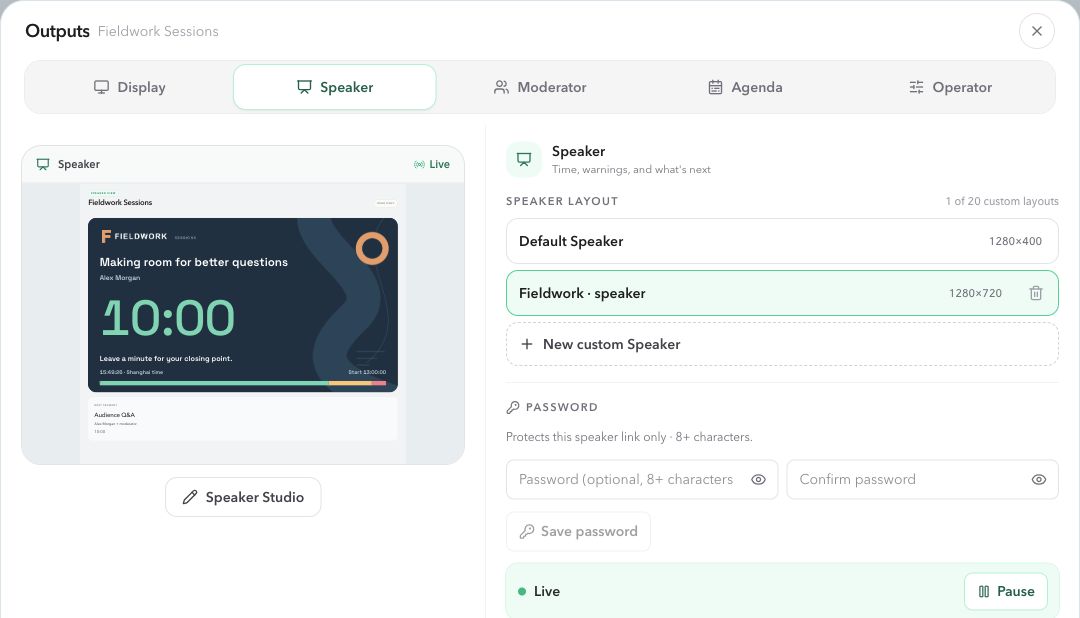
- Open Outputs, choose Speaker, and select the Speaker output link to customize.
- Choose New custom Speaker in the layout list. If no template exists yet, the button under the preview also offers Create custom Speaker. Creation attaches the new template to the selected output and opens Studio.
- To edit a saved template, select it in the list and choose Speaker Studio under the preview. Free accounts see Customize for a locked preview.
Select the intended output before making a new template. Existing Speaker links can already be open, so creating and attaching a template can change their panel before you finish editing it.
Choose the panel ratio
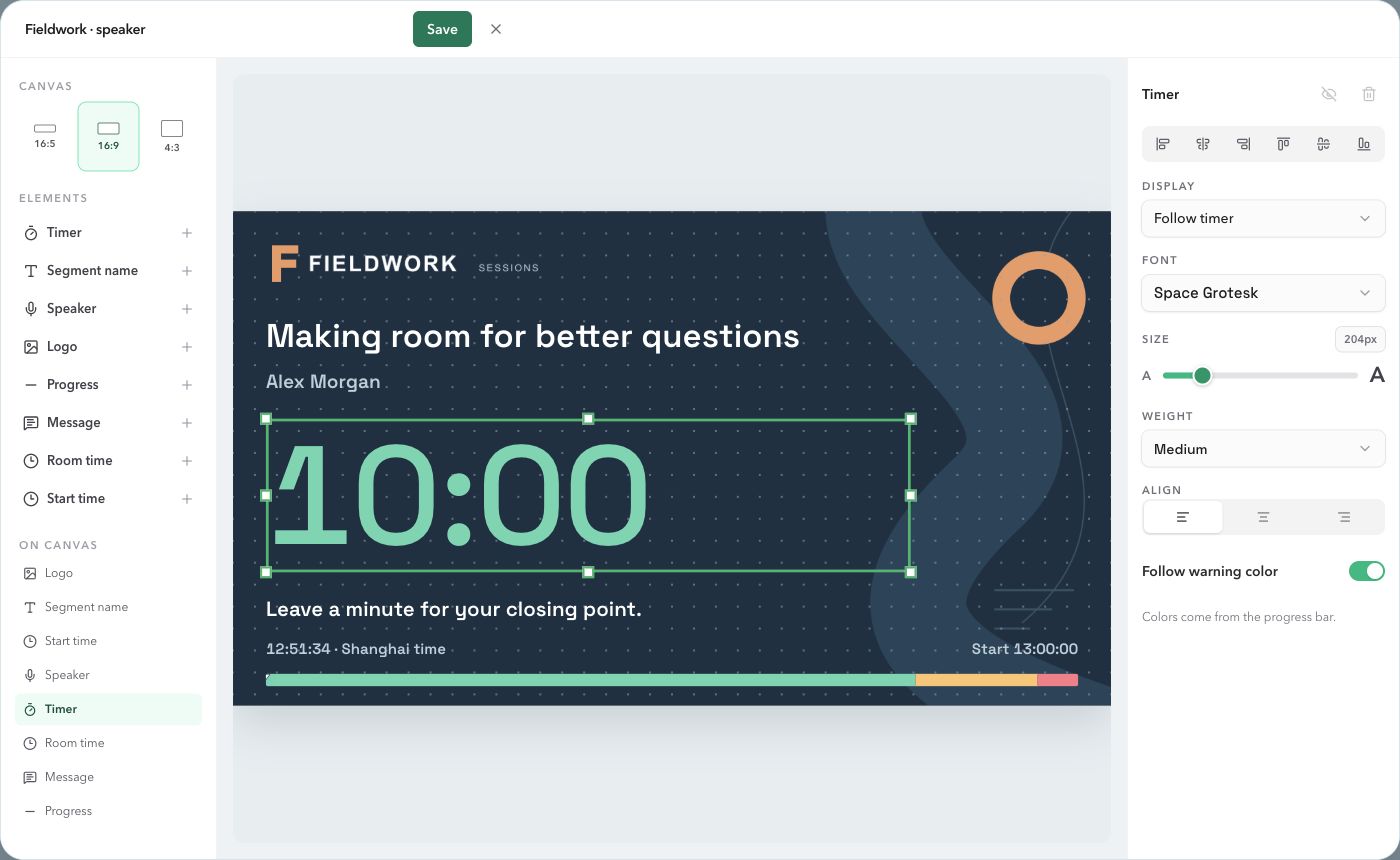
Choose a ratio in the left-hand Canvas section before arranging elements.
| Ratio | Design size | Typical use |
|---|---|---|
| 16:5 | 1280 × 400 | A compact timer panel that keeps the next segment close. |
| 16:9 | 1280 × 720 | More space for branding, a message, and supporting clocks. |
| 4:3 | 1280 × 960 | A taller arrangement with more vertical space. |
These are panel ratios, not device orientations. The page fits the full canvas to its available width and scales all elements together. There is no separate portrait or phone layout, and elements do not rearrange on small screens.
Changing ratio repositions elements within the new canvas while keeping their proportions where possible. Oversized elements are reduced to fit. Check spacing again after the change. Uploading a background image does not change the saved ratio.
Add, move, resize, hide, and delete elements
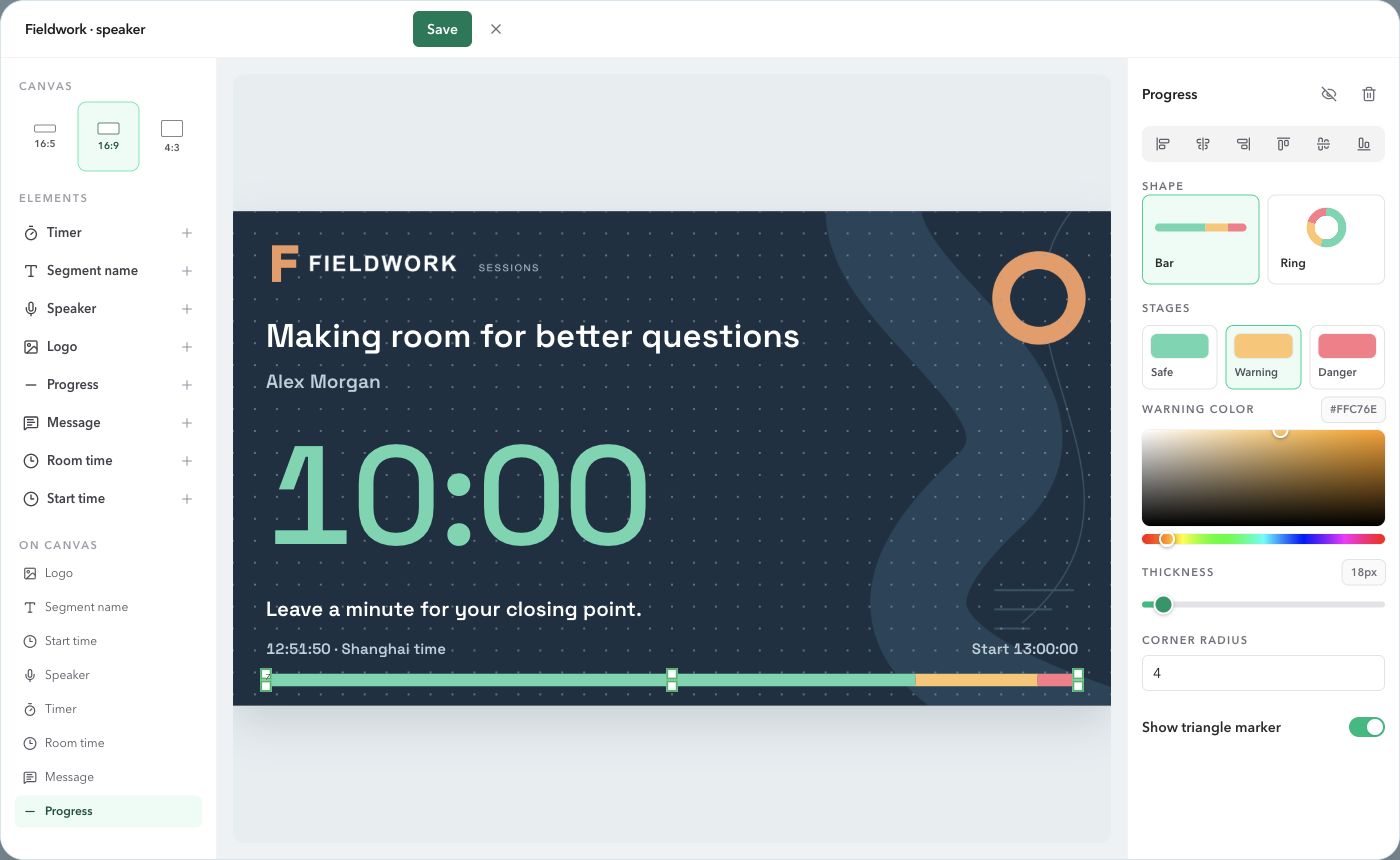
The left column lists available Elements and everything On canvas. Select an element in the list or on the canvas. Its selection frame and properties appear in the center and right columns.
- Use the plus beside an element type to add another instance.
- Drag the selected element to move it. Use its edge and corner handles to resize its frame; use alignment guides and the alignment controls to position it.
- Change the available font, size, weight, text alignment, and color in the right column.
- Use Hide to keep an element in the template but remove it from the output. Select it in the list and use Show on canvas to restore it.
- Use Delete to remove the element. This removes that instance from the template, not the room's timer or message data.
Keep at least one timer visible. It must meet the canvas's minimum size, and every element must stay inside the canvas before the layout can be saved.
| Element | Live content and settings |
|---|---|
| Timer | The active timer reading. Follow the Host reading or choose an available timer display mode. Set typography and fixed or stage colors. |
| Segment name | The active timer's title. Set its font, size, weight, color, and alignment. |
| Speaker | The active timer's speaker name. Empty names leave the frame unused in the live output. |
| Start time | Planned start first, otherwise scheduled start for a scheduled timer, then its actual start. Uses the room timezone. |
| Room time | The current room clock. Show or hide the timezone label. |
| Message | The current live message. Lock its text color and font size to the template when needed. |
| Logo | The default brand mark or an uploaded image. Move and resize the frame, and set the image fit. |
| Progress | Live progress with bar or ring presentation, stage colors, marker, and thickness settings. |
Other elements appear according to the account's plan. If a message, speaker name, or start time is missing, its content is absent from the live output. The frame remains in the template and other elements keep their positions. Studio can show an editing placeholder, which does not become live content.
Set the logo and background
For a logo, select its existing instance under On canvas. Use Upload image in the inspector and select the uploaded image. Resize and move its frame on the canvas. Adding Logo from Elements creates another instance.
For a background, select an empty area of the canvas to open Background. Choose a solid color, a transparent background, or an image from the library. Use Upload image to add your own file.
| Setting | Result |
|---|---|
| Contain | Shows the complete image inside its frame. Space can remain around an image with a different ratio. |
| Cover | Fills the frame. Image edges may be cropped when its ratio differs from the canvas or logo frame. |
| Dim | Darkens the background image so text and timer colors remain readable. |
| Solid color | Replaces the background image with a single color. |
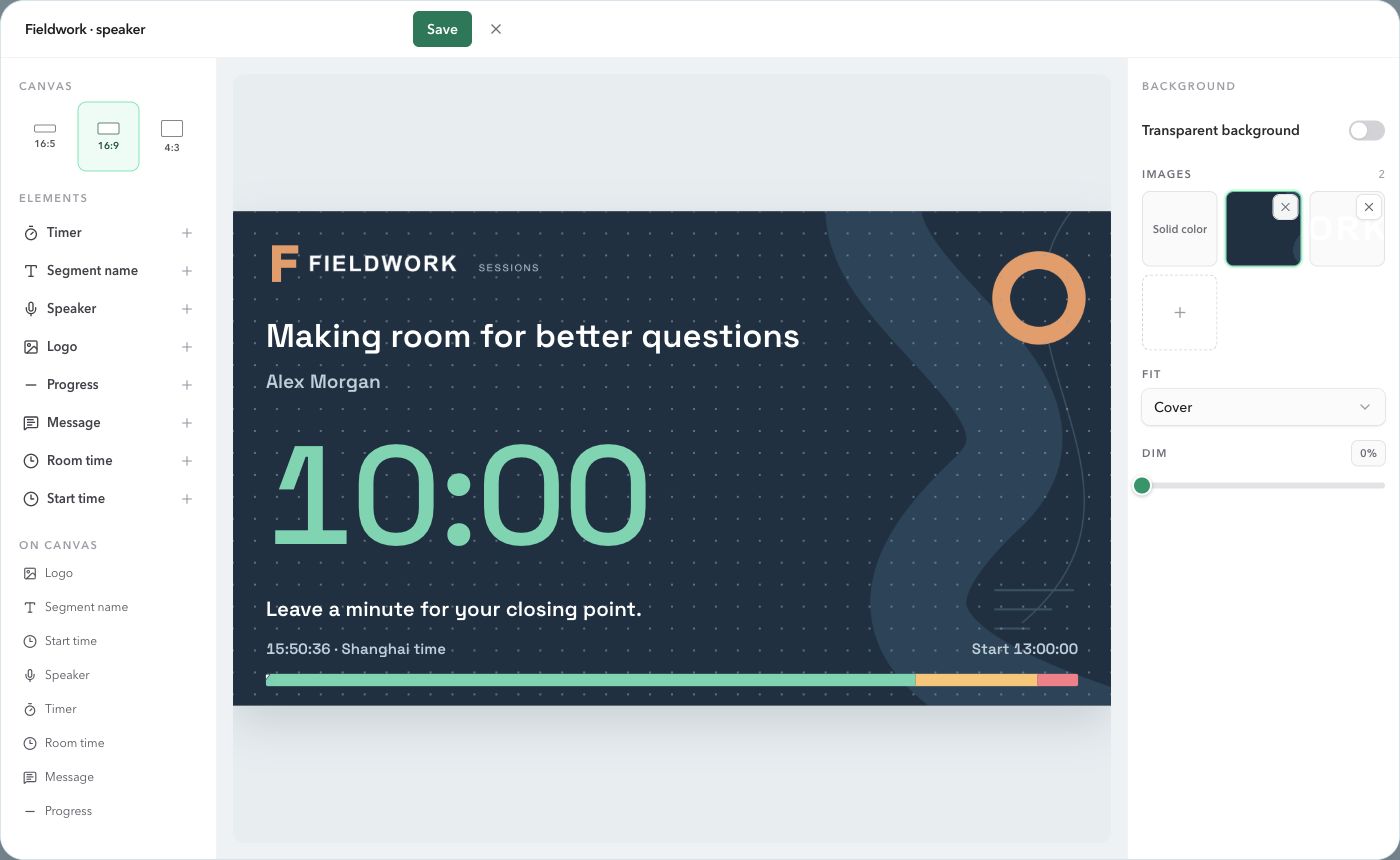
Image storage is shared across Display and Speaker templates. Pro allows two account images; Premium allows ten. Reuse library images where appropriate. Removing a Logo element from one layout is different from deleting the underlying image from the account library.
Upload PNG, JPEG, or WebP files up to 5 MB, with neither dimension exceeding 4096 pixels. A transparent PNG is useful for a logo that should sit directly on the background. Convert SVG artwork to one of the supported image formats before uploading.
Control timer and progress colors
Speaker Studio's saved timer and progress colors take priority over Host color settings. Host supplies the timing and warning thresholds; the Speaker template decides how each resulting state looks.
| Timer setting | Color source |
|---|---|
| Follow warning color off | The timer's fixed Studio text color in normal, warning, danger, and overtime states. |
| Follow warning color on; visible progress exists | The first visible progress element's saved Safe, Warning, and Danger colors. |
| Follow warning color on; no visible progress | The timer's own saved stage colors. |
| Overtime | Danger color when following stages. There is no separate fourth overtime color. |
| Progress element | That element's own Studio Safe, Warning, and Danger colors. |
Select Progress and set Safe, Warning, and Danger. Select the timer and enable Follow warning color to use stage colors, or disable it to choose one fixed text color.
A timer element displaying only the room clock keeps its fixed text color. Warning colors apply to elapsed or remaining timer readings, not the time of day.
With multiple progress elements, the first visible one supplies the timer's stage colors. Other progress elements keep their own colors. Hiding or deleting the last visible progress element preserves its stage colors for the timer, so removing the bar does not unexpectedly reset the digits' colors.
Keep live messages readable
Add a Message element wherever the presenter should see a cue. Host continues to send, update, and clear the message. Clearing it leaves its canvas position empty without moving the countdown.
- Lock color uses the text color saved in Studio. When unlocked, the message can follow its live Host color.
- Lock size keeps the Studio font size. When unlocked, Host's message size can scale the text inside the saved frame.
On a dark background, test a realistic cue such as “Leave a minute for your closing point.” Leave enough width and height for it to fit, and check a longer message as well. A large Host message should not be your first test on the presenter's phone.
Sending live messagesSave and select a template for each link
- Give the template a recognizable name at the top of Studio, then choose Save and wait for success.
- Close Studio and confirm the intended template is selected in Outputs. The new-template workflow attaches it automatically; choosing a different saved template changes the binding.
- Open or copy that Speaker output link and check it on the intended device.
- For another Speaker link, select that output in Outputs and choose its template separately.
Templates belong to the account and can be used by multiple Speaker links, including links in different rooms. A shared template supplies the design; each link displays its own room's live data. Display templates cannot be attached to Speaker outputs.
Editing a saved template creates a draft in Studio. Live outputs use the last saved version until Save succeeds. Saving a shared template updates all outputs using it. Connected Speaker pages normally receive the change without a manual refresh; reconnecting also reloads the layout.
Select Default Speakerto restore the standard panel for one link while keeping the template. Deleting a template from Outputs clears every binding to it, and those links return to their default display. Read the deletion prompt before confirming a shared template's removal.
Template and image allowances
| Plan | Saved layouts | Account images |
|---|---|---|
| Free | Default Speaker; Studio preview has locked controls. | No custom image uploads. |
| Pro | One Speaker template and one Display template, counted separately. | Two shared images, with one logo and one background per layout. |
| Premium | 20 templates total across supported roles for the whole account. | Ten shared images. |
Sharing one template between links does not create additional templates. Image use across Speaker and Display draws from the same account library. After a plan downgrade, outputs that can no longer use custom layouts fall back to default; existing template records are retained.
Check the actual Speaker device
Check the full design on the device the presenter will use. A 4:3 panel is taller than 16:5, so the next segment may sit below the first screenful. A phone shows the complete canvas at a smaller scale; small labels do not become larger automatically.
- Try a long session title, a realistic speaker name, and a live message.
- Start and pause the timer; check normal, warning, danger, and overtime colors.
- Check both clocks against the room timezone and confirm the next segment.
- Save a small change and confirm the already-open output receives it.
- Test the Speaker page's existing alerts and connection behavior separately from the layout.
Resolve common layout problems
| Symptom | What to check |
|---|---|
| Default panel appears | Check the selected Speaker link, its template binding, and the account plan. Missing, invalid, or unreadable layouts fall back to default. |
| Saved changes are missing | Confirm Save succeeded and this output uses that template. Check its connection, then reload that output if it remains stale. |
| Start time, name, or message is blank | Check the current timer data and live message. Empty data leaves its frame unused; it does not collapse the canvas. |
| A background or logo is cropped | Use Contain to show the complete image, or keep Cover and choose artwork with space around important details. |
| Text is too small on a phone | Reduce the number of supporting elements, increase their design size, or choose a simpler template. The panel scales as a whole. |
| Save is rejected | Keep a visible timer above the minimum size, put every element inside the canvas, and check template and image allowances. |
| The link is paused or invalid | Resolve output access in Host Outputs. A template does not bypass a password, pause, rotation, or deleted link. |
Common questions
Does Speaker Studio change Host or the whole Speaker page?
It changes the contents and ratio of the current timer panel. The room heading, navigation, connection notices, and next-segment area stay outside the canvas. Host continues to control the live timing.
Can I hide or delete every timer?
No. At least one timer must remain visible and meet the minimum size for the canvas. Keep all elements inside the canvas before saving.
Why does the timer keep the same color during a warning?
Follow warning color may be off. Turn it on to use the first visible progress bar's saved stage colors, or the timer's own stage colors when no progress bar is visible. Host color changes do not override these template settings.
Does overtime have its own color?
No. Speaker Studio uses Safe, Warning, and Danger colors. Overtime uses Danger. With Follow warning color off, the timer uses its fixed text color in every state.
Can different Speaker links use different templates?
Yes. Select each Speaker output link in Outputs and choose its layout. The number of saved templates is limited by the account's plan. Links can also share a template; saving that template updates all links using it.
What happens when I select Default Speaker or my paid plan ends?
Default Speaker restores the standard panel without deleting the saved template. When custom layouts are no longer available under the plan, the output uses the default display and saved templates remain on the account.