BlogGuides12 min read
How to Customize a Speaker Timer with Your Logo and Background
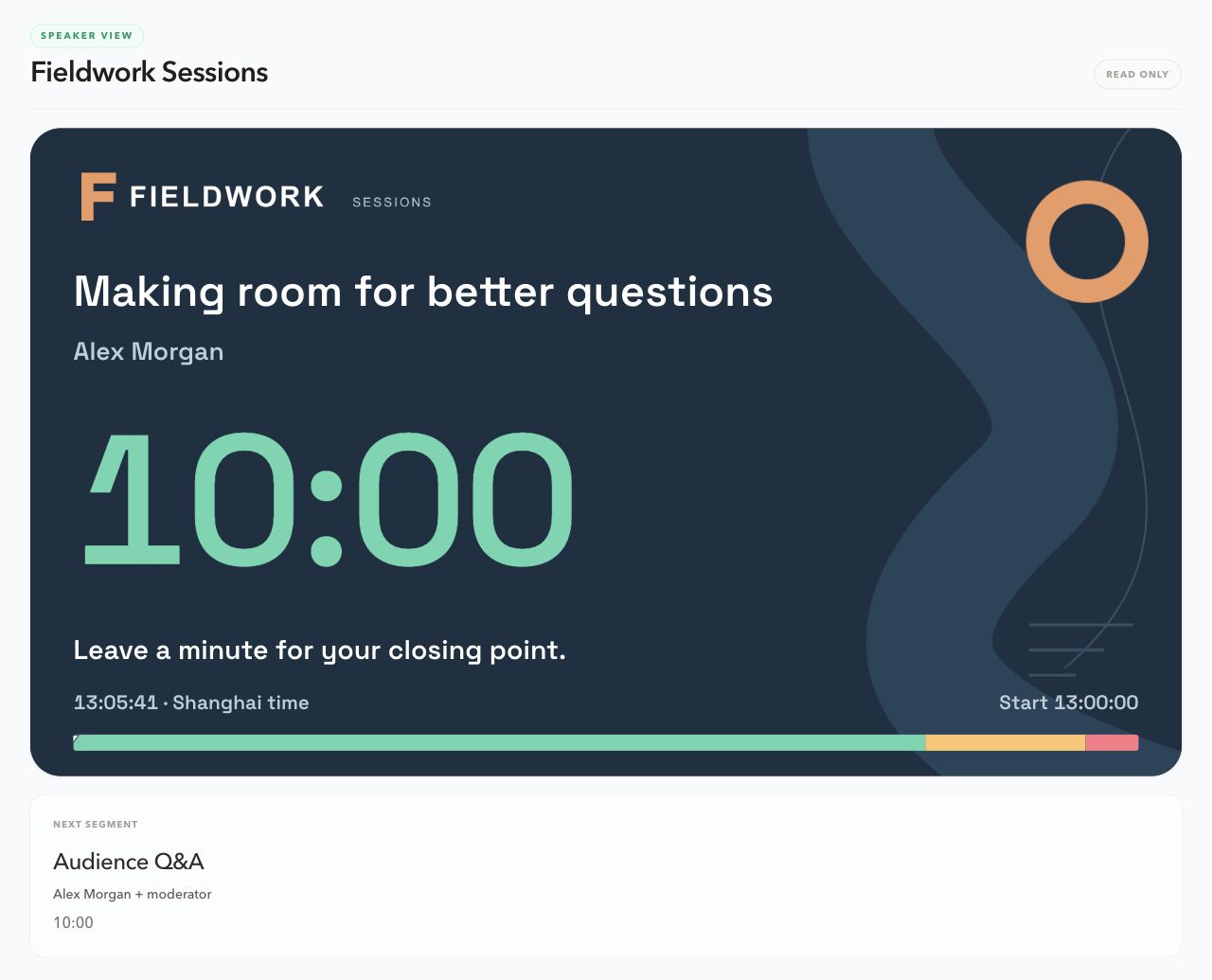
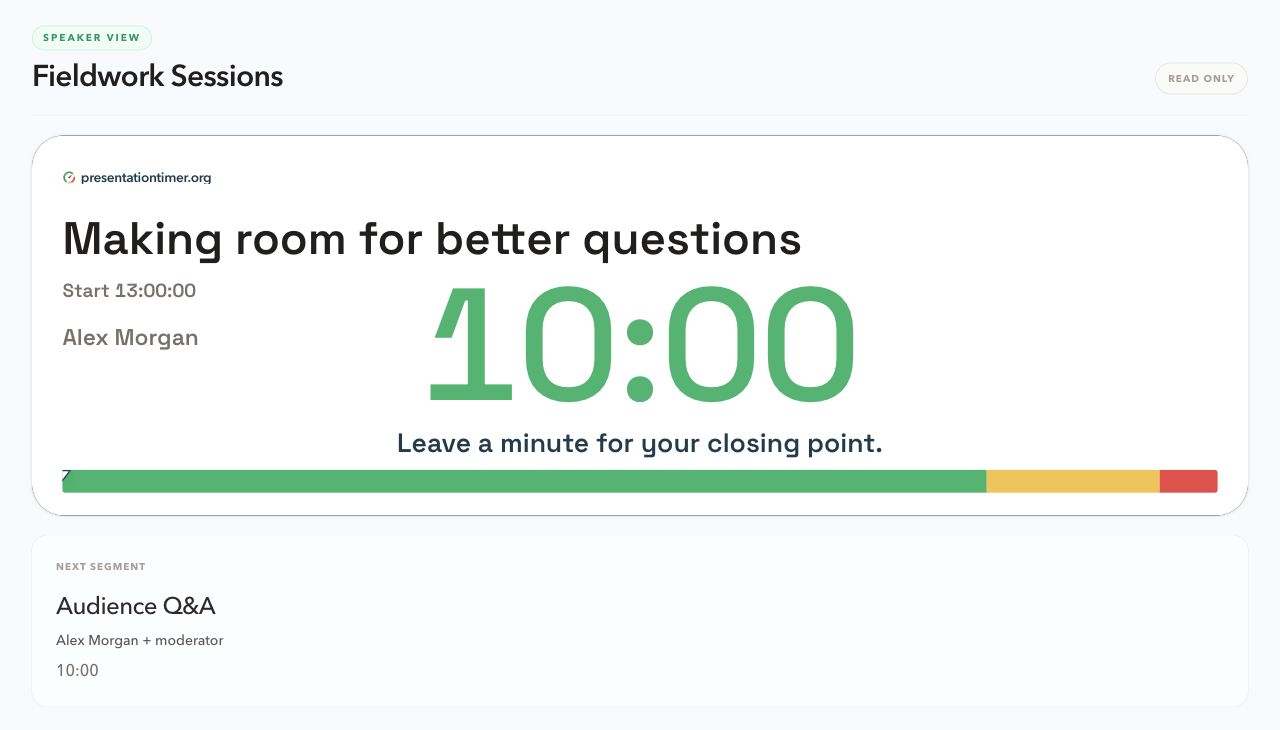
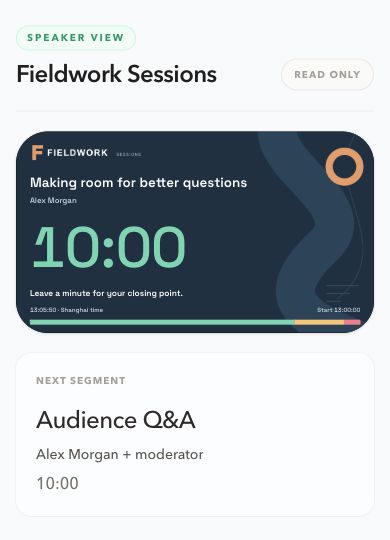
I started this walkthrough with a ten-minute talk and an Audience Q&A slot. The default Speaker View showed both clearly. For the custom version, I wanted a dark background, a small event logo, and enough space to read the title without shrinking the countdown.
That gave me a useful test for a custom speaker timer: could I put the event's branding on the screen and still find the remaining time immediately?
Here is the layout I made in PresentationTimer, including the decisions behind it and the settings to check before sharing it. I captured the screenshots from a local demonstration room. “Fieldwork Sessions,” the artwork, and the speaker name are examples, not a customer case study.
What a custom speaker timer needs to do
A speaker countdown timer has a different job from a large audience Display. The speaker usually needs a quick answer to several questions:
- What session am I giving?
- How much time is left?
- When was I supposed to start?
- What is the next segment?
- Has the host left me a message?
The screen should answer those questions without becoming another control panel. Host keeps control of the room. Speaker View remains read-only.
The default Speaker View already covers the timing. Customizing it is useful when the event has its own identity, when the default layout gives too little room to a long title, or when a background image makes the screen easier to recognize at a glance.
Open Speaker Studio from Outputs
Create a room and add the timers you need. In my example, the first segment is Making room for better questions, followed by Audience Q&A. I added Alex Morgan as the speaker so the name appears in the layout preview.
From Host, open Outputs, choose Speaker, and select New custom Speaker. This opens Speaker Studio inside the same workflow used for custom Display layouts.
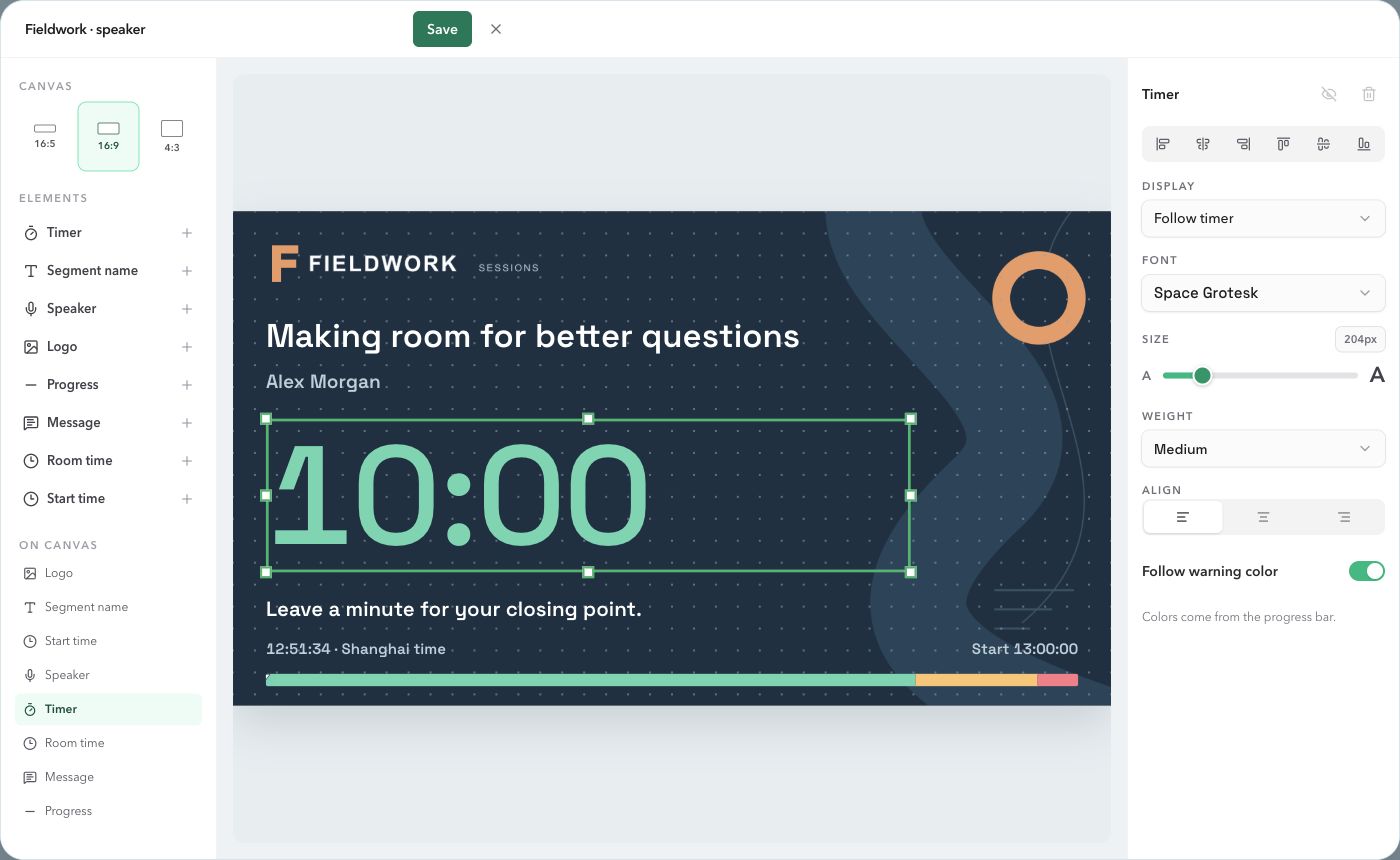
The editor is split into three useful areas:
- The left side chooses the canvas ratio, adds elements, and lists what is already on the canvas.
- The middle is the actual Speaker panel. Select an item to move or resize it.
- The right side changes the selected element's font, size, alignment, color, image, or progress settings.
This edits the current Speaker panel. The room heading and next-segment card stay outside the design canvas, and Host keeps its existing controls.
Custom templates require a paid plan. Pro allows one template for each supported role; Premium shares an allowance of 20 templates across the account. If you only need the default read-only Speaker view, you can use a free room. The pricing page lists the plan details.
Pick a ratio before arranging the screen
Speaker Studio has three landscape canvas choices:
| Ratio | Canvas | When I would use it |
|---|---|---|
| 16:5 | 1280×400 | A compact panel that keeps the next segment near the countdown |
| 16:9 | 1280×720 | A layout with room for branding, a message, and both clocks |
| 4:3 | 1280×960 | A taller panel with more space between elements |
I used 16:9 for this example because it gave me enough height for the title, speaker name, countdown, message, room time, and progress bar without making the timer feel cramped.
These ratios describe the timer panel, not the entire device screen. Choosing 4:3 makes that panel taller and pushes the next-segment card down. On a small device you may need to scroll to see the next segment.
The ratio belongs to the saved template. Uploading a background does not change it automatically. That is useful: if the image is replaced later, the elements stay in the layout you already arranged.
When changing ratio, Speaker Studio keeps the element shapes, font choices, colors, and image references. It adjusts positions to fit the new canvas. If an element is too large for a shorter canvas, it is reduced to fit rather than clipped.
The whole panel scales down on a phone or tablet. Elements are not rearranged into a separate mobile design, so the layout you inspect in Studio is the layout the speaker receives.
Add a logo without taking over the timer
I put the example logo in the upper-left corner and left the countdown well below it. That gives the screen a clear reading order:
- event identity,
- current session,
- remaining time,
- message and supporting clock information.
Select the existing Logo under On canvas, then use Upload image in the right panel to add your logo. Choose it from the image library. Drag the logo on the canvas to move it, and use the selection handles to resize its frame.
I used a transparent PNG and left its fit set to Contain. That keeps the complete logo visible inside its frame. Adding Logo from the Elements section creates another logo element, so select the existing one first if you only want to replace the default mark.
Keep the logo smaller than the timer. It should help the speaker identify the screen, not compete with the number they are checking every few seconds.
Use a background that leaves space for text
For this example I used a dark blue background with a simple shape on the right. The detail stays away from the title and countdown, while the orange mark adds enough contrast for the screen to feel branded.
Click an empty part of the canvas to open Background, then use Upload image and select the uploaded picture. Backgrounds and logos use the account's shared image library.
There are two choices that matter more than the file itself:
- Cover fills the canvas and may crop the outer edges of the image.
- Contain keeps the whole image visible and can leave space around it.
If the background contains a person, logo, or important text, place that detail where no timer element will cover it. A beautiful image with a bright face behind the countdown is still a poor timer background.
The image is only the background. The timer remains live, and the Host still controls its state.
Arrange the information around the countdown
I kept the main countdown large, then used quieter text for the details:
- the segment title sits above the number;
- the speaker name sits below the title;
- the live message sits under the timer;
- room time and planned start time share the bottom row;
- the progress bar stays along the bottom edge.
You can add supported elements from the left panel, hide them temporarily, or delete them from the layout. At least one timer must remain visible. If the start time does not exist for a session, the saved frame remains available but the live output leaves that area empty. The canvas does not jump around during the event.
Start time uses the planned session start when one is available, otherwise the actual start. Both it and room time use the room's timezone.
The same applies to a missing speaker name or message. The screen does not reflow the other elements just because one piece of live data is empty.
Set timer and progress colors separately from Host
The timer color is one of the details I would decide before an event, not during it. A pale green works against the dark background in the example, but it would disappear on a white background.
Speaker Studio lets the template control the timer and progress colors. Select the timer and check Follow warning color. Turn it off if the digits should stay one fixed color through every stage; leave it on if they should change as the talk runs out of time.
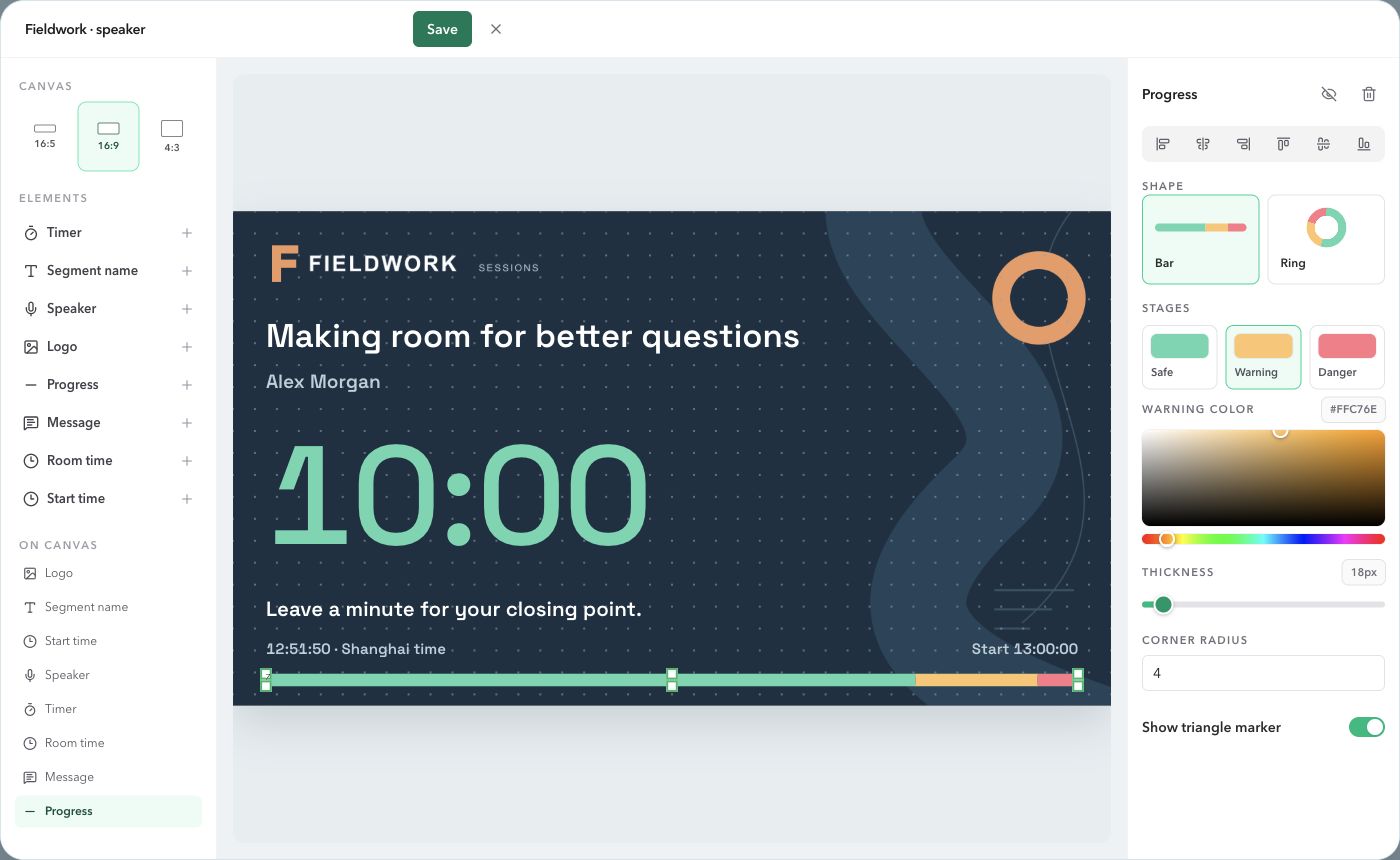
In this example I left it on and set the progress colors to mint green, amber, and pink-red. Normal uses the safe color, warning uses amber, and danger and overtime use the saved danger color. Overtime does not have a separate fourth color in this editor.
Host still controls the remaining time and warning thresholds. Host's color settings do not overwrite the Speaker template.
Progress bars have their own safe, warning, and danger colors. If the timer is set to follow warning colors, it can take those stages from the first visible progress bar, matching the behavior already used by Display Studio.
Send a message without changing the design
The Host can send a live message while the Speaker layout stays the same. In my test room I showed, “Leave a minute for your closing point.” The message appeared in the saved message frame without moving the title, countdown, or progress bar.
For the dark background I set a white message color in Studio and enabled Lock color and Lock size. That keeps a Host message color from making the note difficult to read against the background, and preserves the Studio text size when Host changes the live message size.
That separation is helpful in practice. The template describes the screen. The Host message describes what is happening right now.
Use a message for a short cue: start wrapping up, take the next question, skip the demo, or wait for the moderator. Long paragraphs belong in the Host workflow, not under a countdown.
Save one template or share it across Speaker links
Give the layout a name and click Save. The template becomes available in the Speaker layout list under Outputs.
A room can have more than one Speaker link. You can bind one template to the first link and a different template to another link, which is useful when a backstage monitor and a presenter laptop need different amounts of information. You can also bind the same template to multiple links.
Saving a shared template updates every Speaker link that uses it. Deleting that template returns those links to the default Speaker View, so I would name shared templates clearly before sending the links to an event team.
A few design choices I would make again
After using the editor, these are the choices I would keep:
- choose the canvas ratio before spending time on exact placement;
- use a darker background when the countdown needs to stay bright and readable;
- keep the title and speaker name above the number instead of squeezing them beside it;
- reserve the bottom row for room time, start time, and progress;
- use the same template for links that should look identical;
- keep a simpler template for a small laptop or monitor if the full layout feels busy.
The goal is not to fill every available part of the canvas. It is to make the one number the speaker checks under pressure easy to find.
Before handing over the link, open it on the device the speaker will use. Check the title, a realistic message, and all three timer colors. A layout that looks comfortable in the editor can put small text beyond comfortable reading size on a phone.
FAQ
What is a custom speaker timer?
A custom speaker timer is a live countdown screen whose layout, branding, colors, and supporting information are chosen for a particular event or speaker workflow. In PresentationTimer, you edit it in Speaker Studio and continue controlling the live clock from Host.
Can I add a logo to a speaker timer?
Yes. Speaker Studio lets you use the default logo or upload an image, then move and resize it inside the Speaker panel.
Can I use a custom background with a speaker countdown timer?
Yes. Add a background image to the Speaker canvas and choose Cover or Contain. The selected canvas ratio stays unchanged.
Does changing the Speaker layout change the Host timer?
No. Host still controls the timer, duration, pause state, warning thresholds, and live messages. Speaker Studio changes the read-only Speaker panel.
Which Speaker timer ratios are available?
Speaker Studio currently provides 16:5, 16:9, and 4:3 landscape canvases. The panel scales proportionally on smaller screens and does not use a separate phone layout.
Is Speaker Studio free?
Free rooms keep the default Speaker display. Paid plans can save custom Speaker layouts according to their template allowance. See Pricing for the current plan details.
Try it with your next session
Open PresentationTimer, add a talk with a realistic title and duration, then go to Host → Outputs → Speaker to make your first layout. Start with the countdown and a logo; add the supporting details once those two read well.
For the full editing instructions and template rules, see the Speaker Studio user guide. For the role setup, see Speaker and Display views. If you need to set the room's timing cues first, start with how to create an online timer with sound alerts.