BlogGuides10 min read
How to Create an Online Timer with Sound Alerts
A countdown that only changes color is easy to miss. Speakers look at slides. Timekeepers look at notes. By the time someone notices the clock is red, the slot is already gone. A sound alert fixes that — if the right person hears it, and the audience does not.
Phone timers and kitchen timers fail here for the same reason: the beep lives on one device, in one pocket, at one volume. A live session needs a clock the room can follow, plus a cue that can stay private to the producer, the speaker, or both.
This guide shows how to set up an online timer with sound alerts in a browser. The walkthrough uses PresentationTimer. Free rooms include a basic sound switch. Per-stage chimes, flashes, and role targets are part of Pro.
Quick answer:
- Create a room, set the duration, and open a display link on the screen people should watch.
- Add wrap-up cues so the clock can chime or flash at Start, Yellow, Red, and Overtime.
- Send sound to Host or Operator when the audience should not hear a beep. Send flash to Display or Speaker when the cue should be visible, not audible.
- Tap the receiving page once before the session. Browsers block sound until there is a user gesture.
Why a beep on your phone is not a session cue
A phone alarm can time a rehearsal. It cannot time a room.
- The wrong person hears it. If the phone is in the speaker's pocket, the producer cannot pause or extend the slot. If it is on the producer's desk, the speaker never gets the warning.
- The audience hears it too. A public beep during a keynote or a defense is an interruption, not a cue.
- It cannot change with the agenda. A 20-minute slot that includes talk plus Q&A needs two warnings, not one alarm at zero.
- It is tied to one device. Conference laptops, loaner machines, and Zoom shares do not inherit the phone's timer.
A session cue has to be configured once, then delivered to the right role: a quiet chime for the timekeeper, a flash on the confidence monitor, or both.
What to configure before you add sound
Sound is useless if the clock is in the wrong place. Set the room up first.
- Create a room at PresentationTimer. Host opens immediately with a ten-minute timer named Presentation.
- Set the duration to the actual speaking slot, not the full agenda block. A 20-minute slot with 5 minutes of Q&A should be two timers, not one 20-minute countdown.
- Open Display from Host → Outputs on the screen the room should see. Keep Host private. Display is read-only.
- Give the speaker their own link when the public screen should stay quiet. Speaker View is the personal cue; Display is the room clock.
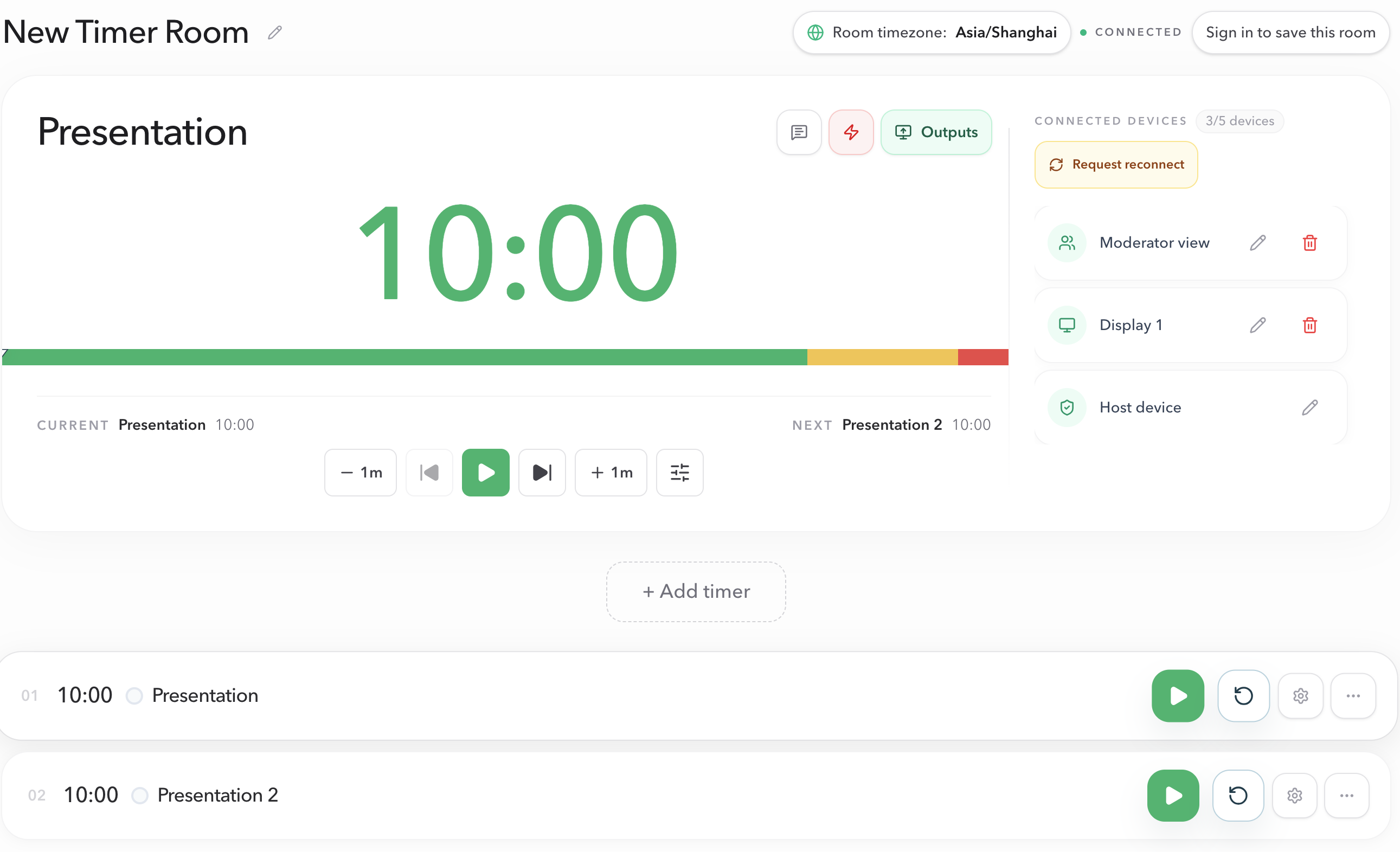
Once the clock is visible, add the alerts.
Add sound alerts to the countdown
Open the timer's settings in Host and find Wrap-up. That section controls when the clock changes color and what happens at each stage.
PresentationTimer uses four stages:
| Stage | When it fires | Typical cue |
|---|---|---|
| Start | When an idle timer begins running | Optional confirmation that the segment has started |
| Yellow | Remaining time hits the Yellow threshold | Early wrap-up: a light chime or a short flash |
| Red | Remaining time hits the Red threshold | Final warning |
| Overtime | The running timer passes 0:00 | Keep the overrun visible until Host resolves it |
Yellow and Red are remaining time, not elapsed time. On a ten-minute talk, Yellow at 2:00 means eight minutes have already passed. Red must be at or before Yellow, and both values must fit inside the timer duration.
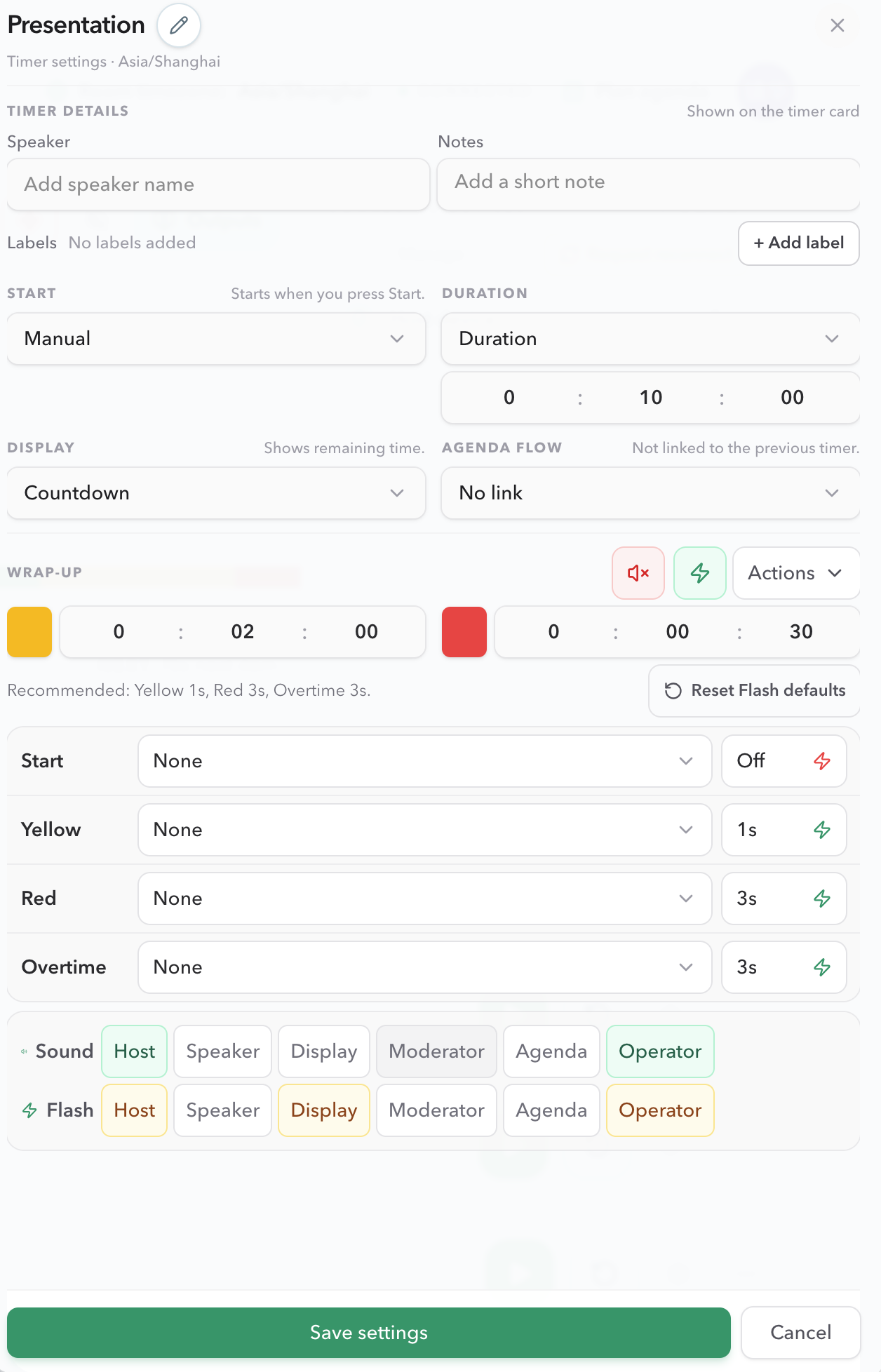
Choose a chime
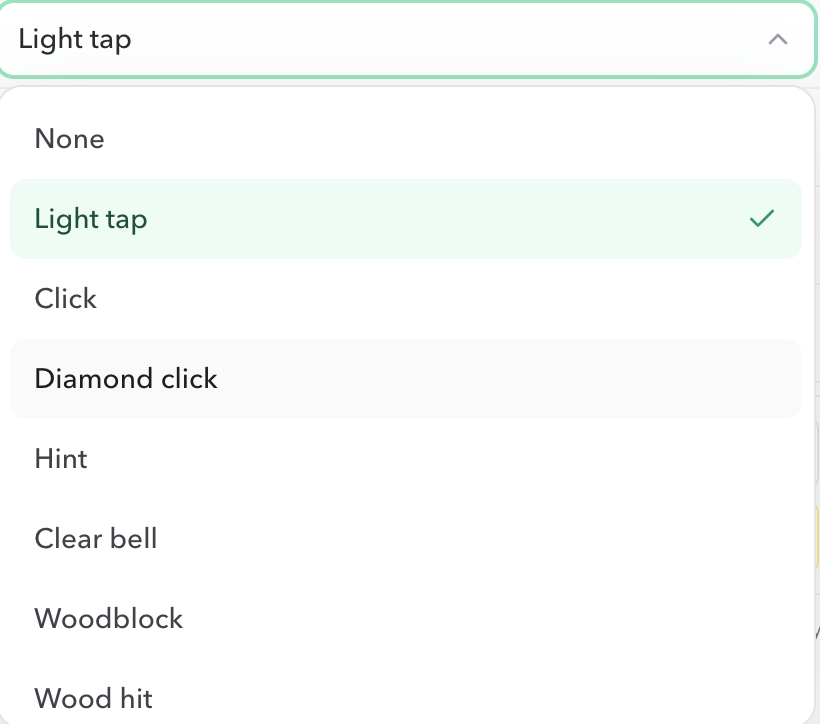
Each stage can play None or one of the built-in tones. Selecting a chime previews it in the settings panel, so you can hear whether it fits the room before you save.
Use a light tap at Yellow and a clearer bell at Overtime if you want the early warning to stay quiet. Do not put the same loud chime on every stage. Four identical beeps train people to ignore all of them.
Add a flash when sound would interrupt
Flash pulses the timer digits on the receiving view. Durations run from 1 second to 60 seconds, or Infinite for a state that must stay obvious, such as overtime.
Flash is the right cue when:
- The speaker is on a confidence monitor and should not hear a beep.
- The audience-facing display should show "wrap up" without a room-wide sound.
- The producer is watching several screens and needs motion, not another audio channel.
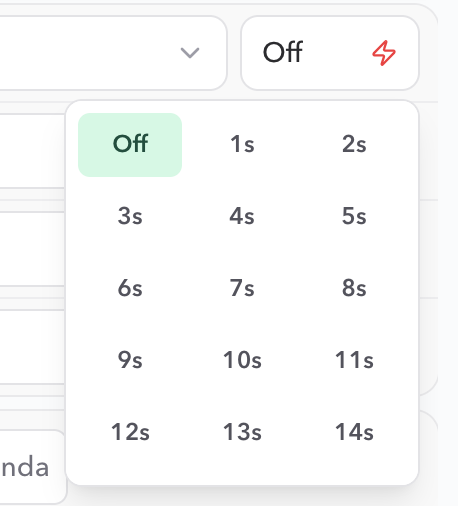
A practical plan for a ten-minute talk:
- Yellow at 2:00 remaining: light chime to Host and Operator.
- Red at 0:30 remaining: 3-second flash on Display and Speaker.
- Overtime: clearer chime to Host, infinite flash on Display until someone ends the segment.
Those values are a starting point, not a required default. Change them to match the room.
Decide who hears the chime
This is the part a phone timer cannot do. In PresentationTimer, Sound targets and Flash targets are separate. Every enabled chime uses the sound list. Every enabled flash uses the flash list.
| Role | Give it sound when… | Give it flash when… |
|---|---|---|
| Host | The producer needs an audible warning at the control laptop | The control surface should also pulse |
| Operator | A show caller is running the clock from the Operator console | The console needs a visual status cue |
| Speaker | The presenter wants a private pacing beep on a phone or laptop | Sound would leak into the room or the recording |
| Display | You intentionally want the audience screen to make sound | The room should see the warning without a beep |
| Moderator | The facilitator is wearing headphones | The desk needs a visible cue while the room stays quiet |
For most presentations, keep sound on Host and Operator, and flash on Display and Speaker. That gives the timekeeper a private beep and the speaker a visible wrap-up, without putting a chime through the PA.
Selecting a role is not enough. That role still needs a connected device on the matching output link. A Display target does nothing if the projector opened the Host link by mistake.
Unlock sound on the receiving device
Browsers block audio until someone interacts with the page. A correctly saved chime will stay silent if the display computer was opened and left untouched.
Before the audience arrives:
- Open the actual Host, Operator, Speaker, or Display link you will use live.
- Tap or click that view once. PresentationTimer shows Tap anywhere to enable sound on roles that are assigned a chime.
- Confirm the device is not muted, and that headphones or a room mixer are routing the beep where you expect.
- Run a short test timer across Yellow and Red. A manual flash from Host is useful, but it does not prove that a threshold chime will play.
If a shared view is reloaded during the event, unlock sound again on that device. Cue configuration is room state. Playback is local.
Free vs Pro
Free rooms already give you a live countdown, a display link, and a basic sound switch. That is enough to put a clock on a second screen.
Per-stage chimes, flash durations, role targets, manual flash, and bulk "apply to all timers" actions are Pro and Premium features. Use them when the same session needs a private beep for the producer and a silent flash for the speaker.
Existing timers keep their saved settings. New Pro timers start with flash at Off / 1s / 3s / 3s for Start, Yellow, Red, and Overtime, sound on Host and Operator, and flash on Host, Operator, and Display. Change any of those before you rely on them live.
Common mistakes
- Beeping the audience screen. If Display is a sound target and that computer is on the PA, the room hears the wrap-up. Use flash on Display instead.
- One 20-minute timer for talk plus Q&A. The chime at zero arrives after the speaker has already spent the Q&A. Split the slot.
- Setting Yellow as elapsed time. Yellow at 2:00 means two minutes left, not two minutes in.
- Skipping the tap-to-enable step. The settings can be perfect and the browser will still mute the first chime.
- Opening Host on the projector. Anyone who can see that screen can control the session, and the audience may hear every producer chime.
FAQ
Can I make an online countdown timer play a sound?
Yes. In PresentationTimer, open the timer settings in Host and use Wrap-up to assign a chime to Start, Yellow, Red, or Overtime. Free rooms include a basic sound switch. Per-stage tones and role targets require Pro.
Will the audience hear the chime?
Only if Display is a sound target and that computer has audible output. For a public screen, send flash to Display and keep chimes on Host, Operator, or Speaker.
Why did the sound alert not play?
The role must be a sound target, the stage must have a chime enabled, and the view must be connected to the room. Phones, tablets, and kiosk browsers also need one tap so the page is allowed to play audio.
Can the speaker get a cue without a beep in the room?
Yes. Open Speaker View on a phone or confidence monitor, assign flash or a private chime to Speaker, and leave Display silent.
Do sound alerts pause or change the timer?
No. A chime or flash is a signal. It does not start, pause, reset, or rewrite the planned duration. Host still runs the clock.
Can I use the same alerts on every segment?
On Pro and Premium, Wrap-up Actions can copy chime settings, flash settings, or Yellow/Red times to every timer in the room. Threshold values still have to fit each timer's duration.
Next steps
- Configure the cues in Timer cues.
- Put the clock on a projector with Display view.
- Give the presenter a private cue in Speaker view.
- If you are timing a talk or a multi-speaker session, start from the speech timer or conference timer workflows.
- Putting the clock beside a slideshow? See How to add a countdown timer to PowerPoint.
- Timing student talks or group work? See How to create a classroom timer.
- Need the on-stage countdown to run faster or slower than the real slot? See How to use Time Warp on a presentation timer.