BlogGuides12 min read
How to Add a Countdown Timer to PowerPoint Presentations
Presentations run over for a simple reason: nobody in the room can see remaining time. The speaker watches slides. The organizer watches the agenda. The audience watches the speaker. By the time someone whispers "five minutes left," the slot is already gone.
PowerPoint does not include a live countdown that the room can follow. Presenter View can show elapsed time to the speaker, and Rehearse Timings can measure a practice run, but neither puts a ticking clock on the audience screen or lets a timekeeper pause, extend, or reset it during the real talk.
This guide covers the three options that actually get used in rooms: what PowerPoint already offers, what slide add-ins add, and how a host-controlled browser timer like PresentationTimer runs beside the slideshow. The right choice depends on whether you need a fixed 10-minute countdown on your own laptop, or a session that someone else has to keep on time.
Quick answer:
- Built-in tools measure rehearsal and show elapsed time to the speaker. They cannot show a live remaining-time countdown to the room.
- Add-ins put a timer on the slide itself. That works for one fixed countdown on a machine that allows installs.
- A browser timer with a display link needs no installation, stays independent of the deck, and lets a timekeeper control the clock from a private host view.
Why PowerPoint has no live countdown
A slide deck is a sequence of slides. A live session is not. Questions appear, demos run long, and the next speaker is already waiting in the wings. A useful countdown has to do four things PowerPoint was never designed to do:
- Stay visible to the speaker, the timekeeper, and sometimes the audience.
- Show remaining time, not only how long the speaker has already talked.
- Change live when the agenda shifts: pause for a question, add two minutes, jump to Q&A.
- Stay off the slide canvas so the timer does not fight with animations, videos, or a locked conference laptop.
That is why the common workarounds feel almost right and then fail in the room.
Option 1: Work with what PowerPoint already has
PowerPoint ships with timing tools. They are useful for practice. They are not a live countdown.
Rehearse Timings
On the Slide Show tab, Rehearse Timings records how long you spend on each slide. Afterward, Slide Sorter shows the totals, and you can save those timings so the deck advances on its own.
Use it to find slides that always run long. Do not expect it to help during the real talk. It measures rehearsal. It does not display remaining time to you or the audience.
Presenter View
Presenter View can show a clock and elapsed time on the speaker's laptop. That helps a rehearsed talk on a machine you control. It does not help the room:
- The audience cannot see it.
- A timekeeper on another laptop cannot control it.
- Elapsed time answers "how long have I been talking?" Remaining time answers "when do I need to stop?" Those are different questions, especially when a 20-minute slot includes introduction and Q&A.
Homemade countdown slides
People also build a countdown as a video, an animated GIF, or ten manual slides that tick from 10:00 to 0:00. These do appear on the projector. They are frozen in time. They cannot pause when a question comes up, extend when the agenda shifts, or restart for the next speaker. If the video and the talk drift apart, the on-screen clock becomes a lie.
The core limitation: everything built into PowerPoint is static. Real sessions are not.
Option 2: Install a timer add-in
Microsoft AppSource has free and paid timer add-ins that render a countdown on a slide. Setup is straightforward: install the add-in, insert the timer object, set the duration, and it counts down while the slideshow runs.
For a single fixed countdown on your own laptop, this is the most native-feeling option. The trade-offs appear as soon as the session gets real:
- Installation is per machine. Conference laptops, loaner PCs, and locked-down corporate or university images often block add-ins entirely.
- No remote control. The presenter has to start, pause, or reset it. A producer or faculty timekeeper cannot.
- One timer per slide. A talk plus demo plus Q&A means managing several objects by hand.
- The timer lives inside the deck. It competes with slide content, disappears if you jump to a slide that does not include it, and cannot move to a second screen of its own.
If you are presenting a rehearsed 10-minute update on a laptop you own, an add-in can be enough. If someone else is responsible for keeping the session on time, it usually is not.
Option 3: Run a host-controlled timer beside the slideshow
The third approach separates the countdown from the slides. The timer runs in a browser. The audience display is a URL. A timekeeper controls everything from a private host view.
That is the PresentationTimer model: one room, one clock, and role-based views for the people watching it. Free rooms need no account or download.
1. Create a room and set the first timer
Open PresentationTimer and create a room. The host workspace opens immediately with one timer named Presentation, set to 10:00. Rename the room after the session — "Faculty pitches," "Opening keynote," "Thesis defense" — then open timer settings if the first segment needs a different name or duration.
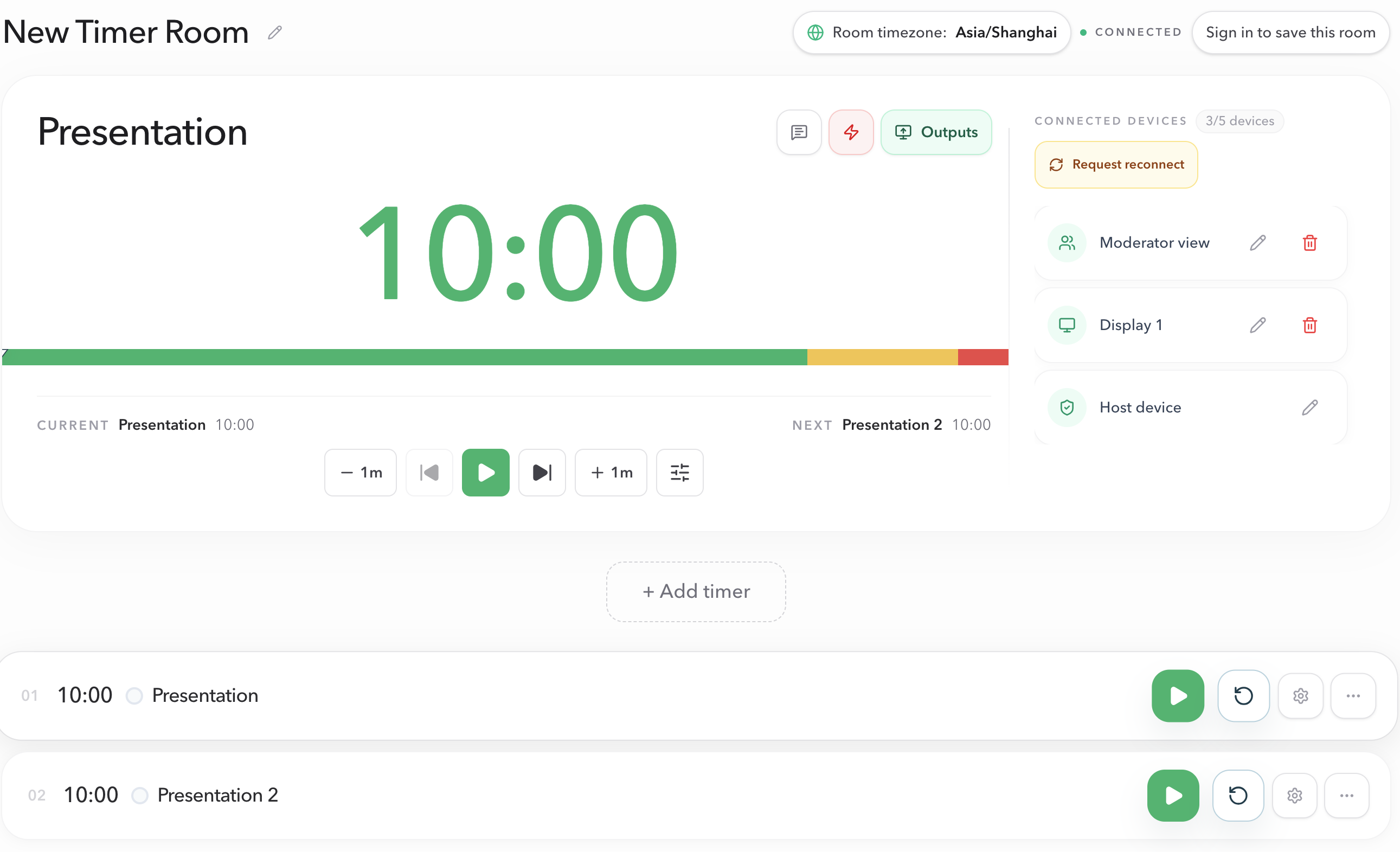
A new room is a workspace for the whole session, not a single countdown. You can add more timers later for intro, demo, and Q&A without creating a second clock.
2. Open the display where people can see it
In the host workspace, open Outputs, select Display, and open that link on the screen the room should watch. Display is read-only: it follows the live room, and it cannot start, pause, or edit anything.
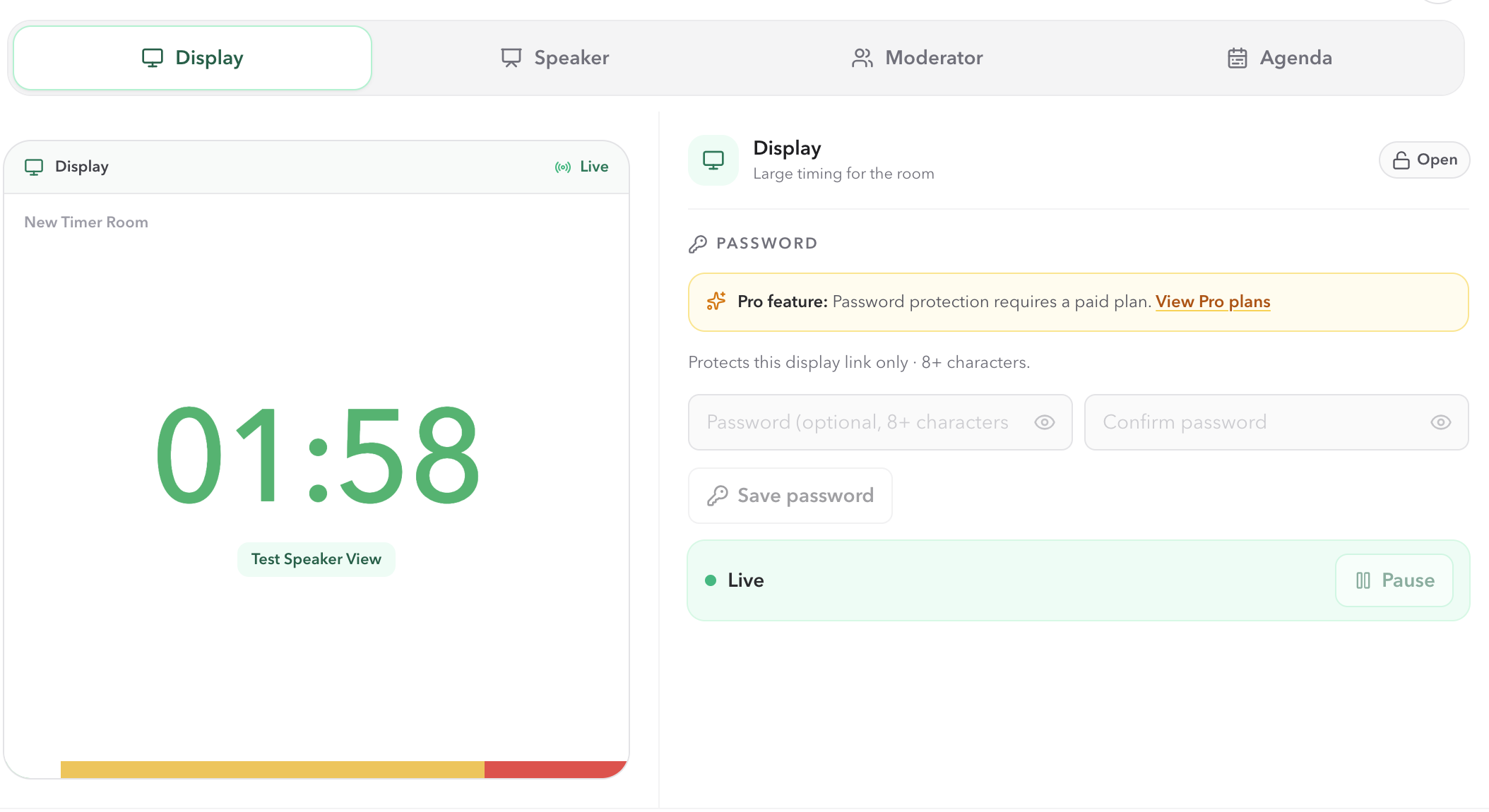
Typical placements:
- Second monitor or confidence monitor facing the speaker, while PowerPoint uses the projector.
- Projector or classroom display when the countdown itself should be public.
- A small browser window kept on top of a windowed slideshow.
- A shared window in Zoom, Microsoft Teams, or Google Meet for online talks.
Do not put the host link on the projector. Host is the control surface. Display is the clock.
3. Keep PowerPoint and the timer on separate surfaces
The slideshow and the countdown should not fight for the same full-screen context.
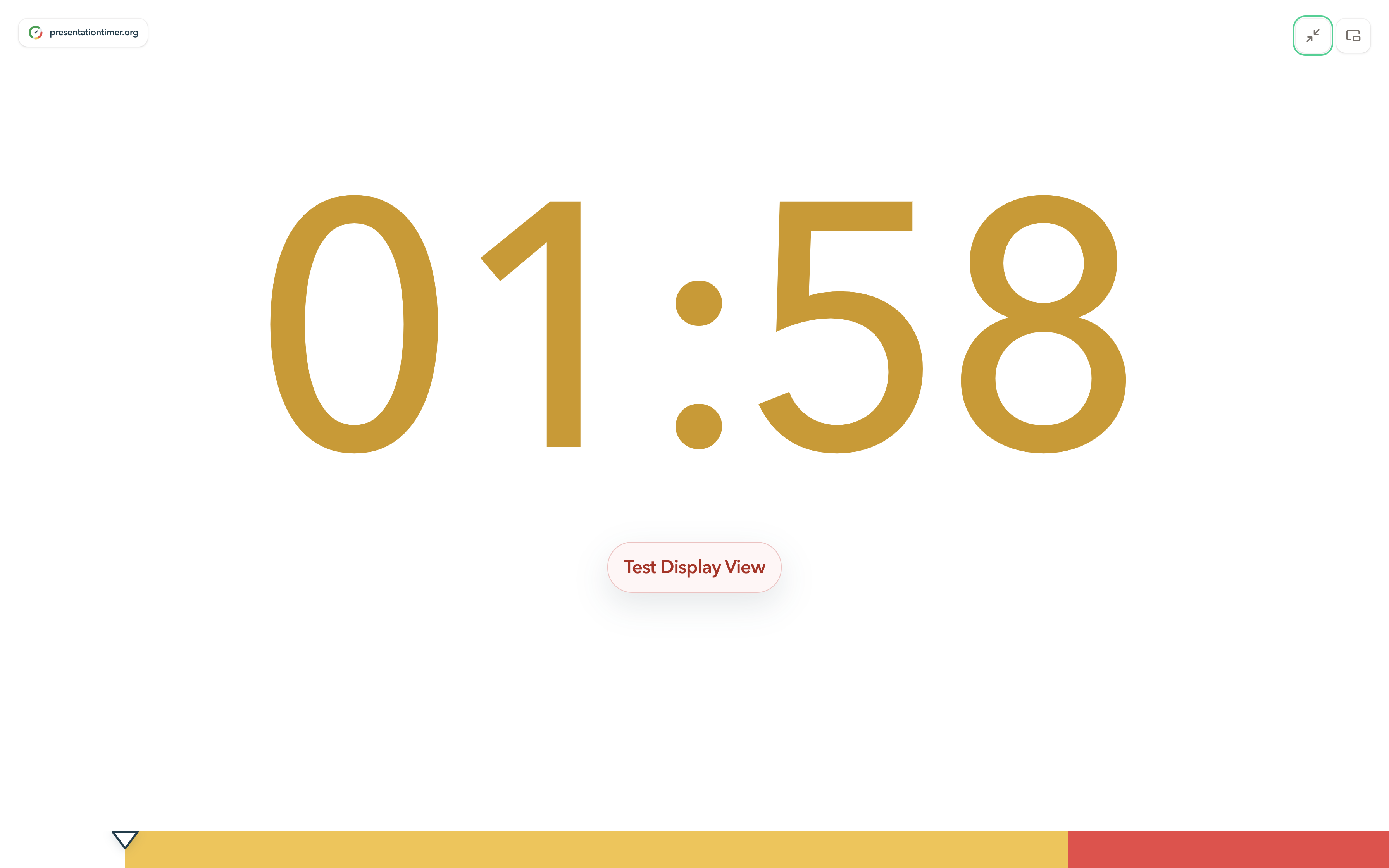
In the room, with two screens: present PowerPoint on the projector. Open the Display link fullscreen on the confidence monitor or a side screen the speaker can glance at. The audience sees slides; the speaker sees remaining time.
On one screen: set the slideshow to Browsed by an individual (window) under Slide Show → Set Up Slide Show. Then place the Display window beside it. The countdown stays visible without embedding an object on any slide.
Online: share the Display window, not the host workspace. If someone else needs to share slides, the timer can stay open on the speaker's own device through Speaker View instead of disappearing when screen share changes.
4. Run the session from Host
Start, pause, reset, and time adjustments happen in Host. The display only ever shows the result.
That split is what a slide add-in cannot do. A producer can add two minutes without walking on stage. A faculty timekeeper can jump to Q&A without touching the presenter's deck. The speaker keeps presenting.
Because the timer lives outside the deck, the room can also use the cues a baked-in countdown never had:
- Wrap-up colors. The display moves from green to yellow to red, then overtime, so "two minutes left" is visible across the room instead of whispered to the speaker. Details are in Display view.
- Agenda timers. Intro, talk, demo, and Q&A belong in one room as separate segments. The next timer is one click away, and Linked Start can hand off automatically when a segment ends.
- Display messages. Host can push a short line such as "We start in 5 minutes" or "Please wrap up" without pausing the clock. See Display message.
- Speaker-only cues. Speaker View gives the presenter the current segment and the next one on a phone or confidence monitor, while Display stays clean for the room.
Chime and flash cues can target specific roles — for example a chime only Host hears — on Pro. Free rooms already cover a host, a display, and a speaker view: 3 timers and 5 connected devices, no signup.
Which option fits your session?
| Built-in (Rehearse Timings / Presenter View) | Add-in on the slide | Host-controlled browser timer | |
|---|---|---|---|
| Visible countdown during the talk | No (elapsed time to the speaker only) | Yes, on slides that include it | Yes, on any display link |
| Shows remaining time to the room | No | Yes | Yes |
| Pause, reset, or adapt live | No | On the presenting machine only | Yes, from Host |
| Second screen or remote display | No | Mirrors the presenter's laptop | Yes, any device with the display link |
| Multi-segment sessions | No | Manual, one timer per slide | Yes, agenda in one room |
| Installation required | None | Per machine | None — browser only |
Rule of thumb: rehearsing a fixed talk on your own laptop is what PowerPoint's built-in tools are for. One unchanging countdown can justify an add-in if you are allowed to install one. The moment someone else needs to keep the session on time — conferences, pitch events, panels, defenses, webinars — a host-controlled timer with a shared display link is the more realistic setup.
Common mistakes
- Treating Presenter View as a room timer. The speaker may see elapsed time. The audience and the timekeeper do not.
- Baking a video countdown into the deck. It cannot pause, and it drifts the first time a question appears.
- Putting the host link on the projector. Anyone who can see that screen can control the session. Use Display or Speaker instead.
- Installing an add-in on event day. If the venue laptop blocks AppSource, you will not have time to recover. A browser timer needs only a URL.
- Using one 30-minute timer for talk plus Q&A. Speakers routinely spend the Q&A budget on the talk. Split the slot into segments so wrap-up arrives at the right moment.
FAQ
Can PowerPoint show a countdown timer during a slideshow?
Not natively. Rehearse Timings records rehearsal per slide but displays nothing live. Presenter View can show elapsed time to the speaker, not remaining time to the room. Animations cannot render a live countdown that a timekeeper can pause. To show remaining time you need an add-in on the slide or a timer running outside the deck.
How do I add a timer without installing anything?
Use a browser-based countdown instead of a slide object. Open the timer fullscreen on a second display, keep a small window beside a windowed slideshow, or share that window in your meeting app. With PresentationTimer, Display is a plain link — the audience does not install or open a separate app.
Should the audience see the countdown?
Only if that helps the room. Conference stages often put the clock on a confidence monitor facing the speaker and keep slides on the projector. Classrooms and pitch events often want the countdown public. PresentationTimer supports both: Display for the shared screen, Speaker View for a personal cue.
Does the audience need a copy of the timer?
No. Display is a read-only link that follows the active timer. Host is the only full control view, so a separate timekeeper can run the session while the speaker presents.
Can I time several speakers from the same PowerPoint file?
The deck does not need to change between speakers. Put each talk in the same PresentationTimer room as its own segment, open Display once, and switch timers from Host. That is the usual speech timer and conference timer setup.
Is PresentationTimer free to use?
Yes. Free rooms need no signup and include up to 3 timers and 5 connected devices, which covers a host, a display, and a speaker view. Pro and Premium raise those limits and add Agenda Studio, chime and flash cues, and password-protected Output Links.
Next steps
- Create the room from Create a room.
- Open the audience-facing clock with Display view.
- Keep Host private using Host view and Outputs.
- If you are timing a talk, a pitch, or a multi-speaker session, start from the speech timer or conference timer workflows.
- Need a wrap-up chime the speaker can hear without beeping the room? See How to create an online timer with sound alerts.
- Timing student presentations or class activities? See How to create a classroom timer.
- Need the on-stage countdown to occupy a shorter real slot? See How to use Time Warp on a presentation timer.