BlogGuides11 min read
How to Create a Classroom Timer for Student Presentations and Activities
A classroom timer is not a clock for the teacher. It is a signal for the room.
Students at the back of the class cannot read a phone on the desk. A whiteboard schedule cannot count down. A generic timer tab with ads is a risk the moment it is projected. The job is simpler than that: the teacher should be able to start a countdown in a few seconds, students should see how much time is left from across the room, and the lesson should move without a spoken "two minutes left" every time someone presents.
This guide shows how to create that classroom timer in a browser with PresentationTimer. Free rooms need no account or download. The walkthrough is for teachers who need a projector-friendly countdown for student presentations, group work, quizzes, and transitions.
Quick answer:
- Create a free room. Host opens immediately with a ten-minute timer named Presentation.
- Rename the room after the class, then set the first duration to the real activity: 5:00 for a talk, 10:00 for group work, 2:00 for a share-out.
- Open Display on the projector or smart board and put it in fullscreen. Keep Host on the teacher's laptop.
- For a repeating student talk, reset the same timer. For a lesson with different segments, add presentation, Q&A, and transition as separate timers in the same room.
- Do not put the Host link on the classroom screen. Display is the clock students should see.
What a classroom timer has to do
Search results are full of pages titled "free classroom timer." Many of them are articles, app stores, or one-off countdowns that were never meant to sit on a projector for 45 minutes.
A timer that actually helps a class has to match the lesson, not just count:
| Classroom job | What the timer has to do |
|---|---|
| Student presentations | The same visible limit for every speaker, reset in one click, wrap-up colors the class can see |
| Group work | A large countdown on the projector so groups stop asking how much time is left |
| Quiz or timed practice | A quiet clock. Sound should stay with the teacher, not the room speakers |
| Transitions | A short timer the teacher can start without rebuilding the page |
| Projector / smart board | Fullscreen, large digits, no signup wall, no ads in front of the class |
Phone timers fail the visibility test. Kitchen timers fail the projector test. A single 45-minute countdown fails the lesson-flow test: wrap-up arrives at the end of class, not at the end of the talk.
PresentationTimer is built around that split. The teacher keeps control in Host. The class follows a read-only Display. One room can hold the segments of the lesson instead of a new tab for every activity.
Create the classroom timer
You can do this before class, or in the minute between activities. There is no setup form.
1. Create a room
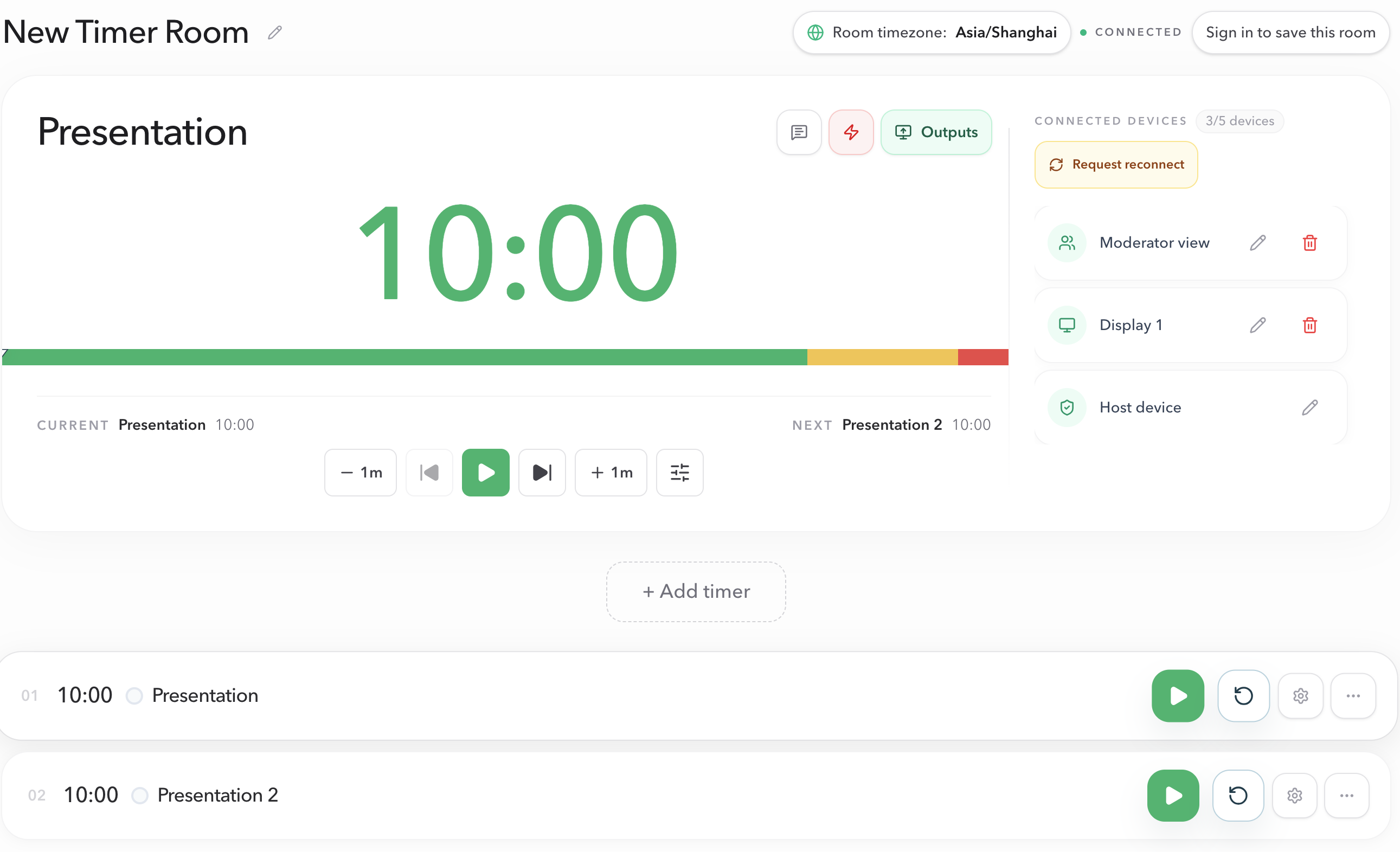
Open PresentationTimer and choose Create room. Host opens in the same browser. The room starts as New Timer Room, with one timer named Presentation set to 10:00.
Rename the room after the class — "Period 3 presentations," "Lab group work," "Debate round 1." A clear name matters later if you save the room and reopen it on another day.
Then open timer settings if 10:00 is the wrong length. A three-minute talk should be 3:00, not a ten-minute clock the class learns to ignore.
2. Put Display on the classroom screen
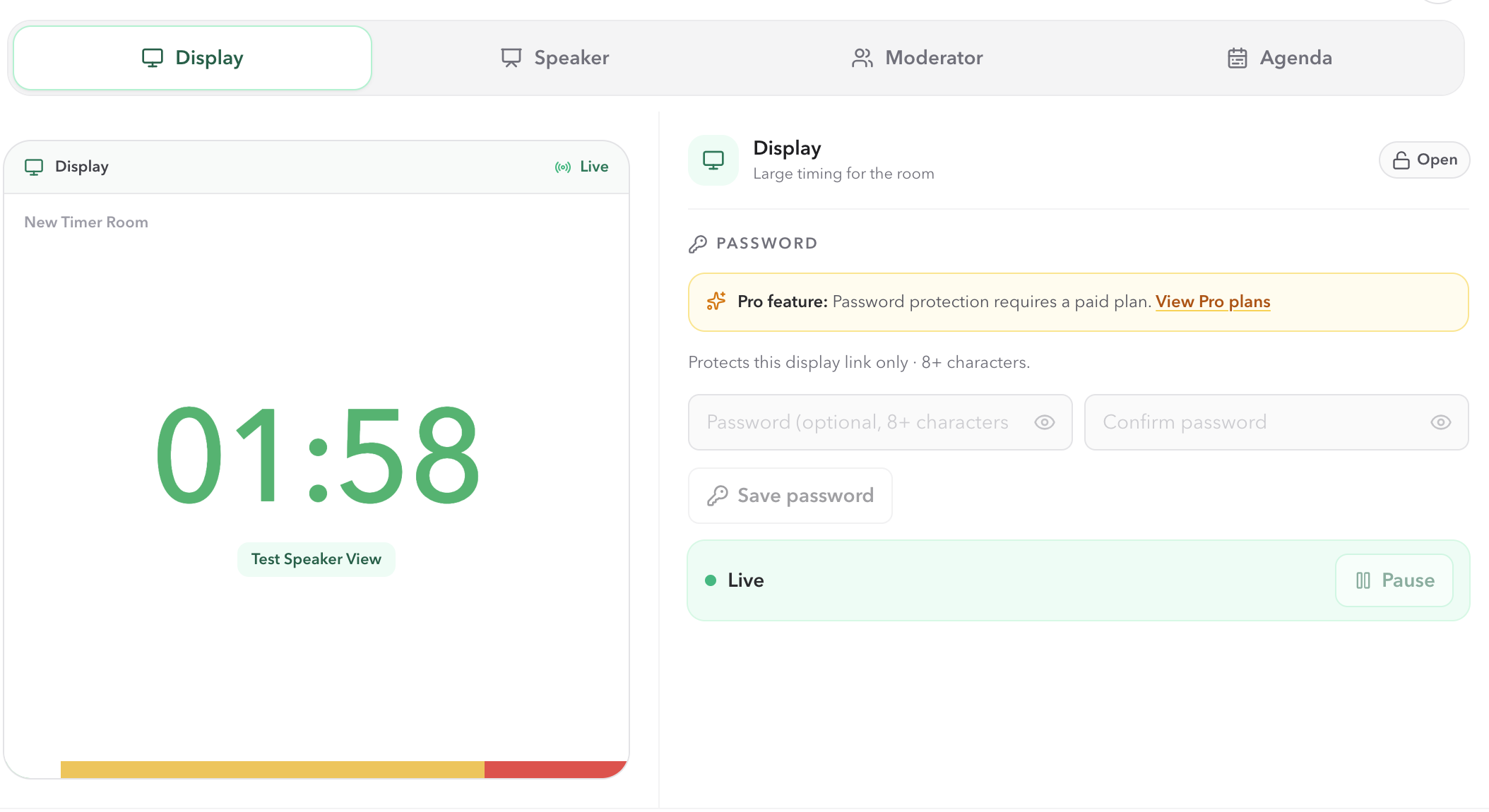
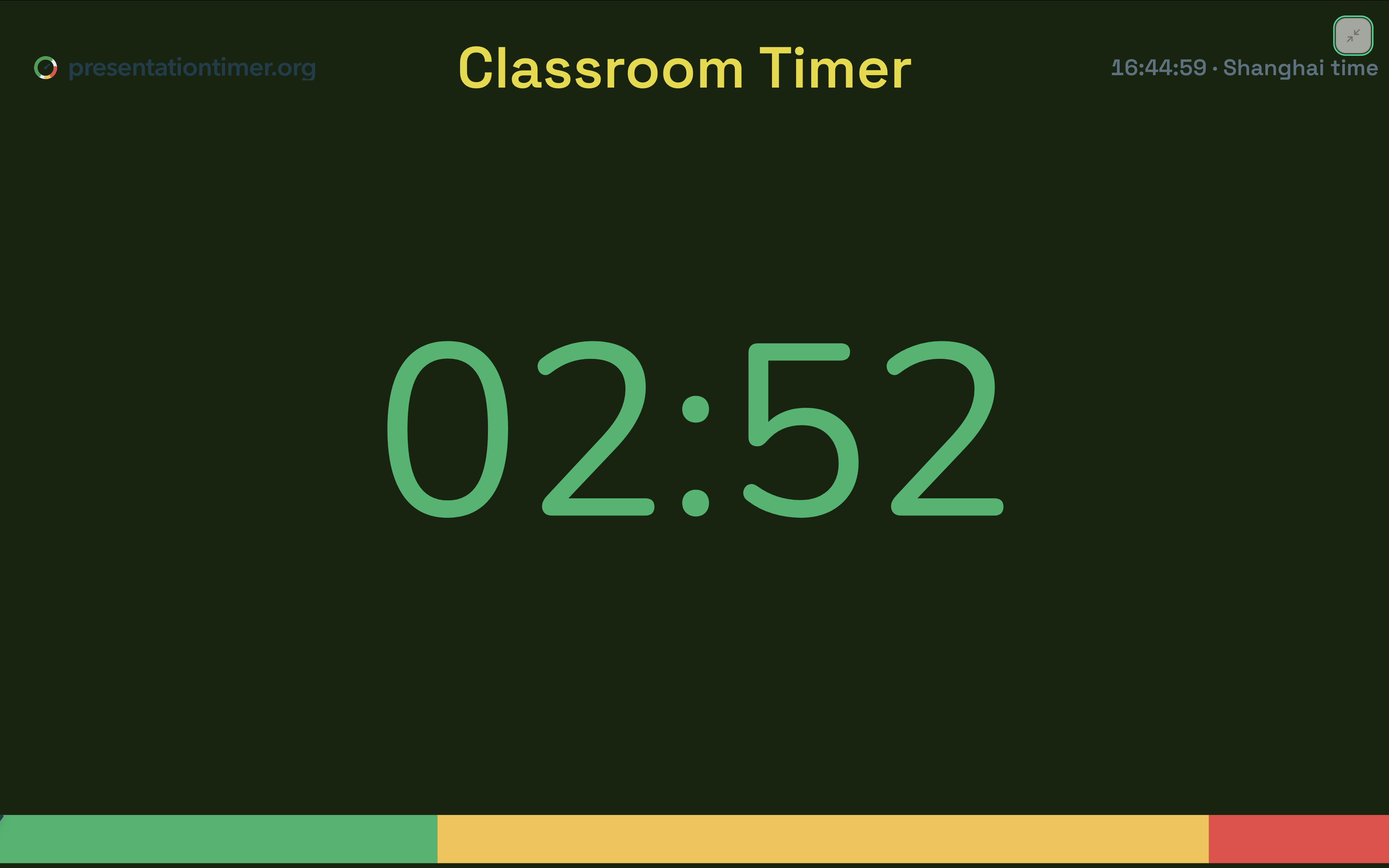
In Host, open Outputs, select Display, and open that link on the projector, smart board, classroom monitor, or a second laptop already connected to the room display. Use fullscreen on that page.
Typical classroom placements:
- Projector or smart board: the whole class sees remaining time.
- Second monitor at the front: the presenting student can glance at it without turning to the teacher's desk.
- A shared window in Google Meet or Zoom for a remote or hybrid class.
Do not open Host on the projector. Anyone who can see that screen can control the lesson, and the class will see every pause, rename, and setting change.
3. Start, pause, and reset from the teacher's laptop
When the activity begins, press Start in Host. The classroom screen follows.
That is the difference between a classroom timer and a phone timer. The presenting student does not have to run the clock. The teacher does not have to walk to the projector to pause for a question. Reset is one click when the next student is ready.
If a talk needs thirty more seconds, adjust remaining time in Host. The planned duration stays the same; only the live clock changes. Students see the new remaining time without a new explanation.
Match the setup to the lesson
One room can cover several classroom jobs. The mistake is treating every lesson as a single countdown.
Student presentations, same time limit
This is the most common classroom timer request: every student gets three or five minutes, and the class has to see the limit.
Use one timer. Set it to the talk length. Reset after each speaker.
Do not create a timer per student on a free room. Free rooms include three timers, which is the right budget for lesson segments, not for a roster of twenty names. The class does not need twenty clocks. It needs the same visible limit, restarted cleanly.
If each talk includes questions, split the slot:
- Presentation — 4:00
- Q&A — 1:00
Wrap-up then arrives at the end of the talk, not after the student has already spent the question time. Linked Start can select or start Q&A when the talk hits zero, so the teacher is not rebuilding the clock between speakers.
Group work the class can see from every table
Group work fails when only the teacher knows the time. Tables keep asking, and the share-out starts late.
Set a ten-minute Group work timer and put Display fullscreen on the projector. Add a two-minute Share-out timer in the same room for the report-back. Students can see both the current countdown and, from Host, you can jump to share-out when the room is ready.
A phone face-down on the teacher's desk does not do this. Neither does a number written on the board at the start of the activity.
Quiz, warm-up, or silent work
For a quiz, the clock should be visible and quiet.
Keep sound off on Display. If you want a private cue that time is almost up, use wrap-up colors the class can see, or a chime that stays on Host. A beep through classroom speakers is an interruption, not a timer.
Details for role-targeted sound are in How to create an online timer with sound alerts. Free rooms include a basic sound switch. Per-stage chimes and role targets are Pro.
Transitions and the next activity
A 60-second or 2-minute transition timer is enough to get materials away and the next student up without a verbal countdown from the teacher.
Keep it in the same room as the lesson. Opening a new website for every transition is how teachers end up projecting the wrong tab.
What students should see, and what they should not
| Screen | Who uses it | What belongs there |
|---|---|---|
| Host | Teacher laptop or tablet | Start, pause, reset, agenda, messages, outputs |
| Display | Projector, smart board, classroom monitor | Large remaining time, colors, optional room message |
| Speaker View | Optional, on the presenting student's desk or a confidence monitor | Personal pacing, if the public screen should stay on slides |
Speaker View is useful when the projector is showing slides, not the clock. The student still gets remaining time; the class keeps the deck. For most in-person activities, Display on the classroom screen is enough.
Host can also send a short display message such as "Wrap up" or "Next speaker" without pausing the timer. That replaces walking to the board mid-talk.
Free rooms are enough for most classes
A free PresentationTimer room needs no signup and includes:
- 3 timers
- 5 connected devices
- A host, a classroom display, and optionally a speaker view
That covers a typical lesson: one activity timer, one Q&A or share-out, one transition, with Host on the teacher laptop and Display on the projector.
Pro and Premium raise those limits and add Agenda Studio, per-stage chimes and flashes, and saved rooms you can reopen for the next period. Use them when the same lesson runs every week and you do not want to rebuild the agenda, or when a longer workshop needs more than three segments.
Chromebooks, classroom PCs, and teacher laptops all work. The timer is a URL. There is nothing to install on a locked school image.
Common mistakes
- Projecting Host. Students see controls, and anyone at the front of the room can change the lesson. Use Display.
- Leaving the timer on a phone. The presenting student cannot pace from a device they cannot see.
- One 45-minute countdown for the whole period. Wrap-up has to arrive at the end of the talk, the group activity, or the quiz — not at the bell.
- A new timer for every student. Reset the same talk length. Spend the three free timers on different kinds of segment.
- A site with ads on the projector. If the page can throw a popup in front of the class, it is not a classroom timer.
- Beeping the room. If Display is on the classroom speakers, keep sound on Host and let the colors do the warning.
FAQ
How do I create a classroom timer without signing up?
Open PresentationTimer and create a room. Host appears immediately with a ten-minute Presentation timer. Rename the room, set the duration, and open Display on the classroom screen. No account is required for a free room.
Can I show the timer on a projector or smart board?
Yes. Open the Display output from Host on the classroom screen and use fullscreen. Display is read-only, so students see remaining time without host buttons or settings.
What if every student presents for the same number of minutes?
Create one timer at that length and reset it after each speaker. Add a second timer only if the talk and the Q&A need different limits.
Can I time group work and then a class share-out?
Yes. Put both segments in the same room. Start group work on the projector, then switch to share-out from Host when tables should report back.
Will the class hear a sound when time is up?
Only if the classroom screen is a sound target and that computer has audible output. For most lessons, keep Display silent and use wrap-up colors. If you want a private beep, keep it on Host.
Does this work on a Chromebook?
Yes. Host and Display are browser pages. Open Host on the teacher's Chromebook and Display on the board or a second machine.
Is the classroom timer free?
Yes. Free rooms include 3 timers and 5 connected devices, which is enough for a teacher, a projector, and a speaker view. See Pricing if you need a longer agenda or saved rooms.
Next steps
- Create the room from Create a room.
- Put the clock on the board with Display view.
- Keep teacher controls in Host view.
- Want the countdown as large as the wall allows? See Giant classroom timer for projectors and smart boards.
- For the classroom-specific product page, see Classroom timer.
- Timing a deck on the same screen? See How to add a countdown timer to PowerPoint.
- Need a wrap-up chime only the teacher hears? See How to create an online timer with sound alerts.