BlogGuides10 min read
Giant Classroom Timer for Projectors & Smart Boards (Free)
A giant classroom timer is a visibility problem, not a shopping problem. The clock has to be readable from the back wall, over heads, while a student is talking. That is why searches for one end in two places: a physical device with an oversized readout, or a fullscreen webpage.
The physical option works, but it is a small screen you pay for — most "giant" classroom timers show digits smaller than a sheet of paper. The projector or smart board already in the room is the largest display in the building, and using it costs nothing.
This guide shows how to make a countdown genuinely giant on a projector or smart board with PresentationTimer: fullscreen digits the back row can read, controls that stay off the classroom screen, and sound that stays with the teacher. It overlaps with how to create a classroom timer — that post covers the full lesson setup. This one is about size and control: making the clock big enough for the room, and making sure the class cannot touch it.
Quick answer:
- Create a free room. No account, no install.
- Open Display from Outputs on the projector or smart board and put it fullscreen. The countdown fills the screen.
- Keep Host on the teacher's laptop, or open Operator View on your phone — a touch console for start, pause, and reset from anywhere in the room.
- Display is read-only. Students see the clock; nobody changes it from the board.
- Sound stays on the teacher's device. The wall shows wrap-up colors instead.
What "giant" has to mean in a classroom
A timer can be technically visible and still useless. Distance is the test: a clock that reads clearly from the teacher's desk fails at the back of a classroom, where a phone screen or a small hardware display turns into a blur.
A classroom timer is giant when it meets four conditions:
| Condition | What it looks like in practice |
|---|---|
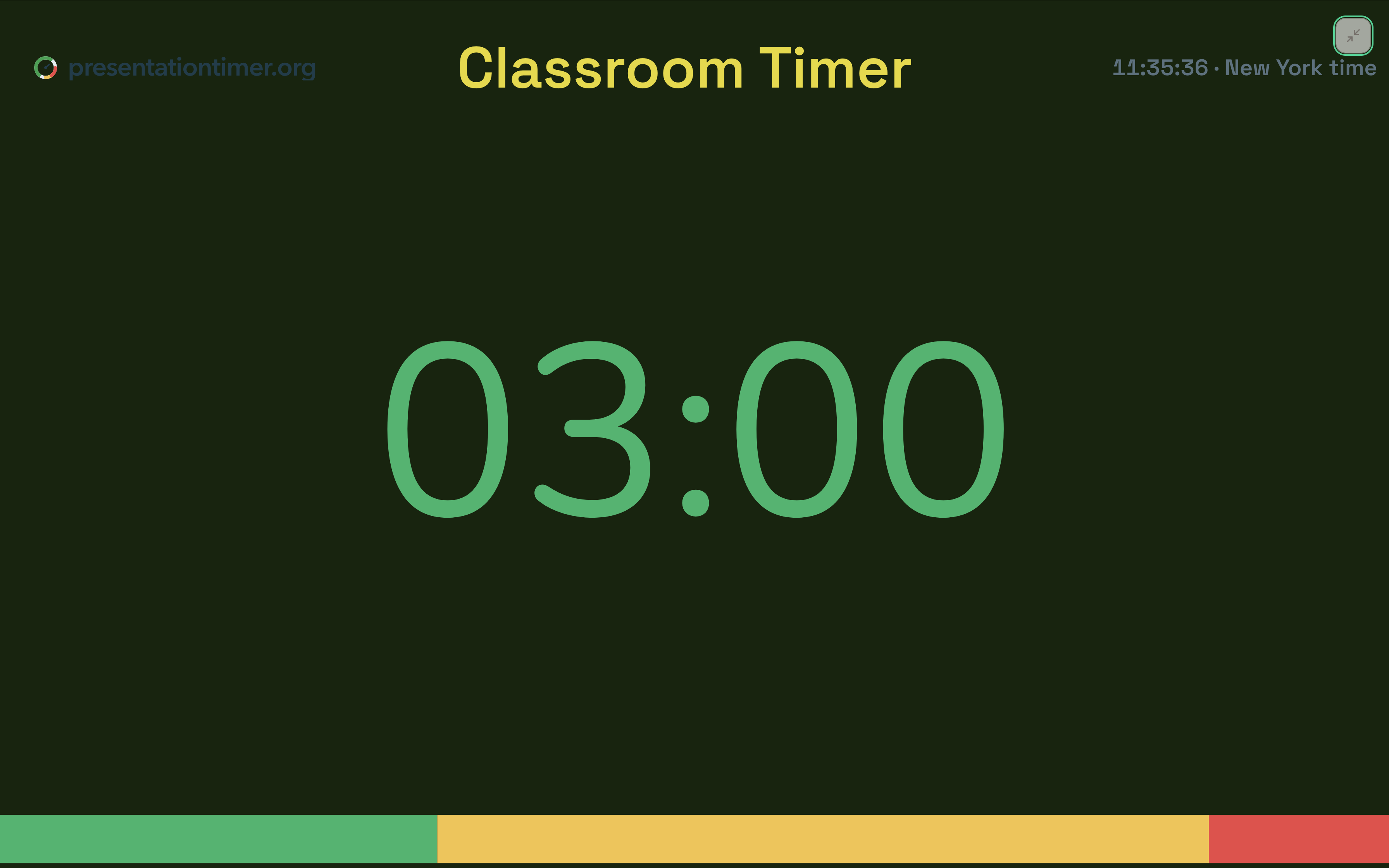
| Fills the screen | One countdown per screen, fullscreen, no toolbars or browser chrome competing with the digits |
| Reads from the back row | High-contrast digits over most of the wall, not a clock widget in the corner |
| Shows its state | Wrap-up color changes are visible from distance — students should not read small text to know time is running out |
| Cannot be touched | No buttons, menus, or settings on the classroom screen |
The last row is where most online timers fail. Fullscreen countdown sites typically put the controls on the same page that gets projected: the plus and minus buttons, the preset chips, the settings gear are all one careless click away from a student at the keyboard. A hardware timer on the magnetic board is within arm's reach of whoever walks past it.
Set up the giant timer on the classroom screen
Three steps. Steps 2 and 3 happen on two different devices — that split is the whole point.
1. Create the room
Open PresentationTimer and choose Create room. Host opens in the same browser with a ten-minute timer ready to adjust. Free rooms need no account. Rename the room after the class if you will reuse it, and set the first duration to the real activity length.
If you want the timer to cover a whole lesson — presentation, Q&A, transition — add those as separate timers in the same room. The classroom timer walkthrough covers that lesson-flow setup in detail.
2. Fill the board with Display
In Host, open Outputs, select Display, and open that link on the projector, smart board, or classroom monitor. Then use fullscreen on that page.
Display is built for distance: the remaining time takes over the screen, and the color state carries the message — safe time, wrap-up, overtime — so the back row does not have to read digits to know the situation.
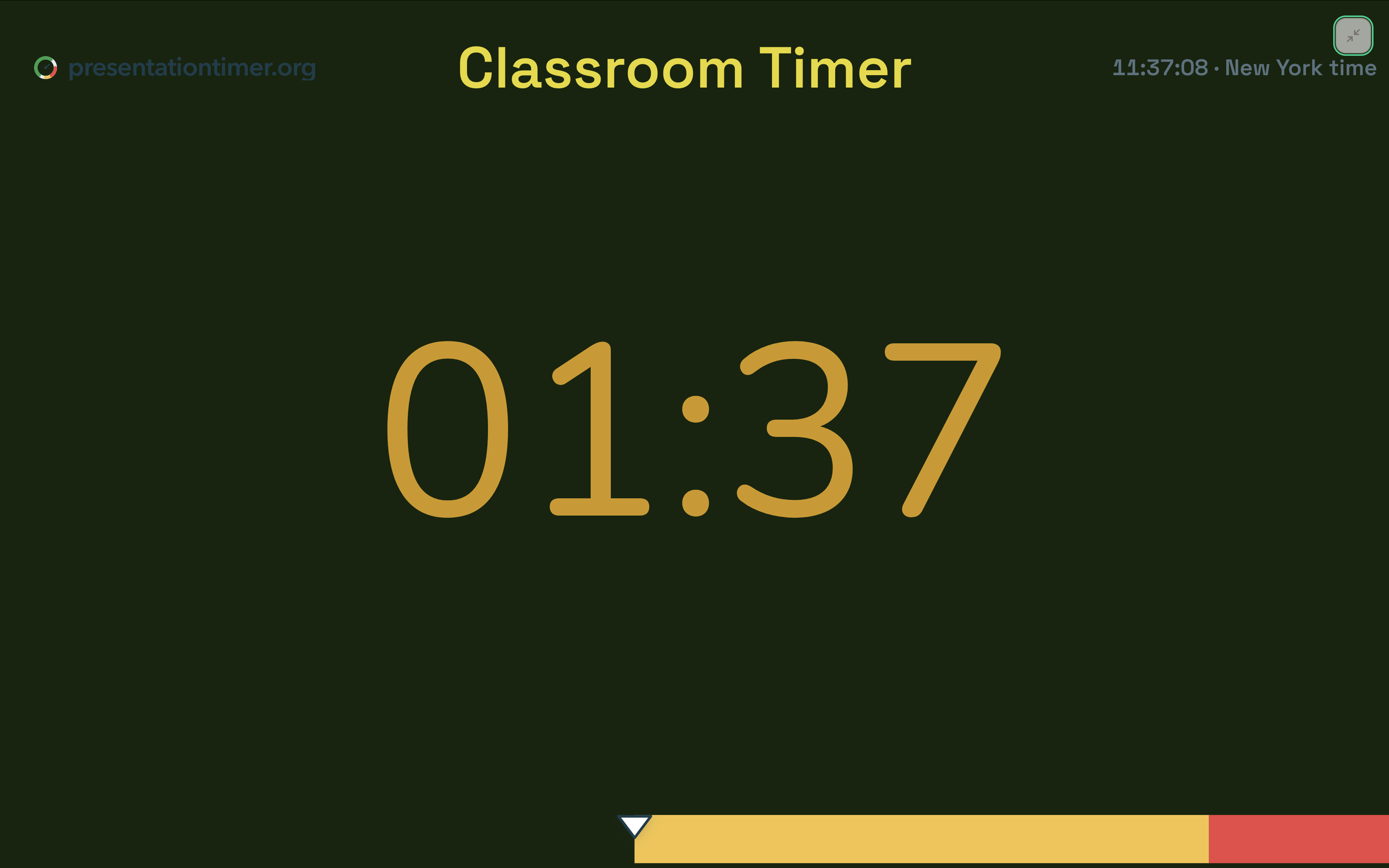
Two small things make it read even bigger: brighten the projector or board for the lesson, and get the mouse cursor off the screen after you open fullscreen.
3. Control it from your hand, not the board
The classroom screen is now a clock. The controls live on the teacher's device:
- Host on the laptop is the full workspace — durations, renaming, messages, outputs. This is where you set the room up before class.
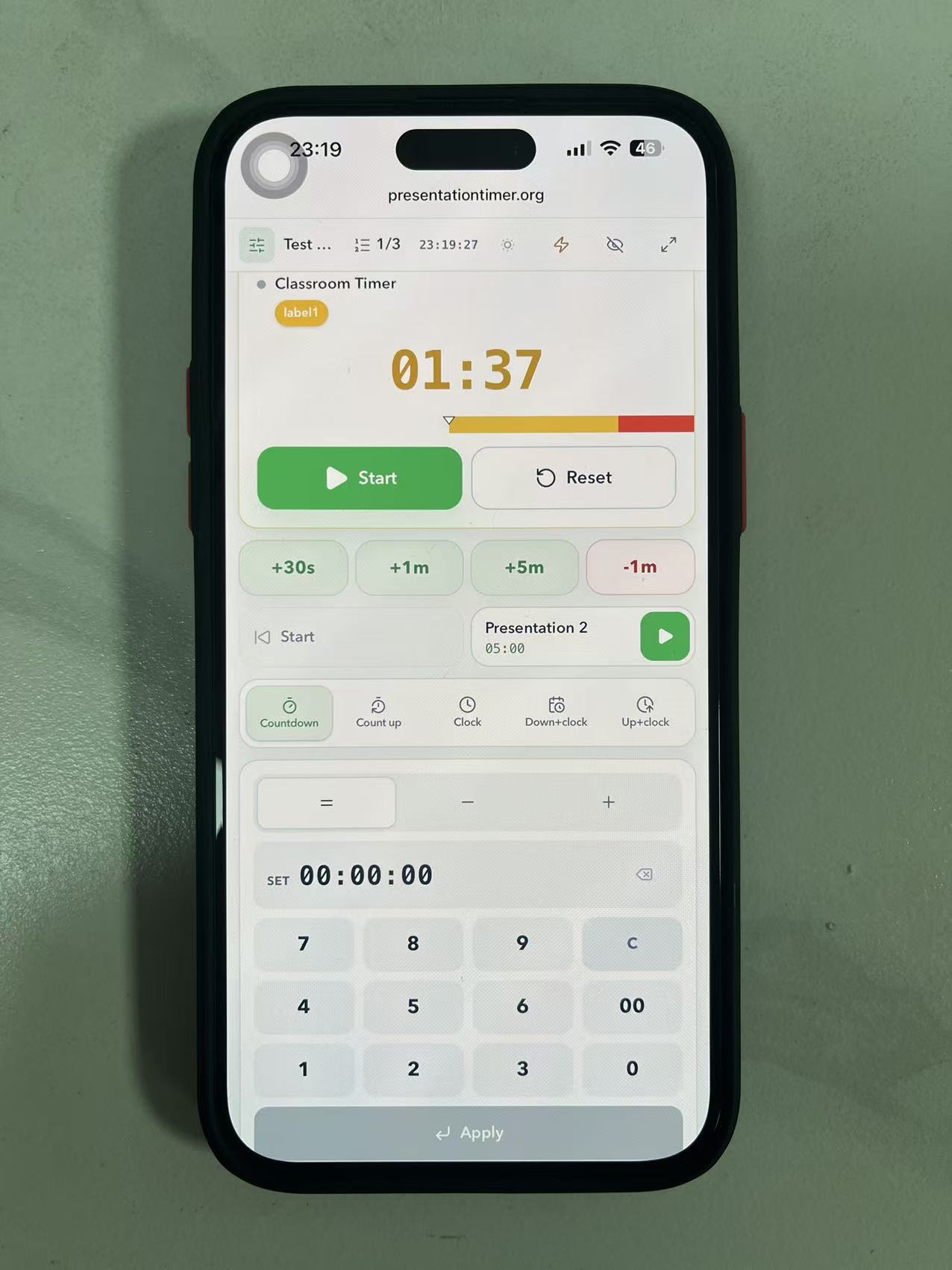
- Operator View on your phone is a touch console for the live part: start, pause, reset, switch, adjust remaining time. Open it from Outputs the same way as Display. It has no settings and no messages — which is exactly why it is safe to keep in your hand all lesson.
With Operator View on your phone, you can give a group two more minutes from the back of the room while they are still working. The board updates instantly. Nobody walks to the podium computer.
Do not open Host on the classroom screen. Anyone who can touch the board could then pause the lesson, change durations, or open settings. Only the read-only Display link belongs there; the Host link is for the teacher's device and should never be shared or projected.
Where the sound goes
A giant clock on the wall does not need to beep at the class. For most lessons the color change is the signal, and sound is a private cue for the teacher.
Keep the chime on the teacher's device. If Display is connected to classroom speakers, sound on that screen interrupts every activity in the room — including the quiz it was supposed to quietly time. Details for role-targeted sound are in how to create an online timer with sound alerts; free rooms include a basic sound switch, and per-stage chimes with role targeting are Pro.
Projected display or a physical giant timer?
Hardware "giant" timers — the wall-mountable kind with an oversized readout — are a fair option, and honest comparison beats pretending otherwise.
| Physical giant timer | Projected Display | |
|---|---|---|
| Digit size | Device-sized — usually smaller than a sheet of paper | Fills the projector or board |
| Cost | Bought per classroom | Free, uses the screen the room already has |
| Multiple segments | One countdown | Several timers in one room: talk, Q&A, transition |
| Adjust mid-activity | Walk to the board | From the teacher's phone or laptop |
| Tamper resistance | On the board, within reach | Read-only screen, controls elsewhere |
| Works without internet | Yes | Needs a connection (a phone hotspot is enough) |
| Works without a projector | Yes | No — that is the hardware use case |
The practical summary: if the room has a working projector or smart board, projecting wins on every row except the last two. The hardware case is real when there is no screen, no reliable internet, or the room belongs to a substitute who should not touch a browser. Teachers with both often end up using the projector as the class clock and retiring the hardware timer to the supply closet.
No projector? Other ways to go giant
The same setup works on any screen the room has:
- Classroom TV: connect it to the teacher's laptop with HDMI and open Display there instead of a projector.
- Cast from a phone or laptop: Chromecast or AirPlay to a TV works the same way — Display opens in the browser, fullscreen on the TV.
- A spare laptop or tablet on a stand: not wall-sized, but far more visible than a phone on the desk.
And when the board must show slides instead of the clock, Speaker View gives the presenting student a private countdown on a side screen or a laptop at their desk. The class keeps the deck; the speaker keeps the clock.
Common mistakes
- Opening Host on the board. It hands the lesson to whoever touches the screen. Display only.
- A small window instead of fullscreen. A clock widget in a browser tab is not a giant timer — use fullscreen.
- Display sleep mid-lesson. Set the projector or board to not blank after a few idle minutes; the timer page is not "activity" as far as the screen is concerned.
- Letting the clock be controlled from the classroom screen. Generic fullscreen timer sites put the buttons on the projected page. Students find them.
- Sound through classroom speakers during quiet work. Keep the chime on the teacher's device.
- A tiny shared window for hybrid classes. Share the Display fullscreen in Meet or Zoom, or remote students will squint at a corner widget.
FAQ
Is a projected timer really bigger than a physical giant timer?
Yes. A "giant" hardware timer shows digits the size of a few coins on a device smaller than a sheet of paper. A fullscreen Display on a projector puts the same digits on the whole wall. The hardware wins only when the room has no screen to project on.
Can students change the timer from the smart board?
No. Display is a read-only view: it shows the countdown and its color state, with no buttons, settings, or menus. Controls live on Host or Operator View, which stay on the teacher's own devices.
Do I need an account or an app?
No. Free rooms need no signup and nothing installed — Host, Operator View, and Display are browser pages. That also means it works on locked-down school machines where installing software is not an option.
Will it work on my smart board or interactive whiteboard?
Yes, if the board runs a browser. Open the Display link on the board itself and use fullscreen. You do not need the board's touch features — nobody should be touching the clock.
Where does the alert sound come from?
From the device that should hear it — by default the teacher's. Keep sound off the classroom screen for quiet work; the wrap-up colors are the public signal. Per-stage chimes and role-targeted sound are available on Pro.
What if the classroom has no Wi-Fi?
The timer is a webpage, so every device needs some connection. A phone hotspot is usually enough: the teacher's phone shares it, and the classroom computer joins it to show Display. If the room has neither Wi-Fi nor cellular signal, a hardware timer is the honest fallback.
Next steps
- Full lesson setup, from presentations to transitions: How to create a classroom timer.
- The classroom-specific product page: Classroom timer.
- What each screen shows: Display view.
- Live control from a phone: Operator View.
- Setting wrap-up colors and chimes: Timer cues.
- Need sound placement explained end to end? See How to create an online timer with sound alerts.