Room views
Speaker View
Give each presenter a personal, glanceable timing cue. Speaker View follows the live Room with the current segment, time, Host messages, and what comes next—without sharing any Room controls.
Speaker follows the Room; Host controls it.
Give the presenter the Speaker link, not the Host link. The presenter can follow the session, while one operator remains responsible for starting, pausing, selecting, and correcting Timers.
Control boundary
Speaker is deliberately read-only.
Speaker View is for the person delivering a segment, not for the person operating the event. It does not include start, pause, reset, Timer selection, editing, or output-management controls. This keeps the presenter focused and prevents an accidental change to the shared Room.
The screen shows the Room name and a visible Read only label. If a presenter needs a timing correction, they should tell the Host operator rather than trying to change the timer.
Setup
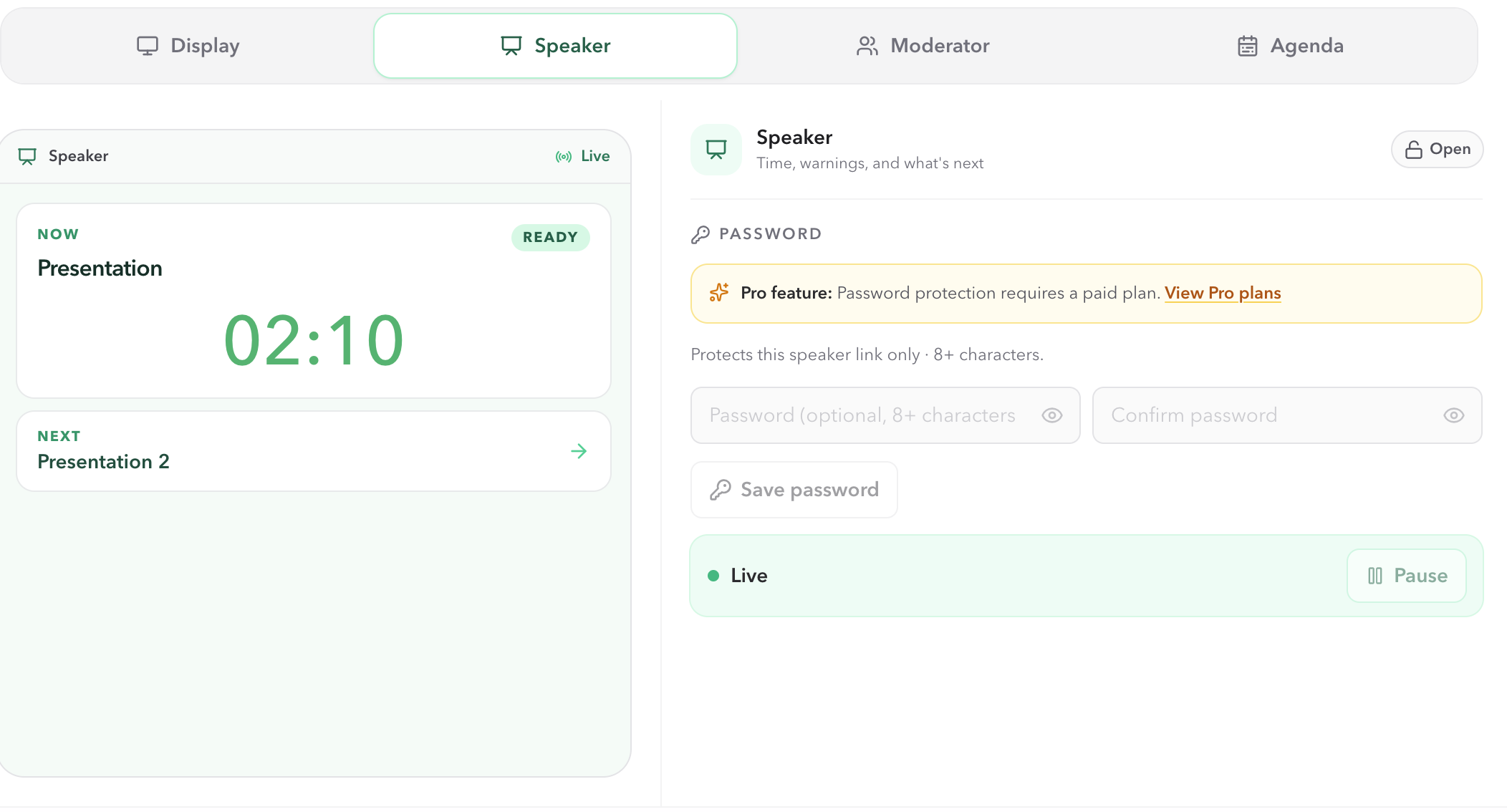
Open Speaker View from Host Outputs.
- 01
Keep the original Host link on the operator's device and choose Outputs in Host.
- 02
Select Speaker, then open the output or copy its link for the presenter.
- 03
Open that Speaker link on the presenter's phone, tablet, or laptop. It follows the same Room as Host, so the link does not need a separate timer setup.
During the session
Read the current segment at a glance.
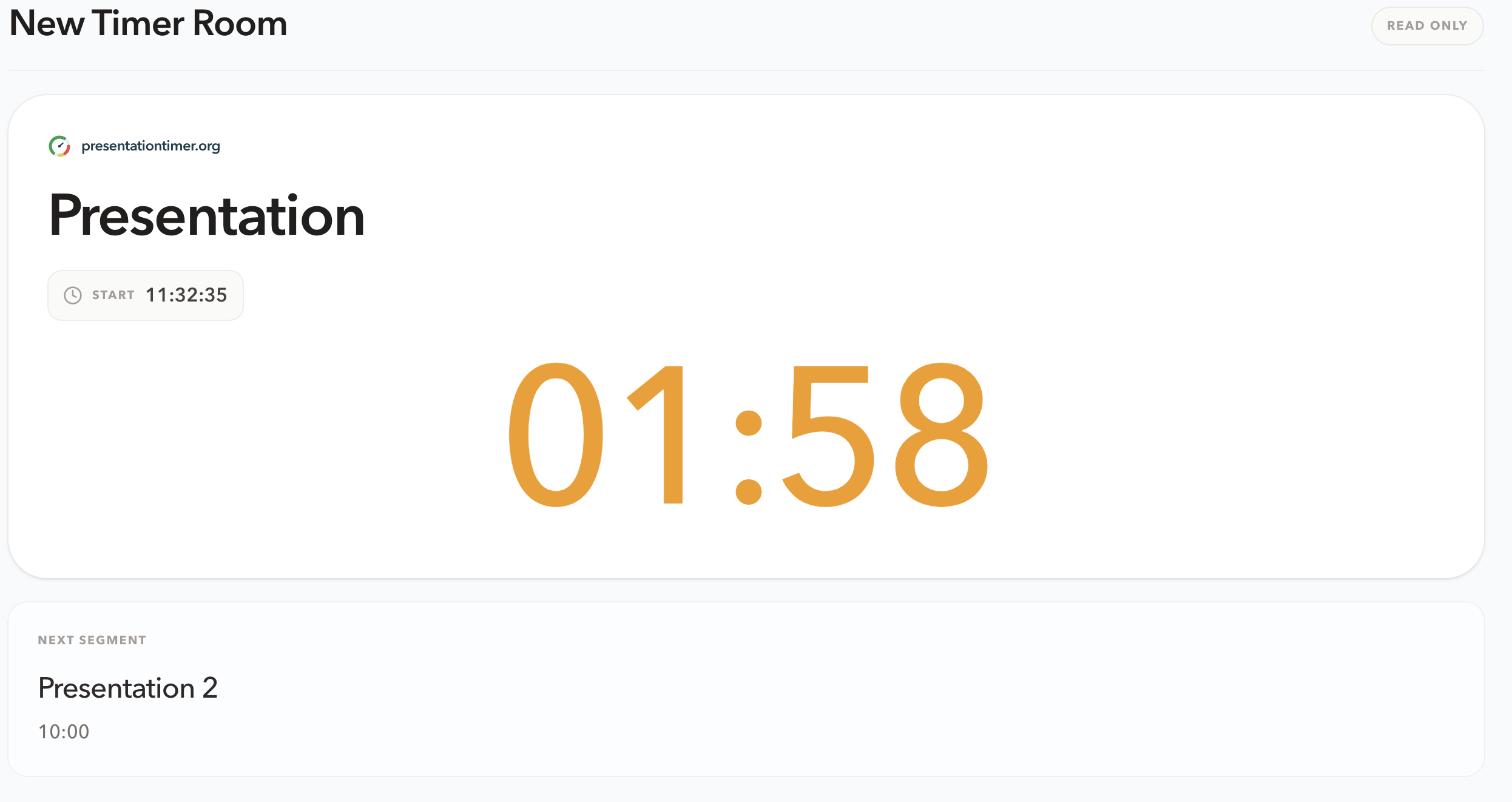
The main panel makes the active Timer name and its primary time value prominent. It follows the time display chosen in Host: a countdown, count up, timer with Room time, or a Room clock.
For timer displays, the large number changes from green when time is safe, to amber at the warning stage, then red at danger or overtime. There is no separate status label to interpret—the number's color is the pacing cue. Speaker View also shows Start after the Timer has started, or when the Timer has a Scheduled start configured.
Handoffs
Follow the next segment without operating it.
The panel below the current Timer shows the next segment's name and planned duration. Use it to prepare a close, a handoff, or the material needed next. The next segment's Start time appears only when that Timer uses Scheduled timing.
Seeing the next segment does not let the presenter select or start it. Host decides the live transition; if you use Linked Start, the Speaker screen simply follows the resulting Room state.
Personal device
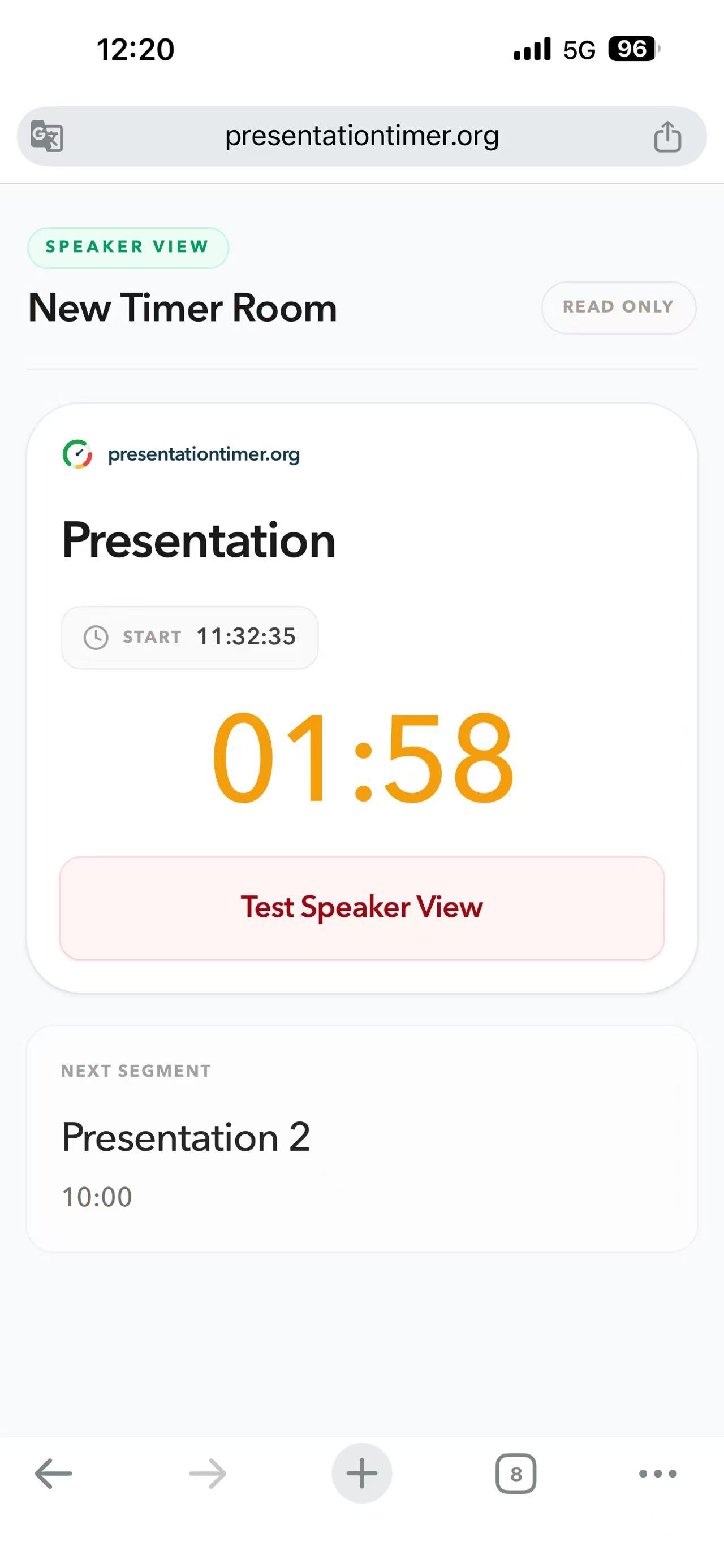
Use Speaker View on a phone.
A phone browser is a practical place for Speaker View when the presenter has slides or notes on another screen. Position it where the current time can be checked without interrupting the presentation, and keep the device charged for longer sessions.
Host cues
Receive short messages and configured alerts from Host.
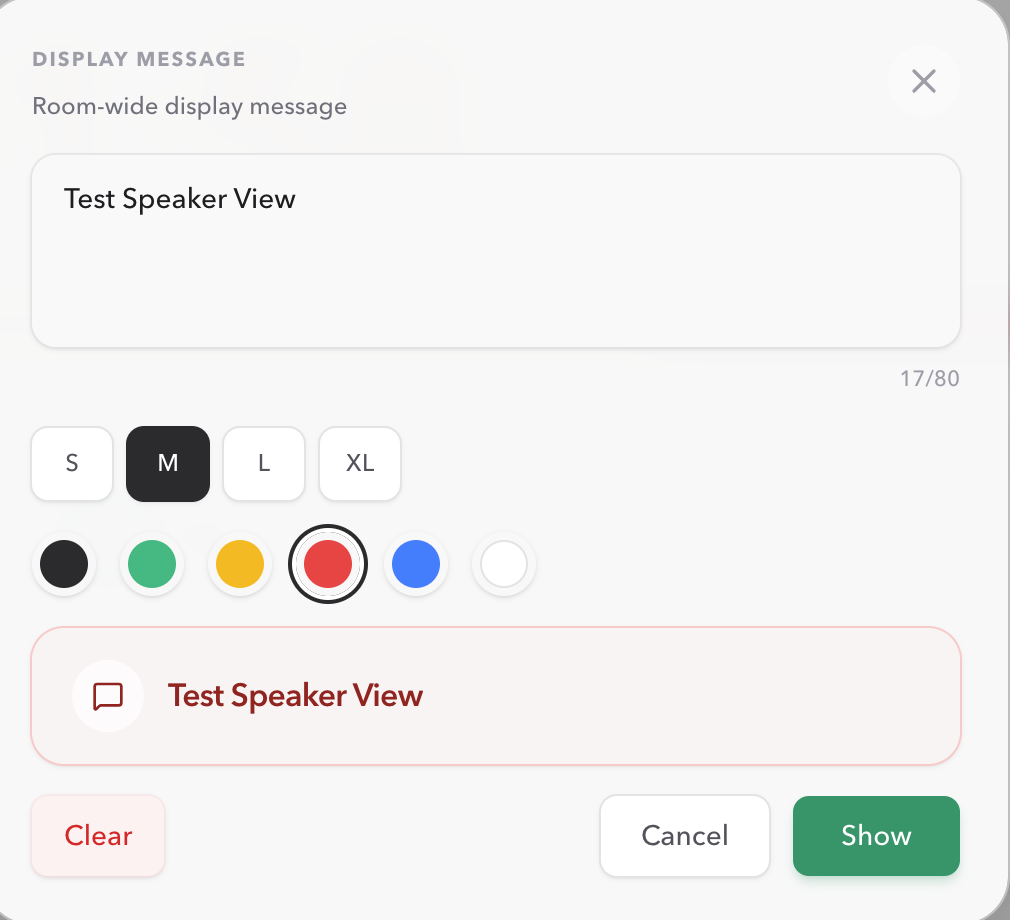
Host can send a Room-wide Display Message to the Speaker screen, such as a short wrap-up cue or a change in running order. The Host chooses its text, size, and color; messages are limited to 80 characters. A Room-wide message takes precedence over a message on the active Timer.
On paid plans, Host's Wrap-up settings can deliver chimes and screen flashes at configured alert stages when they target the Speaker role. Test those cues on the presenter's actual device before relying on them live.
Learn about Display MessageConnection
Confirm that the presenter's device is connected.
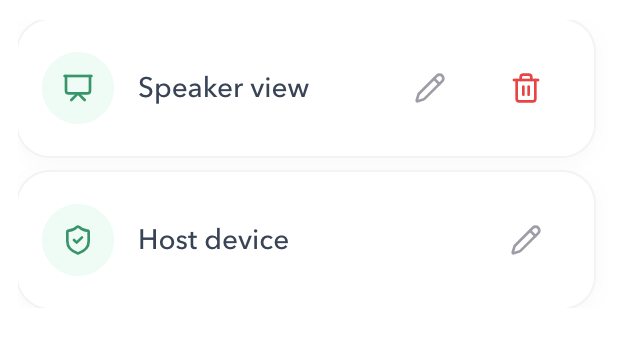
Host lists connected views and identifies Speaker View as a separate device. Before the session, confirm that the intended speaker device appears there. If a screen becomes stale, Host can request that shared views reconnect; the operator can also remove an unwanted device from the Room.
Checklist
Before the presenter begins
- The presenter has the Speaker link, not the private Host link.
- The Room name, current Timer, and next segment match the Host workspace.
- The Speaker device is visible under Host connected devices.
- The phone, tablet, or laptop is positioned for a quick glance and has power for the session.
- Any Room-wide message, chime, or flash cue has been tested on the presenter’s device.
- The Host operator knows they remain responsible for live timing changes.
FAQ
Common Speaker View questions
Can a speaker start, pause, or edit the Room?
No. Speaker View is read-only. Keep Host and Operator links with the production team; those are the views that start, pause, select, and correct the live Timer.
Why is there no Start time on a Speaker screen?
Speaker View shows Start after the current Timer has started. It also shows the configured time for a Scheduled Timer. A manual Timer that has not started yet has no start time to show.
Does Speaker View show the next segment?
Yes. It shows the following Timer's name and duration. Its start time is shown only when that next Timer uses Scheduled timing.
Can a presenter use Speaker View on a phone?
Yes. Open the Speaker output in a modern phone, tablet, or laptop browser. A phone is useful as a personal cue beside notes; test the link and any intended alerts before the session begins.
How is Speaker View different from Display View?
Display View is the shared audience-facing screen. Speaker View is a personal, read-only cue for the presenter: it keeps the current timer and next segment easy to glance at while speaking.