Workflows / Custom Display
Add a progress bar or ring to your custom Display.
A progress bar or ring tells the audience how much time is left without making anyone read digits. It sits next to the timer in Display Studio, draws itself from the active timer, and needs nothing from you once the event starts. This page walks through its inspector: the two shapes, the three stage colors, thickness, and the marker.
The short version
Click the progress bar on the canvas. Pick Bar or Ring, adjust the stage colors if the defaults don't suit you, and set the thickness. The zones follow the active timer's cue stages. Save, then confirm Outputs still has your layout selected.
Behavior
It runs itself.
The widget shows the active timer, always. You never pause it, scrub it, or reset it — there is nothing to operate. When Host starts, pauses, or adjusts time, the drawing follows on its own.
A bar empties from the left. A ring empties clockwise from the top. Time that has been spent turns transparent, so your canvas color or photo shows through where the fill used to be. What remains stays colored: green first, then yellow, then red.
One thing to understand before you style anything: the widget does not decide where yellow and red begin. It copies the active timer's cue stages — the same Yellow and Red thresholds that drive the digits and the chimes. With a default timer, yellow covers the last quarter of the duration and red the last 30 seconds. Set custom cue stages on the timer and the widget redraws to match.
When the timer reaches 0:00 the red zone is full, and it stays full through overtime. The digits do the alarming. The shape just holds until Host starts the next timer.
Shape
Start with the bar.
Bar is the shape most rooms want: a strip across the bottom edge that drains toward the right. Thickness sets its height, and the strip centers itself inside the widget box. Corner radius rounds the ends from 0 to 64 — leave it at 0 for a strip that runs edge to edge.
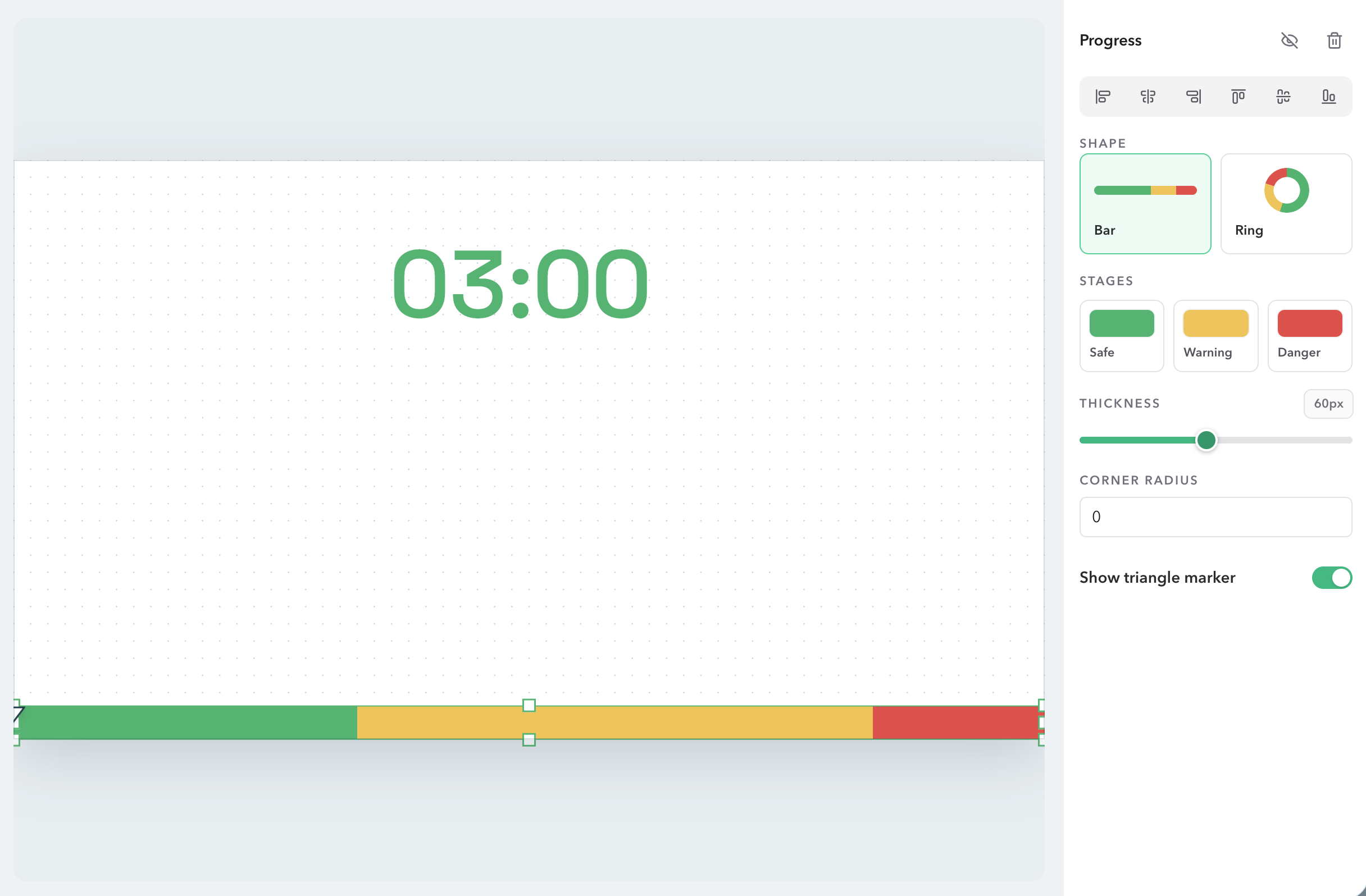
Ring is there when the layout wants a dial instead of a strip — a large clock wrapped in color, for example. Resizing a ring keeps it square, and Thickness becomes the stroke. Studio caps the stroke at half the box so the hole never closes up.
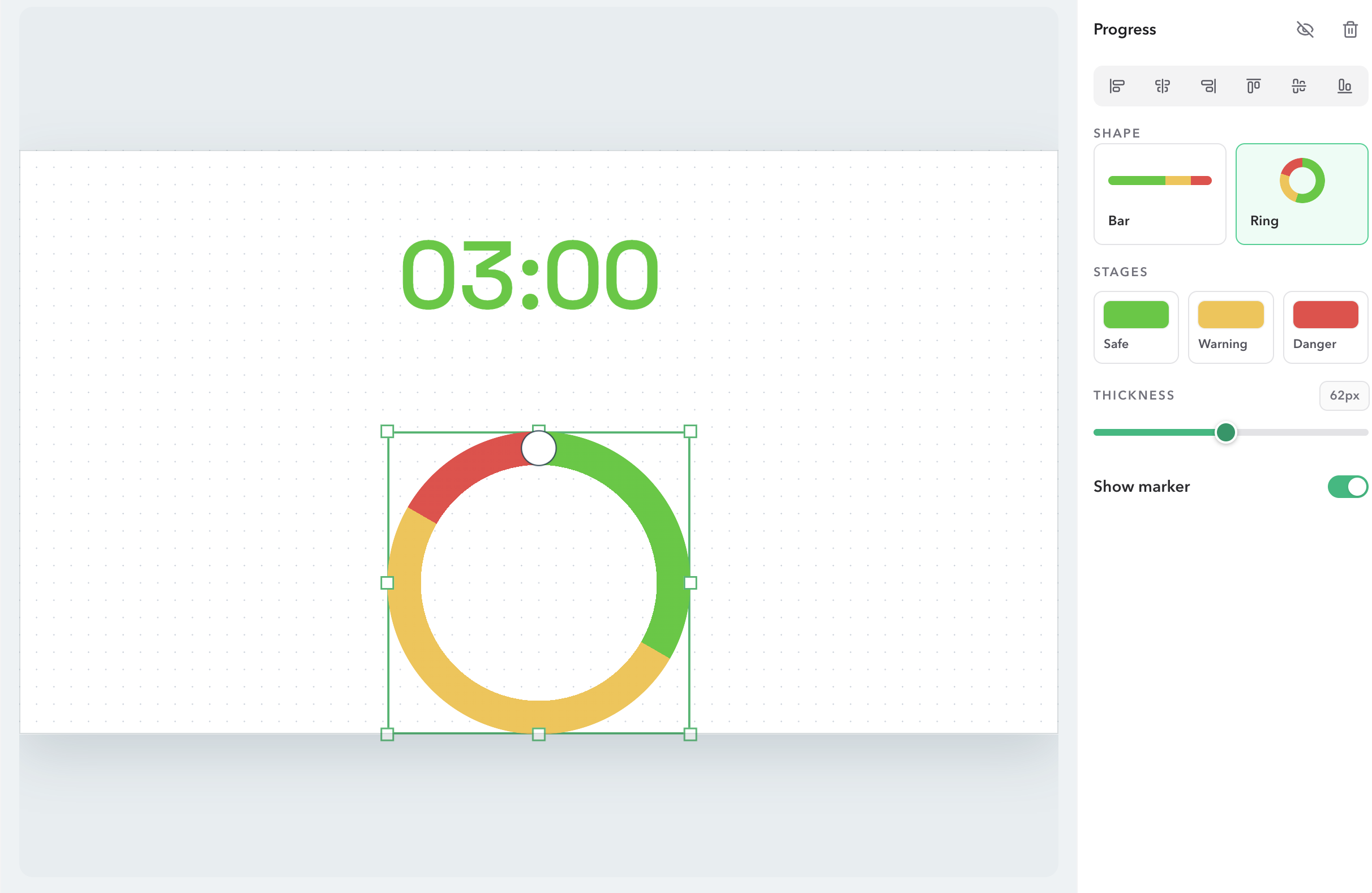
Switching between the two keeps your colors, thickness, and marker. What changes is the box: a ring gets a centered square, a bar gets a full-width strip along the bottom, and Studio slides the widget off your timer so nothing overlaps. Drag it wherever the layout needs it after that.
Colors
Keep the traffic-light colors unless you have a reason.
We ship the three stages as green, yellow, and red because audiences already read that scheme without being taught it. Leave them alone unless your brand colors argue otherwise. To recolor one, click its swatch in the inspector and pick from the board; the canvas updates as you click.
Remember that the boundaries belong to the timer. If yellow looks too long or too short, change the timer's cue stages — see Timer Cues — not this panel.
One connection worth setting up: turn on Follow warning color in the timer's inspector, and the digits take these same three colors. Number and shape then switch stages together. If you keep more than one progress widget on the layout, the timer follows the first visible one. Hide or delete the widget and the timer keeps the colors it last had.
Thickness and marker
Match the distance to the back row.
Thickness runs from 8 to 120 pixels, and 60 is the default. That default works for a bottom strip on a 16:9 canvas. Go thinner on a small canvas or a phone layout; go thicker in a hall where the screen sits far away and the shape has to carry more than the digits.
Show marker puts a white triangle on the bar, or a white dot on the ring, right on the boundary between spent and remaining time. It has no color setting — it stays white with a dark edge. I leave it on: it is the only part of the widget that moves from moment to moment, and that movement is what catches the eye from a distance. Turn it off if you want the strip completely quiet.
Live screen
Save, then rehearse on the real screen.
Everything on this page previews on the Studio canvas as you click. The projector does not see any of it until you Save, and Outputs still has to have your layout selected. A layout cannot save without a visible timer on the canvas — progress alone is not a clock.
Two things to check at the venue. First, can you actually read the remaining colors from the back row over your background photo? If not, raise Dim on the background before you blame the widget. Second, start a test timer and watch one full run: the marker should travel, the zones should hand over where the cue stages say, and at 0:00 the red should sit full. If the layout ever fails to load, the room falls back to the default Display rather than a blank screen.
Checklist
Before the audience sees the screen
- The Host preview shows the active timer's time in the widget.
- Zone boundaries match the timer's cue thresholds, including any custom stages.
- The marker is on or off the way you rehearsed it.
- The remaining colors read from the back row over the background photo.
- You can switch Outputs back to Default Display if the layout fails.
FAQ
Common progress questions
Does the progress widget control the timer?
No. It only displays the active timer. Start, pause, and adjustments live in Host or Operator, and nothing on the Display is interactive.
Where do the yellow and red zones come from?
From the active timer's cue stages — the same thresholds behind Timer Cues. A default timer gives yellow the last quarter and red the last 30 seconds. Custom cue stages show up on the widget automatically.
Why is part of my bar or ring missing?
That is spent time. It turns transparent so the canvas shows through. If the remaining colors get lost on a photo background, raise Dim.
What happens at 0:00 and in overtime?
Red fills at zero and stays full through overtime. The digits handle the alarm; the shape resets when Host starts the next timer.
Why did the widget move when I switched shape?
A ring needs a square box and a bar wants a full-width strip, so Studio repositions the widget when you switch and moves it clear of the timer. Drag it back where you want it.
Can the timer reuse these colors?
Yes — turn on Follow warning color in the timer's inspector. The digits take the same three colors from the first visible progress widget. Hide or delete the widget and the timer keeps the colors it had.