Room views
Host View
Host is the private control surface for a live Room. Use it to run the active Timer, choose the next segment, make live corrections, and give everyone else a focused read-only view.
Keep Host with one operator.
Host is the only view that can change the Room. Display, Speaker, Moderator, and Agenda follow the same state but cannot start, pause, edit, or select a Timer.
Control boundary
Read the Host workspace.
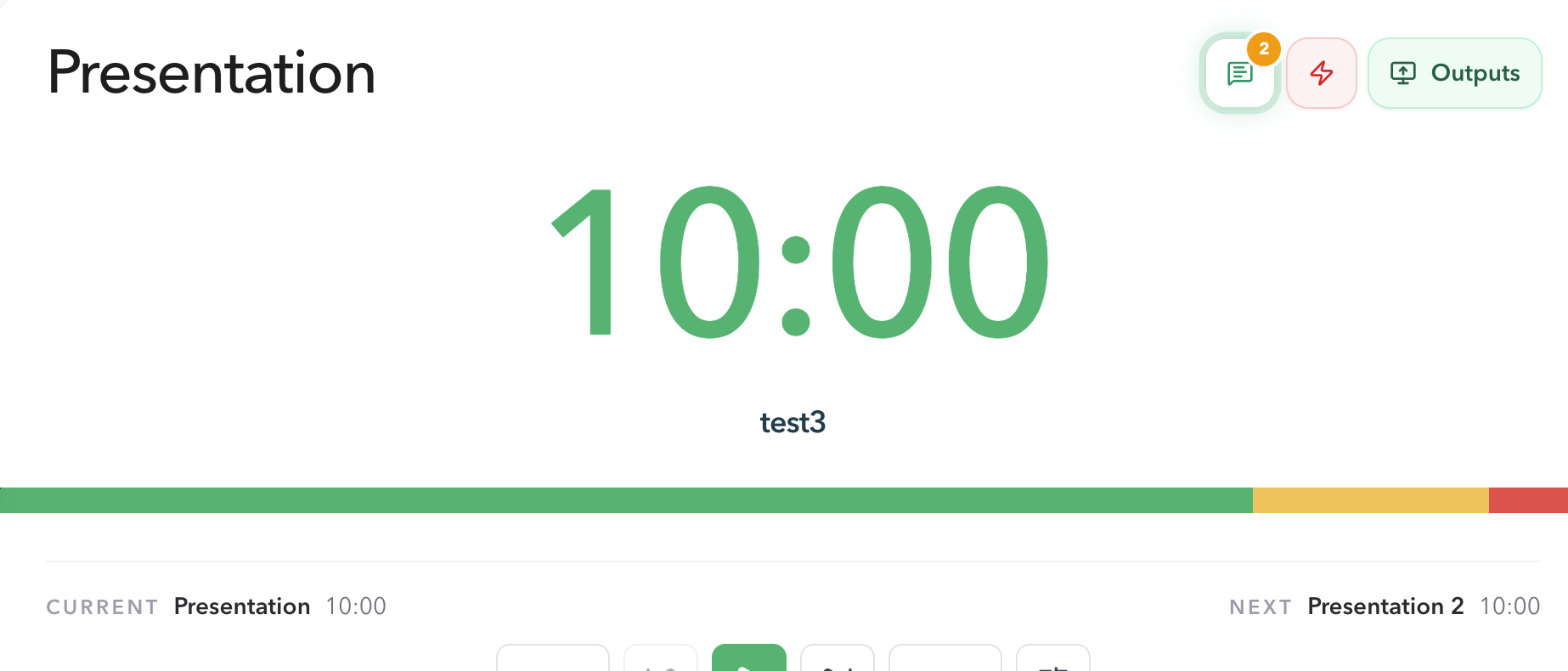
The Host page is the operator's console. The top panel keeps the live decision points together: the active Timer, its remaining time, the next Timer, Messages, Flash, Blackout, Outputs, and connected devices. Use it on the laptop or tablet operated during the session.
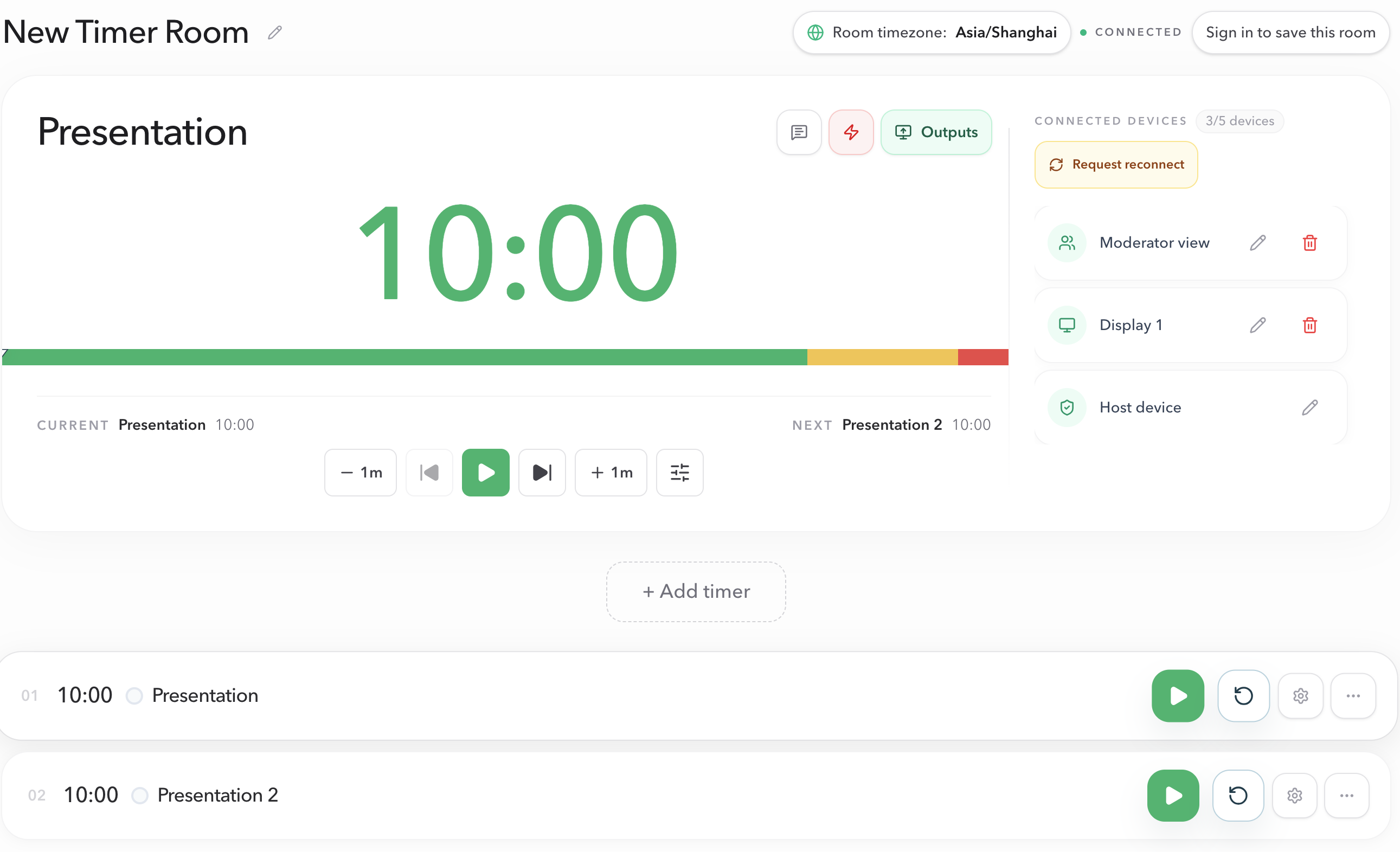
- Current
- The active Timer and its live remaining time.
- Next
- The upcoming Timer, or No next item when the Room has one Timer.
- Messages
- Room notes and the audience-question queue.
- Flash
- A manual visual cue for the timer number on shared views.
- Blackout
- A live overlay that hides every Display from the audience.
- Outputs
- Read-only views for the shared screen and other participants.
- Connected devices
- The devices currently attached to this Room.
Live control
Start and pause the active Timer.
Select the green Start button to begin the active Timer. While it is running, the same primary control becomes Pause. The Display, Operator, and any open Speaker, Moderator, or Agenda views follow the same Room state immediately; they do not need their own start action.
Keep the Host link private. A shared output is intentionally not a backup control surface.
Live communication
Use Messages for notes and audience questions.
Open the speech-bubble button in the Host toolbar. Messages is the single place to put a short note on screen and to manage the public audience-question queue. The lightning button beside it is a separate manual visual cue for the timer number. Blackout hides audience Displays; Outputs opens the role-specific views.
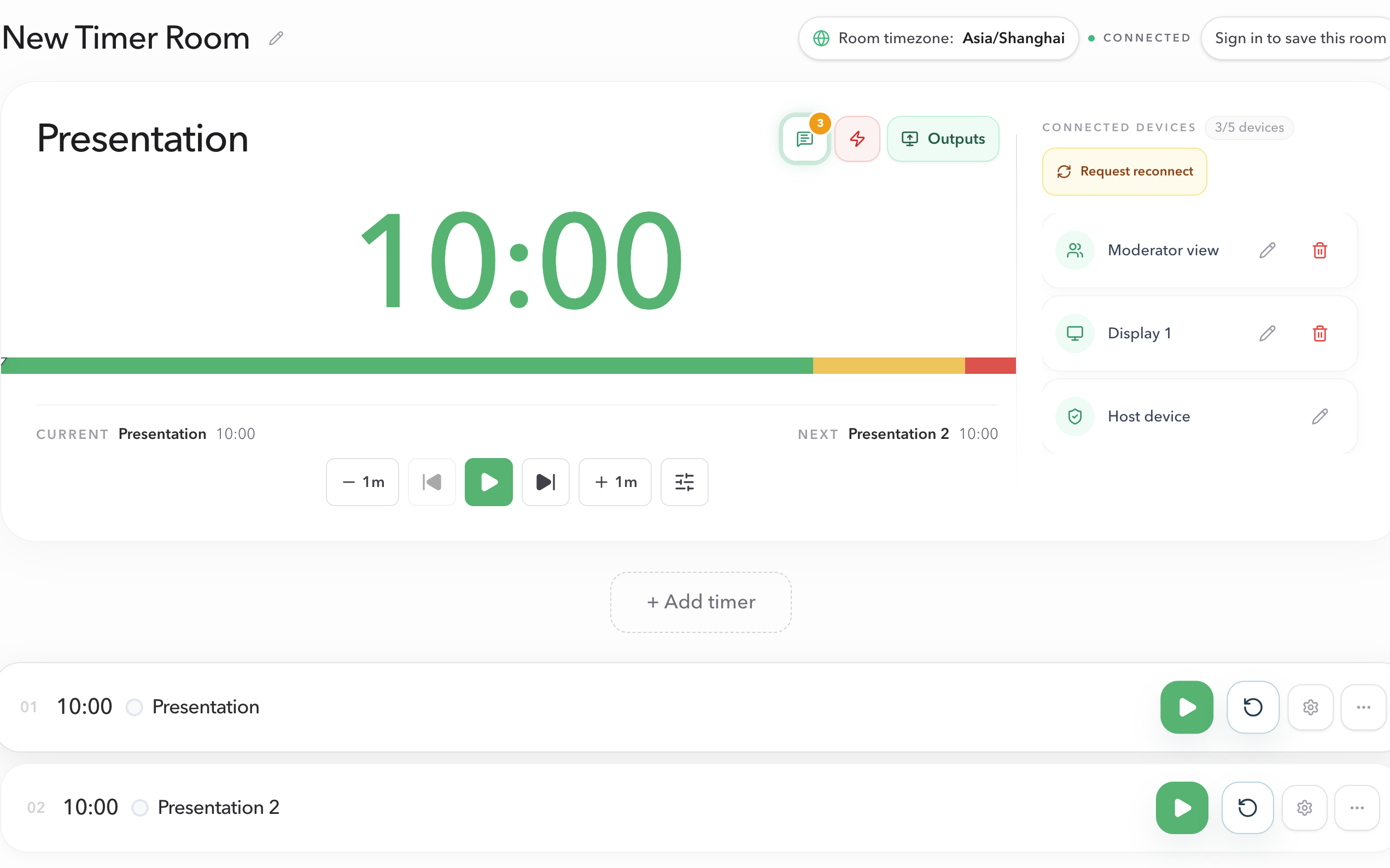
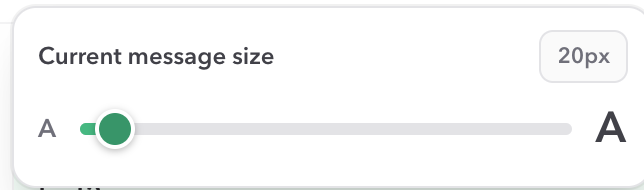
For a host note, type up to 80 characters and press the send icon. The note appears in On screen and can be cleared when it is no longer needed.
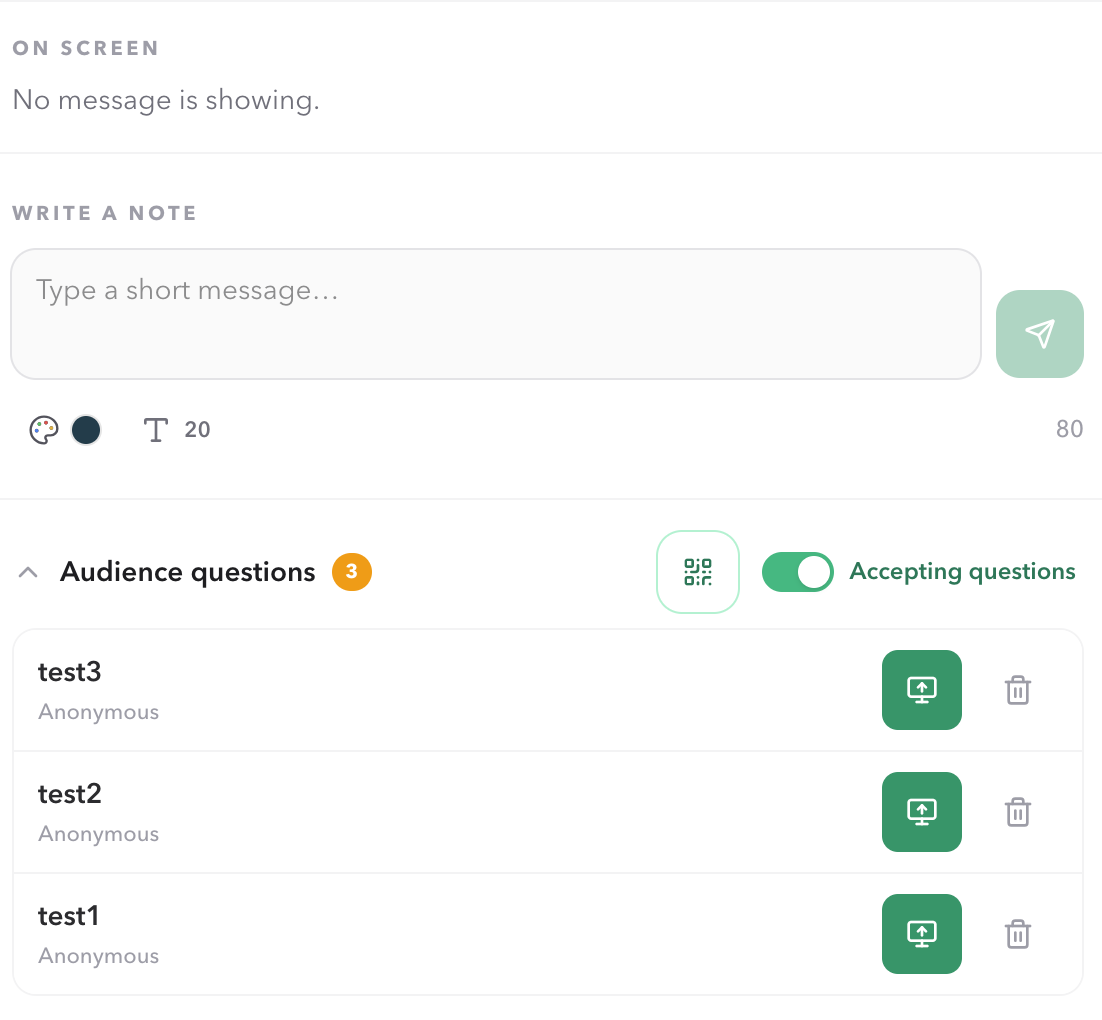
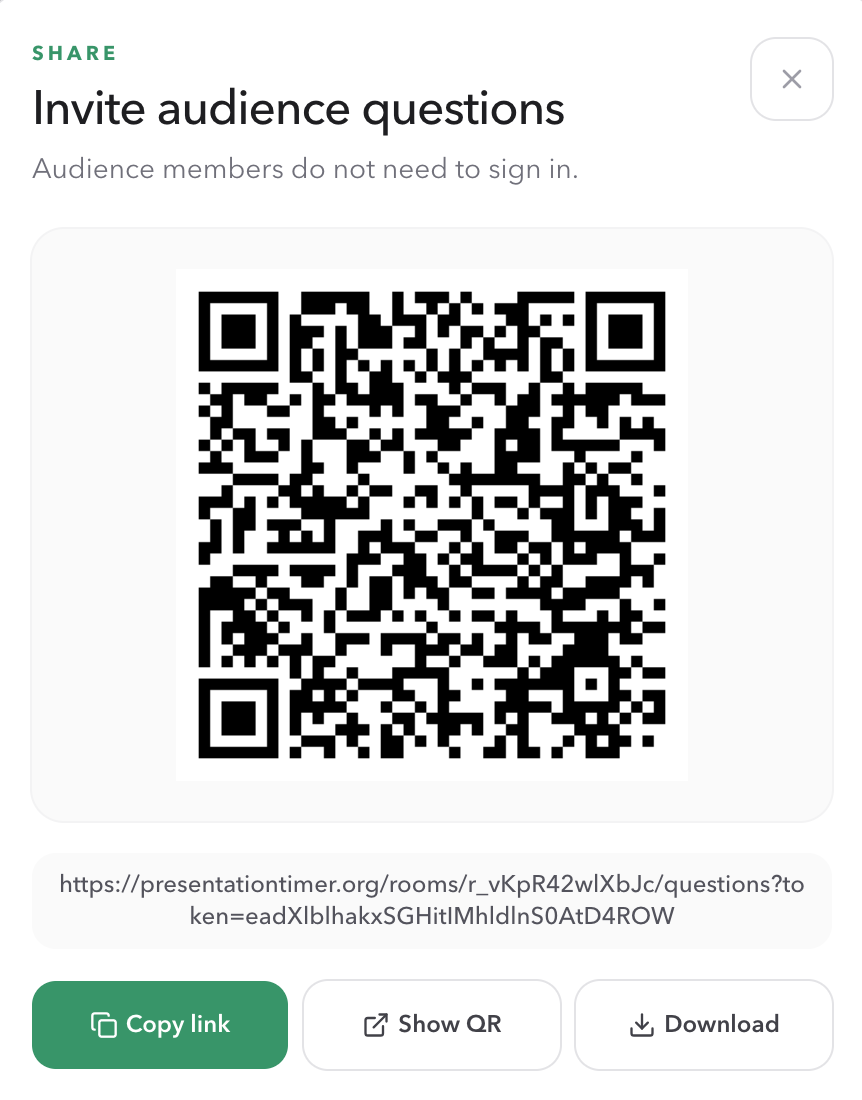
In Audience questions, use the QR/share icon to open the invitation dialog. Display the QR code on a shared screen or copy the public link into chat, slides, or a check-in message.
When questions arrive, select the monitor icon to show one on the Display. Showing marks it as read; hiding it removes it from the Display but keeps it in the queue for later. Delete only when the question should be removed permanently.
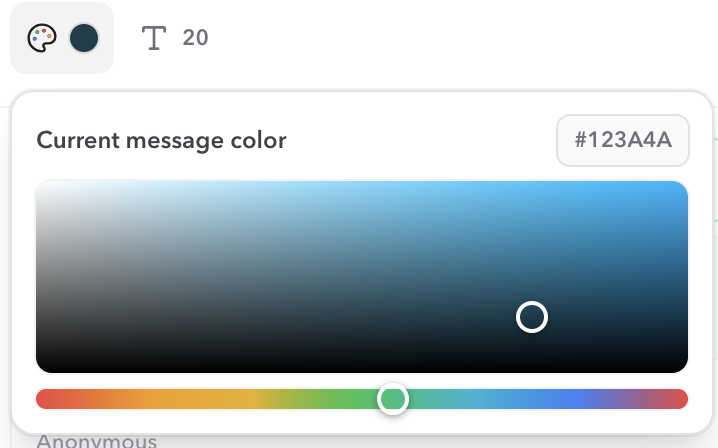
See Display Message for note styling details, and Audience Questions for the complete question workflow.
Audience screen
Blackout the audience Display.
The Blackout button covers every Display, including picture-in-picture, with a solid black overlay. Use it when capturing the timer with OBS or another production tool, or during a break when the audience should not see anything.
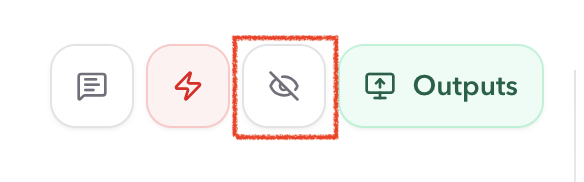
The timer keeps running. Host, Operator, Speaker, Moderator, and Agenda stay visible so production and presenters are not blinded. Host shows Audience blackout while it is on. Blackout is a live control only; it is not saved with the Room.
Segments
Select the next Timer deliberately.
Use the previous and next buttons below the active Timer, or select a Timer from the list. Switching to another Timer pauses the current running Timer and makes the target Timer active. It does not start the target automatically.
This gives the operator a deliberate pause for a speaker handoff, a question, or a production check. When a sequence should follow a rule automatically, configure Linked Start.
Live correction
Correct remaining time without changing the plan.
Use the minus and plus controls for a quick adjustment. The slider button opens Time adjustments, where you can choose a 15-second, 30-second, 1-minute, 2-minute, or 5-minute quick step, set a custom quick step, or enter an exact remaining time.
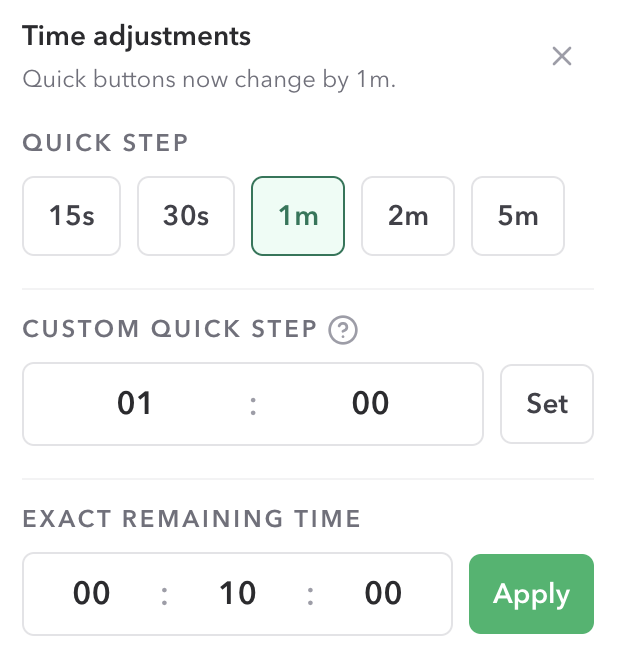
Use this for live recovery when a segment runs long or short. The configured Duration remains unchanged.
Timer list
Add, reset, configure, or organize Timer segments.
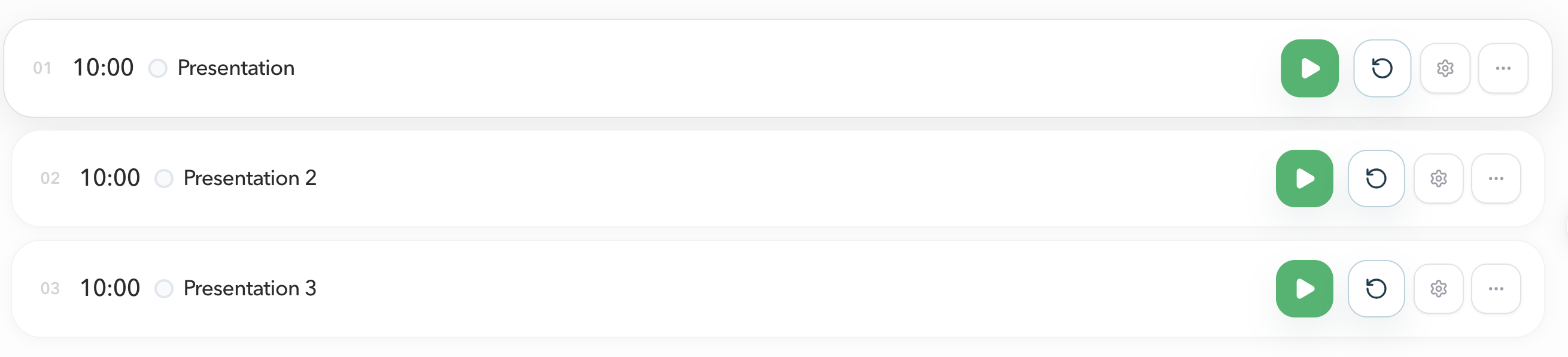
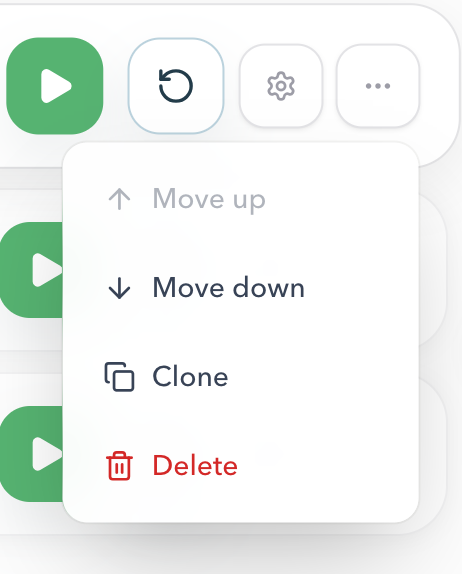
Use Add timer to add another segment to the same Room. Each row provides direct Start or Pause, Reset, Timer settings, and More actions controls. The More actions menu can move a Timer, clone it, or delete it. Hover the gap between two cards to show the Linked Start connector, then click the line to set Start after previous on the lower Timer.
The connector belongs to the upcoming Timer. Clicking it writes Start after previous on the lower card, so that Timer becomes active and starts when the Timer above it reaches 0:00. Click the same line again to remove the automatic start. Quick Design and Timer settings keep the same Agenda flow value.
Delete is unavailable when the Room has only one Timer, so a Room always keeps an active timing segment. The first Timer has no previous segment, so it cannot use the connector.
Configuration
Edit Timer settings before the session.
Open the settings button on a Timer row to change its name, start behavior, timing mode, display mode, Agenda flow, and Wrap-up settings. The panel identifies the Room timezone so scheduled and target-time configuration use the correct clock. For Start after previous, the timer-list connector writes the same Agenda flow value without opening this panel.
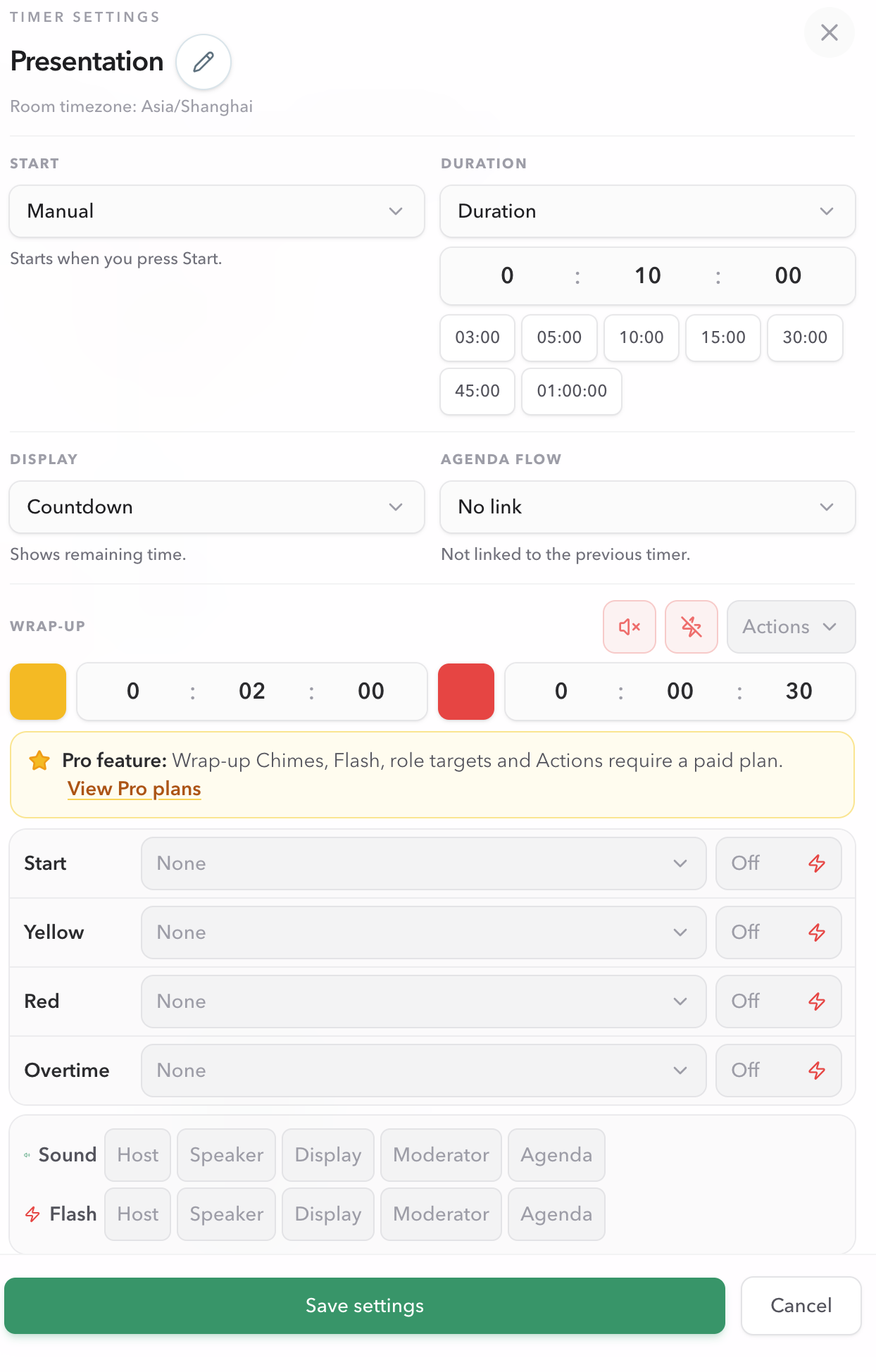
- Manual starts only when Host presses Start; Scheduled uses a date and time in the Room timezone.
- Duration is a countdown; Target time and other timing modes are configured here when needed.
- Display controls what the shared views show, such as Countdown or Count up.
- Agenda flow controls No link, Select after previous, and Start after previous. The Host timer-list connector sets Start after previous on the upcoming Timer.
- Wrap-up Chimes, Flash, role targets, and Actions are paid features.
See Linked Start for the handoff behavior, and Agenda Timers for the paid planning workflow.
Connections
Monitor the devices following the Room.
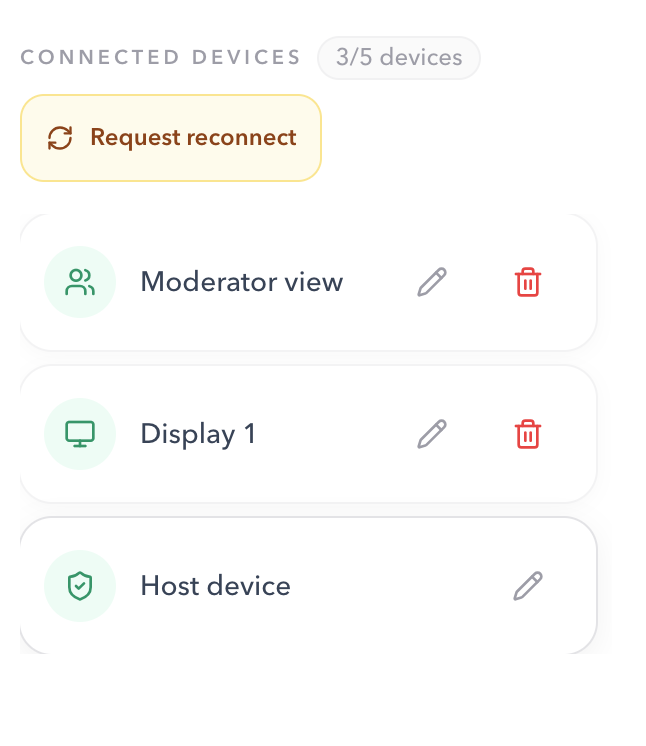
The Connected devices area shows how many devices are attached to the Room and identifies their role. You can rename a device for easier recognition, remove a shared device, or use Request reconnect when a read-only screen is stale.
Sharing
Open the right output.
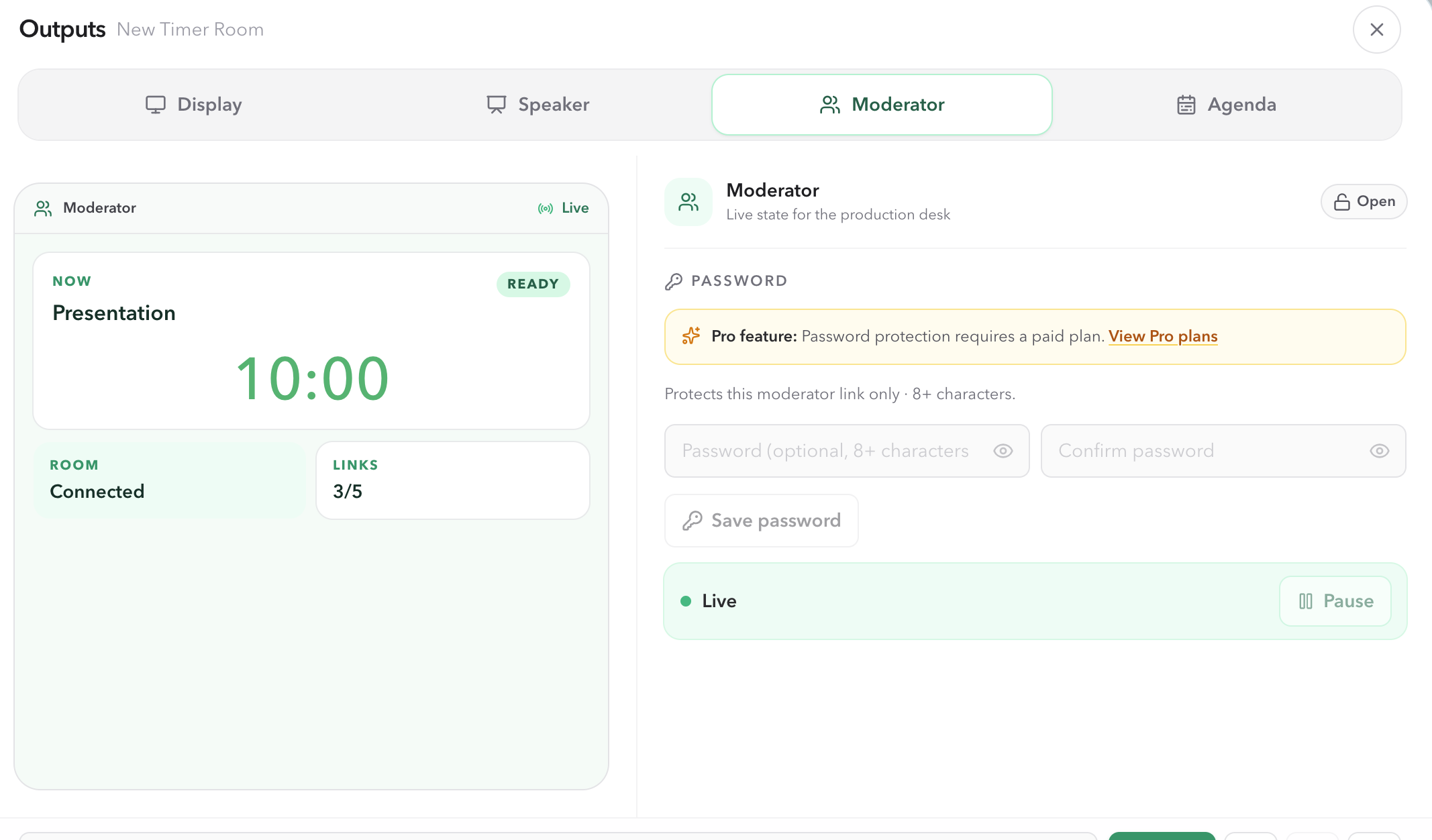
Select Outputs in Host when the Room is ready to share. Each output follows the same active Timer but presents a role-specific view:
- Display
- Large timing for a projector, confidence monitor, second screen, or screen share. Attach a custom layout from that tab, or leave Default Display.
- Speaker
- Personal timing context for the presenter.
- Moderator
- Read-only monitoring for a producer, facilitator, or stage manager.
- Agenda
- The running order and live progress for people following the session.
On Display, use Customize, Create custom Display, or Edit layout from Host. The projector still opens the Display link. Saving and attaching a layout is covered in Custom Display.
Output password protection is a paid feature and protects that specific output link only. It does not make the Host control link safe to share.
Live recovery
Recover without losing control of the session.
When something changes during the event, make one deliberate change from Host and confirm the shared views follow it. Avoid opening a second Room or giving a read-only link control access.
- The Display is stale
- Check that it appears under Connected devices, then choose Request reconnect. Reload only that Display if it remains stale.
- The segment needs more or less time
- Use the quick adjustment or Exact remaining time. This changes the live remaining time, not the configured Duration.
- The wrong segment is active
- Select the intended Timer from the list. The current running Timer pauses; press Start when the new segment is ready.
- The audience should not see the timer
- Use Blackout. The timer keeps running, and Host, Operator, Speaker, Moderator, and Agenda stay visible.
- A question should disappear temporarily
- Use the question's monitor icon again to hide it. It remains in the queue and can be shown later; delete only when it should be removed.
If the Host connection itself is lost, keep the private Host URL and reopen that original link. Output links cannot be promoted to Host.
Before going live
Run a short Host check.
- Host is open only on the operator's device.
- The active Timer is the segment that should run next.
- The next Timer and its Linked Start rule are intentional, including any connector between Host timer cards.
- Display is open on the audience-facing screen.
- A Start, Pause, Timer switch, and time adjustment have been tested.
- Connected devices show the screens expected for the session.
FAQ
Common Host View questions
Which link can control the Room?
Host is the full control workspace. Operator can run live timing, while Display, Speaker, Moderator, and Agenda links are read-only views that follow the same live state.
What happens when I switch to the next Timer?
The current running Timer is paused and the next Timer becomes active. It does not start automatically. Press Start when the next segment should begin, or use Linked Start when an automatic handoff is appropriate.
How do I make the next Timer start automatically?
Hover the gap between two Host timer cards until the connector appears, then click the line. That sets Start after previous on the lower timer. Click the same line again to remove the automatic start. Quick Design and Timer settings show the same Agenda flow value.
Does a quick time adjustment change the planned duration?
No. Quick adjustments and Exact remaining time change only the active Timer's remaining time during the live session. They do not rewrite its configured duration.
What does Request reconnect do?
It asks all connected shared views to reconnect to the Room. Use it when an Operator, Display, Speaker, Moderator, or Agenda screen is stale or has lost its live connection.
Where do I manage audience questions?
Open Messages in Host. The same drawer lets you share the audience QR code or link, review incoming questions, show or hide one question on screen, and delete a question. Showing a question marks it as read; hiding it does not delete it.
What does Blackout do?
Blackout covers every Display, including picture-in-picture, with a solid black overlay. The timer keeps running, and Host, Operator, Speaker, Moderator, and Agenda stay visible. Use it for a break, a source change, or an OBS capture. It is not a pause, and it is not saved with the Room.
Are password protection and Wrap-up actions available on every plan?
No. Password protection for an output link requires a paid plan. The paid Wrap-up features include chimes, flash, role targets, and actions.