Workflows / Display
Put your brand on the audience clock without giving the projector the controls.
Custom Display is for the screen the room can see: a stage projector, a confidence monitor, a classroom display, or an OBS capture. You design it in Host, attach it to the Display output, and leave the live screen read-only. If you never attach a layout, the room still gets the default clock.
The short version
Open Outputs, select Display, save a layout in Studio, then select that layout instead of Default Display. The projector follows the attached layout. If the layout cannot load, the room gets the default clock instead of a blank screen.
When to use it
Use a custom Display when the screen has to look like the event.
Default Display is already a good audience clock. Customize it when the screen is part of the show: a conference projector that should carry the organizer logo, a church or classroom display that should match the room, a webinar capture that needs a transparent background in OBS, or a confidence monitor that has to sit in a 16:9 frame without stretching.
Leave Default attached when the job is only “make the remaining time readable from the back of the room.” A last-minute classroom, a rehearsal laptop, or a spare projector does not need a branded layout. Custom Display also does not replace Speaker View. The presenter still gets their own quiet cue; this page is for the shared screen.
Use custom
The projector should show a logo, a branded background, or a fixed canvas that matches the venue screen.
Keep default
You only need a large timer, you have not rehearsed the layout on the real device, or the plan may expire before the event.
Core model
The layout belongs to the account. The link is still Display.
A custom Display is a saved layout on the signed-in account, not a new Room role and not a second timer. The projector still opens the Display output from Host. Attaching a layout only changes how that output is drawn: timer, segment name, speaker, logo, progress, message, and room time can move, resize, and restyle.
Timing still comes from the Room. Host still starts, pauses, and sends messages. Password, pause, and rotate still sit on the Output. Fullscreen, picture-in-picture, and audience blackout still belong to the live Display page. Studio never becomes a second control surface.
Setup
Open Studio from the Display output, not from the projector.
- 01Keep Host on the operator laptop. Do not open Studio on the projector computer.
- 02Choose Outputs, then the Display tab. The left side is a live preview of what that output will show.
- 03Use Customize on Free, Create custom Display when no layout exists yet, or Edit layout when one is already attached.
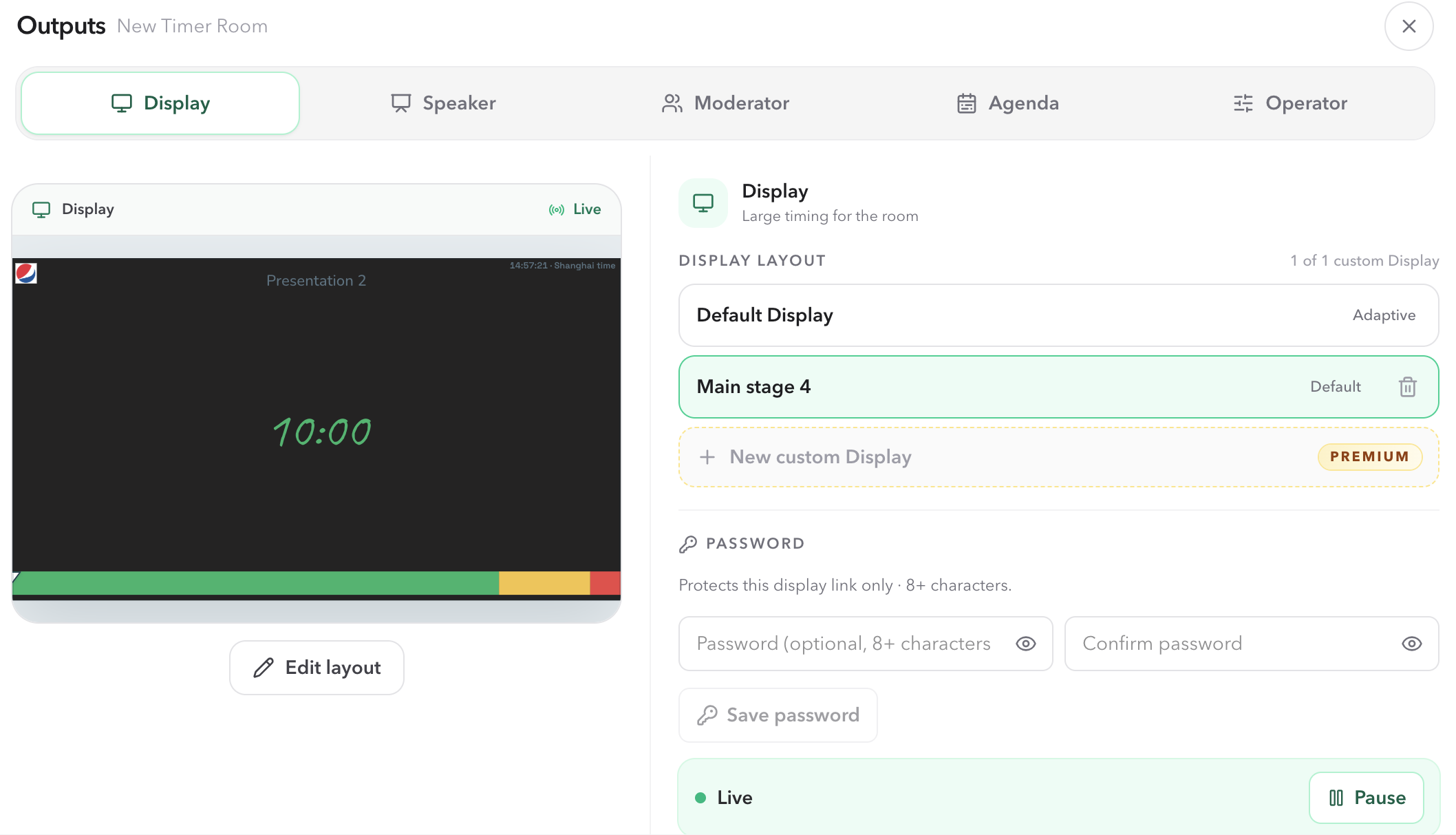
- 04Save in Studio, then confirm Outputs lists that layout as selected instead of Default Display.
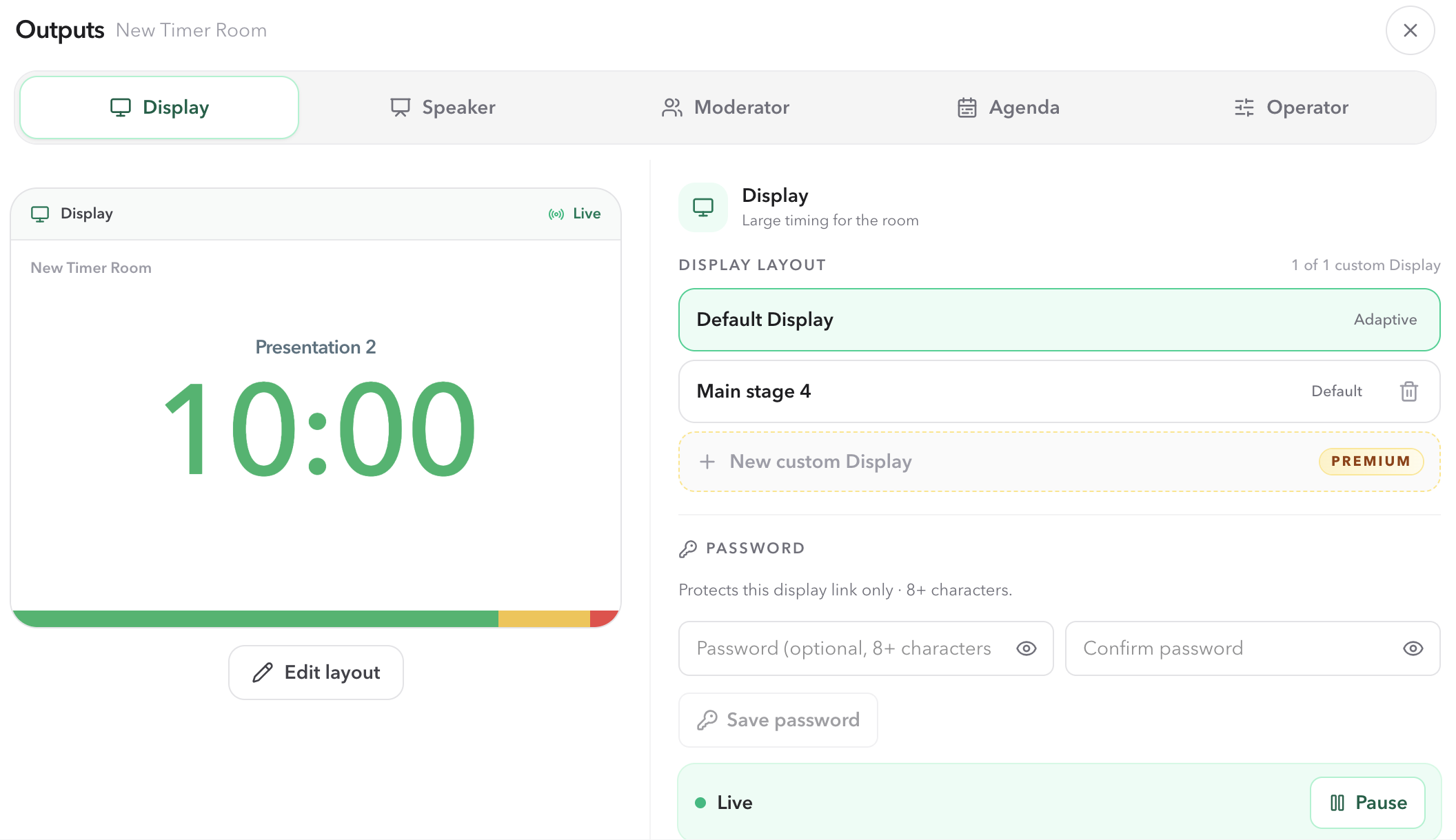
If the Room is not saved to the account yet, treat Customize as a preview. Saving a layout and keeping it across sessions needs a signed-in paid account.
Selection
Default Display stays on the list on purpose.
Outputs always offers Default Display. That is the adaptive clock the room already knows: it fills the device, keeps the timer readable, and does not depend on a saved canvas. Select a named layout only when you want that saved arrangement on this Display output. Select Default again to put the ordinary clock back without deleting the layout.
This matters during a live change of plan. If a branded 16:9 layout looks wrong on a 4:3 classroom projector, switch the output back to Default. The custom layout remains on the account for the next venue that matches it.
Plans
One saved Display on Pro. More screens on Premium.
| Plan | What you can do |
|---|---|
| Free | Open Studio, inspect the canvas, and leave with Default Display still attached. Controls stay locked. |
| Pro | Save one custom Display, including a logo, a background, and a canvas size. Edit that same layout in place. |
| Premium | Keep up to 20 custom Displays, for example a 16:9 stage layout and a portrait tablet layout. |
When a paid plan expires, the live output stops using the custom layout and returns to Default Display. The saved layout is not deleted. Attach it again after the account is current. Do not wait until doors open to discover that the projector fell back.
Save
Saving in Studio is not the same as attaching the layout.
Studio Save writes the layout on the account. The projector follows whatever Outputs currently has selected. If Default Display is still selected, the live screen stays on the default clock even though a custom layout exists. After Save, look at the Display layout list and confirm the named layout is the active choice.
Studio will not save a layout with no visible timer number. That is deliberate. An audience screen without remaining time is not a timing display. Keep the timer on the canvas, then move logo, progress, and type around it.
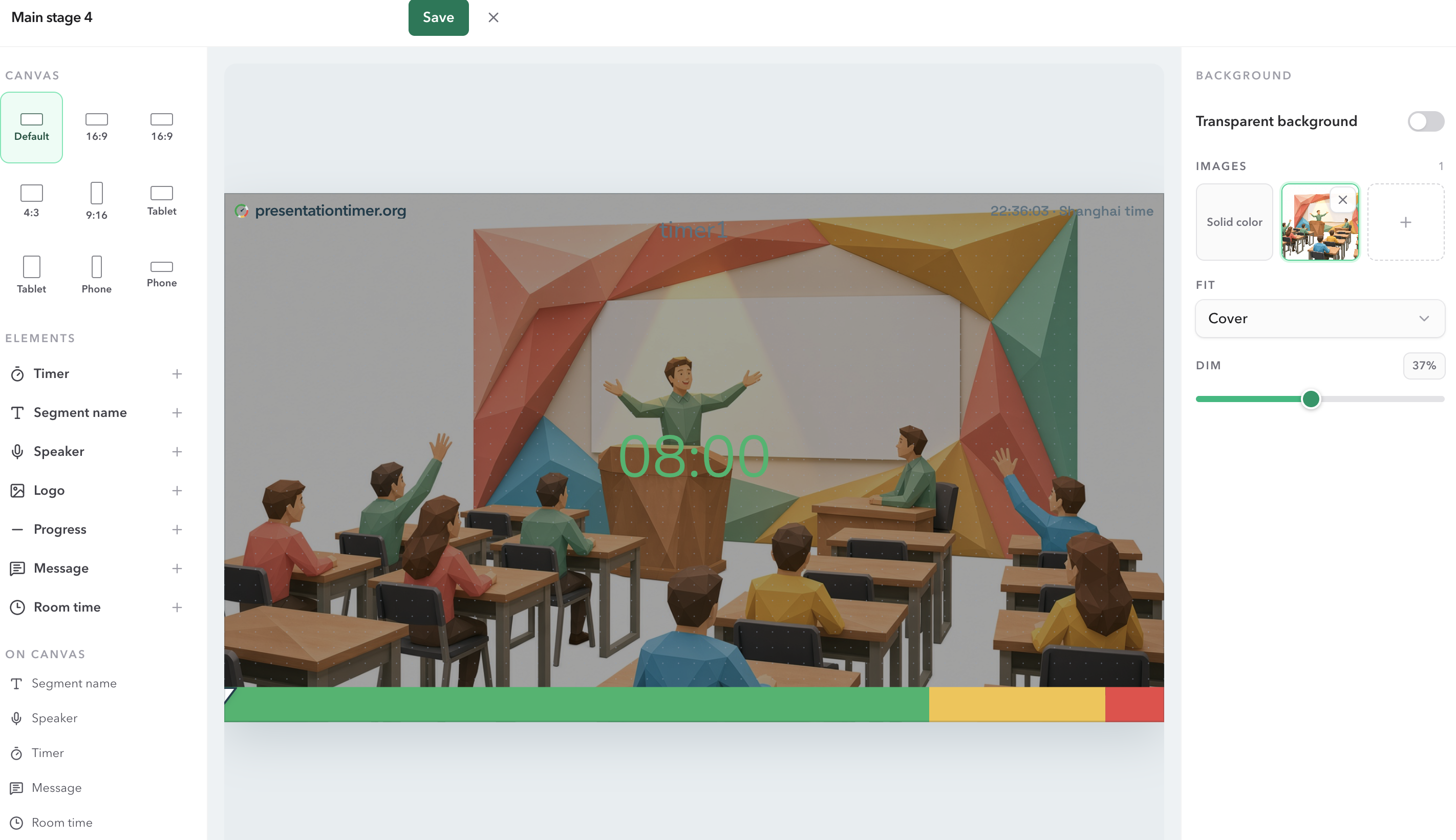
- Save in Studio, then check the Outputs selection.
- Name the layout for the venue, not “Untitled”.
- Keep a visible timer before Save.
- Open the Display link on the real projector before the audience arrives.
Live screen
The projector never becomes Studio.
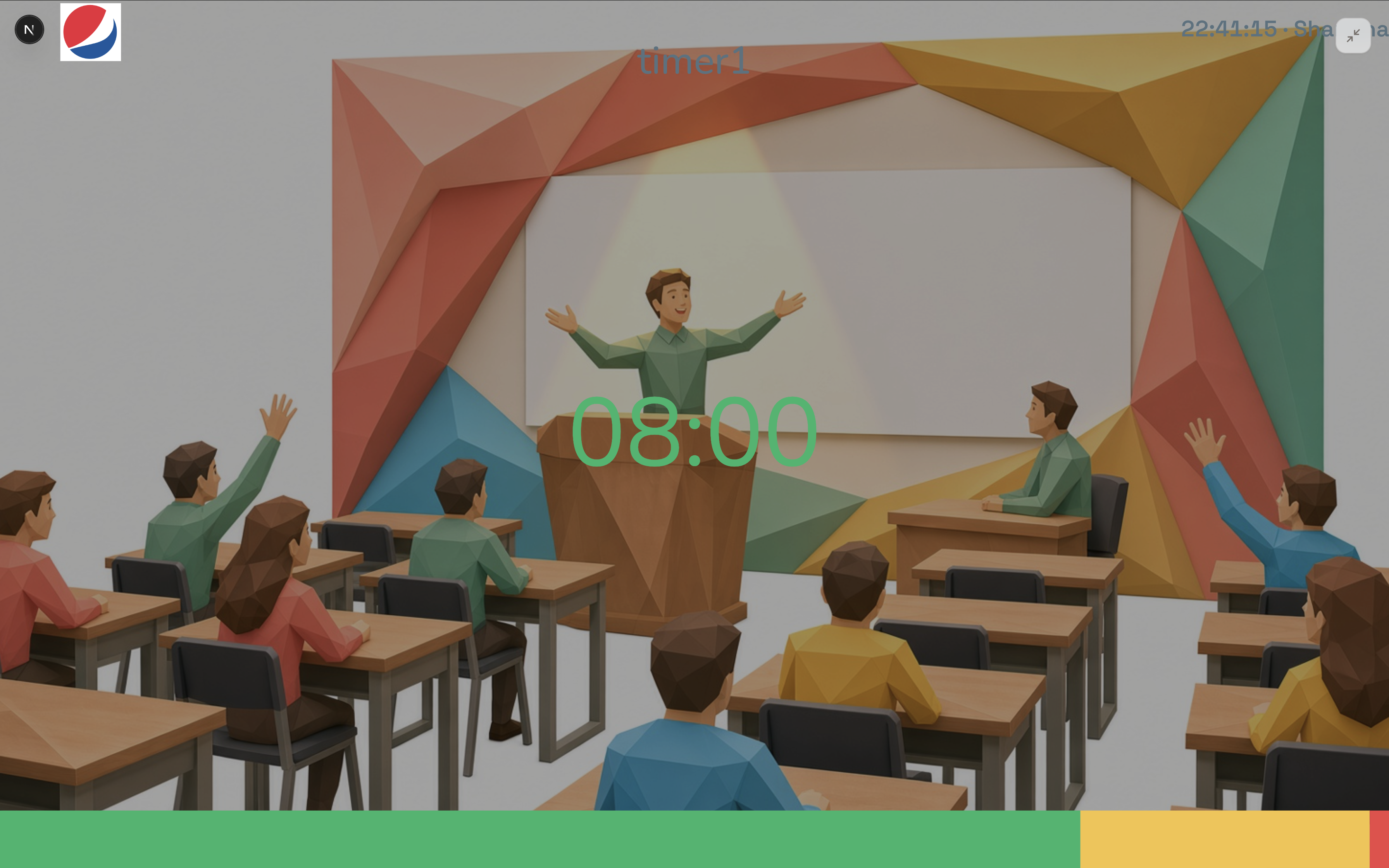
Live Display stays read-only. There are no drag handles, no font pickers, and no Save button on the audience screen. If you need to hide the clock for a break or a source change, use Blackout from Host or Operator. If you need the screen dedicated to timing, use fullscreen on the Display page itself.
Fonts come from the site, not from Google Fonts. That is why a venue computer can open the same layout without a font CDN. Still rehearse on the actual display browser: a locked-down school laptop, an OBS machine, or a conference kiosk can still block fullscreen or a background image.
Stays in Host
Layout edits, attaching Default or a custom Display, messages, and output passwords.
Stays on Display
Fullscreen, picture-in-picture, and following the live Room. See Display View for those controls.
Fallback
A broken layout must not blank the room.
If the attached layout cannot load, or the account no longer has a paid plan, Display returns to the default clock. That is better than a white projector during a keynote. Check the Host preview after a plan change, and keep Default Display as the known-good choice when you are unsure.
Fallback does not delete the layout. It only stops the live output from using it. After the account is current, attach the layout again from the same Display tab.
Checklist
Before the audience sees the screen
- The projector has the Display link, not Host.
- Outputs shows the intended choice: Default Display or the named layout.
- The Host preview matches what the real screen shows.
- The timer number is readable from the back of the room.
- Logo, background, and canvas size were tested on the actual device, including portrait tablets if you use one.
- You know how to switch back to Default Display if the branded layout fails.
FAQ
Common Custom Display questions
Is Custom Display a new role?
No. The projector still opens the Display output. Custom Display changes how that screen is drawn. Timing, messages, password, pause, and rotate stay on the existing Output.
When should I keep Default Display?
Keep Default when the screen only needs a large clock: a classroom projector, a rehearsal, or a last-minute room where nobody has tested a branded layout. Default fills the device and does not depend on a saved canvas size.
Can a Free account save a custom Display?
No. Free can open Studio and look around with the controls locked. Saving and attaching a layout requires Pro. Premium is only needed when you want more than one custom Display.
If my plan expires, does the custom layout disappear?
The saved layout stays on the account. The live Display output stops using it and returns to Default Display. Attach it again after the plan is current.
Can someone change the layout from the projector?
No. Live Display is still read-only. Studio lives in Host. If the audience screen shows handles or a Save button, that device opened Host, not Display.
Does a Display password protect the custom layout?
A password protects that Display link. It does not replace attaching a layout, and it does not protect Host. Password, pause, and rotate are still Output settings.