Workflows / Custom Display
Put a logo and a background on the clock without covering the remaining time.
The audience screen can carry the organizer mark and a photo of the room, but it is still a timer. This page is the Studio inspector for that job: a canvas background, a logo box, and Fit and Dim so a photo does not hide the digits.
The short version
Click empty canvas for the background. Click the logo box to replace the mark. Cover fills the canvas and may crop; Contain shows the whole image. Dim darkens the photo so the timer still reads. Save, then confirm Outputs has that layout selected.
When to use it
Use a photo or a mark when the projector is part of the event.
Default Display already shows a large clock. Bring a logo and a background when the screen has to look like the room: a conference projector with the organizer mark, a church or classroom display that matches the wall, a webinar capture that needs a transparent canvas in OBS, or a confidence monitor that should not sit on a plain white field.
Skip the photo when you only need remaining time from the back row. A rehearsal laptop and a spare classroom projector are faster on Default. A busy stage photo that hides the digits is worse than no photo.
Use a background image
The venue has a stage photo, a branded slide, or a dark canvas that should fill the Display.
Keep a solid or transparent canvas
You need a readable clock, an OBS overlay, or you have not tested the photo on the real projector.
Two controls
The background fills the canvas. The logo is a box on top.
Studio does not treat “image” as one element. The canvas has a background: solid color, transparent, or one photo. Separately, the logo widget shows the default PresentationTimer mark until you replace it. You can use one without the other.
That split is the point. A sponsor mark should sit in a corner and stay fully visible. A stage photo should fill the screen and may be cropped. If you put the organizer logo on as the background, Cover will cut it, and Contain will leave empty bands around it.
Inspector
Empty canvas edits the background. The logo box edits the mark.
- 01Open Studio from Host → Outputs → Display. Keep the projector on the Display link.
- 02Click empty canvas, not the timer. The right column is Background.
- 03Click the logo box when you want to replace the default mark. Background controls leave the inspector.
- 04Save in Studio, then check that Outputs still has that layout selected.
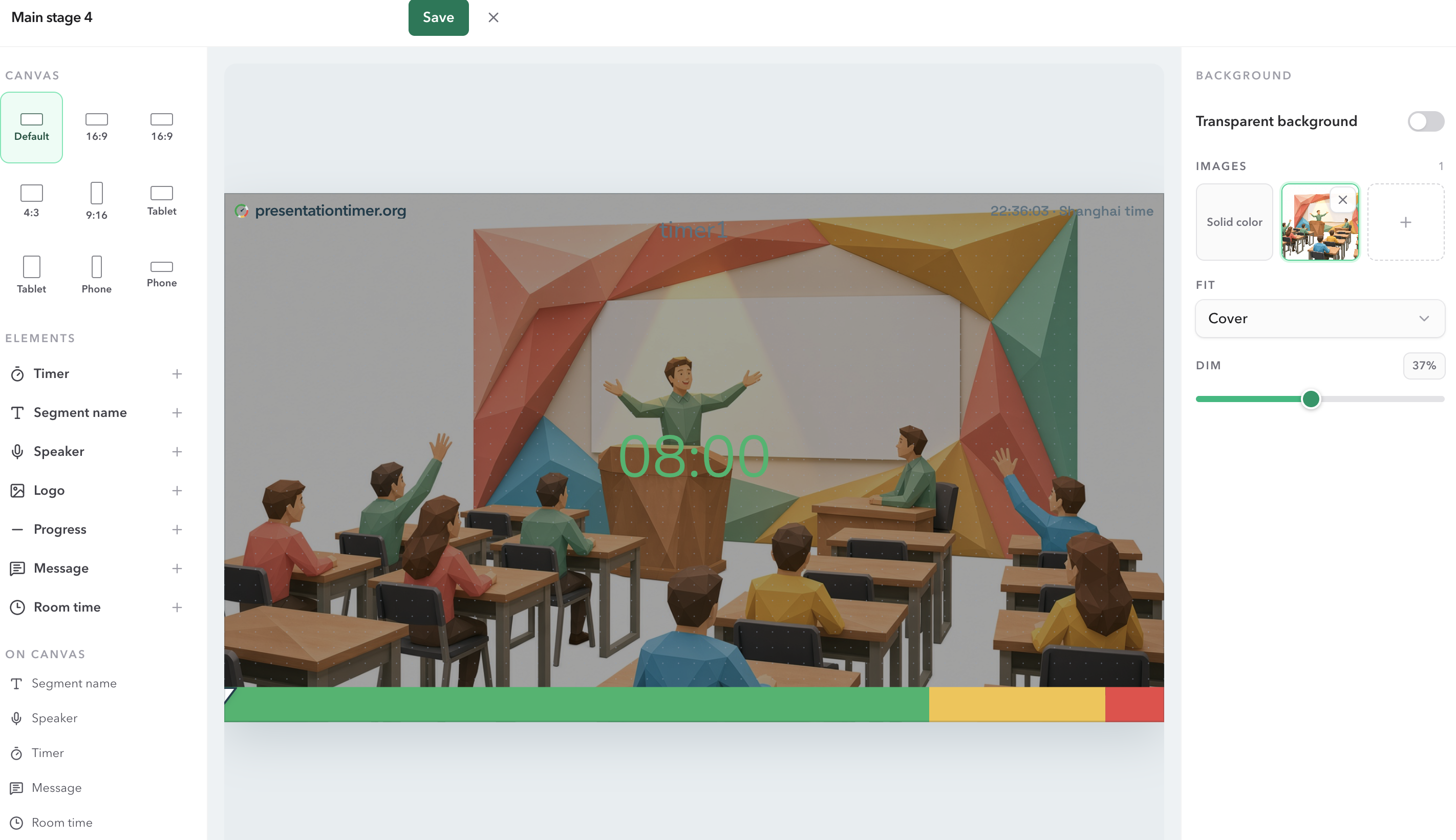
Canvas
Solid, transparent, or one photo.
Transparent is for capture. Turn it on when OBS or vMix should see the timer over another source. The Studio checkerboard is only a preview; the live Display is actually transparent.
Leave Transparent off for a projector. Pick a solid color, or pick a photo from the library. Selecting Solid color drops the image and the Fit and Dim controls. The color board hides while a photo is selected, because the photo is the canvas.
Solid color
A readable field behind the digits. Use this when there is no event photo, or the photo fails on the venue browser.
Transparent
An overlay for OBS. Do not use this on a physical projector unless you want whatever is behind the window to show through.
Image
One photo on this layout. Pro can keep one background and one logo. Extra uploads are a Premium upgrade.
Photo
Cover fills the canvas. Dim keeps the clock readable.
Fit is the first choice after you select a photo. Cover fills the canvas and cuts whatever does not fit. That is the right default for a stage photo. Contain shows the whole image and may leave bands at the sides or top and bottom. Use Contain for a graphic that must not lose a logo or a face.
Cover always crops from the center. It does not stretch the image, and it does not fill a 16:9 canvas into a taller fullscreen window. That gap is the canvas size. Switch the canvas to Default when the live screen should fill the device.
Dim is a black veil on the photo, under the timer, logo, and progress. 0% is the photo as uploaded. Raise it when a bright background fights green or white digits. It is not audience Blackout. Blackout, from Host or Operator, covers the whole Display for a break or a source change.
Changing the photo in the library keeps the current Fit and Dim. Switching back to a solid color drops those settings. They are not on the logo.
Mark
Replace the default mark, or leave it.
Click the logo box. Default logo is the PresentationTimer mark. Pick an uploaded file to replace it. Clear it with Default logo; deleting the file from the library also returns that box to the default mark.
Logo Fit is only Contain or Cover. Contain is the usual choice: the whole mark stays inside the box. Cover fills the box and may crop. There is no Dim on the logo. Move and resize the box on the canvas if the mark needs to sit in a different corner.
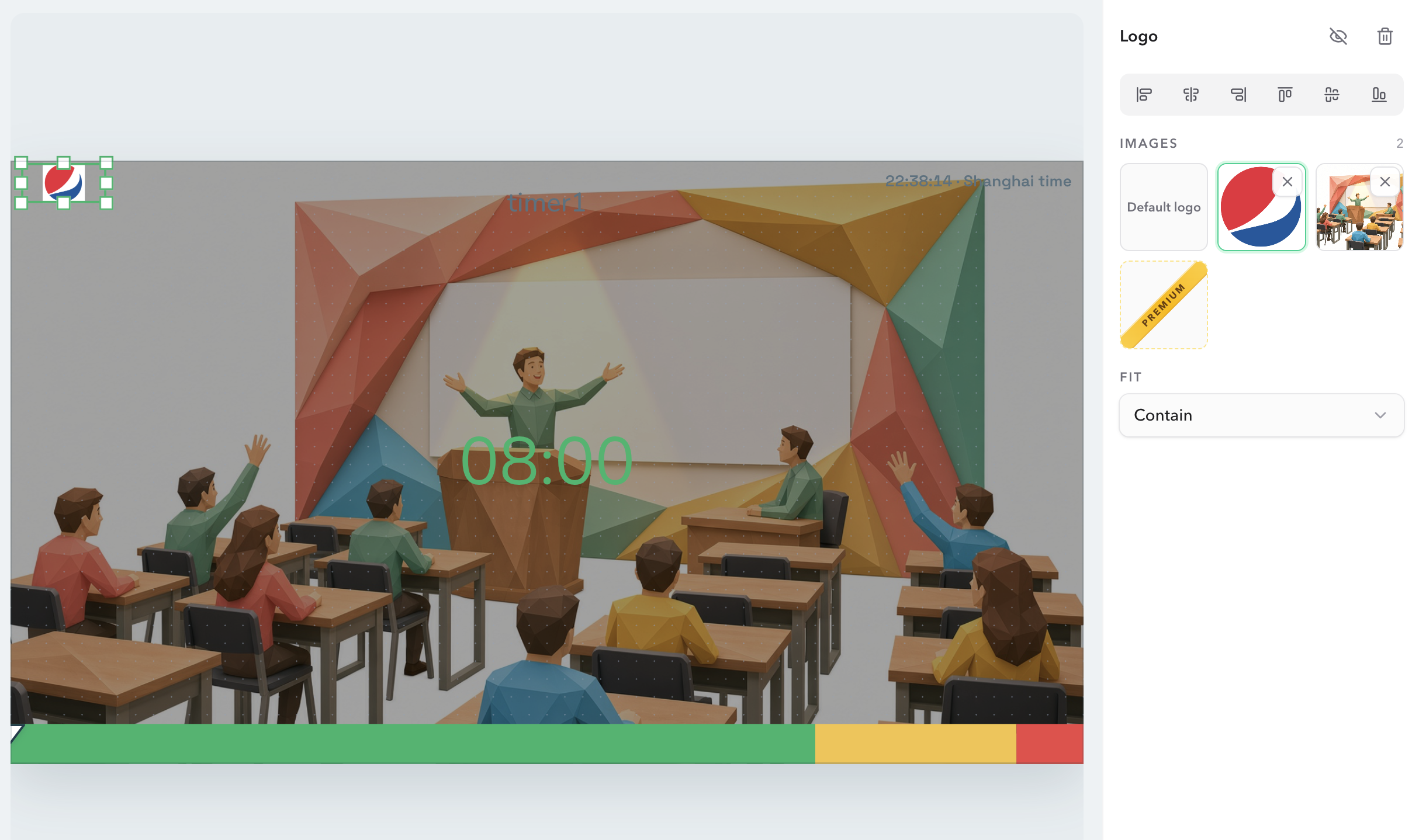
Library
PNG, JPEG, or WebP. Five megabytes. One logo and one background on Pro.
Upload from the plus tile in the image library. The file picker accepts PNG, JPEG, and WebP. SVG, GIF, and video are rejected. The longest edge can be 4096 pixels. Keep a logo as a transparent PNG. Keep a background near the canvas size you actually selected; a 1920×1080 photo is enough for Default and 16:9.
Pro can store two images on the account for this job: one used as the logo, one used as the background. The library can reuse a file already uploaded. When the plus tile shows a Premium sash, that layout is at the plan cap. Premium raises the library to ten images. Deleting a file removes it from every layout that pointed at it.
Live screen
Studio previews immediately. The projector waits for Save.
Changing Fit or Dim updates the Studio canvas at once. The Display link still shows the last saved layout. After Save, look at Outputs. If Default Display is still selected, the projector keeps the ordinary clock even though the custom layout exists.
Rehearse on the venue browser. A locked-down school laptop or an OBS machine can still block a background image. If the image 404s, the timer stays. That is better than a white projector.
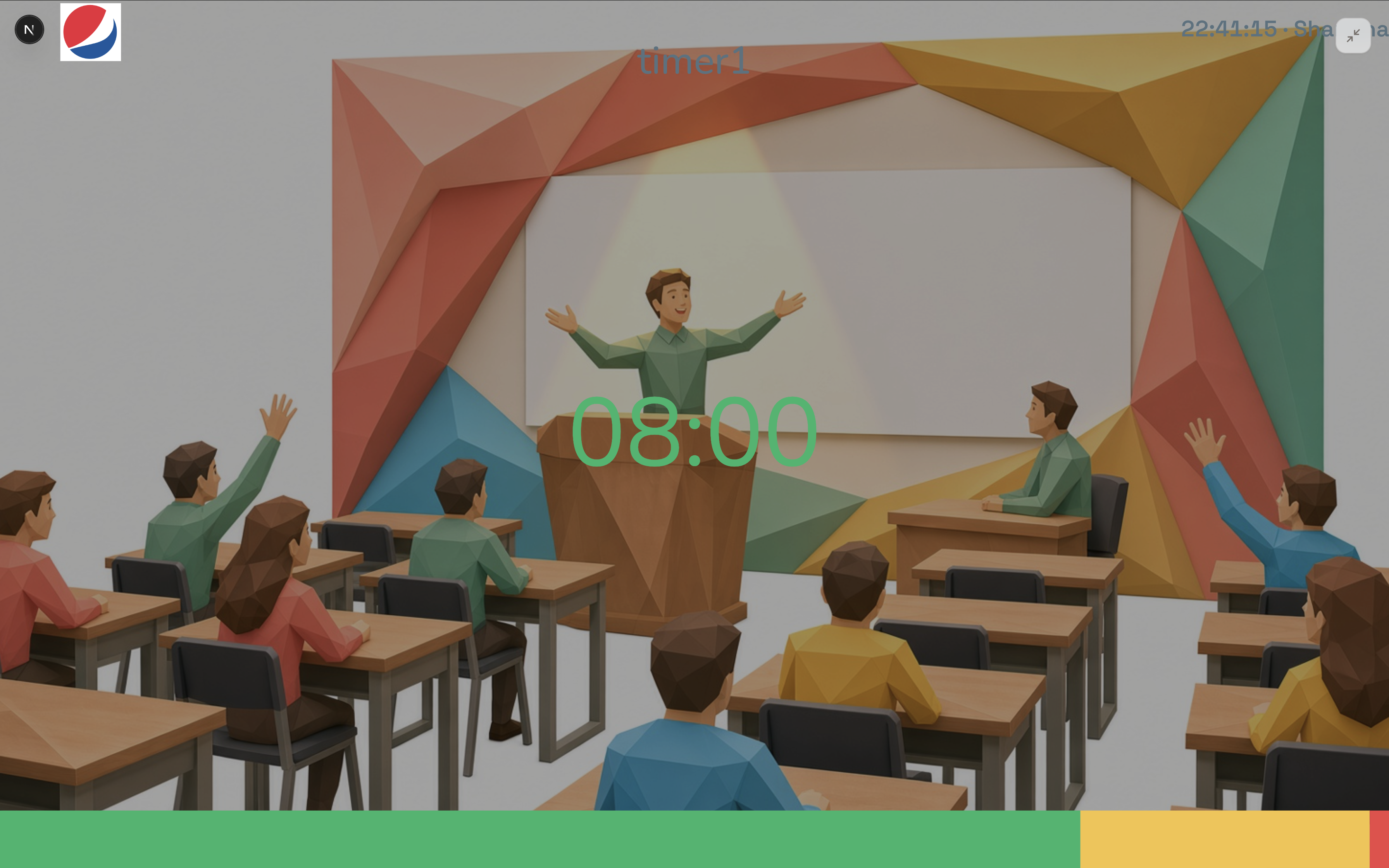
Checklist
Before the audience sees the screen
- The projector has the Display link, not Host.
- Outputs shows the named layout, not Default Display, if you want the photo and logo live.
- The timer number is still readable from the back of the room after Cover and Dim.
- A transparent canvas was tested in OBS, not guessed on a projector.
- You can switch Outputs back to Default Display if the photo fails.
FAQ
Common logo and background questions
Is the background the same as the logo?
No. The background fills the canvas. The logo is a box you can move. Click empty canvas to edit the background. Click the logo box to replace the mark.
Why does Cover still leave white bars in fullscreen?
Cover only fills the canvas. If the canvas is a locked 16:9 and the projector window is taller than that, the extra bands are the desk around the canvas, not a failed crop. Use Default when the screen should fill the device.
Does Dim change a logo?
No. Fit and Dim belong to the background image. A logo only has Fit: Contain keeps the whole mark, Cover fills the logo box and may crop it.
Can I use SVG or a video background?
No. Upload PNG, JPEG, or WebP, up to 5 MB, with the longest edge at 4096 pixels. Transparent PNG is the right choice for a logo. Video, SVG, and live CSS backgrounds are not part of Display Studio.
The projector still shows the old photo.
Studio Save writes the layout. The live screen follows whatever Outputs has selected. After Save, confirm the named layout is attached, then look at the Display link, not Host.
What happens if the image cannot load?
The timer still draws. A missing background falls back to a solid canvas color. A missing custom logo returns to the default PresentationTimer mark. The room does not go blank.