BlogGuides10 min read
How to Add a Presentation Timer to OBS Studio
OBS has no built-in timer, so every speaker timer you see on a stream is a browser source with its background removed. This guide covers the whole path: adding the timer to a scene, three ways to make it transparent, checking that it actually worked, and isolating just the pieces you want on screen.
By the end you will be able to put a host-controlled countdown over your video, show a message bar as a lower third, and hear wrap-up chimes in the stream — without anyone touching the layout mid-show.
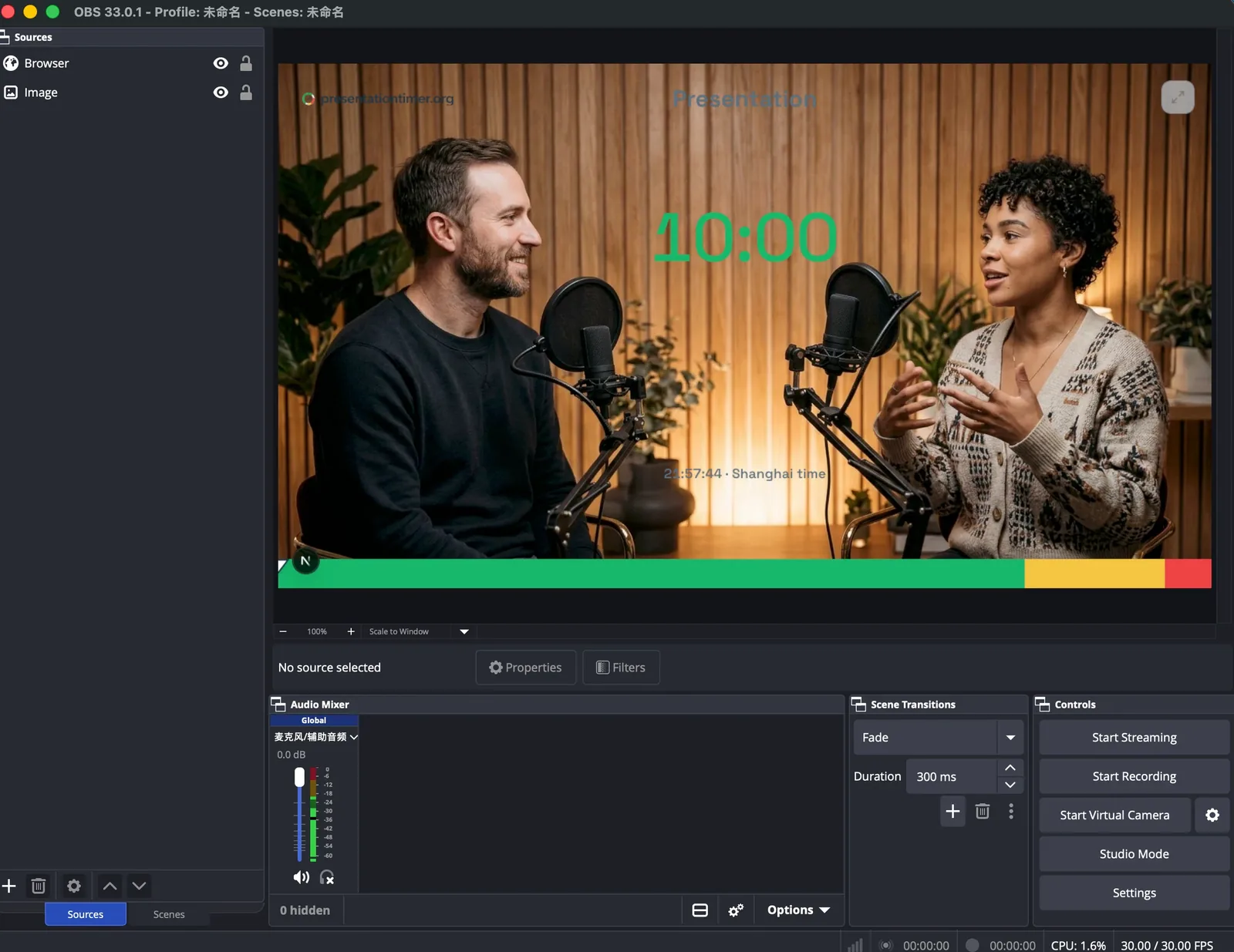
1. Add the timer as a browser source
In OBS, create or select a scene, then click + in the Sources panel and choose Browser.
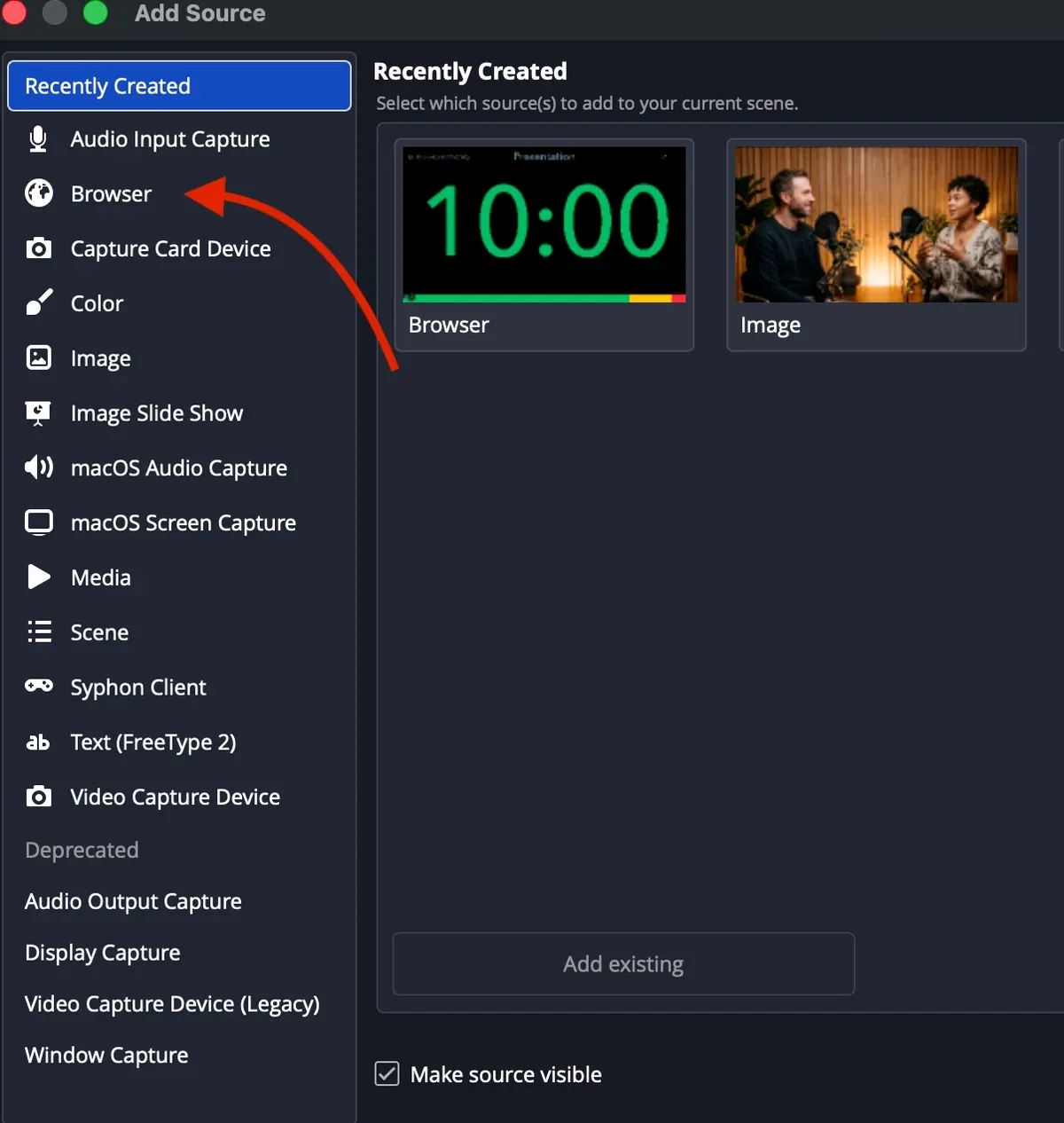
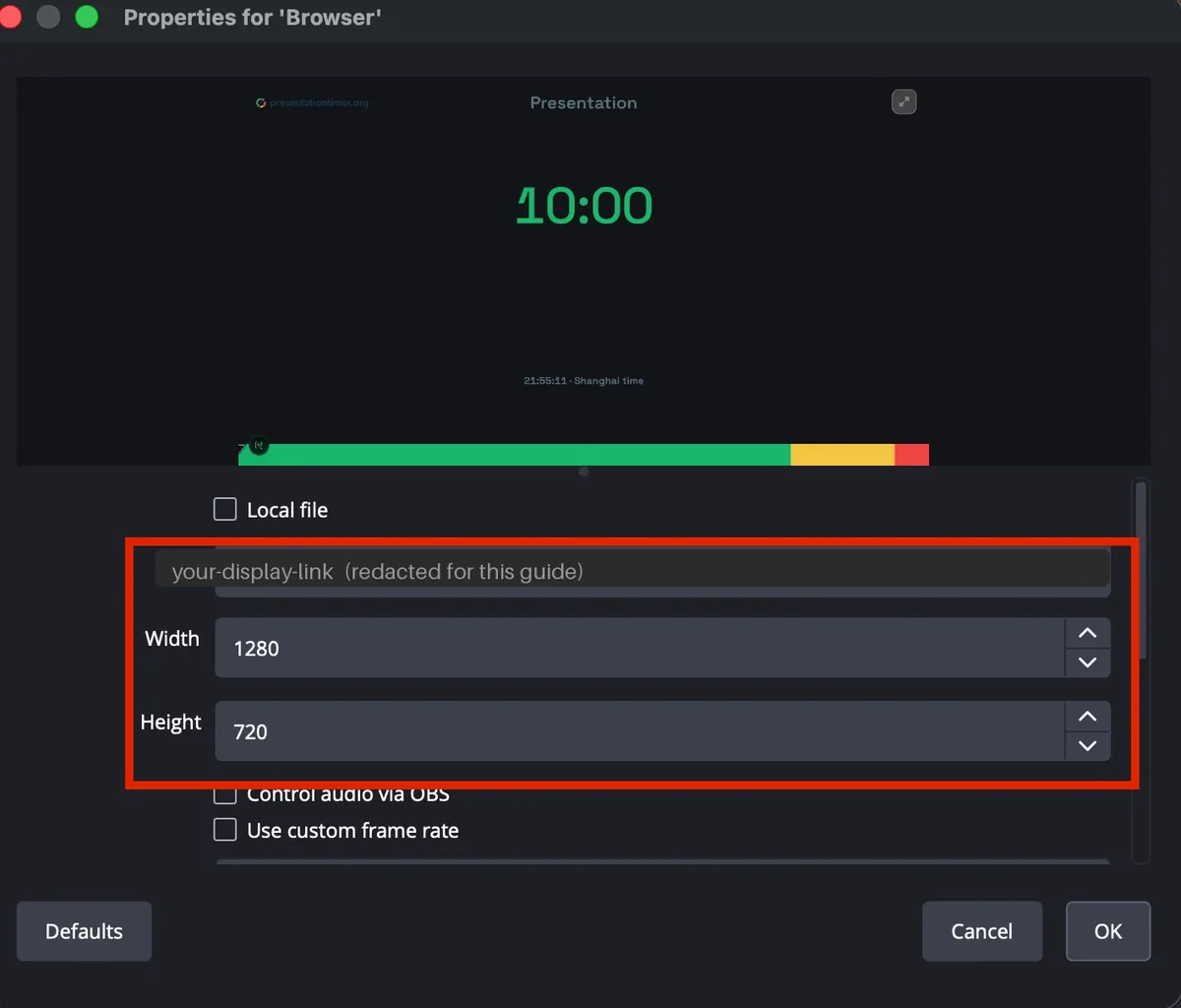
In the properties window, paste the Display link from your PresentationTimer room.
To get that link: open your room's Host view, click Outputs, select Display, and copy the link. Display is read-only — it follows whatever the host runs and cannot start, pause, or edit anything.
Set Width and Height to the shape you want on screen. 1280 × 720 and 1920 × 1080 both work; the layout scales to whatever size the source is, so pick the size that matches the region you are covering rather than the size of your stream.
Click OK. The timer is now in your scene, and you can drag and resize it like any other source.
Two settings in that window are worth leaving alone:
- Custom CSS already contains
body { background-color: rgba(0, 0, 0, 0); }by default. Leave it as it is. The timer clears its own background, and adding rules here can fight with the page. - Shutdown source when not visible should stay unchecked. When it is on, OBS unloads the page every time you switch away from the scene, and the reload shows up as a flash on stream when you switch back.
Tip: Keep the Host view on a different device or a different browser window. If you open the Host view inside OBS, the control panel can end up in the capture.
2. Remove the background
The timer page draws a light background by default, which is why a fresh browser source shows a solid rectangle. There are three ways to get rid of it, and they are not equally good.
Option A: Color Key filter (free)
Right-click the source, choose Filters, click + under Effect Filters and pick Color Key.
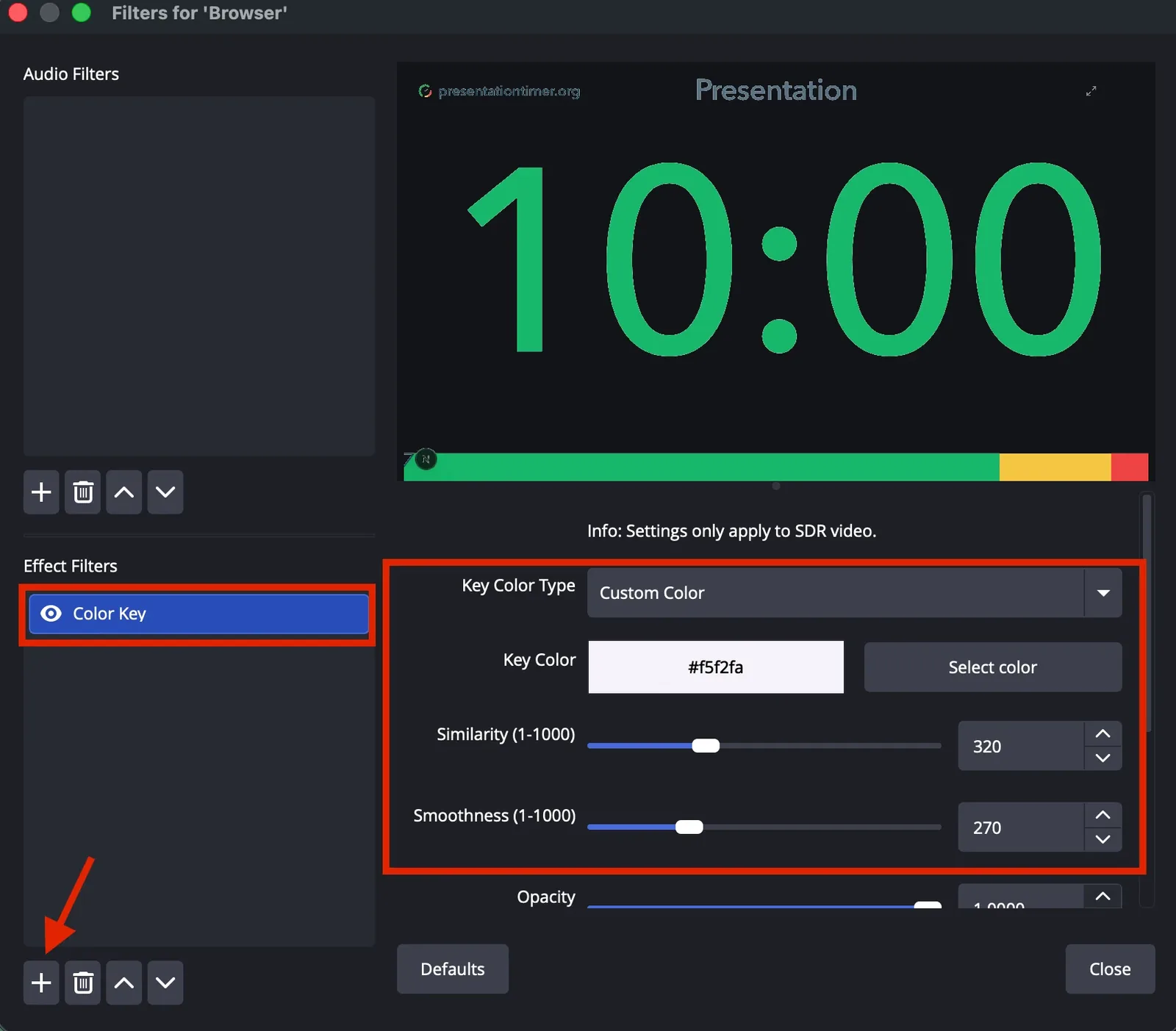
Set Key Color Type to Custom Color, click Select color and pick the background colour of the timer page. Then raise Similarity until the background is gone — around 300–350 is usually enough — and add a little Smoothness (about 250–300) to soften the edges.
This works, and it is free. The trade-off is at the edges: text and rounded shapes are anti-aliased, so a colour key leaves a faint fringe around letters, and half-transparent pixels in shadows or rings may survive as a grey halo.
Option B: Additive blending (free, fastest)
Right-click the source, choose Blending Mode, then Add.
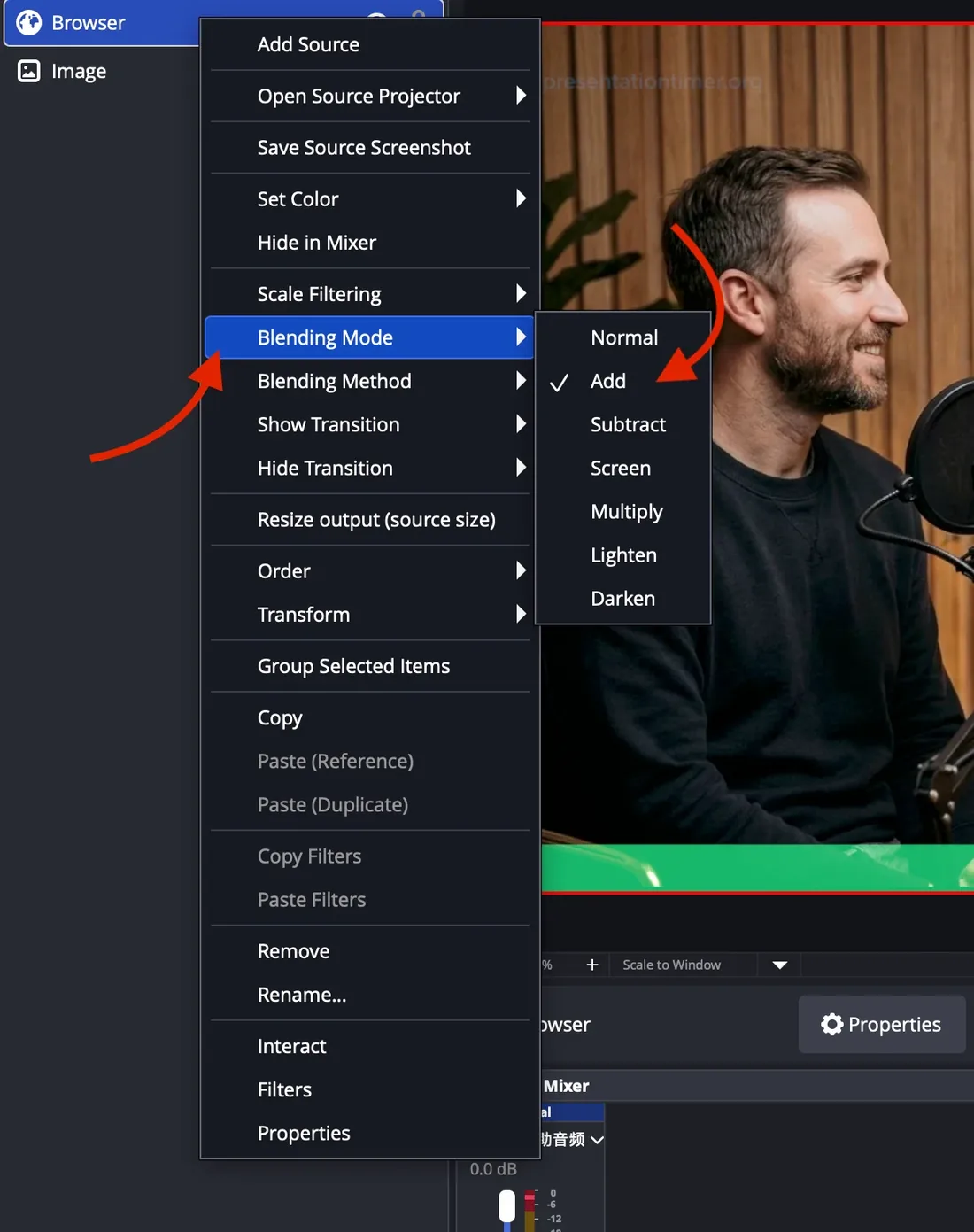
Add blending treats brightness as opacity, so bright pixels stay and dark ones vanish. It takes two seconds and needs no filter. The catch is that bright colours wash out: a saturated progress bar or a coloured background will look semi-transparent, and any dark text disappears entirely.
Use it only when your overlay is light text on a dark background.
Option C: Native transparent background (paid plans)
This is the clean one. Instead of keying the background out in OBS, tell the layout to render without one.
In the Host view, open Outputs, select the Display output and open its layout editor. In the Background panel, turn on Transparent background and save.
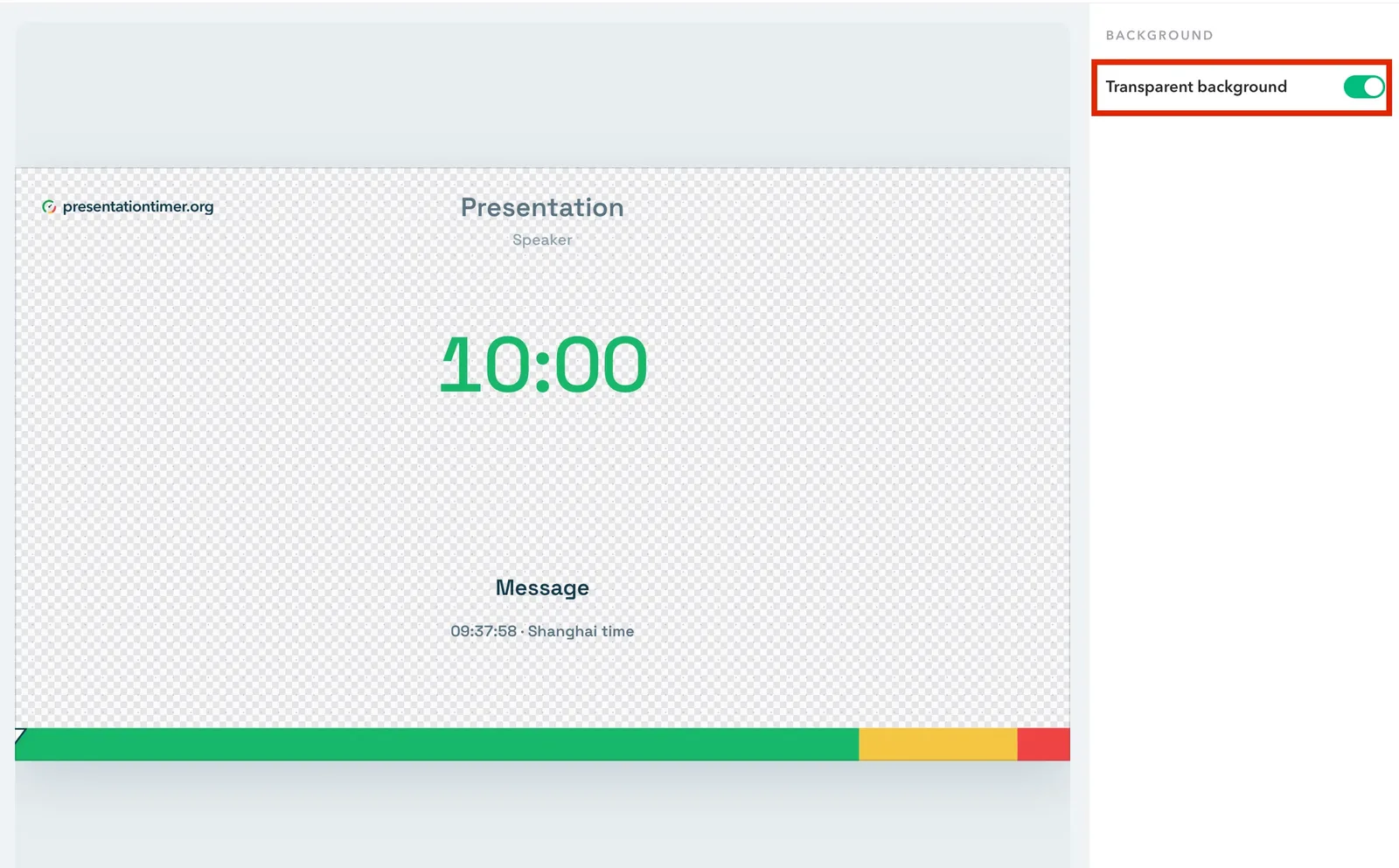
Reopen the browser source (or right-click it and choose Refresh) and the background is gone — no filter, no blending mode, no fringing. Because the page itself never paints a background, the alpha channel arrives in OBS intact.
Custom display layouts are part of the paid plans: Pro includes one custom layout per role, and Premium raises that to 20. If you only need the countdown over your video, Pro's single Display layout is enough.
3. Check that it actually worked
This is the step most guides skip, and it is the step where people get stuck: OBS's preview canvas paints black behind a transparent source, so a perfectly working overlay can look completely broken.
Add a Color Source under the browser source — any loud colour will do — and look at the preview.
- Timer over the colour, no box around it → transparency works.
- A solid light rectangle → the layout has no transparent background, or the source has not reloaded since you saved it.
- A solid black area covering your scene → the browser source is not transparent and it is sitting above your other sources; check the source order and the two items above.
Two more things that look like failures but are not:
- The checkerboard in the layout editor is the editor's own transparency indicator. It tells you the canvas is transparent; it says nothing about what OBS will show.
- The same link in Chrome shows a light background because the browser window has nothing behind it. Judge the result in OBS, not in a browser tab.
4. Show only the part you need
A full layout is not always what you want. A message-only bar as a lower third, or a bare countdown, is often better than the whole design.
Custom layouts are built by adding or removing widgets, so this needs no separate feature: open the layout editor, select the widgets you do not want and delete them, then save. Add a second output if you want both the full layout and a stripped one.
A message-only bar is the most common case:
- Keep just the Message widget and drop everything else.
- Set the background to transparent.
- Set that browser source to something wide and short, such as
1280 × 250, and position it in the lower third.
When the host shows a message from the Host view, it appears in the lower third immediately. Nothing about the timer underneath changes.
5. Hear the chimes on stream
If you use wrap-up chimes, route the audio through OBS rather than through a browser window.
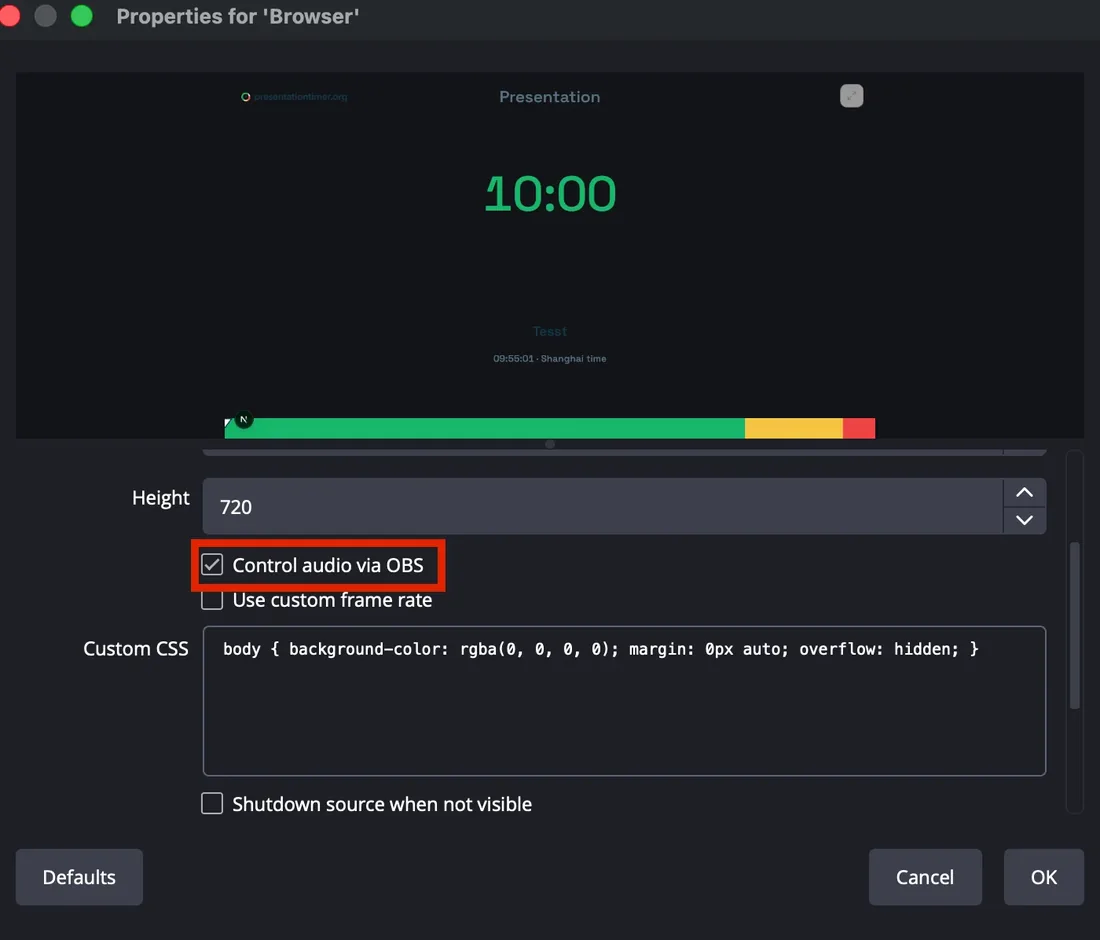
In the browser source properties, enable Control audio via OBS.
Then open Advanced Audio Properties and set that source's audio monitoring to Monitor Off or Monitor and Output.
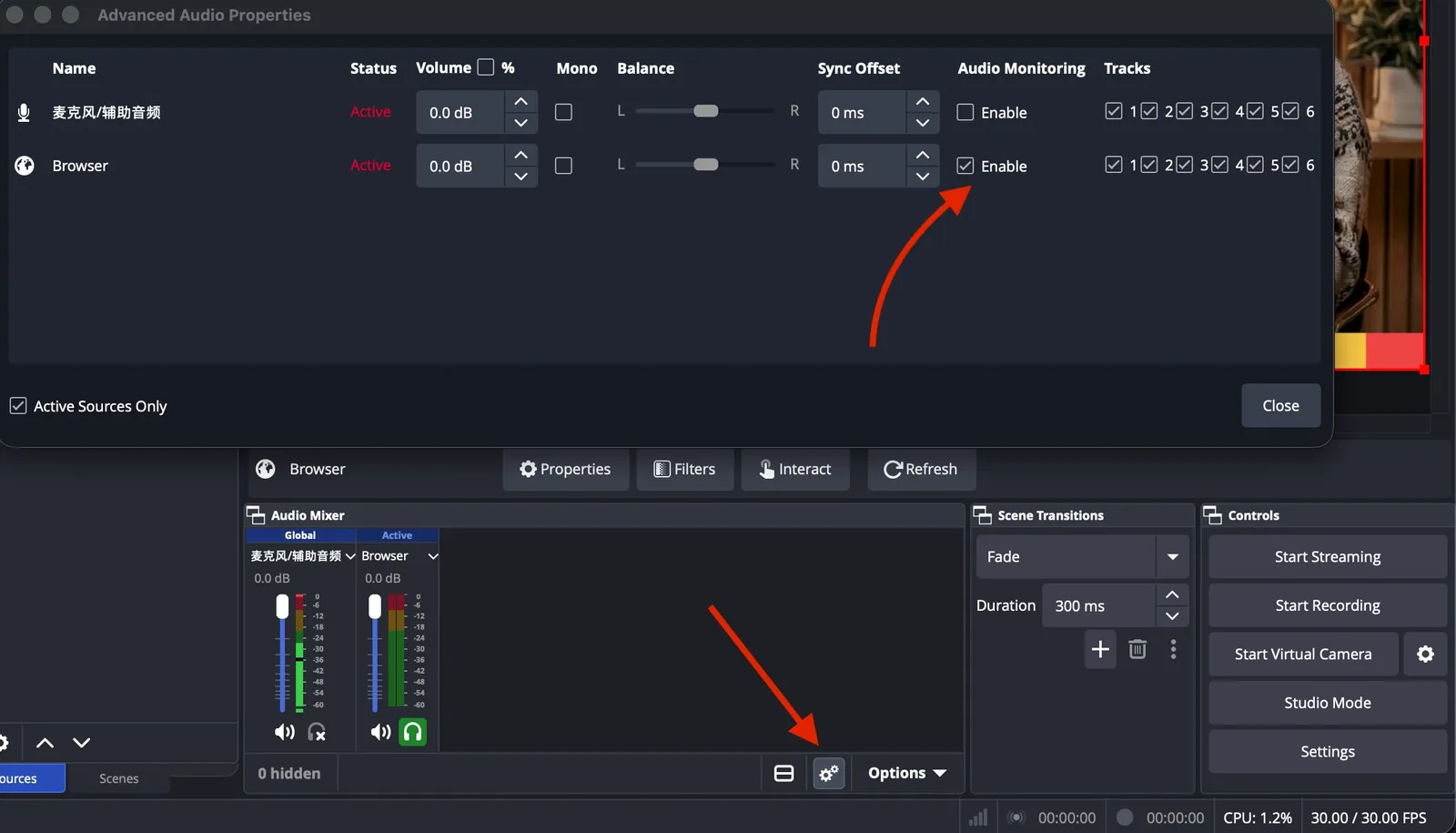
With Monitor and Output the chime goes to your headphones and to the stream; with Monitor Off it only goes to the stream. Pick one and mute any timer page you have open in a normal browser window, so you are not hearing it twice.
A browser tab that is minimised or in the background gets its timers throttled, so audio played from a normal Chrome window can be late or skipped entirely. The browser source inside OBS does not have that problem.
Chime and flash cues are a paid-plan feature, and the full list of cue types is in Timer cues.
6. Troubleshooting
The overlay has a light box around it. The layout is not set to transparent, or OBS is still showing the old page. Re-save the layout with the transparent background turned on, then right-click the source and choose Refresh.
The overlay area is black. Nothing is underneath it. Move a video, image, or capture source below the browser source in the Sources list.
I changed the layout but OBS still shows the old one. Browser sources cache the page. Right-click the source and choose Refresh. Enabling Refresh browser when scene becomes active in the source properties makes this automatic when you switch scenes.
The timer is the wrong size or letterboxed. Set the source width and height to the region you want to cover; the layout scales to fit. A mismatch between the source size and the region is what produces bars.
The countdown is frozen. The page lost its connection to the room. Refresh the source; if it is still frozen, reopen the Display link from Outputs to make sure the link itself is current.
Text is hard to read over your video. Increase the size or change the colour and weight in the layout editor rather than adding filters in OBS. A drop shadow applied in OBS will also darken the fringing if you are using a colour key.
7. Other streaming tools
OBS is the common case, but the same link works anywhere that can render a web page:
- Streamlabs Desktop and most OBS forks accept a Browser source the same way.
- vMix has a Web Browser input; paste the Display link and enable transparency in the input settings.
- Any page you control can embed the link in an
<iframe>with a transparent background, which is useful for custom dashboards and internal tools.
In every case the rule is the same: the Display link is what goes on screen, and the Host link stays private.
Next steps
- Starting from scratch? Create a room takes about a minute.
- Want the presenter's own cue screen on a phone or confidence monitor? See Speaker view.
- Timing a talk in a room rather than on a stream? How to add a timer to PowerPoint covers that case.
- Running the session in Zoom instead of a stream? How to show a timer in Zoom shares the Display window rather than a browser source.