BlogGuides10 min read
How to Show a Timer in Zoom
A speaker on a Zoom call cannot see the clock in the room, and the person keeping time cannot make the clock appear for everyone. Zoom does not have a shared, producer-controlled countdown that fills the shared screen, so meetings end up with someone typing "5 minutes left" in the chat.
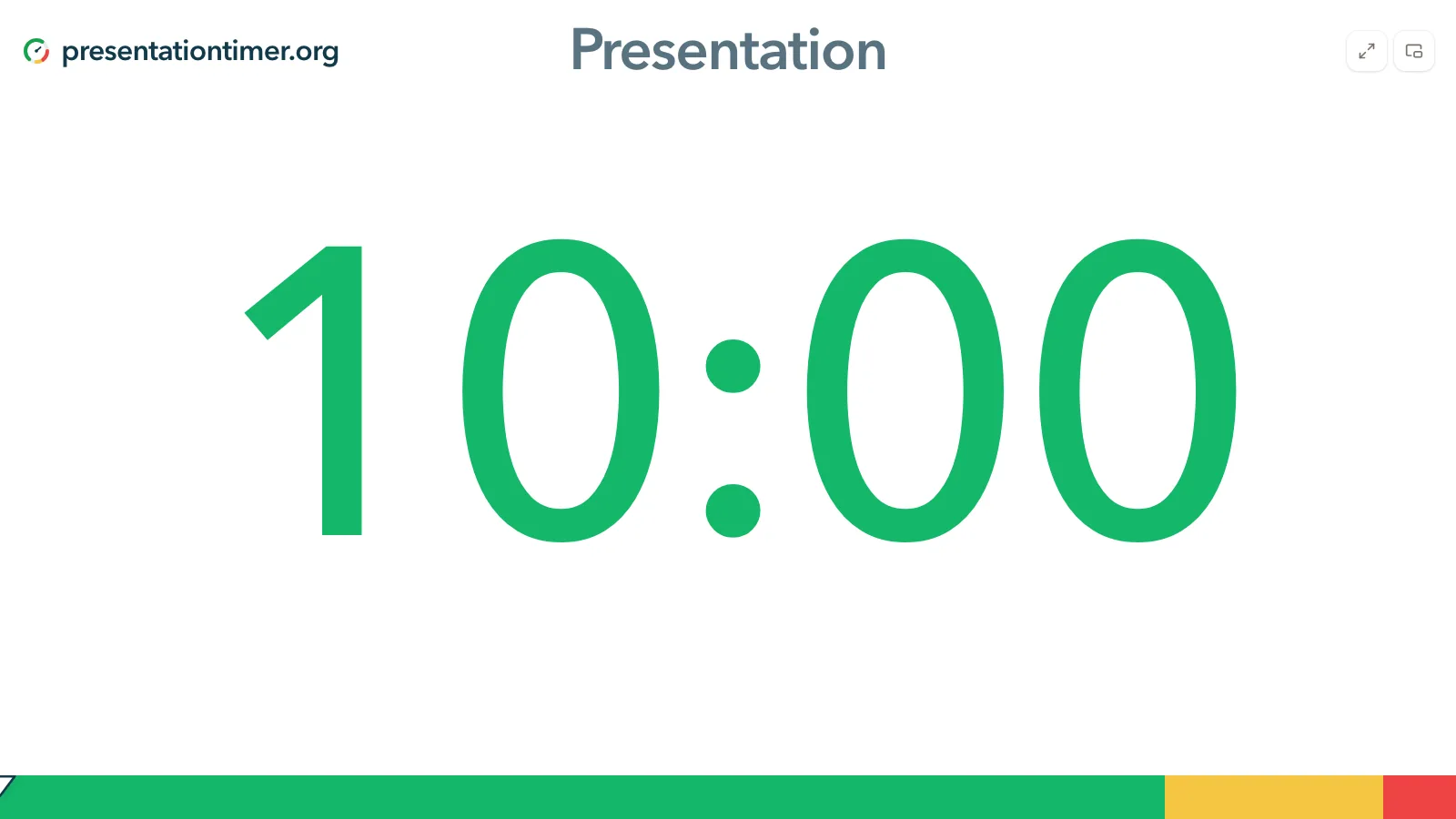
The workaround is simple once you see it: the timer is a web page in its own window, and that window is what you share. Everyone sees the same clock, one person controls it, and nothing is installed on anyone's machine.
This guide covers the whole path: preparing the two links, sharing the right window, driving the countdown while it is on screen, and the handful of things that go wrong the first time.
Why Zoom's own timer is not enough
Depending on your client version, Zoom may offer a timer inside the meeting window. Where it exists it is part of your own meeting controls: it runs on your machine, it looks the same for every participant, and it sits in a corner of the meeting UI rather than on the shared screen.
Three things follow from that:
- You cannot make it fill the screen. If the point is a countdown the audience can read at a glance, you need a surface you are sharing.
- Nobody else can drive it. A producer or timekeeper cannot pause your countdown, add two minutes, or send a wrap-up cue.
- It is not brandable. The room name, the speaker, and the wrap-up colours are fixed.
If any of those three matters — a conference talk, a workshop with rotating segments, a webinar with a hard stop — share a timer window instead.
What you need
| Item | Notes |
|---|---|
| A room in PresentationTimer | Free to create without an account; sign in only if you want to keep it |
| Two links from that room | Display for the audience, Host for whoever is keeping time |
| A browser window for the Display link | This is the window you share |
| The Zoom desktop client | Sharing a window is a desktop feature; the web client is limited |
The Host link stays private. Anyone with the Host link can change the clock, so treat it like the meeting controls, not like a slide.
Open the Display link in its own window
Open the Display link in a separate window, not a tab in the window you are working in. A shared window can only be shared whole, so the timer needs a window of its own to hide everything else.
- Create the room and copy the Display link.
- Open it in a new browser window (drag the tab out, or use File → New Window).
- Resize it to something close to 16:9, then make it full screen:
F11on Windows and Linux,Ctrl+Cmd+Fon macOS. - Leave it behind another window until the share starts.
The Display view is read-only on purpose. Nothing on that page starts, pauses, or edits the countdown, which is why it is safe to put on a shared screen.
Share that window in Zoom
In the meeting:
- Click Share Screen in the meeting toolbar.
- Choose the Window tab. Do not choose Screen.
- Pick the window whose title starts with Display View and ends with the site name.
- Click Share.
Window, not Screen is the part worth remembering. Sharing a screen broadcasts everything on that monitor — inbox notifications, chat windows, whatever happens to be open. Sharing a window broadcasts one page, and only that page.
Button names shift slightly between client versions and languages. The path is stable even when the words change: meeting toolbar → share → window list → pick the timer window.
Drive the countdown while it is on screen
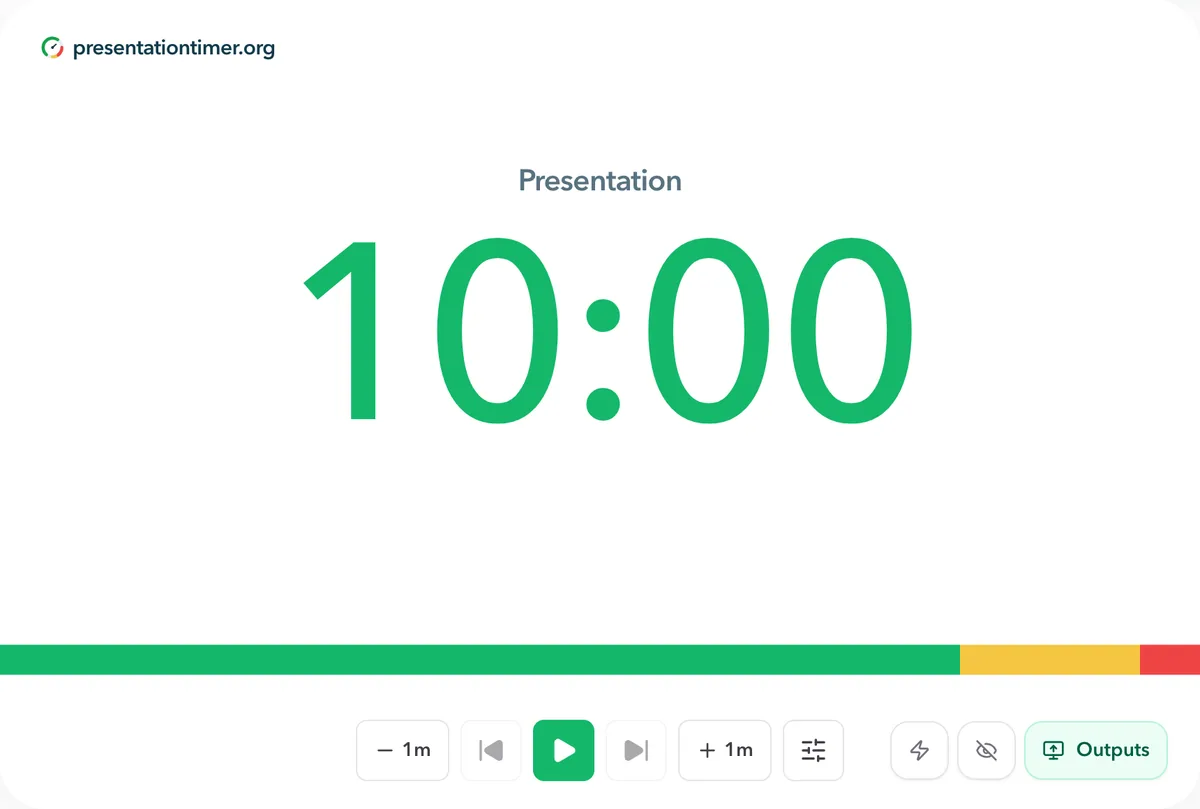
Keep the Host link in another browser window, ideally on a second monitor or a phone. Everything you do there is reflected on the shared Display window almost immediately:
| What you press on Host | What participants see |
|---|---|
| Start / pause | The countdown runs or holds |
-1m / +1m or a custom step |
The remaining time moves by that amount |
| Drag the progress bar | The countdown seeks to that point |
| Send a message | A line of text appears under the clock |
| Blackout | The screen goes black without leaving the share |
Because the Display window is only a viewer, a mis-tap on the shared screen cannot change the timer. That is the practical reason to share the Display link rather than the Host page.
For a conference talk, the useful habit is to set the timer a minute above the slot, start it when the speaker is introduced, and use the +1m button rather than stopping to re-enter a duration. If the talk is part of a longer agenda, the agenda timers and linked start setup covers chaining segments.
Give the speaker a cue without a second monitor
The shared screen faces the audience. The speaker usually needs the opposite: a private clock they can glance at while talking, ideally with the wrap-up colours and a spoken cue.
The room's Speaker link does that. Open it on a phone or a tablet propped next to the camera, and the speaker gets their own view — name, remaining time, the next timer, and the wrap-up stage — without the audience seeing a second window. Because it is a separate link, it does not interfere with the shared Display window.
Two practical notes:
- Keep the wrap-up chime on the Host device. If the chime plays on the machine you are sharing audio from, participants hear it and it competes with the speaker's microphone. The sound alerts guide covers routing it to the room instead.
- Treat the Speaker link like the Host link. It is still a private view: post it in a direct message to the speaker, not in the meeting chat.
Make it readable at meeting size
A shared window is usually displayed in a video tile or on a projector, both smaller than your own screen. Two settings do most of the work:
- Size of the number. The default is large, but a tile in a grid layout shrinks it further. Test the share once with a participant before the event, not during it.
- Contrast against the meeting background. A white timer on black, or a dark timer on white, survives video compression better than low-contrast colours.
For a streamed session where the timer is an overlay rather than a shared window, see the OBS guide — the same link goes in as a browser source, with a transparent background.
When the meeting runs longer than the timer
The free Zoom plan limits group meetings to about forty minutes. That is a limit on the meeting, not on the timer, so a longer session usually means either an upgraded plan or restarting the meeting partway through.
Restarting is not a disaster: the room keeps running. Open the Display link in the new meeting, share the window again, and the countdown continues from wherever it is.
For a conference talk with a hard stop, set the slot length minus one minute on the timer and treat zero as "wrap up now". The webinar countdown timer walkthrough covers that pattern with a short pre-roll.
Hybrid sessions: projector plus camera
When some of the audience is in the room and some is on the call, the Display view usually goes to the projector, and Zoom carries the camera, the slides, and the presenter's microphone. In that setup you may not share the timer at all — the room sees it on the wall, and remote participants see it in the camera frame.
If remote participants still need a crisp countdown, share the Display window as a second share after the slides: Zoom keeps one active share at a time, so the presenter shares slides first and the timekeeper takes over for the countdown.
Troubleshooting
The timer window is not in the Window list. It is minimised, or it is on another display that Zoom is not enumerating. Bring it to the front on the same display as the meeting window and open Share again.
Participants see my whole desktop. The Screen tab was used instead of Window. Stop the share and pick the window.
The countdown looks small in the meeting. The shared window is being scaled into a tile. Maximise or full-screen the browser window before sharing, and ask participants to switch to speaker view if the layout is a grid.
The countdown is frozen for participants. The page lost its connection to the room. Reload the Display window; if it stays frozen, reopen the Display link from Outputs in case the link was rotated.
Wrap-up sounds are not audible to participants. Screen share does not carry your system audio unless you enable it. Tick Share computer sound in the share dialog — and check that participants are not muted.
The timer name is wrong. The name comes from the active timer in the room, not from the meeting. Rename the timer on Host and the shared screen follows.
FAQ
Can I show a timer in Zoom without installing anything?
Yes. The timer is a web page; you share the browser window it is open in. No plugin, no extension, and no software for participants.
Do participants need an account to see the timer?
No. The Display link is a viewer: it opens in any browser with no sign-in, and it does not count against the Zoom participant list.
Can more than one person control the countdown?
The Host link can be opened in several places, and any of them can drive the clock. That is useful for a producer plus a stage manager, and worth avoiding if only one person should hold the controls.
Does pausing the countdown stop the meeting?
No. Pausing holds the remaining time on screen; the meeting itself is unaffected. The display shows the same held number to everyone until you resume.
What happens at zero?
The countdown keeps counting upward and the bar turns red, which is deliberate: the room needs to know how far over the speaker is, not just that time ran out. Overtime behaviour is covered in timer cues.
Can I use this for a webinar instead of a meeting?
Yes, and it is the same window-share path. Webinars have their own attendee limits, but the timer only needs one shared window.
Next steps
- Reading the room rather than the call? Display view explains what the audience window shows.
- Running the clock as well as the slides? Host view covers the controls, the current and next timer, and blackout.
- Want the speaker's own cue screen? Speaker view shows what that second link puts on their phone or confidence monitor.
- Want the timer as an overlay on a stream instead of a shared window? The OBS guide is the same link with a transparent background.