Live timing workflow
Give the room a clear signal before time runs out.
Timer Cues combine remaining-time thresholds with Chimes and visual Flash. Configure what happens at Start, Yellow, Red, and Overtime, then decide which roles should receive sound or visual attention.
The short version
Set Yellow and Red by the amount of time remaining. Choose a Chime or Flash for each stage, select the receiving roles, save the Timer, and rehearse on the real devices. Cues signal a state change. They never take control away from Host.
Recommended defaults for a new Timer
New Pro and Premium Timers start with Flash set to Off / 1s / 3s / 3s for Start, Yellow, Red, and Overtime. Sound targets default to Host and Operator; Flash targets default to Host, Operator, and Display. Display receives visual cues by default, but it is not a default Sound target.
These are starting values, not a required cue plan. Existing Timers keep their saved settings, and you can change any stage or target in the Wrap-up editor.
Core model
Four stages describe the life of a timed segment.
A Timer Cue fires when the running Timer crosses a meaningful point. The Room still has one live clock, but each role can receive a cue that matches its job. A Speaker may need a quiet sound, a Display may need a visible flash, and a Moderator may need both.
| Stage | When it fires | Typical purpose |
|---|---|---|
| Start | When an idle Timer begins running | Confirm the segment has started. |
| Yellow | When remaining time reaches the Yellow threshold | Tell the presenter or operator to begin wrapping up. |
| Red | When remaining time reaches the Red threshold | Signal the final warning or handoff preparation. |
| Overtime | When the running Timer passes 0:00 | Make an overrun visible until the operator resolves it. |
Yellow and Red are remaining-time thresholds, not elapsed-time percentages. If a ten-minute Timer enters Yellow at 2:00 remaining, it has eight minutes elapsed when the warning begins.
Example
A ten-minute keynote with distinct final signals.
Imagine a keynote that should stay within ten minutes. The speaker needs an early warning, the room needs a stronger final signal, and the operator needs to know if the segment continues past the limit.
Notice that targets are grouped by delivery type. If Host, Speaker, or Operator is selected as a Sound target, each receives every enabled Chime stage. If Display and Speaker are Flash targets, both receive every enabled Flash stage. The stage determines whether a signal exists; the target list determines who can receive that type of signal.
Step 1
Set Yellow and Red at the right remaining time.
Open the Timer's settings from Host or from the Agenda Studio item settings. In the Wrap-up section, enter the time remaining at which each color should begin. Use hours, minutes, and seconds when the event needs more than a simple minute value.
Yellow
The earlier warning. Use it when the presenter should change pace, take questions, or begin closing.
Red
The urgent warning. It must begin at or before the Yellow threshold and should represent the final safe window.
- Both thresholds must fit inside the Timer duration.
- Red must be less than or equal to Yellow.
- Setting a threshold to 0:00 removes that color stage's early warning point.
- Changing a threshold while a Timer is running does not replay a cue that already passed.
- Saving the Timer preserves the configured plan; live time corrections remain separate from these thresholds.
Step 2
Choose a Chime or Flash for each stage.
The Wrap-up editor has one row for Start, Yellow, Red, and Overtime. Each row has an independent Chime selector and Flash duration selector. This lets you make the early warning quiet and the final warning unmistakable without turning every stage into the same interruption.
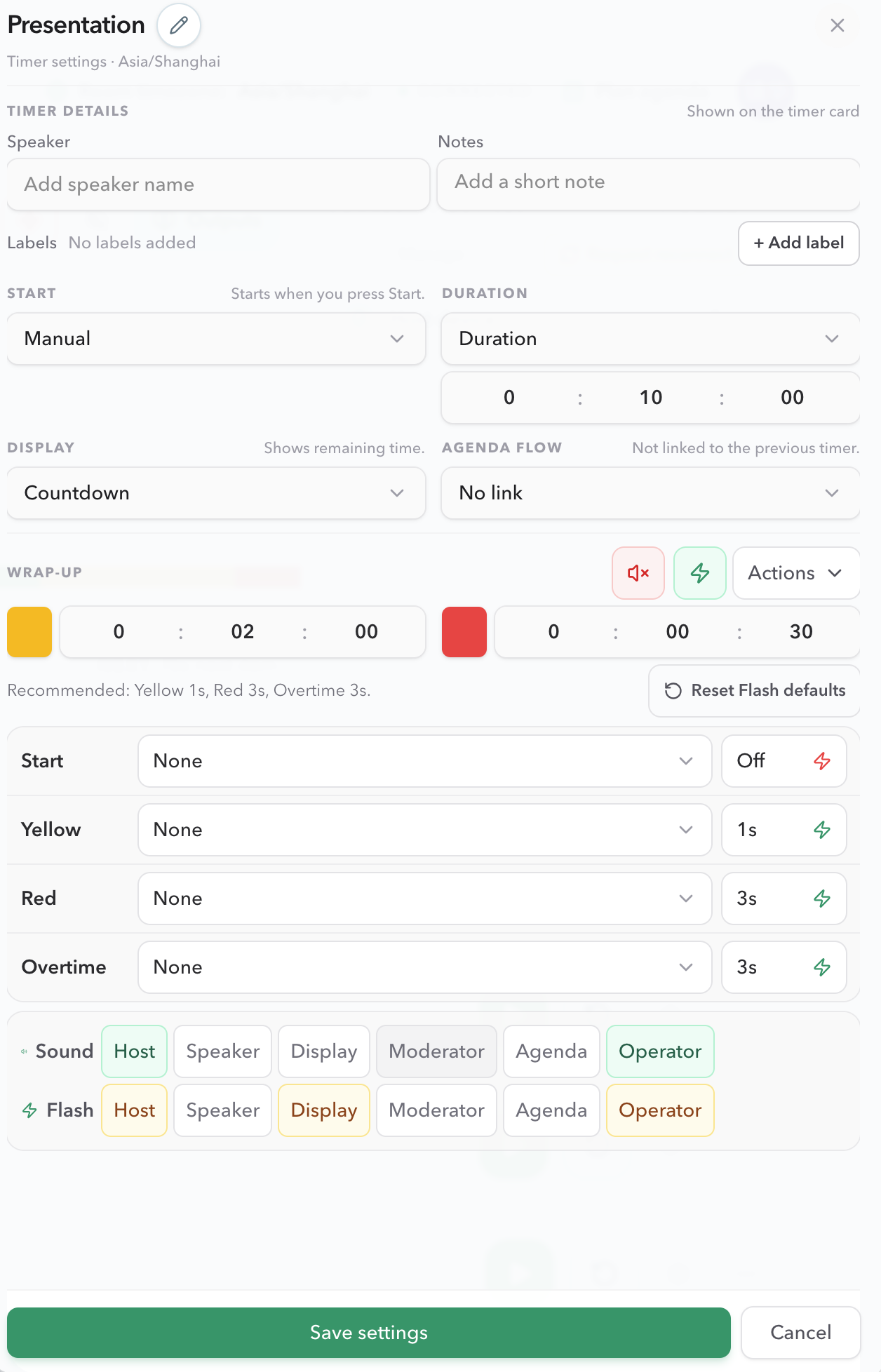
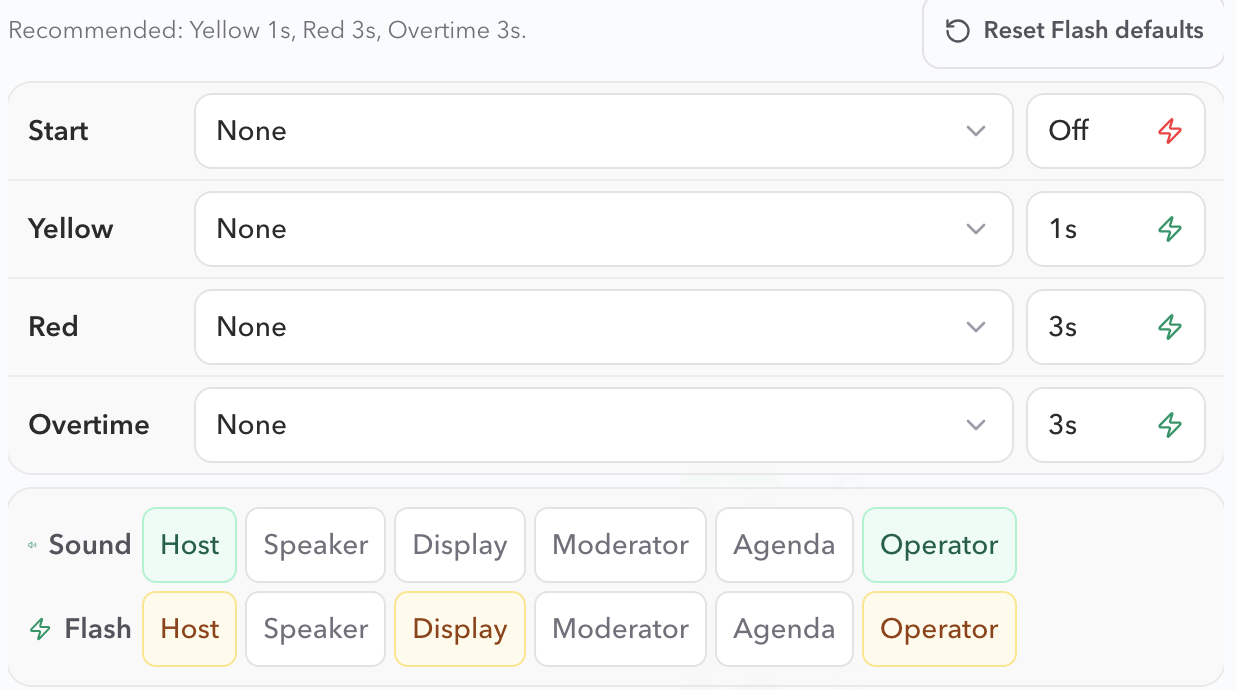
Chime
Choose None or one of the built-in tones. Selecting a Chime also previews it immediately in the settings panel, so you can hear whether it fits the room before saving.
Flash
Choose Off, a duration from 1 to 60 seconds, or Infinite. The visual cue flashes the timer digits on the receiving view, not the entire page.
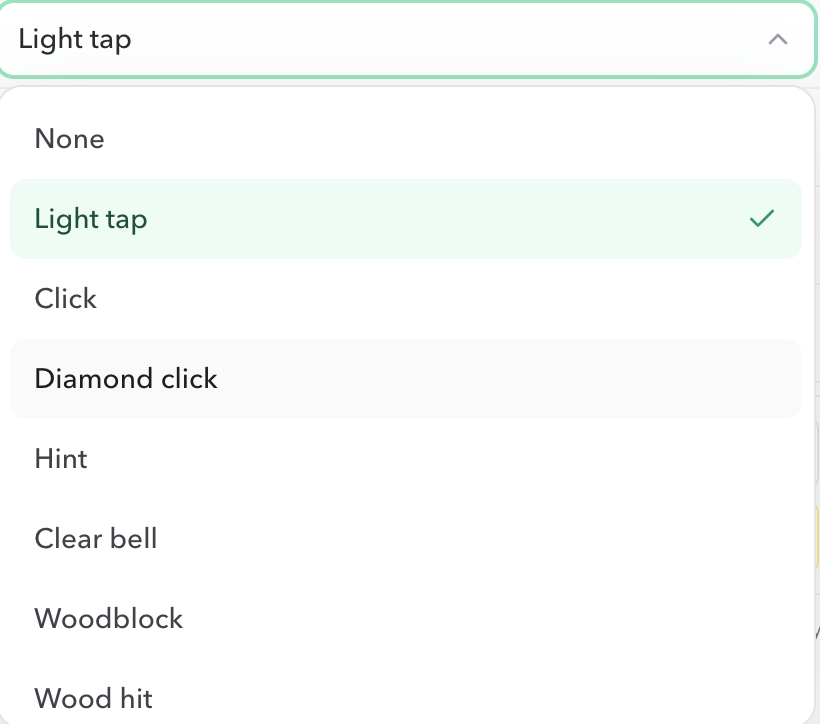
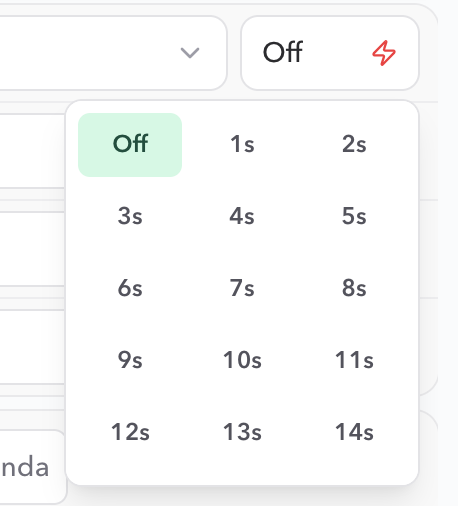
The Start row is useful when the room needs an audible or visual confirmation that the segment has begun. The Overtime row is useful when crossing 0:00 must remain visible until the operator resets, pauses, or moves on.
Step 3
Decide which roles receive Sound and Flash.
Sound targets and Flash targets are separate lists. Select only the roles that should react to that delivery type. Every enabled Chime uses the Sound list, and every enabled Flash uses the Flash list.
| Role | Sound is useful when… | Flash is useful when… |
|---|---|---|
| Host | The operator needs an audible confirmation or warning. | The operator needs an immediate visual status cue. |
| Operator | The show caller or timekeeper needs an audible cue while running the live clock. | The show caller or timekeeper needs an immediate visual status cue. |
| Speaker | The presenter needs a private pacing signal. | The presenter is watching a personal screen and sound would be distracting. |
| Display | The audience-facing screen has a speaker system you intentionally use. | The room should see the final warning without a spoken interruption. |
| Moderator | The producer or facilitator is wearing headphones or monitoring audio. | The backstage desk needs a visible cue while keeping the room quiet. |
| Agenda | The team following the Run of Show needs an audible signal on that device. | The agenda screen should call attention to a transition. |
A target role still needs a connected device. Selecting Display does not make a disconnected Display device receive a cue later. Sound follows the Host Sound targets; that role cannot mute the chime from its own view.
Live control
Use manual Flash when the operator needs an immediate signal.
The lightning control beside the Host Timer is separate from the scheduled Start, Yellow, Red, and Overtime cues. Use it when the operator wants to call attention to the current time immediately, such as when a speaker has missed a visual warning or a room change needs a quick confirmation.
- Manual Flash does not change the Timer's remaining time.
- It is controlled from Host and is available without waiting for a threshold transition.
- The button state shows when the manual number flash is active.
- Manual Flash is separate from the paid wrap-up Flash that starts automatically at Yellow, Red, or Overtime.
Reuse
Apply a consistent cue plan to every Timer.
When an agenda uses the same operating convention for every segment, use the Wrap-up Actions menu instead of repeating the same edits by hand. The menu separates three kinds of bulk change so you can keep timing thresholds, Chimes, and Flash behavior independent.
- Apply wrap-up times to all Timers
- Copies the current Yellow and Red threshold values to every Timer. The values must be valid for every Timer duration.
- Apply Chime settings to all Timers
- Copies each stage's Chime choices and Sound targets without changing Yellow or Red timing.
- Apply Flash settings to all Timers
- Copies each stage's Flash duration and Flash targets without changing Chime choices.
- Set wrap-up times to 0:00
- Clears the early Yellow and Red thresholds in the current editing surface when the event should use no color warning stages.
Plans
Know which cue controls your plan includes.
Free keeps the simple shared-timer workflow. Pro and Premium add the advanced controls that are useful when a production needs different signals for different devices and roles.
| Capability | Free | Pro / Premium |
|---|---|---|
| Basic Sound cues switch | Available | Available |
| Per-stage Chimes | Not available | Available |
| Per-stage Flash duration | Not available | Available |
| Sound and Flash role targets | Not available | Available |
| Manual Flash and bulk Actions | Not available | Available |
A paid-plan change may take a moment to reach the Room. Confirm that the advanced controls are active before relying on them in a live session.
Device behavior
Rehearse sound and visual permissions on the real device.
Cue configuration is shared Room state, but playback is local to the receiving device. A correct saved configuration is not enough if the browser has blocked audio or the wrong role link is open. Shared views do not have a local sound or scheduled Flash on/off control.
Sound
Sound follows the Host Sound targets. Interact with the shared view once so the browser allows audio, then check mute, system volume, and any headphones or room mixer before the event.
Flash
Scheduled Flash follows the Host Flash targets. Manual Flash from Host or Operator is separate and can still be started or stopped from those controls.
Role
Confirm that the device opened Operator, Display, Speaker, Moderator, or Agenda, not the private Host link or a different Room.
Connection
Confirm that the intended device appears in Host connected devices and has enough Room capacity to stay connected.
Recovery
Understand missed cues without creating duplicate alerts.
PresentationTimer evaluates one cue transition at a time. If a background tab wakes after crossing more than one boundary, it uses the most urgent boundary instead of replaying a burst of stale warnings. Reconnecting should not make Yellow, Red, or Overtime fire repeatedly for the same run.
- No cue after reconnect
- Confirm the Timer is still running and the role is selected as a Sound or Flash target. Sound cannot be muted from that role's view. Do not expect a previously crossed threshold to replay.
- Cue fired too early
- Check the Yellow and Red values as remaining time, not elapsed time. Review whether the Timer was corrected during the live run.
- Too many visual cues
- Check whether both a scheduled Flash and manual Flash are active, and whether multiple views are open on the same physical screen.
- One role receives nothing
- Verify that role's target list and its original role-specific link. A Display device does not receive a cue configured only for Speaker.
For broader device and WebSocket recovery, continue to Sync and connections.
Checklist
Before relying on cues in a live room.
- Yellow and Red thresholds match the actual segment and are expressed as remaining time.
- Red begins at or before Yellow, and both thresholds fit the Timer duration.
- Each stage has the intended Chime, Flash duration, or Off state.
- Sound targets and Flash targets include the roles that should receive each signal.
- Host, Operator, Display, Speaker, Moderator, and Agenda devices are using the intended Room and role links.
- The intended role views have been opened and interacted with so browser audio is allowed on those devices.
- A manual Flash test does not replace a threshold-crossing rehearsal.
- If applying settings to all Timers, every Timer can accept the chosen threshold values.
FAQ
Common Timer Cue questions
What is the difference between Yellow and Red?
Yellow and Red are remaining-time thresholds. Yellow is the earlier wrap-up warning. Red is the later, more urgent warning. For example, a ten-minute segment could enter Yellow at two minutes remaining and Red at thirty seconds remaining.
Does a cue pause or change the Timer?
No. A Chime or Flash only delivers a signal to the configured devices. It does not start, pause, reset, select, or change the Timer's planned duration.
Can Sound and Flash go to different roles?
Yes. Sound targets and Flash targets are configured separately. For example, Chimes can go to Host and Operator while Flash goes only to Display and Moderator.
Why did a cue not play on my device?
Check that the device role is selected as a Sound or Flash target, the stage has a Chime or Flash enabled, and the view is connected to the intended Room. Sound and scheduled Flash follow the Host settings. Phones and tablets also need one tap on that view so the browser can play sound.
Can I make a cue flash continuously?
Yes, Pro and Premium can choose Infinite for a stage's Flash duration. Use it carefully for states that need persistent attention, such as Overtime, and test it on the actual receiving screen.
Can I apply one cue setup to every Timer?
Yes. In the Wrap-up Actions menu, apply wrap-up times, Chime settings, or Flash settings to all Timers. The selected threshold values must fit every Timer when you apply wrap-up times in bulk.
What can Free users configure?
Free Rooms keep the basic Sound cues switch. The advanced per-stage Chimes, Flash durations, role targets, manual Flash, and bulk cue actions require Pro or Premium.