Sharing workflow
Share the right view with the right person.
Outputs are PresentationTimer's role-specific views. Use one Room for the session, keep Host private with the person running the show, use Operator for live timing control, and prepare a Display, Speaker, Moderator, or Agenda link for each device that needs a focused view.
The short version
Open Outputs from Host, select the role that matches the device, test the preview, then copy the link or show its QR code. Pause or rotate one Output when access needs to change. The Room keeps running throughout.
Core model
One Room, four shared views.
An Output is not another timer and it is not another control surface. It is a read-only way to expose the current Room state to a particular person or screen. The active Timer, agenda changes, Room-wide messages, warning colors, and live timing continue to come from the same Room that Host operates.
This separation matters in a live event. The operator can correct a timer without putting controls in front of an audience, and a speaker can receive a focused cue without seeing backstage details. Give each device the smallest view that lets its user do their job.
| Output | Use it for | What the person needs |
|---|---|---|
| Operator | Phone or tablet for a show caller or timekeeper | Start, pause, switch, and adjust the live Timer without Host's full workspace. |
| Display | Projector, confidence monitor, second screen, or screen share | Large audience-facing time and progress. |
| Speaker | Presenter phone, tablet, or laptop | Personal pacing, current segment, and what comes next. |
| Moderator | Producer, facilitator, or stage manager | Backstage awareness without timer control. |
| Agenda | Team, crew, or people waiting for their turn | Current item, next handoff, and the full running order. |
Safety boundary
Keep Host private. Share Outputs instead.
Host is the full control workspace: it can start, pause, reset, select, edit, or correct a Timer, and it manages messages and outputs. Operator View can also change live timing from a phone or tablet, so treat that link as a production control link. Display, Speaker, Moderator, and Agenda cannot change the Room. Never send the Host or Operator URL to a projector, presenter, or attendee.
Host
Private control workspace. Keep it with the person who edits the Room and manages outputs.
Operator
Production timing console. Give it only to people who should start, pause, or correct timers.
Other outputs
Role-specific views. Share Display, Speaker, Moderator, or Agenda according to the device's job.
Step 1
Open Outputs from the private Host workspace.
- 01Open the Room on the operator device and confirm that Host is the active control view.
- 02Select Outputs near the live Timer controls. The workspace opens without interrupting the Room.
- 03Choose Operator, Display, Speaker, Moderator, or Agenda from the role tabs.
- 04Read the role description before sharing. It is easy to send a perfectly valid link to the wrong person.
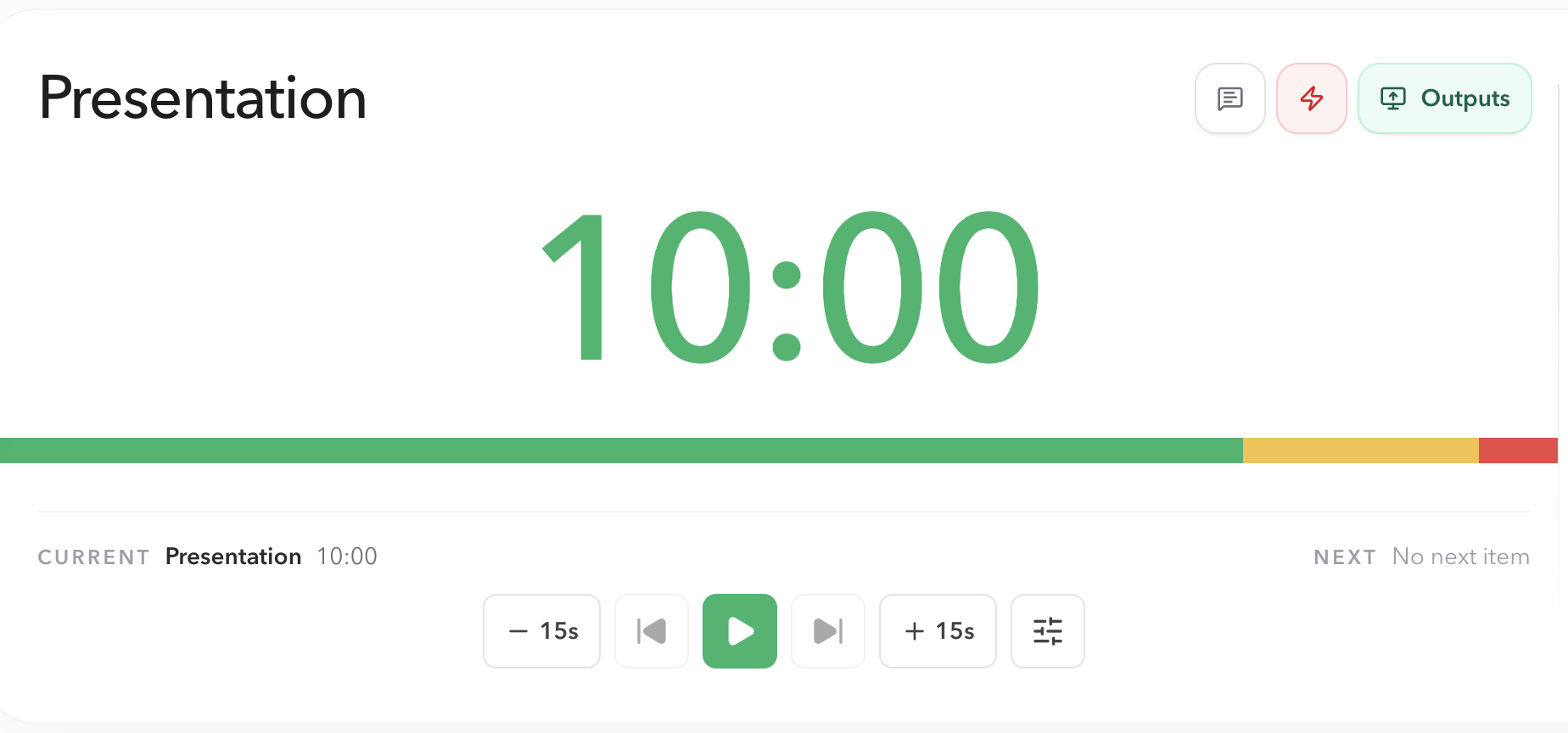
If the Room is not saved yet, the basic Output flow can still be used. Pro and Premium add password protection for individual Outputs; the read-only links themselves remain useful for every plan.
Step 2
Choose a role, then preview what the device will receive.
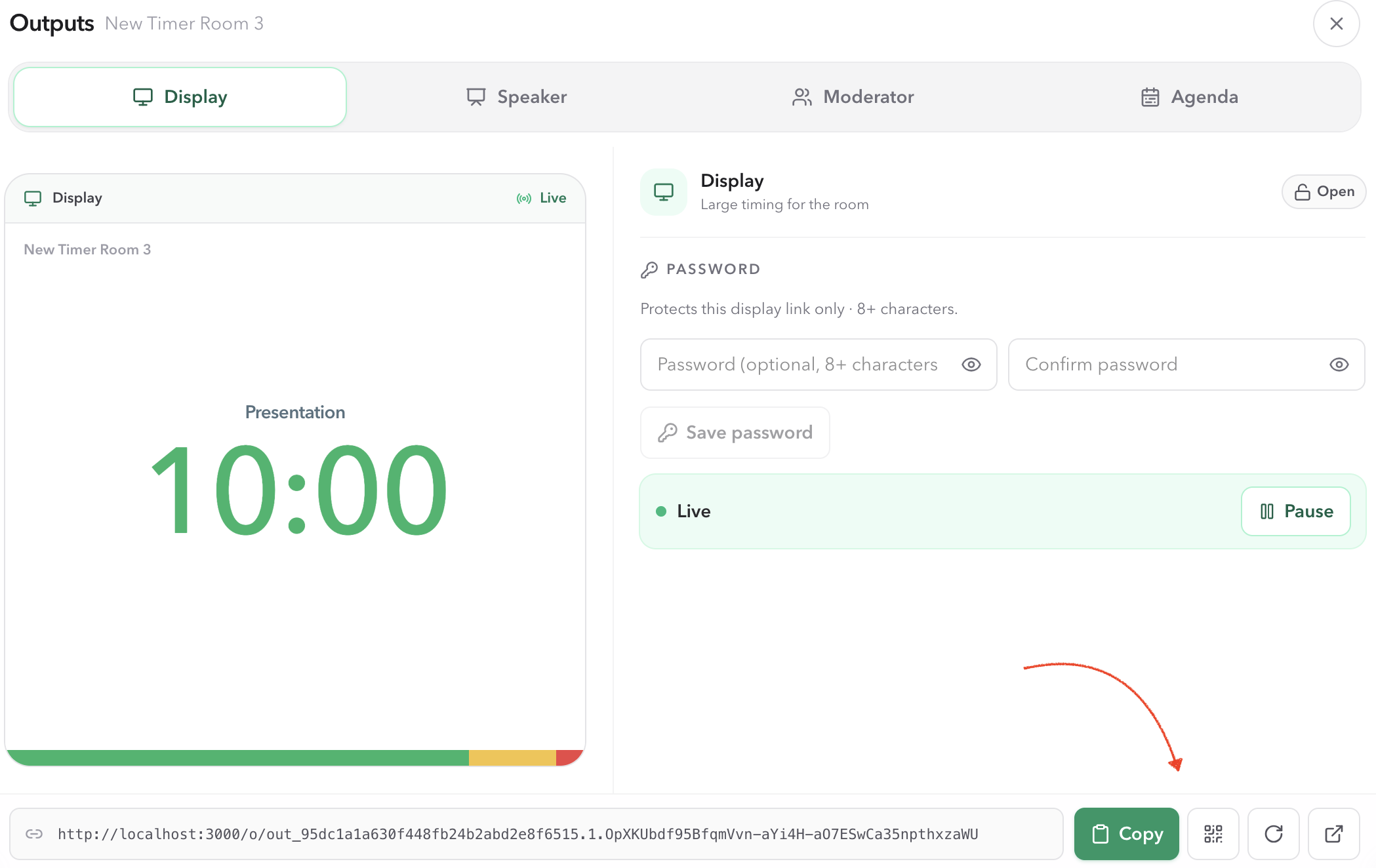
The preview is a practical check, not decoration. It confirms that the selected role matches the job before you copy a link. Operator is a touch console for live timing. Display emphasizes the clock. Speaker keeps the presenter's current and next context. Moderator adds Room awareness. Agenda keeps the running order visible.
Operator
Use when a show caller or timekeeper needs large timing controls on a phone or tablet.
Display
Use when the screen needs to be understood from a distance. Keep Default Display, or attach a custom layout from the Display tab.
Speaker
Use when one presenter needs a personal cue without Host controls.
Moderator
Use when a producer or facilitator needs timing, messages, questions, and Room health.
Agenda
Use when people need the whole Run of Show and upcoming handoffs.
On the Display tab, leave Default Display selected unless the projector needs a branded layout. Saving a custom layout and attaching it is covered in Custom Display. Password, pause, and rotate stay on this Outputs page.
On the Speaker tab, choose Default Speaker or attach a saved template to the selected link. Speaker Studio changes the current timer panel while the room heading and next segment stay outside the canvas. Follow Custom Speaker for panel ratios, editing, colors, and shared-template rules.
Open the selected link on the real device, not only in the Host preview. A projector may crop differently, a phone may be held in portrait orientation, and a production laptop may have a browser policy that affects fullscreen or sound cues.
Step 3
Copy, show a QR code, or open the Output.
The selected Output has one canonical link. Use the action that fits the moment:
- Copy
- Copy the read-only URL into chat, email, a run sheet, or a production handoff message.
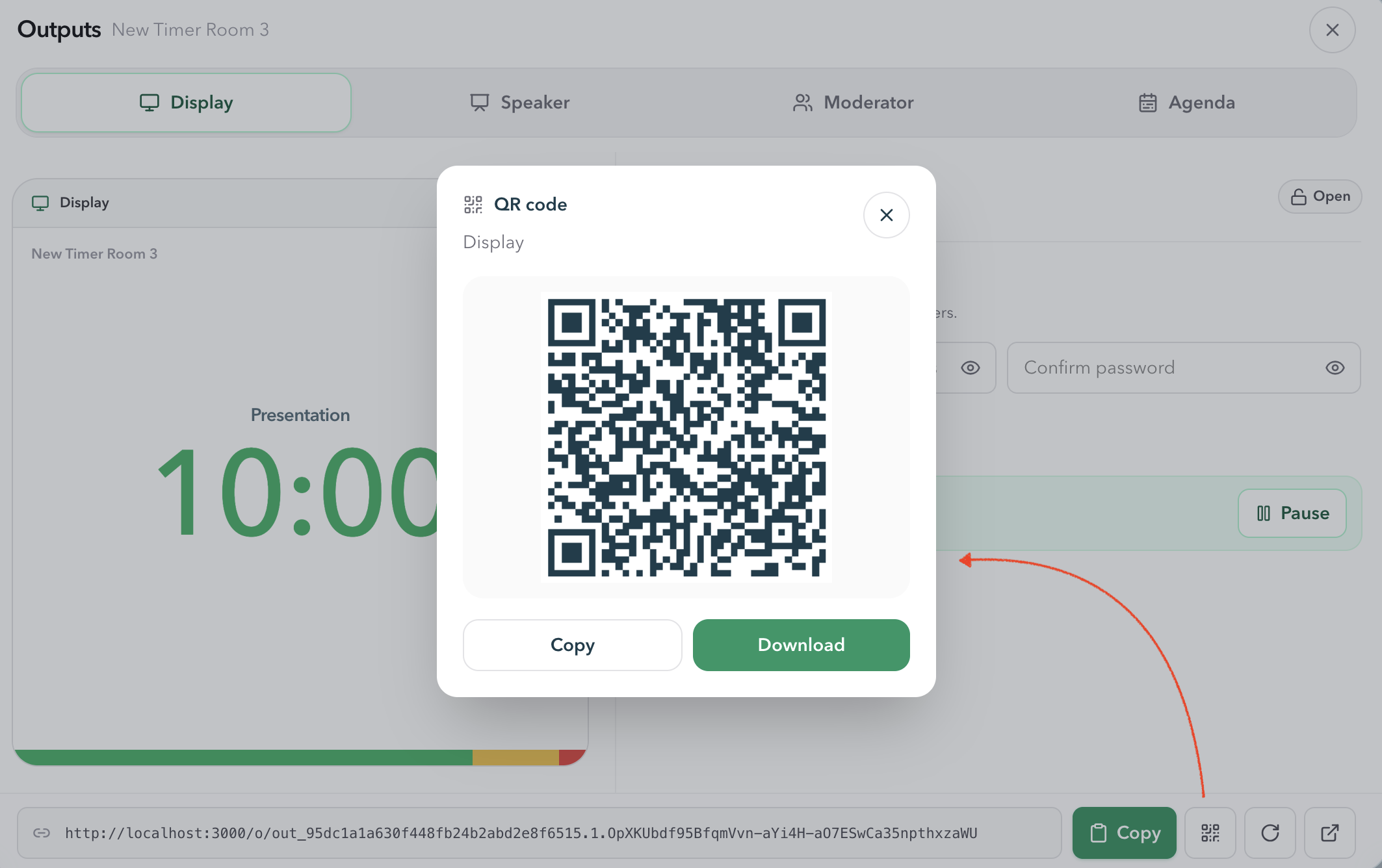
- QR code
- Show or download a QR code when people are standing near the screen or joining from phones.
- Open
- Open the Output in a new browser tab for a direct device test.
- Link field
- Focus the read-only URL field to select it manually when clipboard access is unavailable.
Share by link
Send the link to the person or device that needs that role. Say which role it is in the message so a recipient does not mistake Speaker for Display.
Share by QR code
Put the QR code on a nearby screen or print it for a crew handoff. If the link is protected, the recipient still needs the Output password after scanning.
Access state
Pause or resume access without pausing the Room.
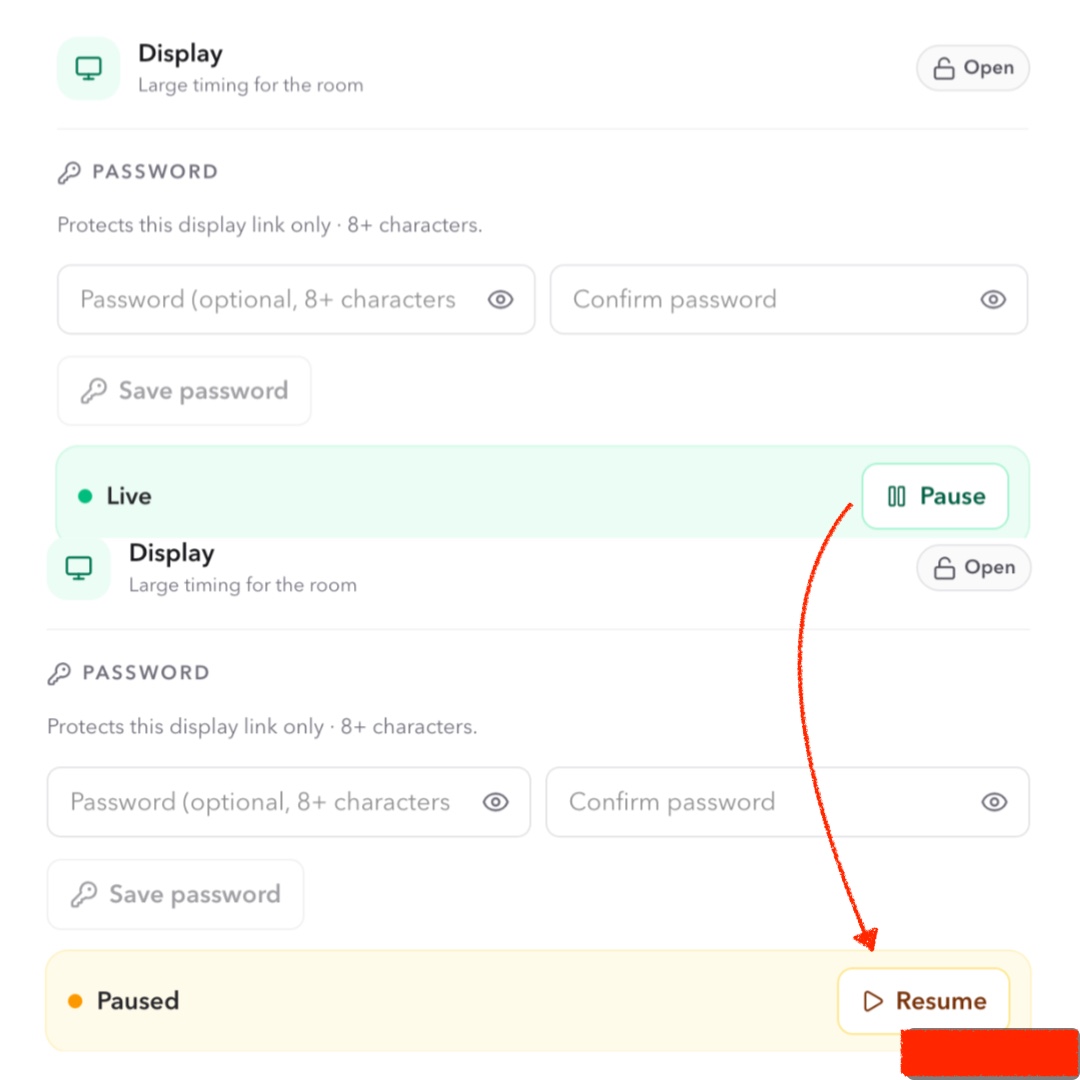
Each Output has its own access state. Live means the link can open and follow the Room. Paused means that Output is temporarily unavailable. Pausing an Output does not pause the active Timer, disconnect Host, or change any other Output.
Live
Use when the intended person or screen should be able to open the Output and follow the session.
Paused
Use when a link was shared too early, a screen should be taken out of service, or access should stop temporarily.
Resume the same Output when it should become available again. You do not need to create a second Room or replace the other role links.
Access recovery
Rotate a link when the old access should end.
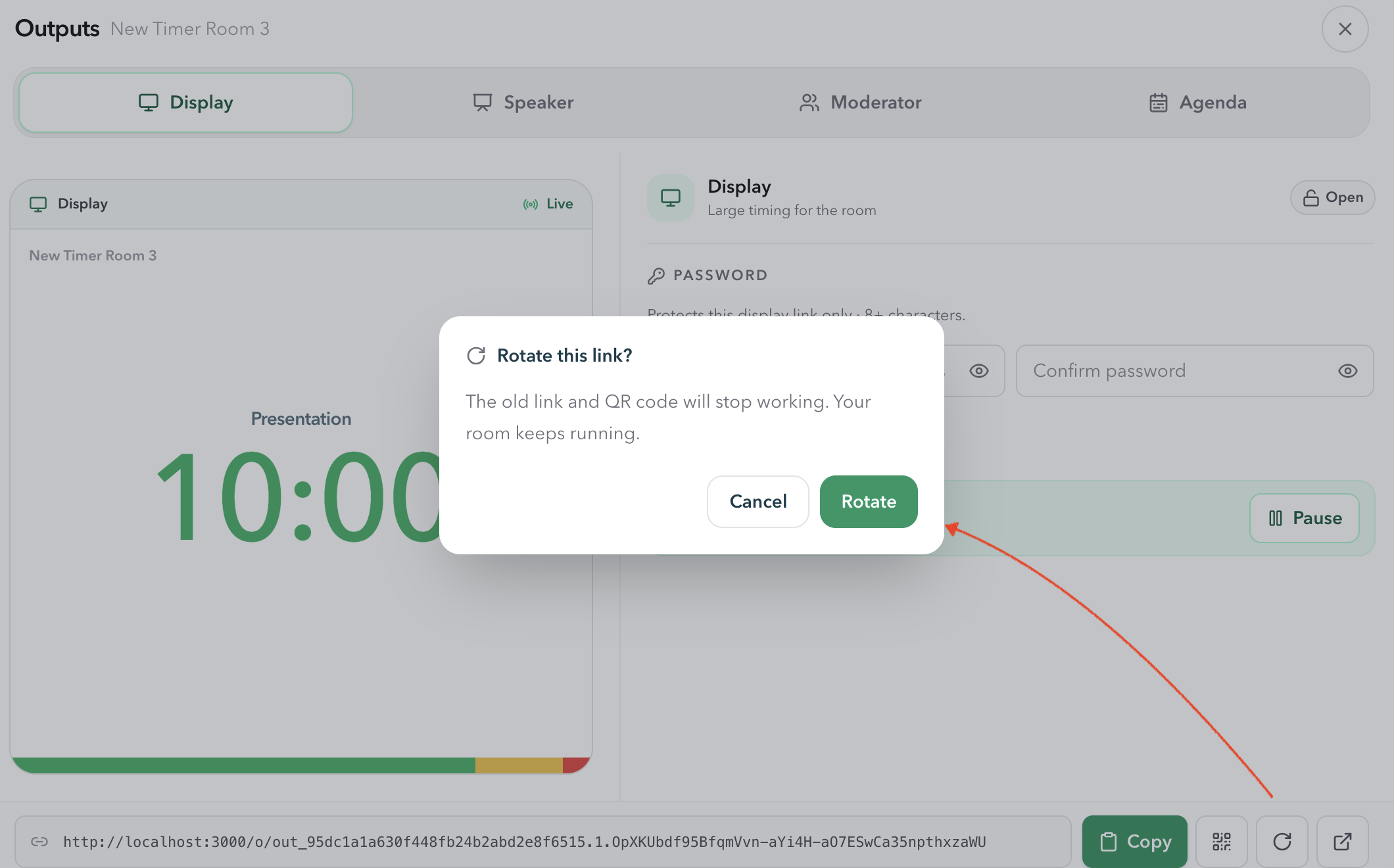
Rotation is stronger than copying a link again. It creates a fresh URL for the selected Output and invalidates the previous URL and QR code. Use it when a link was sent to the wrong person, printed material should no longer work, or a previous event's access must be closed before reuse.
- 01Select the Output whose access should change.
- 02Confirm that the Output is active. Rotation is not a substitute for pausing an already inactive link.
- 03Choose Rotate link and read the confirmation. The Room keeps running.
- 04After rotation completes, copy the new link or open the new QR code and replace every old copy you distributed.
Paid access control
Protect one Output without protecting every link.
Password protection is configured on the selected Output only. A protected Speaker link can be given to a presenter while the Display link remains open for the audience, or a protected Moderator link can stay with the production team.
Password protection requires Pro or Premium.
Use at least 8 characters. Save the password through the selected Output's Password section, then give it to the intended recipient through a separate channel from the URL when access control matters.
- Protected means visitors must enter the password before the Output opens.
- Changing or removing a password affects that Output only.
- Password protection does not turn an Output into a control link and does not make the Host URL shareable.
- If a paid-plan change is still being applied, wait for the saved state to finish before relying on the protected link in a live event.
Reusable setup
Reuse the setup, not the previous event's access.
A Saved Room is a reusable configuration. When you create a next session from it, the Output setup can carry forward so you do not rebuild the role plan from zero, while the new session receives fresh links. The previous event's URLs should not quietly become the access path for the next event.
Carries forward
The Room name, timezone, agenda configuration, display choices, and intended output setup.
Starts fresh
The live timer state, active connections, Host token, and previous Output links.
Before a new event, open the new Outputs workspace and distribute the new links. Do not assume a screenshot, printed QR code, or old chat message still points at the current session.
Room capacity
Count every connected screen before the room fills up.
The device allowance includes Host and every connected Output. A duplicate browser tab can use a connection just like the intended projector or speaker phone. Close duplicates or remove an unneeded read-only device before adding another screen.
| Plan | Connected devices |
|---|---|
| Free | Up to 5, including Host and Outputs. |
| Pro | Up to 10, including Host and Outputs. |
| Premium | Up to 50, including Host and Outputs. |
Rehearsal
Test every Output on the device that will use it.
A link being valid is not the same as a session being ready. Do a short rehearsal from the actual operator, screen, phone, and production devices. The goal is to catch wrong roles, blocked access, unreadable layouts, and connection limits before people are waiting.
- Host remains open privately on the operator device.
- Display is open on the intended projector, second screen, or screen-share computer.
- Speaker is open on the presenter’s actual phone, tablet, or laptop if that role is needed.
- Moderator and Agenda are open only where their context is useful.
- The selected Output role matches the person receiving the link.
- A short start, pause, timer switch, and message check reaches the intended shared views.
- Any password-protected Output opens with the password on the intended device.
- The connected-device count leaves enough capacity for the live event.
Live recovery
Change access deliberately when the event is already running.
If one shared screen has a problem, do not create a second Room. Keep Host as the timing source of truth, identify the affected role, and make the smallest access change that solves the incident.
- Wrong person has the link
- Pause the Output, rotate it if the old URL must stop working, then send the new link only to the intended recipient.
- Screen should stop temporarily
- Pause that Output. The Room and other views keep running.
- Screen is stale
- Check the device in Host connected devices, confirm its original role-specific link, then request reconnect or reload only that Output.
- Room is full
- Close duplicate tabs or remove an unneeded read-only device before opening another Output.
For connection symptoms and device recovery, continue to Sync and connections.
FAQ
Common questions about Outputs
Do Outputs create separate timers?
Outputs share one Room, so they follow the active Timer, agenda, messages, and live timing state. Display, Speaker, Moderator, and Agenda are read-only; Operator can control live timing without opening Host's full workspace.
Which Output should I give to a projector?
Use Display for a projector, confidence monitor, second screen, or screen share. It is the large audience-facing timer and does not expose Host controls. Attach a custom Display from that same tab when the screen needs a logo, background, or fixed canvas; otherwise leave Default Display selected.
Can an Output start or pause the Timer?
Operator can start, pause, reset, switch, and adjust live timing. Display, Speaker, Moderator, and Agenda remain read-only. Host is still required for editing timers, Messages, and Outputs.
What happens when I pause an Output?
That Output stops accepting access while the Room keeps running. Pause is useful when a link was shared too early or a screen should temporarily stop following the session.
What happens when I rotate an Output link?
The old link and its QR code stop working. The Room and the Output role continue to exist, but you must share the new link or QR code with the intended person or device.
Can I protect only one Output with a password?
Yes. Password protection is configured per Output. Protecting Speaker does not protect Display, Moderator, Agenda, or the private Host link. Passwords must contain at least 8 characters and require a paid plan.
Do Saved Rooms preserve their Output links?
A saved setup can preserve the Output configuration, but a new session receives fresh links. This keeps a previous event's access from silently carrying into the next one.
How many Output devices can connect?
The Room allowance includes Host and every connected Operator, Display, Speaker, Moderator, and Agenda view. Free supports 5 devices, Pro 10, and Premium 50.