Room views
Moderator View
Give producers, facilitators, and backstage assistants a live Room monitor with practical message and audience-question controls. Moderator View combines the current Timer, agenda, messages, questions, and connection health—while Host remains responsible for timing and Room settings.
Moderator runs messages and questions; Host runs the Room.
Give the support person the Moderator link, not the Host link. Moderator can publish or clear a message and curate what question appears on Display, but Host remains responsible for live timing, sharing, and Room configuration decisions.
Permissions
Moderator can manage messages and questions, not control timing.
Moderator View has no start, pause, reset, Timer selection, time adjustment, Room editing, sharing, or Output Links management. It is for the producer, stage manager, assistant, or facilitator who needs timing context and can publish messages or curate questions without taking over the event.
When timing or connection needs attention, the moderator should cue the Host operator. Moderator owns the live communication layer: write a short note, update its style, flash or clear the current message, and decide which audience question appears on Display.
Setup
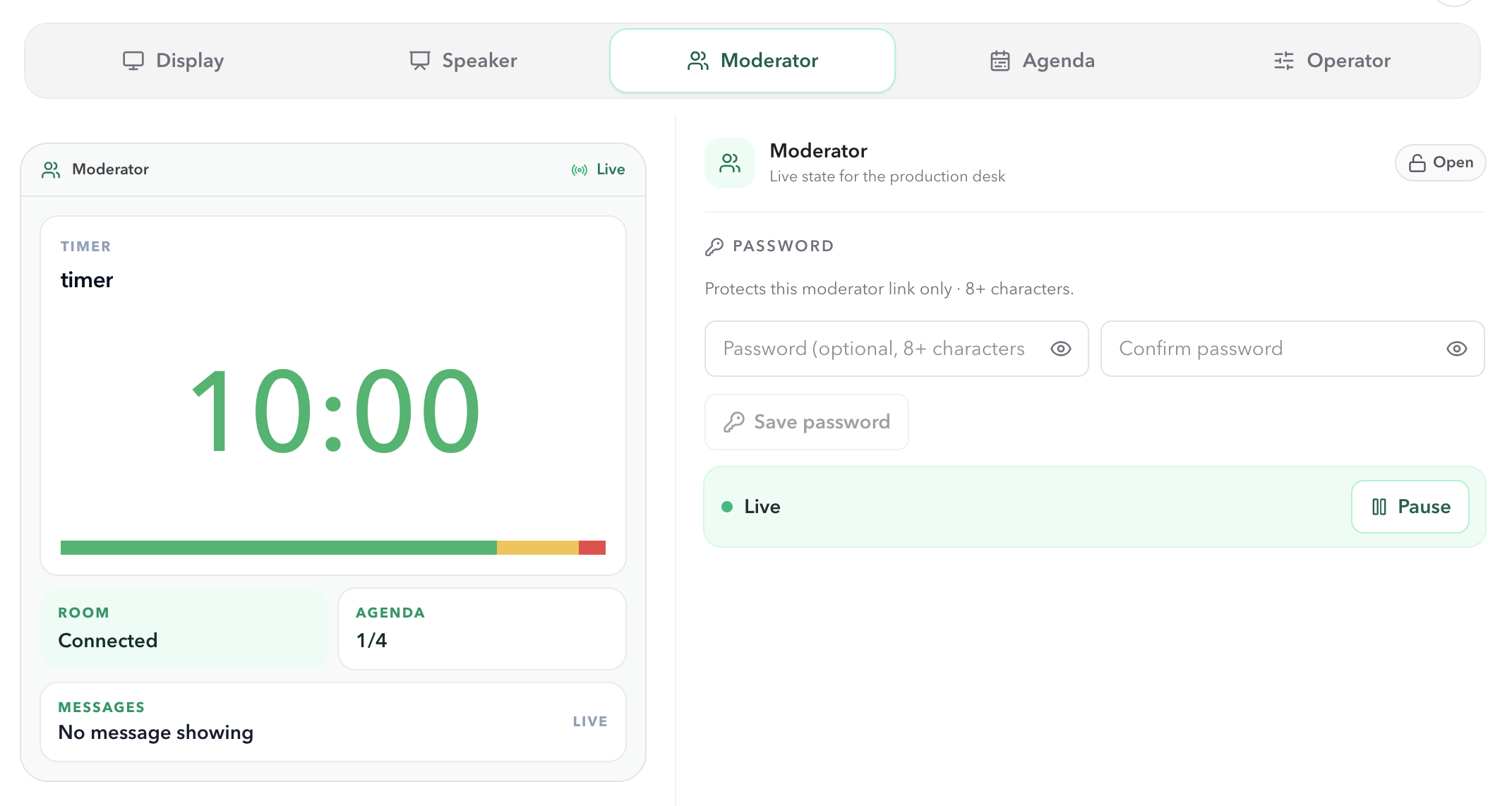
Open Moderator View from Host Outputs.
- 01
Keep the original Host link with the operator and choose Outputs in Host.
- 02
Select Moderator, then open the output or copy its link for the support person's laptop, tablet, or side monitor.
- 03
Leave the Moderator output open during the session. It follows the same Room as Host and does not need a separate timer setup.
Live timing
Read the current Timer and its start context.
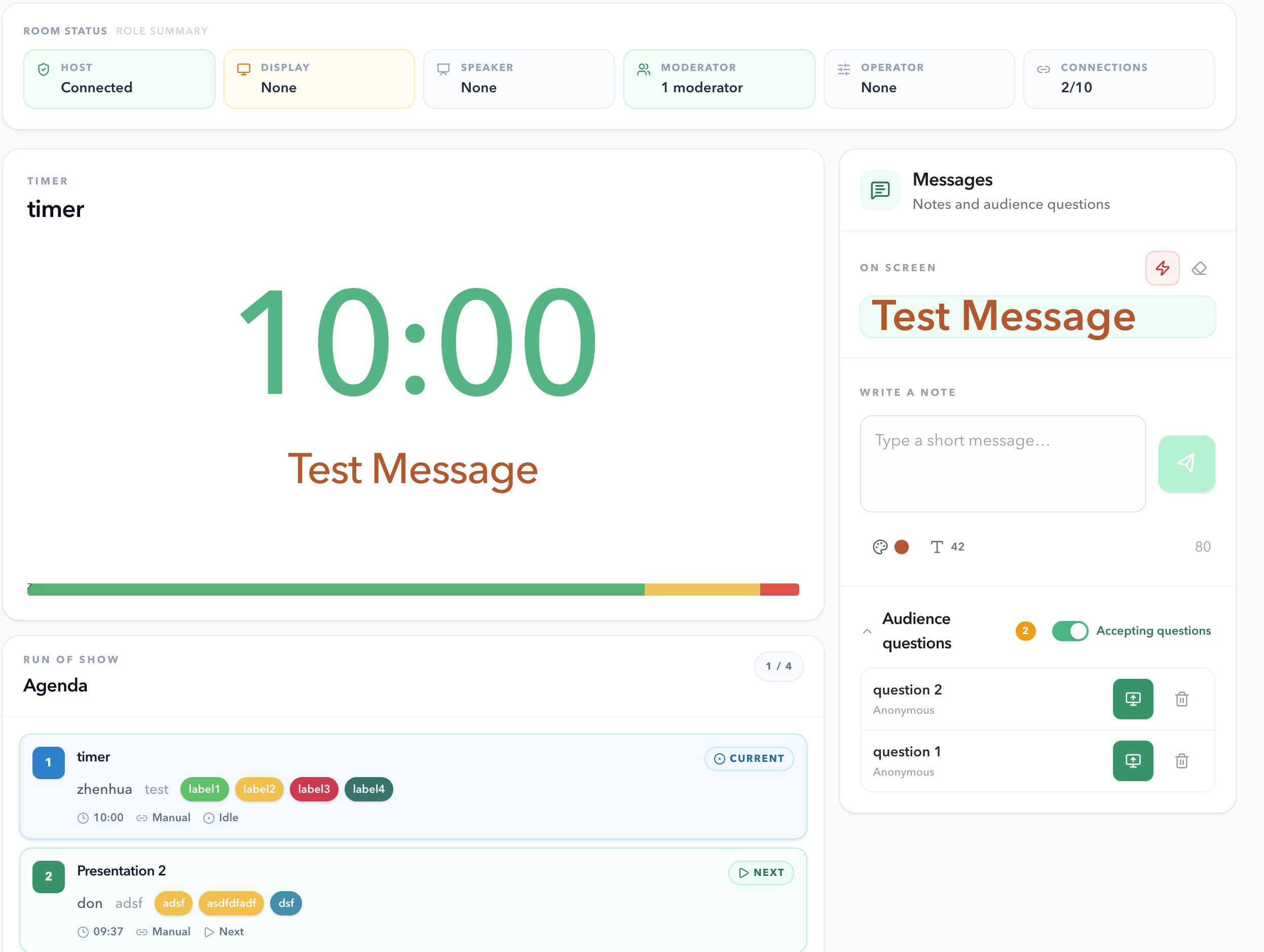
The main panel shows the active Timer name and its primary time value. It follows the time display chosen in Host: a countdown, count up, timer with Room time, or a Room clock. For timer displays, the large number changes from green when time is safe, to amber at the warning stage, then red at danger or overtime.
The Start field gives the moderator timing context. It shows the actual start after a manual Timer begins, the configured time for a Scheduled Timer, or Manual start when a manual Timer has not started yet.
Handoffs
Follow what is next without changing it.
The Next segment panel shows the following Timer's name and planned duration. If that Timer is Scheduled, it also shows the configured start time. This gives the support role time to prepare a handoff, cue the next presenter, or tell the Host about a problem.
Seeing the next segment does not select or start it. Host decides the live transition, including any Linked Start behavior.
Messages
Send a cue and make it visible.
The embedded Messages panel lets the moderator write a short note and send it to the shared Display. The same message is synchronized to the Host preview, Speaker, Agenda, and Moderator timer. A message can keep its own color and font size, so an urgent cue is easy to distinguish from the timer.
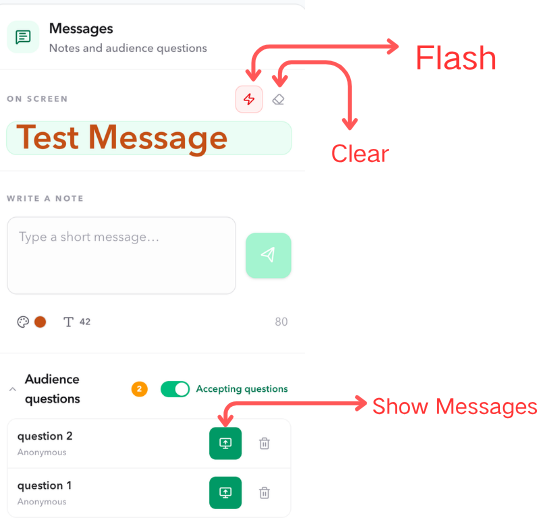
In On screen, use the lightning icon to start or stop a persistent message flash, and use Clear to remove the message from the shared views. The flash changes the presentation of the current message without changing the saved Room configuration.
Audience questions
Curate the questions the room sees.
Audience questions live inside Messages. The panel shows new and current submissions, the number of unread questions, and whether the room is Accepting questions. The moderator can pause submissions from this switch when the Q&A window is over.
- Show
- Select a question's monitor icon to place it on the shared Display. Only one question is current at a time.
- Hide
- Select the current question's monitor icon again to remove it from Display. It stays in the queue and can be shown later.
- Switch
- Show another question to replace the current one. The previous question remains available in the list.
- Delete
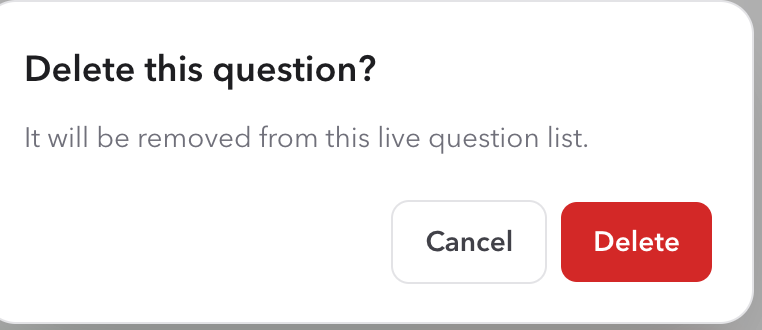
- Use the trash icon when a question should be removed from the live list. Confirmation prevents accidental removal; deleting the current question also clears it from Display.
Moderator can pause or resume question intake from the switch. Ask the Host operator for the public QR code or audience link when you need to share it with attendees.
Learn about Audience QuestionsRoom status
Monitor role and connection health.
The status badge summarizes whether the moderator can watch the Room normally, while the Role summary explains why. It reports Host, Display, Speaker, Moderator, Operator, and the current connection count.
- Watching
- Moderator is connected, Host and Display are present, and the Room is below its connection limit.
- Reconnecting
- The Moderator output is trying to restore its live Room connection.
- No host
- No Host device is connected. The Room has no active private controller to run it.
- No display
- No Display output is connected. The shared audience screen may be missing or disconnected.
- Room full
- The Room has reached its connection limit. Remove an unnecessary device before adding another one.
A health status reports a condition; it does not provide Moderator controls. Tell the Host operator what you see so they can resolve it.
Connection
Confirm that the moderator device is connected.
The Room Status row identifies whether Host, Display, Speaker, Moderator, or Operator is connected. Before the session, confirm the intended monitoring device is present and the connection count is below the Room limit. If an output becomes stale, ask the Host to reconnect or remove the unwanted device.
Troubleshoot sync and connectionsChecklist
Before going live
- The support person has the Moderator link, not the private Host link.
- The current Timer, Start field, and next segment match the Host workspace.
- The Room status shows the expected Host, Display, and connected-device counts.
- The moderator has tested writing a message, changing its style, and using Flash or Clear.
- The moderator knows which question is currently on Display and when to show, hide, or delete one.
- The moderator knows when to pause or resume Accepting questions.
- The moderator understands how to report No host, No display, Reconnecting, or Room full to the Host operator.
- Any Room-wide message and intended role-targeted timer cues have been tested.
- The Host operator remains available to make every live timing change.
FAQ
Common Moderator View questions
Can a moderator control the Timer or edit the Room?
No. Moderator cannot start, pause, reset, adjust, or switch Timers, edit the Room, or manage Output Links. Host remains responsible for timing and Room settings. Moderator can manage live messages and audience questions from the Messages panel.
Can a moderator manage audience questions?
Yes. Moderator can accept or stop new submissions, show one question on Display, hide the current question by selecting its monitor icon again, or delete a question after confirmation.
What does Watching mean?
Watching is the healthy monitoring state: Moderator View is connected, the Room has a Host and Display, and the Room is not at its connection limit.
What do No host, No display, Reconnecting, and Room full mean?
They identify what needs attention: a missing Host, a missing Display, an output that is reconnecting, or a Room that has reached its connection limit. Communicate with the Host operator rather than trying to change the Room from Moderator View.
Why does the Start field say Manual start?
A manual Timer that has not started yet has no clock time to report. Moderator View shows Manual start until the Timer starts; Scheduled Timers show their configured start time.
How is Moderator View different from Speaker View?
Speaker View is a personal pacing cue for the presenter. Moderator View is a backstage workspace with live message and audience-question controls, plus the current Timer, agenda, and connection summaries.