BlogGuides13 min read
How to Fix a Late Event Schedule Without Rewriting the Plan
The countdown reads 04:58. The next speaker is already waiting at the side of the stage, and the event is twelve minutes behind.
A countdown answers one question: how much time is left in this segment. It does not answer the host's real question: will the whole event finish on time?
Host now answers that question in a bar called Activity timing, added in October 2026. It compares the show's planned finish with a live estimate, labels the difference OVER, UNDER, or ON TIME, and lets you spread a single correction across several selected timers. You can undo that correction later without rewriting the plan.
This guide walks through the new controls and the decisions behind them. The screenshots come from a real local Host room, not mockups. "Fieldwork Sessions" is an example name.
The useful distinction: a countdown times one segment. Activity timing times the whole show.
End of show, Estimated, and the difference
The Activity timing bar sits above the Host timer list. It shows two clock times and a status:
| Label | What it means | Where it comes from |
|---|---|---|
| End of show | The planned finish of the last timer | Planned start plus planned duration, or its fixed target time |
| Estimated | The finish projected from live timing | Actual starts, pauses, and remaining time |
| Difference | Estimated minus End of show | Shown as OVER, UNDER, or ON TIME |
End of show is part of the plan. If the last timer is planned to start at 13:50 and run 15 minutes, End of show is 14:05. It does not move when a speaker runs long.
Estimated is a live forecast. It appears after timing starts, and it moves as the session changes. It is not a recorded finish, and it is not a promise.
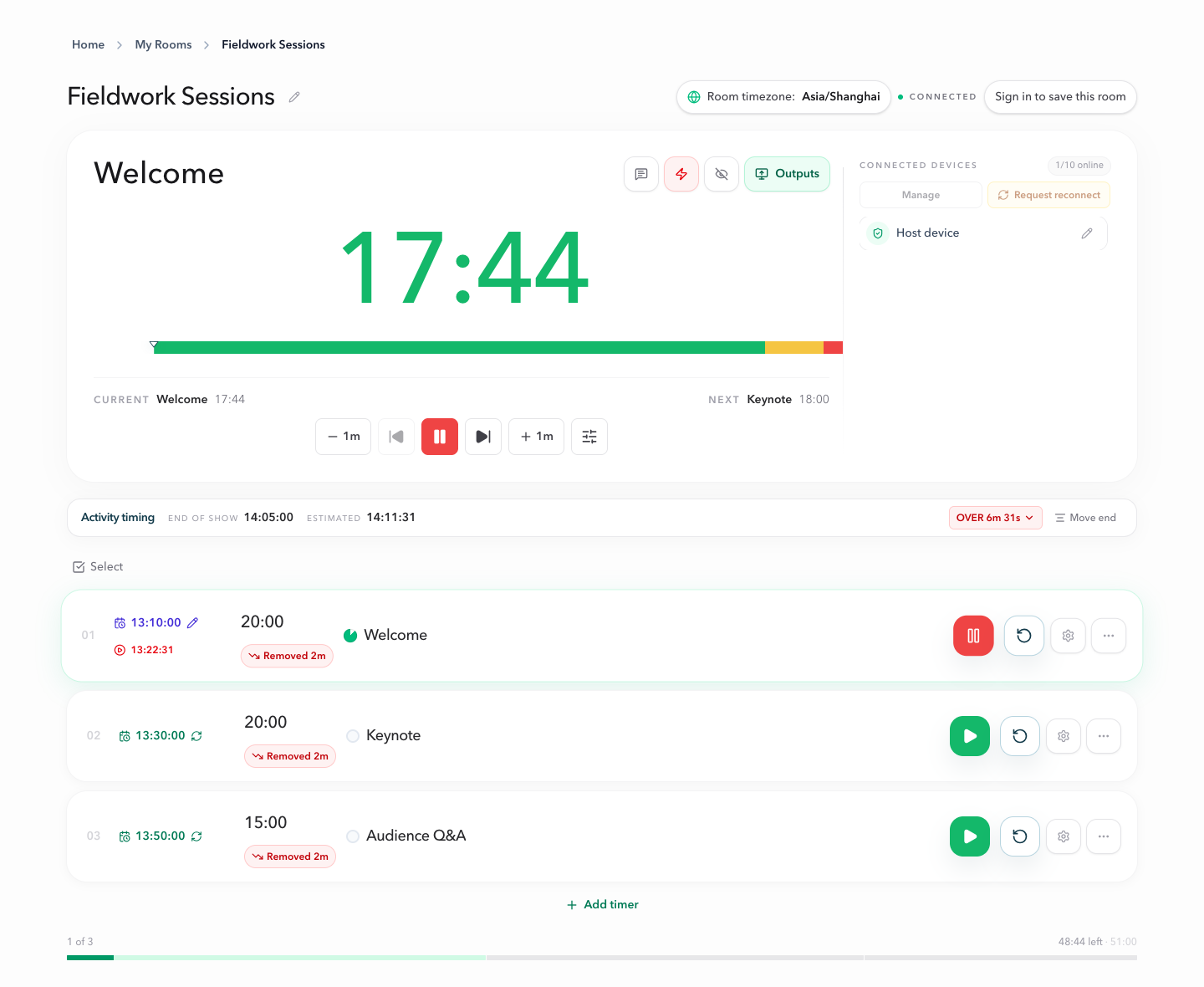
Nothing changes until you press Apply. Opening the bar, reading the difference, and closing it again is always safe.
Read OVER, UNDER, and ON TIME
The status compares Estimated with End of show. A difference under one second counts as ON TIME.
- OVER: the forecast is later than the plan. The show is running long, and a correction shortens the remaining timers.
- UNDER: the forecast is earlier than the plan. You have room, and a correction extends the remaining timers.
- ON TIME: the two finish times match within a second.
- Waiting: there is not enough information to compare, usually because no timer has started or the last timer has no planned start.
OVER is the common case. It does not mean the countdown is wrong. The countdown can be perfectly accurate while the event is late. A late start, a long pause, or a segment that ran over moves the estimate, not the segment clock.
If a room has no planned starts, Activity timing still shows Estimated once timing starts. It just cannot show OVER or UNDER, because there is nothing to compare against.
What moves the estimate
Estimated follows the same live room state that every output uses. These events change it:
- Starting a timer records its actual start.
- Pausing a duration timer keeps the remaining time while the event clock continues. The estimate moves later.
- Adding or removing remaining time, including dragging the progress bar, changes what comes after.
- Starting the next timer replaces the projection with the new actual start and remaining time.
- Waiting at zero continues to count. An estimate does not stay frozen at a time that has already passed.
- Time Warp uses the real remaining time, not the faster or slower presenter countdown.
- A fixed target end stays fixed across pauses. If the forecast places its start after the deadline, treat that as a conflict instead of a usable slot.
Scheduled and Linked starts control how a timer starts; they do not decide what the schedule says. Activity timing never moves a scheduled trigger or a planned start. It changes live timing only.
The companion guide, how to keep a meeting on schedule, goes deeper into planned starts, actual starts, and estimates. The Planned Starts and Live Estimates documentation defines the four times precisely.
Choose: wait, correct, or move the end
When the status is not ON TIME, you have three reasonable responses:
- Wait. A small difference often resolves itself during the next segment. Not every minute of drift needs an action.
- Correct. Share the difference across the timers you choose. Use this when the plan is still achievable but the remaining segments need to be shorter or longer.
- Move end. Change the last timer's planned finish to match the current estimate. Use this when the original finish is no longer realistic and the plan should follow reality.
Correcting is a live adjustment; moving the end edits the plan. Keeping those two ideas separate is the point of the next two sections.
Correct several timers in one action
Click the status button. Host opens the Shorten timers or Extend timers panel with every adjustable timer already selected.
- Each row shows the timer name, the share of the correction it will receive, and the time it has available. A started timer shows its remaining time; an unstarted timer shows its full duration.
- Timers with a fixed target end appear as Fixed with a lock. They cannot absorb a live correction, because their finish time is the constraint.
- The footer shows Total change. When shortening cannot be fully absorbed by the selected timers, Host also shows Still to remove, so select more timers or expect a smaller result.
- Press Apply. Host sends one command, the room updates once, and every output follows.
The correction is shared across the selected timers and respects each one's available time. If a timer runs out of room, the rest is shared by the others. Shortening can reduce a timer to zero; extension has no upper limit at this level.
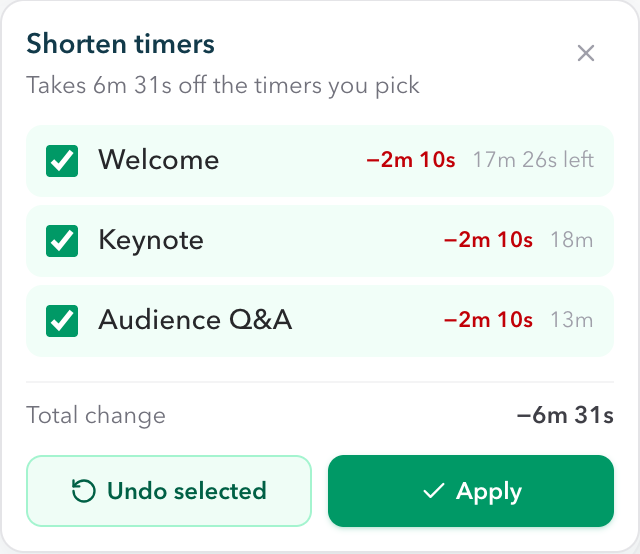
What Apply does not do: it does not rewrite your saved durations or planned starts. The panel is a live correction layer. Reset the timer, or save new duration settings, and the correction is cleared. Saved room snapshots leave the correction out. If you want the plan itself to change, use Move end or edit the timer directly.
Undo a correction without rewriting the plan
Each corrected timer shows a small marker beside its duration, such as Removed 2m or Added 1m. Click the marker to see what the timer will look like after undoing the whole change. Host shows Time left after undo for a started timer, or Duration after undo for one that has not started. Press Undo change.
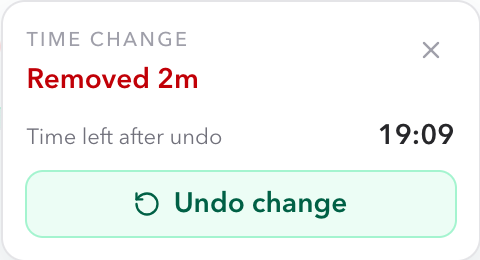
To undo several corrections at once, open the Activity timing panel and choose Undo selected. Host reverses each selected timer's whole net adjustment in one atomic command. It checks the adjustment revision first, so if another Host device changed the same timer in the meantime, the undo is refused instead of silently doing the wrong thing.
A few limits are intentional:
- Undo reverses the timer's whole net correction, not one step at a time.
- A timer that has already finished shows Timer finished, and its undo button is unavailable.
- Reset or a new duration setting clears the correction and its undo history.
- Undo near the end can reduce a running timer to
00:00. There is no partial undo, so check Time left after undo first.
If you only need to fix one timer, the standard live controls are still there: the -1m and +1m buttons, setting remaining time, or dragging the progress bar. Those change remaining time without recording an Activity timing adjustment. The Host view documentation covers them.
Move end: when the plan should follow reality
Sometimes the plan is the thing that is wrong. If a show will genuinely finish 18 minutes later, pretending otherwise keeps the difference red for the rest of the day.
Move end sits next to the status. It rewrites the last timer's planned finish to the current Estimated time. Only that timer's plan changes; earlier planned starts and other timers are untouched. The result is a new End of show that matches reality.
Move end checks the plan revision first. If another device changed the plan, Host refuses with "The plan changed. Reopen Activity timing and try again." It also needs a planned start on the last timer, and the new duration must be at least one second. For a Time Warp timer, the presenter-to-real ratio is preserved and checked against the allowed range.
Two details are easy to miss. Move end is part of the Pro scheduling tools, which the pricing page lists. It also does not clear existing live corrections. Markers stay on the cards, and undoing one can reopen a difference after the plan was aligned.
Who holds the Host link
Activity timing is a Host control. It appears in the private Host workspace, next to the timer list and the connected devices.
- Host: reads the bar, applies corrections, undoes them, and can use Move end.
- Operator: has live timing controls, including quick remaining-time adjustments, but not the Activity timing panel.
- Display, Speaker, Moderator, and Agenda: remain read-only. They follow the same room, so a correction reaches them, but they cannot change the schedule.
Keep the Host link private. If a presenter or producer needs to watch the schedule, share the Display or Moderator link instead. Activity timing is not a place to let everyone edit the plan; it is the host's answer to whether the room is going to finish on time.
For a multi-session program, the same pattern applies room by room. The conference timer and meeting timer walkthroughs cover the surrounding setup.
When something goes wrong
- Waiting instead of a status. No comparison is available. Check that at least one timer has started and the last timer has a planned start.
- A timer cannot be selected. A target-time timer is Fixed. Adjust the segments around it, or use the target end as the constraint.
- An update is refused as "already changed". Another Host device changed that timer's correction. Reopen the panel and read the current state.
- An update cannot be confirmed. Host retries after reconnecting and reports if it cannot confirm. Check the card marker before trying again.
- The estimate looks too late. Confirm the room timezone, then check for a paused timer or a fixed target end that the forecast has already passed. The gap and overlap guidance may explain the rest.
- The correction is not enough. Select more timers, or use Move end when the plan no longer fits. Do not keep shortening a timer that already has no time left.
If the Host device itself fails, open the same Host link on another device you control. The room keeps running, and its timing state, including corrections, stays with it.
A short routine for the producer
Before the session:
- Set the first planned start and check the following starts.
- Compare End of show with the real program.
- Confirm the room timezone.
While the room runs:
- Check the difference after each segment, not after every minute.
- Choose one response: wait, correct, or move the end.
- Undo any correction that does not help. A clear row of markers is easier to read than a pile of small edits.
After the session, compare what you planned with what happened, then adjust the next run of show. The planned starts guide explains how the estimate responds to the live room.
FAQ
Does correcting the schedule change my saved plan?
No. Apply changes live timing only. The saved durations and planned starts stay as they were. Reset or saving new timing settings clears the correction. Move end is the one control here that edits the plan, and it only edits the last timer's planned finish.
Which timers can absorb a correction?
Any timer that does not have a fixed target end. Shortening is limited by each timer's remaining time, or by its full duration before it starts. Extension has no upper limit. Timers with a fixed target end show Fixed and are skipped.
What does ON TIME mean?
Estimated is less than one second away from End of show. The status compares the finish of the whole show, not the current countdown.
Why is Estimated missing?
Estimated needs a live forecast. Before any timer starts there is nothing to project. It can also be missing when the last timer has no forecast, such as a missed scheduled start or a fixed automatic start that would interrupt it.
Can I undo after a timer has finished?
No. A finished timer shows Timer finished and cannot be undone. Undo works while the timer is still current. Reset or a new duration setting also clears the correction.
Does Activity timing require Pro?
Apply and Undo are available in every room. Move end, like the other scheduling controls, is part of Pro.
Try it with your next session
Set a planned start, run the room, and watch the Activity timing bar during the first handover. You will see the difference between a countdown that is correct and a schedule that is not.
Create a free timer room and add two or three timers to try a correction. For the complete field definitions, read Planned Starts and Live Estimates.