BlogGuides11 min read
How to Keep a Meeting on Schedule with a Presentation Timer
A countdown can say 05:00 while the meeting is already eight minutes late. It tells the speaker how much time they have, but it does not tell the host whether the next presentation will start on schedule.
That second question needs a meeting plan and a live comparison. In PresentationTimer, you can set planned starts for each segment, then follow what actually happens without rewriting the timetable every time someone pauses the clock.
This walkthrough uses a simple twenty-minute meeting: Opening, Presentation, and Q&A. The screenshots come from a real Host room, not mockups. They show both the prepared plan and the same session after a late start and a pause.
The useful distinction: Plan is your intended start. Actual is when a Timer first started. Expected is a forecast for what comes next. Scheduled is an automatic start setting, not another name for the forecast.
Start with a small meeting plan
Suppose the meeting should start at 16:30 and finish at 16:50:
| Segment | Duration | Planned start |
|---|---|---|
| Opening | 5 minutes | 16:30 |
| Presentation | 10 minutes | 16:35 |
| Q&A | 5 minutes | 16:45 |
Create one Timer for each segment in Host, put them in that order, and set their durations. There is no need to enter every start separately.
Click Set plan on the Opening card, leave the start mode as Manual, and enter 16:30:00. You can type hours, minutes, and seconds or use their dropdown arrows. Save it.
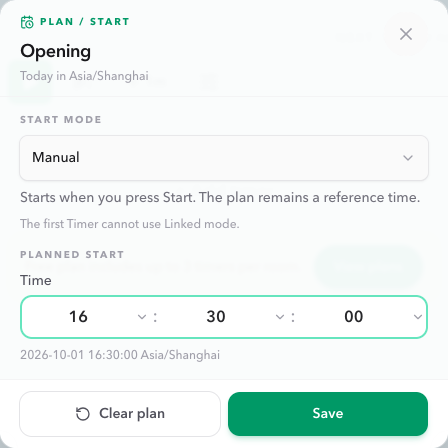
Presentation now has a Plan start of 16:35, and Q&A follows at 16:45. The Plan end below the final card is 16:50.
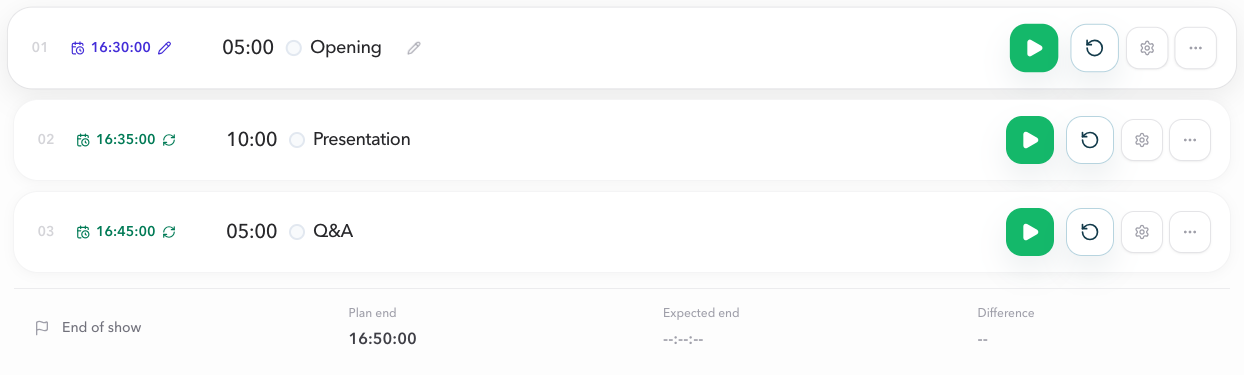
For Duration Timers, each following planned start is the previous planned start plus the previous planned duration. Change Opening to six minutes and Presentation moves to 16:36; Q&A moves to 16:46. The meeting's planned finish moves too.
A pencil beside a time means you entered it. Circular arrows mean it was calculated. Neither is a lock: changing an earlier planned start or duration also recalculates later starts that you previously entered yourself.
Check the Room timezone before preparing the schedule. If you need the full setup steps, use the planned starts guide.
Choose a start mode without confusing it with Plan
For a discussion or a speaker handoff, Manual is a useful starting point. The Plan tells you when the segment should begin; the operator still decides when to press Start.
There are two other choices in the same Plan / Start window:
- Scheduled starts at a configured clock time. Saving that shortcut in Scheduled mode uses the entered time for Plan and the automatic start. Host displays the Scheduled time separately.
- Linked starts after the previous Timer finishes. It is useful for a continuous sequence that you have rehearsed, and is unavailable on the first Timer.
A new Expected time does not move a Scheduled trigger. If a talk is running late, the forecast is information for the host, not permission to silently change an automatic start.
Explicit planning edits can move a Scheduled time that follows the plan, so check its separate clock row after changing the timetable. For the different handoff behaviors, read Linked Start.
What changes when the meeting starts late?
In the live example, Opening was planned for 16:30 but actually started at 16:38:17. Its five-minute countdown can still be correct. The meeting itself is already behind.
Host keeps the original Plan time and adds the Actual start below it. Once timing has started, it also calculates the upcoming starts and the expected finish from live remaining time.
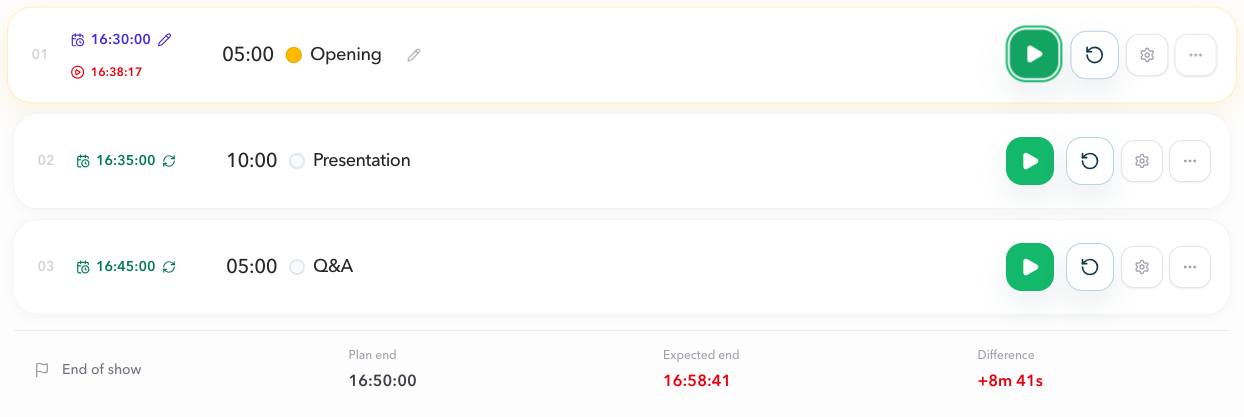
The later cards stay quiet when you are not inspecting them. Hover the Presentation card and its Expected time appears inside the card. Hover that time to see how early or late it is compared with Plan.

Keyboard focus also reveals the estimate. On a touch screen, tap the card and then the time to inspect it.
The live screenshots were captured moments apart while Opening was paused, so their Expected values advance slightly. They are snapshots, not fixed appointments.
A paused countdown is not a paused meeting
If you pause a Duration Timer for a microphone check, its remaining time stops decreasing. The event clock does not stop.
Expected times reflect that. While paused, the forecast assumes you resume now with the remaining time still to run. Presentation, Q&A, and the expected meeting finish move later as the pause continues.
The same principle covers other everyday interruptions:
- Add or remove remaining time: the following estimates update. A live correction does not by itself change the saved planned duration.
- Reach zero and wait: waiting still counts. The next expected start does not remain stuck at a time that has already passed.
- Start the next segment: its real start and remaining time become the new basis for the following estimates.
- Select another segment: the projection can change because you have changed what comes next.
There are two timing modes worth checking separately. Time Warp uses real remaining time for the forecast, not the faster or slower countdown shown to the presenter. Target time keeps its fixed end deadline across pauses; it does not extend the deadline just because a Duration Timer would.
If a forecast places a Target-time segment's start after its deadline, review the conflict. A timestamp on a card cannot make that slot usable.
Read the finish, not just the next start
Below the last Timer, End of show compares the whole meeting:
- Plan end: the final Timer's planned finish.
- Expected end: the finish projected from current live timing.
- Difference: how far Expected end is ahead of or behind Plan end.

A positive difference means late, a negative difference means early, and On plan means the two times match.
That is a practical decision point. You can resume the current segment, make an agreed live time correction, or deliberately revise a later slot. The forecast helps you see the consequence; it does not choose the response for you.
Expected end is not a recorded actual finish. Before any Timer starts, it is empty. Without a planned end, there is no early or late difference to compare. See the meeting-end explanation for the details.
Handle a planned gap without a complicated scheduling tool
Live delay and a gap in the prepared plan are different problems.
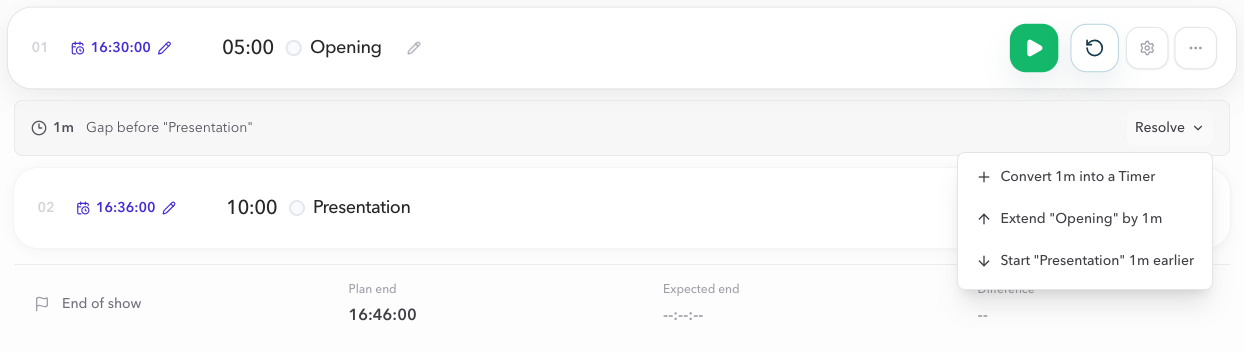
Suppose Opening is still planned to end at 16:35, but you manually change Presentation's Plan start to 16:36. You have created a one-minute gap. Its following Timers recalculate from 16:36, and Host shows a slim strip between Opening and Presentation.
Click Resolve. The menu describes the result directly:
- Convert 1m into a Timer if the minute should be an explicit Interval.
- Extend Opening by 1m if Opening should fill the space.
- Start Presentation 1m earlier if you want it back at 16:35.
If Presentation is set to 16:34 instead, it overlaps Opening by one minute. The menu offers two appropriate changes: shorten Opening by one minute or delay Presentation by one minute.
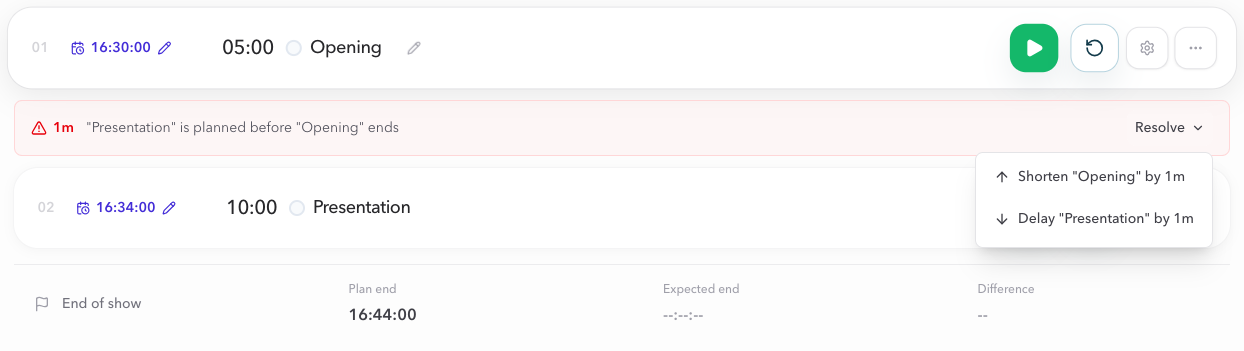
You can also do nothing. Close the menu and keep the gap or overlap; no adjustment happens automatically. Live estimates retain the planned spacing.
When you choose a resolution, the later planned starts recalculate. Review Plan end afterward: extending a slot or moving a start does not guarantee the meeting will still finish at its old planned time.
Resolve is for adjusting the plan, not for erasing an Actual start or automatically recovering live delay. Actions that would alter an already started Timer's plan require a reset, so prepare these changes before the session when possible. The gap and overlap guide explains each option.
A simple routine for the timekeeper
Before the meeting, check the timezone, segment order, first Plan start, and Plan end. Choose Manual, Scheduled, or Linked deliberately. Rehearse any automatic handoff.
During the meeting, use three questions:
- What was the plan? Read the saved Plan time.
- What happens next now? Inspect the upcoming Expected start.
- Where will we finish? Read End of show and Difference.
Keep Host with the timekeeper and put Display view on the screen the speaker or audience needs. If another person is running the clock from a phone or tablet, use Operator view for live controls.
For a larger program, prepare the running order in Agenda Studio. For a smaller meeting, the Host cards are enough to build the plan and compare it with the session as it runs.
FAQ
Does setting a planned start make the Timer start automatically?
No, not in Manual mode. You still press Start. Scheduled uses a configured clock time; Linked follows the previous Timer's finish. Plan and the start behavior answer different questions.
Can a manually set start stay fixed when I change an earlier segment?
It is not locked. Editing an earlier planned start or duration recalculates later starts, including manually entered ones. Review the later cards and Plan end after a change.
Can I leave a gap or overlap unresolved?
Yes. Close Resolve without choosing an action. The strip stays visible, and the projection retains the planned spacing. You only need to change it when you want a different plan.
Will pausing change the automatic Scheduled start?
The live forecast does not change a Scheduled trigger. A pause moves Duration and Time Warp estimates later, while Target time keeps its deadline. Explicit planning edits are separate and may move a Scheduled time that follows the plan.
Can I see expected times without creating a plan?
Yes. Once timing has started, Host can project upcoming starts and the finish from live timing. Without planned times, there is no Plan comparison.
Try it with your next meeting
Start with three segments rather than a long, tightly packed agenda. Set one planned start, check the calculated sequence, then rehearse Start, Pause, and a live time correction.
Create a free timer room, or follow the complete Planned Starts and Live Estimates documentation.