BlogGuides7 min read
How to Use Time Warp on a Presentation Timer
A ten-minute talk on the confidence monitor does not have to occupy ten minutes on the rundown. Some speakers always run long. Some sessions fall behind and need to recover a few minutes without putting a shorter number in front of the presenter. Time Warp is for that gap: the room still uses one live clock, but that clock can run faster or slower than wall time.
This guide shows how to set it up in PresentationTimer. Time Warp is experimental. It is a timing mode on a Duration timer, not a second clock on stage.
Quick answer:
- In Host or Plan, open the timer settings and set End to Time Warp.
- Enter the real duration the agenda should occupy, then the presenter duration the speaker should see. Speed is derived from those two times.
- Every live screen shows only the presenter clock. Host and Plan label it as presenter time times speed, such as
10:00 × 1.25. - Use it to catch up a late show, or to give a habitual overrunner a calmer-looking countdown that still ends on time.
What Time Warp changes
A normal Duration timer has one length. Time Warp has two:
| Field | What it controls |
|---|---|
| Real duration | How long the agenda slot actually occupies. Linked Start, overlap checks, and the next segment still use this. |
| Presenter duration | The countdown Host, Speaker, Display, and the rest of the room show. |
| Speed | Presenter duration divided by real duration. You can type it, but the two durations remain the stored values. |
The live example in this article is an eight-minute slot that looks like ten minutes on stage:
- Real duration
8:00 - Presenter duration
10:00 - Speed
1.25
The speaker starts at 10:00. Each real second removes about 1.25 seconds from the on-stage clock. When the real eight minutes are gone, the presenter clock is at zero too. Host does not show a second remaining-time number. It writes the presenter length and the speed on one line: 10:00 × 1.25.
Yellow, Red, and Overtime follow the presenter remaining time, because that is the clock people are watching. Start still follows the real start.
When Time Warp helps
Use it when the on-stage number and the rundown number should not be the same.
- A speaker who always overruns. Give them a longer-looking countdown so zero arrives while the slot is still intact.
- A session that is already late. Recover a few minutes on a later talk without putting a harsher duration in front of the presenter.
- A talk that finishes early. Slow the on-stage clock so the segment still fills its booked time.
- A rehearsal cue. Keep the published agenda at the real length, and let talent rehearse against the presenter clock.
Do not use it when the constraint is a wall-clock deadline. A keynote that must clear the stage at 10:30 should use Target time, not Time Warp. Time Warp also cannot sit on top of Target time.
Turn on Time Warp
Open the timer in Host, or open the same settings from Plan. Under Duration, change the end mode from Duration to Time Warp.
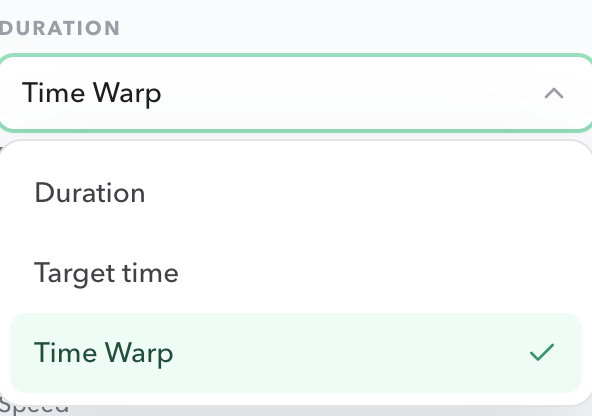
The fields under the menu become Real duration, Presenter duration, and Speed. Change any one of them; the other two follow. Speed must stay between 0.1x and 20x, including both ends. If presenter duration equals real duration, PresentationTimer stores the timer as a normal Duration timer at 1x.
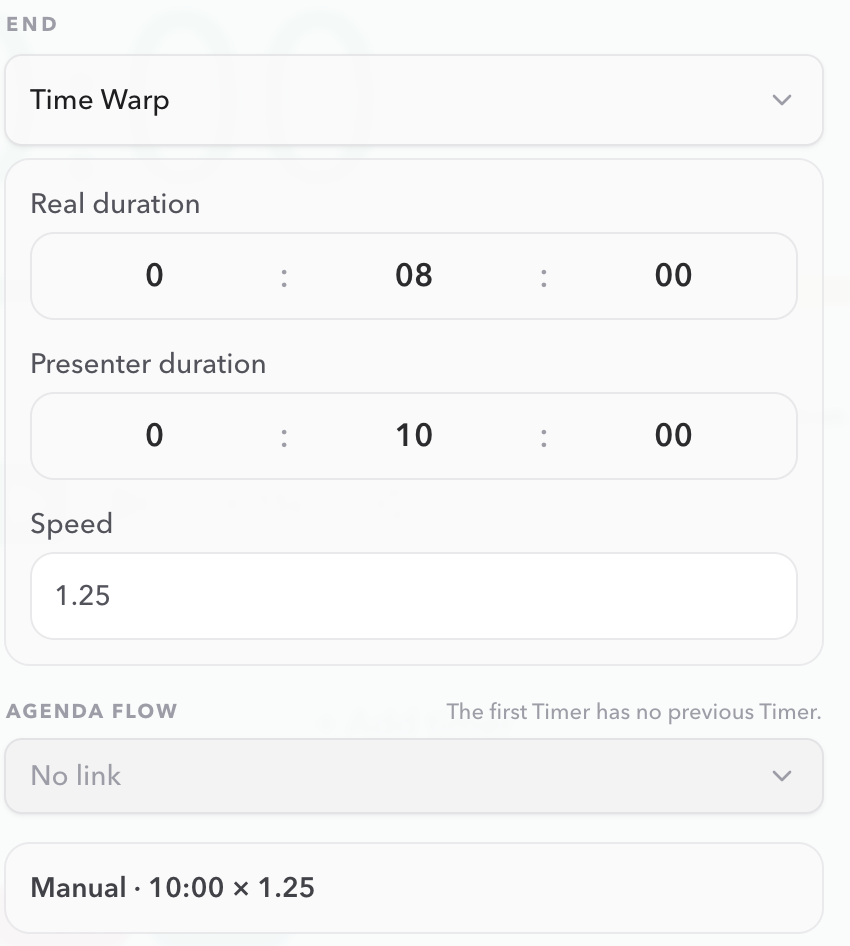
Save the timer. You do not need a separate display setting. Speaker, Display, Operator, Moderator, and Agenda all follow the presenter clock.
What Host shows
Host keeps one large countdown, and that countdown is the presenter clock. The extra information is the 10:00 × 1.25 label, so the producer can see that the on-stage time is warped.
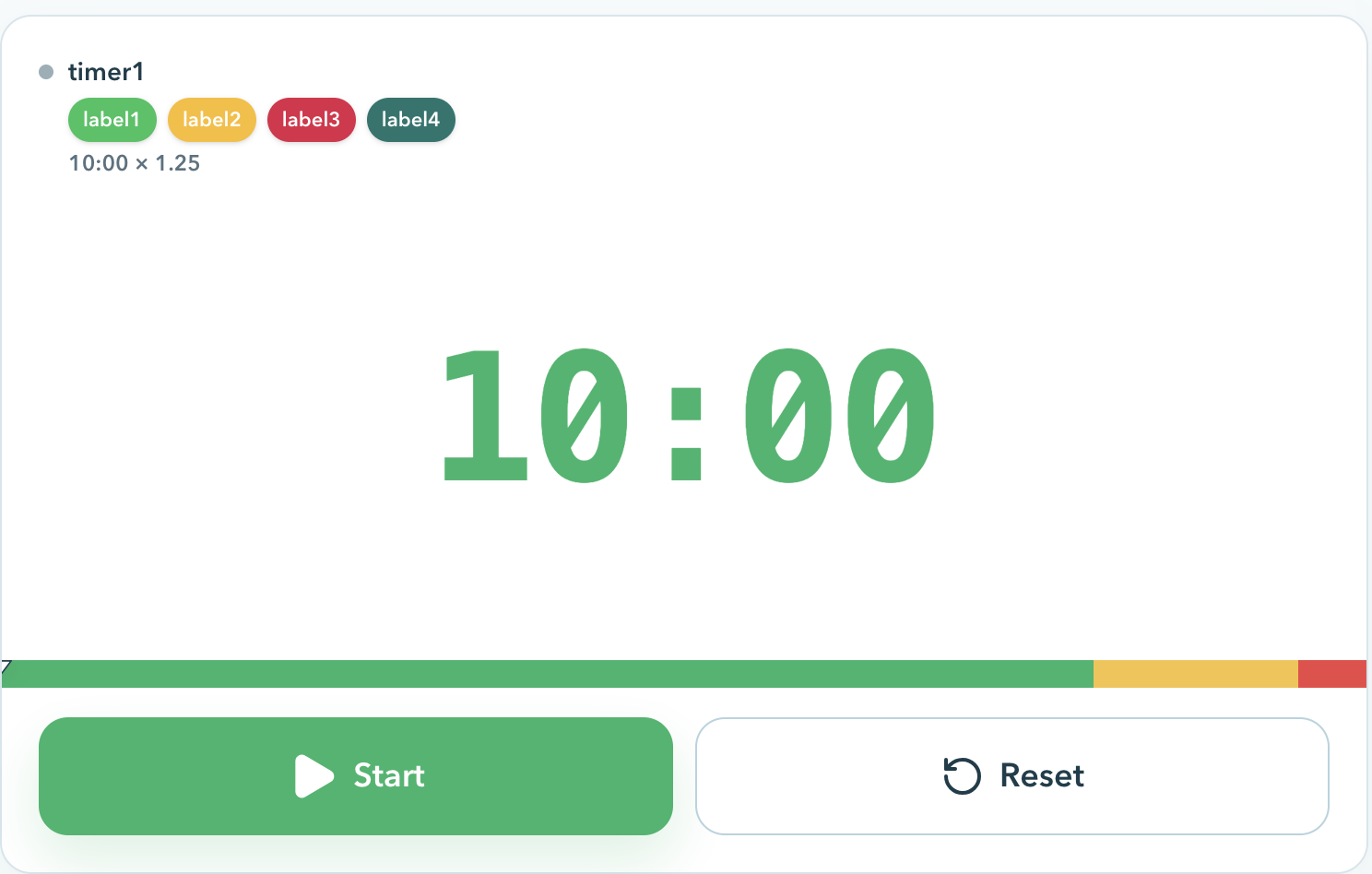
Speaker View and Display stay cleaner: they show the presenter countdown, not the speed. Put Display on the projector or confidence monitor, and keep Host on the timekeeper's laptop.
You can change Time Warp while the timer is running. PresentationTimer updates the live clock instead of forcing a reset. That is useful when a talk needs to stretch or compress after it has already started. Changing Target time or a scheduled start still resets the timer.
What Plan shows
Plan uses the same timing. The timeline row shows presenter duration and speed, so the rundown and the live Host card do not disagree.

CSV export keeps duration as the real slot. Presenter duration is a separate column. A file with no presenter duration imports as 1x.
Common mistakes
- Warping a hard stop. If the room must empty at a published clock time, use Target time.
- Reading Yellow as real remaining. Yellow at
2:00means two presenter minutes left on the clock people can see. - Putting Host on the projector. The speed label is for the producer. Display and Speaker are the public clocks.
- Stacking Time Warp on Target time. The end mode is one choice: Duration, Time Warp, or Target time.
- Using an extreme speed by accident. 0.1x and 20x are allowed. Anything outside that range is rejected.
FAQ
What is Time Warp on a presentation timer?
Time Warp gives one timer two lengths: the real agenda slot, and the countdown the speaker sees. The live screens show only the presenter clock, which can run faster or slower than real time.
Does the audience see a different clock than the speaker?
No. Host, Operator, Display, Speaker, Moderator, and Agenda all show the presenter countdown. Host and Plan also show the speed, such as 10:00 × 1.25. Display and Speaker do not.
Can I change Time Warp during a live talk?
Yes. Changing Duration or Time Warp on a running timer updates the live clock without a reset. Use Host remaining-time adjustments for a small correction; open settings when the presenter duration or speed should change.
What speed range does PresentationTimer allow?
From 0.1x through 20x, including both ends. Speed is presenter duration divided by real duration.
Should I use Time Warp or Target time?
Use Time Warp when the on-stage countdown should disagree with the real slot length. Use Target time when the segment must end at a specific wall-clock time.
Is Time Warp experimental?
Yes. It is available in Host and Plan timer settings, and it is marked experimental in the product docs. Rehearse it on the actual Speaker and Display links before you rely on it in front of an audience.
Next steps
- Read the timing modes in Timers and timing settings.
- Put the presenter clock on a projector with Display view.
- Give the speaker a private cue in Speaker view.
- If wrap-up should chime or flash against the presenter clock, see How to create an online timer with sound alerts.
- Timing a talk beside slides? See How to add a countdown timer to PowerPoint.
- Timing student presentations or class activities? See How to create a classroom timer.