BlogGuides11 min read
Free Speaker Timer With a Separate Display: What “Separate Display” Actually Means
If you put a standard web countdown on a projector and someone runs five minutes late, you have a problem. To add two minutes or pause the clock, you have to move your mouse onto the projected screen, open the settings, and edit the time in front of the whole room.
When people search for a free speaker timer with a separate display, that is usually what they are trying to avoid. They want the clock on one screen and the start, pause, and time-adjustment buttons on another.
In practice, "separate display" refers to one of three setups:
- A screen for the whole room (
Display View): a projector or wall TV that shows a large countdown to the audience and the speaker at the same time. - A private screen for the presenter (
Speaker View): a phone on the lectern or a floor monitor facing the stage, so the audience never sees the clock ticking down. - A window shared into a video call: a clean timer window or floating Picture-in-Picture clock for Zoom, Teams, or Google Meet.
All three work on a free browser room in PresentationTimer without creating an account or installing software. The only thing you have to plan around is how many screens need to stay connected at the same time.
Display View vs. Speaker View
Because both views are read-only links opened from the same room, it helps to know why there are two of them.
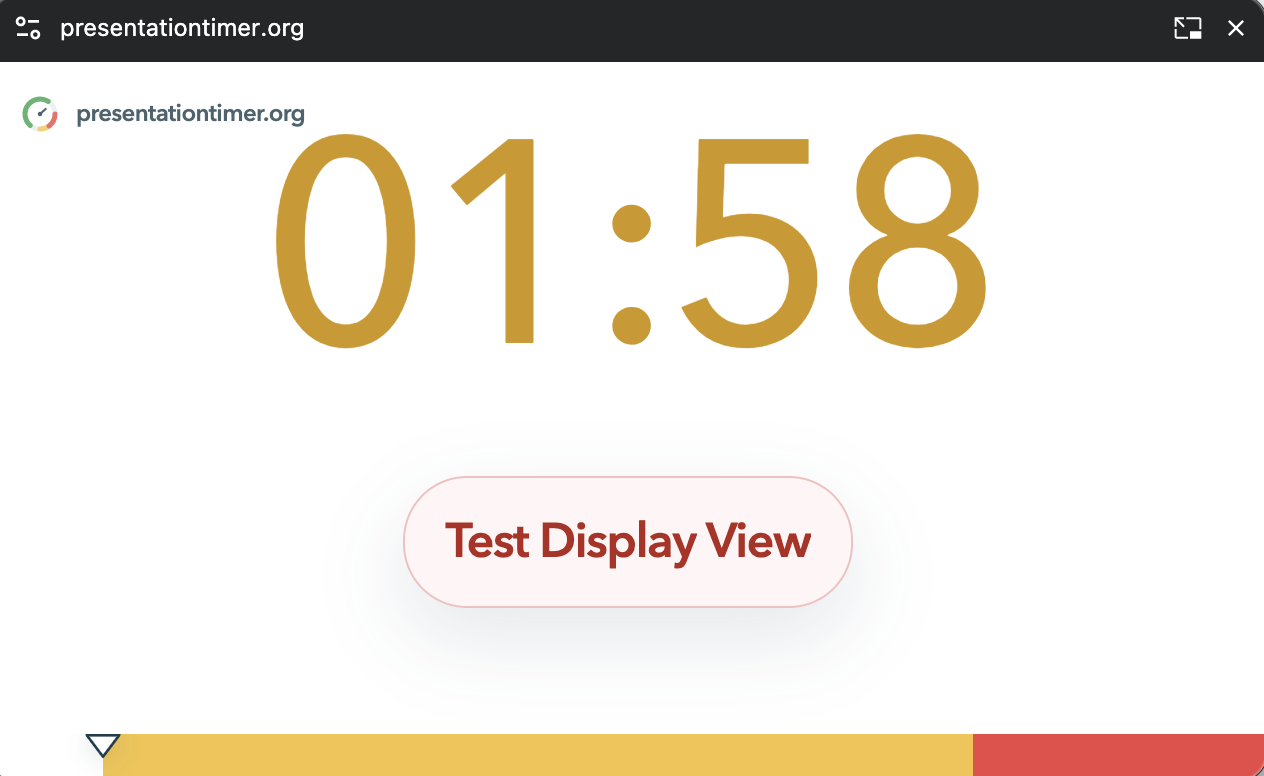
Display View is built to be read from twenty meters away. It strips away everything except the countdown digits, a bottom progress bar, wrap-up color changes (green, amber, red), and any live message the host sends to the screen. There are no buttons on the page, so nobody can pause or reset it from the display computer.
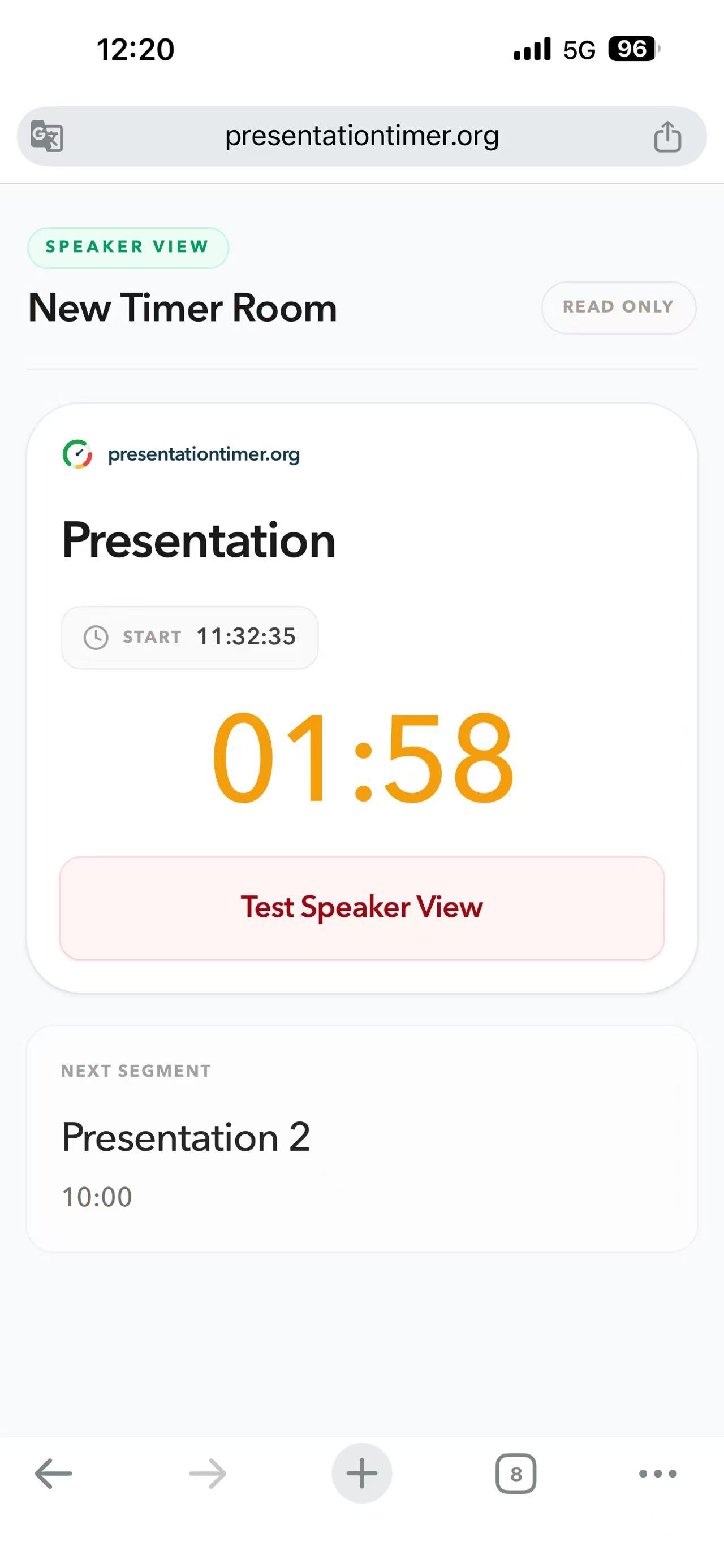
Speaker View is meant for a screen within arm's reach of the presenter, like a tablet on a podium or a laptop at the side of the stage. When the audience can see a public countdown hit the last thirty seconds, people stop listening to the talk and start watching the clock. Putting Speaker View on a private screen avoids that. It also shows the current segment title and the next segment on the agenda, so the presenter knows whether they are handing off to Q&A or another speaker.
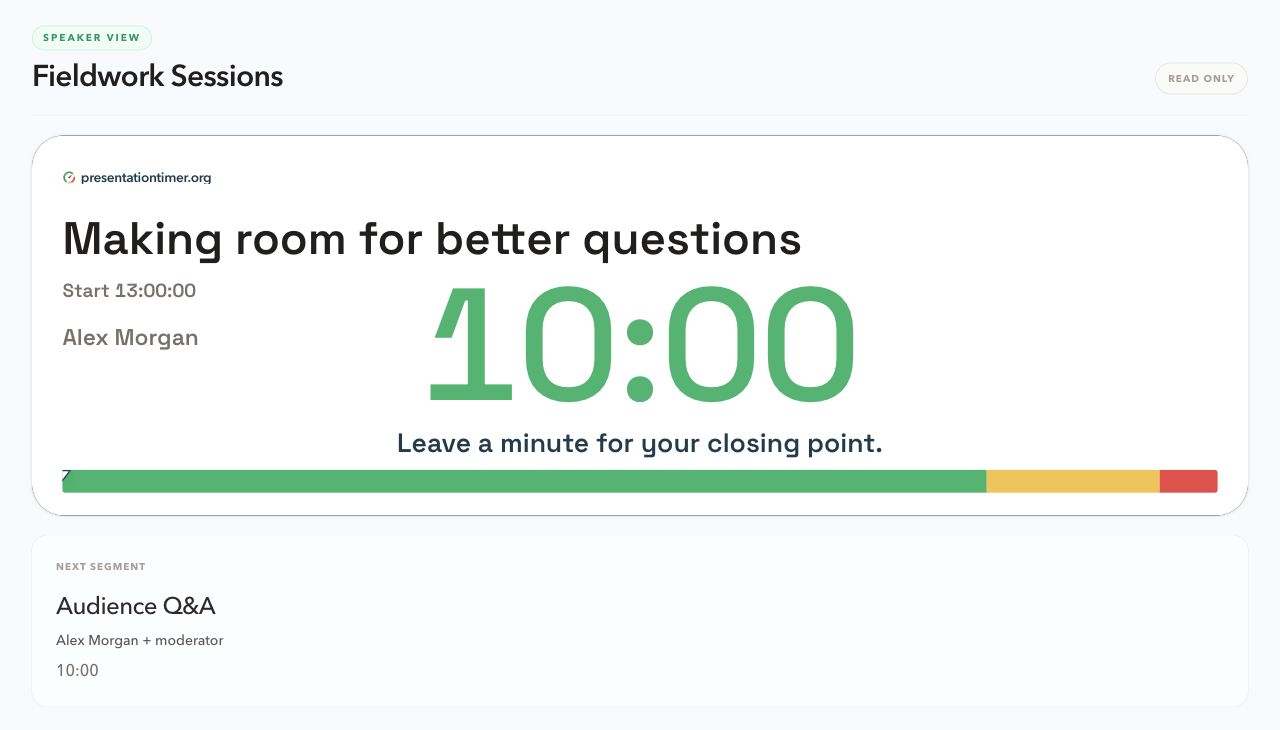
You do not have to pick one or the other. A common conference setup puts Display View on a downstage monitor and gives the moderator a separate view on a tablet, while the operator runs everything from Host at the back table.
Running two screens from a single laptop
You do not need two computers to get a separate display. If you have one laptop plugged into a projector or room TV over HDMI, you can run both the control panel and the public clock from the same machine:
- In your operating system's display settings, set the projector to Extend (Extended Desktop), not Mirror or Duplicate.
- Open PresentationTimer on your main laptop screen and create a room. Keep this Host tab on your laptop.
- Click Outputs, open Display in a new browser window, and drag that window onto the projector screen.
- Click the fullscreen button in the top-right corner of Display View.
Now your laptop screen has the play, pause, add-time, and message controls, and the projector shows only the fullscreen clock. Because both tabs connect to the same room, that setup uses 2 of the 5 device slots included in a free room.
If the presenter is also showing slides from the same computer, Display View includes a Picture-in-Picture button (in browsers that support Document Picture-in-Picture). That pops the countdown into a small always-on-top floating window that sits in the corner over windowed slides or a video call.
How free speaker timer options compare
If you are trying to time a session without spending budget, you generally have five options. Each one breaks in a different place.
| Option | Free limits | How control works | Where it falls short |
|---|---|---|---|
| PresentationTimer Free | 3 timers per room, 5 connected devices, 1 saved room | Private Host link controls read-only Display, Speaker, Moderator, Agenda, and Operator links | Runs in the browser only. No native desktop app, public HTTP API, or NDI output |
| Stagetimer Free | 3 timers, 3 connections | Controller view manages Viewer, Operator, Agenda, and Moderator links | Caps at 3 connected devices on the free tier; API requires a paid plan |
| Single-tab countdown sites (Google Timer, web stopwatches) | Unlimited | Buttons sit on the same page as the countdown | No separate display. Every pause or time edit is visible on the projector |
| Phone clock or stopwatch app | 1 device | Whoever holds the phone taps the screen | Cannot be adjusted once the speaker walks up to the lectern |
| Dedicated hardware timer (D'San Limitimer) | Paid hardware (rented or purchased) | Physical control console wired or paired to a signal light | Reliable without Wi-Fi, but costs money per room and requires cables or receiver setup |
Plan details for PresentationTimer and Stagetimer were checked in October 2026.
Between the two browser-based room tools, the practical difference on the free plan is the connection limit. When you open Host on your laptop (1), open Display on a projector (2), and hand the presenter a phone running Speaker View (3), a 3-connection limit is full. Having 5 connections on PresentationTimer Free leaves room for a session chair or a second screen without kicking an existing device offline.
On the other hand, if you are running a broadcast studio that needs a native offline desktop app, Stream Deck buttons over an HTTP API, or NDI feeds into a video switcher, PresentationTimer does not do that. Those are broadcast production workflows, not free browser setups.
Setting up a room before doors open
Setting up a live room takes about two minutes. Doing it before the speaker arrives lets you check sightlines and network stability while the room is still quiet.
1. Create the room and add your segments
Open PresentationTimer and create a free room. It starts with a single 10-minute timer. If a speaker has a 20-minute slot made up of a 15-minute talk and 5 minutes of Q&A, create two separate timers instead of one 20-minute block. Free rooms hold up to 3 timers, which covers a standard talk, Q&A, and a changeover buffer.
2. Copy the read-only output links
In the Host header, click Outputs. Choose Display for a shared room screen or Speaker for a personal lectern device, then copy the link or scan the QR code from the secondary device.
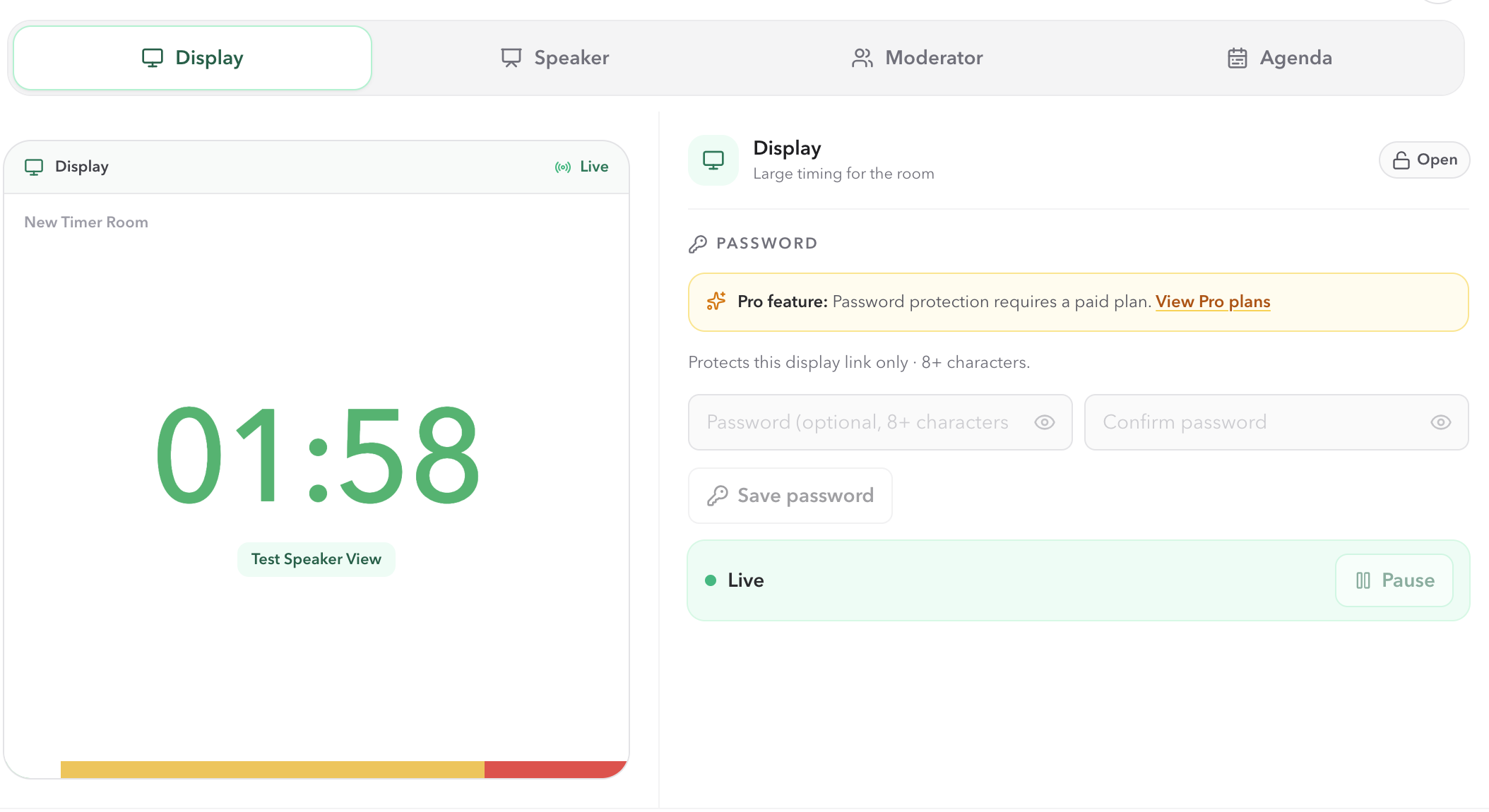
Do not send the URL from your browser's address bar in Host. That URL contains your host control token. Always share the links inside the Outputs dialog so the other screens stay read-only.
3. Open the link on the speaker's device
If you are using a phone or tablet as a confidence monitor on the lectern, open the Speaker link there and prop it up where the presenter can see it without looking down at their shoes.
4. Test messages and blackout
From Host, send a short Display Message (up to 80 characters, such as "Please wrap up in 1 minute") and check that it reads clearly on the distant screen. Between speakers, you can toggle Audience blackout in Host to darken Display View while the clock keeps running for the backstage views.
Things that go wrong in a real venue
Browser timers fail for mundane reasons that have nothing to do with the software. Check these four things before the session starts:
- Phone and laptop auto-lock: a countdown page does not touch the keyboard or mouse. If a speaker's phone is set to lock after two minutes, the screen will go dark mid-talk. Turn off auto-lock and screensavers on every display device.
- Hotel and conference captive portals: venue Wi-Fi often disconnects idle devices after thirty minutes or throttles guest traffic once 200 attendees join the network. Check the connected-devices counter in Host before each block, and keep a phone hotspot ready as a backup network. See troubleshooting sync if a screen stops updating.
- Sharing the Host link by mistake: if someone on the display computer can see the timer list and play buttons, they have the Host link. Close it and open the Display link from Outputs instead.
- Background tab throttling: modern browsers slow down tabs that are minimized or hidden behind another fullscreen app. Keep the Display or Speaker window visible on its screen.
FAQ
Is there a free speaker timer with a separate display?
Yes. In PresentationTimer, creating a room is free and requires no signup. You get a private Host page to control the clock and separate read-only links for Display View and Speaker View that you can open on a second monitor, projector, or phone.
How many screens can I connect on the free plan?
A free room allows up to 5 connected devices and 3 timers at once. For example, you can run Host on your laptop, Display View on a projector, Speaker View on a podium tablet, and still have 2 connection slots left for a moderator or agenda screen.
What is the difference between Display View and Speaker View?
Display View is designed for a shared room screen or projector: it shows huge countdown digits, wrap-up colors, a progress bar, and host messages. Speaker View is designed for a presenter's personal screen at the lectern: it adds the active segment title and the next timer on the agenda so the speaker can see what comes next.
Can I use one laptop for both the controls and the projector display?
Yes. Set your computer's video output to Extended Desktop instead of Mirror, keep the Host control tab on your laptop screen, and drag a new browser window running Display View onto the extended projector screen.
Do I need to install an app on the speaker's phone or the venue computer?
No. Every view is a standard webpage. That is especially helpful on locked-down corporate, university, or venue computers where you do not have administrator rights to install software.
Next steps
- See how the two read-only views compare on Speaker and Display views.
- Walk through the full setup in Display View docs and Speaker View docs.
- Planning a multi-speaker session? Check the conference timer or speech timer workflows.
- Running slides on the same machine? Read how to add a countdown timer to PowerPoint.
- Need more than 3 timers or 5 connected screens? Compare plans on Pricing.